
Manage dbt integration
Integrating dbt with Sigma lets you access the docs and metadata generated from dbt runs directly in Sigma. You can use either dbt Cloud or dbt Core depending on your environment.
Some of the benefits of integrating dbt with Sigma are:
- Data freshness: The dbt job execution data is displayed in Sigma, allowing you to verify the freshness of the data.
- Data quality: You can view dbt quality tests on columns and models in Sigma, providing a greater degree of transparency into data quality issues.
- Data cataloging: The dbt table and column descriptions are displayed in Sigma, providing users with additional insights into the data they explore.
If you want to configure a dbt Semantic Layer integration, configure a dbt Cloud integration first, then configure the Semantic Layer integration. The dbt Semantic Layer is not available for dbt Core integrations. For details, see Configure a dbt Semantic Layer integration.
dbt metadata in Sigma
The following dbt metadata is available in Sigma after integrating with dbt:
- Table description: Provides dbt source information about the table view.
- Column descriptions: Provides dbt source information about the column views.
- Last run time: You can view the Last run date to verify when that model ran, which is when the data was last updated, as well as the duration of the job.
- Tests: Tests are assertions made about your models and other resources in your dbt project, such as sources, seeds and snapshots.
- Additional model details: See Review metadata in Sigma.
Column descriptions set in dbt are available in the connection browser and in documents that use the table. A description set in the connection browser takes precedence over one set in dbt, and a description set in a document takes precedence over one set in the connection browser.
Configure dbt Cloud integration
Connect your dbt Cloud account to Sigma using your service token and API access URL.
Requirements
- You must be assigned the Admin account type in Sigma.
- You must have a dbt service token. See the dbt documentation on Service account tokens. The service token must have at least read access to the dbt account, such as
Read-onlyfor Team plans orAccount Viewerfor Enterprise plans. - You must know your API access URL. See the dbt documentation on API access URLs.
To see column descriptions and other details persisted to the information schema in Sigma data models and workbooks, you must enable the
persist_docsconfiguration option in dbt. See persist_docs in the dbt documentation. If you do not enable this option, the information schema metadata is only visible when browsing the connection tables.After you enable this option in dbt, sync the table in Sigma to get the column descriptions to appear. See Sync your data.
Set up dbt Cloud integration in Sigma
- In the Sigma header, click your user avatar to open the user menu, then select Administration to open the Administration portal.
- On the Account tab, locate the Modeling section. To the right of dbt, click Add.
- In the dbt integration modal, enter the Service token and Access URL for your account. For details on retrieving those values, see the dbt Cloud requirements.
- Click Save.
After you save, Sigma begins fetching metadata from dbt following each dbt run. To review the metadata in Sigma, see Review metadata in Sigma.
Remove dbt Cloud integration
- In the Sigma header, click your user avatar to open the user menu, then select Administration to open the Administration portal.
- On the Account tab, locate the Modeling section. To the right of dbt, click Remove.
If you remove the dbt integration, Sigma no longer retrieves metadata from dbt Cloud. Column and table descriptions that were persisted to the warehouse via
persist_docsremain visible in the connection browser, but the dbt tab, including run details, test results, and job metadata, is no longer available.
Configure dbt Core integration (Beta)
This documentation describes one or more public beta features that are in development. Beta features are subject to quick, iterative changes; therefore the current user experience in the Sigma service can differ from the information provided in this page.
This page should not be considered official published documentation until Sigma removes this notice and the beta flag on the corresponding feature(s) in the Sigma service. For the full beta feature disclaimer, see Beta features.
To send metadata from dbt Core to Sigma, programmatically upload the artifacts of your dbt run to Sigma.
User requirements
- You must be assigned the Admin account type in Sigma.
- You must create API client credentials owned by your user or another user assigned the Admin account type.
System requirements
The dbt profile that you use for the dbt run must contain values that exactly match your connection configuration in Sigma.
For example, if your connection in Sigma has the following values:
- Account: sigma_example
- Warehouse: EXAMPLE_XS
- User: DOCS
- Role: EXAMPLE_ROLE
Your profiles.yml file used for the dbt run must contain matching values:
local:
  outputs:
    dev:
      account: sigma_example
      authenticator: externalbrowser
      client_session_keep_alive: false
      database: EXAMPLE_DB
      role: EXAMPLE_ROLE
      schema: EXAMPLE_DBT_SCHEMA
      threads: 10
      type: snowflake
      user: [email protected]
      warehouse: EXAMPLE_XS
  target: dev
In this case, the dbt run affects the database EXAMPLE_DB and schema EXAMPLE_DBT_SCHEMA.
Add dbt run metadata to Sigma
To add dbt run metadata to Sigma, write a script to perform the following steps that you can run as part of your orchestration pipeline:
- Compress the artifacts of a
dbt runinto a compressed archive (tar.gz) file. - Get a token for the Sigma REST API using your client credentials.
- Get the connection ID for the matching connection.
- Sync the connection to ensure Sigma has the latest database and schema structure.
- Add the metadata from the output of the
dbt runto Sigma.
If you want to perform these steps as part of a GitHub Action, see Example: Add metadata with a GitHub Action.
Compress the artifacts of a dbt run into a compressed archive (tar.gz) file
After you perform a dbt run, compress the resulting artifacts. For more details about artifacts, see About dbt artifacts in the dbt Developer Hub.
The artifacts that you upload to Sigma must include at least the
manifest.jsonand therun_results.json. Any additional artifacts are optional, but recommended.
For example, run the following to compress the artifacts that result from a default run (saved to the target directory). If you save your artifacts to a different directory, specify the relevant directory:
tar -czvf target.tar.gz <dbt_repo_path>/targetGet a token for the Sigma REST API
Make a request to the Get access token (POST /v2/auth/token) endpoint with your client credentials.
Get the connection ID for the relevant connection in Sigma
Depending on your preferences and the number of connections in Sigma that you want to update, retrieve the connection ID in one of two ways:
- Make a request to the List connections (
GET /v2/connections) endpoint and review the output for the relevantconnectionId. - View the connection in Sigma, then copy the ID from the URL. See Identify unique IDs in Sigma.
If you plan to always update the same connection, retrieving the ID once and saving it as an environment variable is recommended.
Sync the connection
To make sure that any changes made by your dbt run are accurately represented in Sigma before you add the metadata artifacts, sync the connection by path.
You must sync each level to ensure changes are reflected accurately. For example, if your dbt run adds two new schemas to a database, sync the database and each new schema.
You can sync the connection using the API or the Sigma UI:
- To sync the connection using the Sigma REST API, make a request to the Sync a connection by path (
POST /v2/connections/{connectionId}/sync) endpoint with the relevant connection ID. - To sync the connection in the Sigma UI, view the connection in Sigma, then sync your data at the relevant levels.
Add the metadata from the dbt run
To add the metadata from a dbt run to Sigma, make a request to the Add dbt metadata for a connection (POST /v2/connections/{connectionId}/dbtArtifacts) endpoint, providing the connection ID and the compressed archive file of the dbt run artifacts.
Example: Add metadata with a GitHub Action
You can use the following YAML code sample to create a GitHub Action to use as part of your orchestration pipeline. The sample code assumes that you are using dbt with Snowflake. If you refer to this example, make the following adjustments:
- Update the branches to match those used in your environment.
- Modify the dependencies to match those required by your environment.
- Replace the
example_directorywith the actual output directory that contains the artifacts from the dbt run. - Replace
https://api.sigmacomputing.com/with the correct base URL for your Sigma organization. See Get started with the Sigma REST API to identify your base URL.
name: dbt Core Integration Upload

on:
  workflow_dispatch: # Manual trigger
  push:
    branches: [ main, develop ] # Adjust branches as needed
  pull_request:
    branches: [ main ]

env:
  DBT_PROFILES_DIR: .

jobs:
  dbt-integration:
    runs-on: ubuntu-latest

    steps:
    - name: Checkout repository
      uses: actions/checkout@v4

    - name: Set up Python
      uses: actions/setup-python@v4
      with:
        python-version: '3.9'

    - name: Install dependencies
      run: |
        python -m pip install --upgrade pip
        pip install dbt-snowflake
        # Add any other dependencies from your requirements.txt if you have one
        # pip install -r requirements.txt

    - name: Create compressed archive of target directory
      run: |
          cd example_directory
          tar -czvf target.tar.gz target/
          echo "Archive created successfully"
          ls -la target.tar.gz

    - name: Generate Sigma access token
      run: |
        # Generate Sigma access token using client credentials
        RESPONSE=$(curl -s -X POST "https://api.sigmacomputing.com/v2/auth/token" \
          -H "accept: application/json" \
          -H "content-type: application/x-www-form-urlencoded" \
          -d "grant_type=client_credentials&client_id=${{ secrets.SIGMA_CLIENT_ID }}&client_secret=${{ secrets.SIGMA_CLIENT_SECRET }}")

        # Extract access token from response
        ACCESS_TOKEN=$(echo "$RESPONSE" | jq -r '.access_token')

        # Verify token was extracted successfully
        if [ "$ACCESS_TOKEN" = "null" ] || [ -z "$ACCESS_TOKEN" ]; then
          echo "Error: Failed to retrieve access token"
          echo "Response: $RESPONSE"
          exit 1
        fi

        # Store token as output for other steps
        echo "SIGMA_ACCESS_TOKEN=$ACCESS_TOKEN" >> $GITHUB_OUTPUT
        # Mask the token in logs for security
        echo "::add-mask::$ACCESS_TOKEN"

        echo "Successfully generated Sigma access token"
    - name: Upload artifacts to Sigma
      id: sigma-upload
      run: |
        # Verify required inputs
        if [ -z "${{ secrets.SIGMA_CONNECTION_ID }}" ]; then
          echo "Error: SIGMA_CONNECTION_ID secret is required"
          exit 1
        fi

        # Set artifacts file path to the compressed archive
        ARTIFACTS_FILE="example_directory/target.tar.gz"

        # Check if artifacts file exists
        if [ ! -f "$ARTIFACTS_FILE" ]; then
          echo "Error: Could not find artifacts file at $ARTIFACTS_FILE"
          echo "Available files in example_directory directory:"
          ls -la example_directory/ || echo "example_directory directory not found"
          exit 1
        fi

        echo "Uploading artifacts file: $ARTIFACTS_FILE"
        echo "Connection ID: ${{ secrets.SIGMA_CONNECTION_ID }}"

        # Upload artifacts to Sigma
        RESPONSE=$(curl -s -w "%{http_code}" -X POST \
          "https://api.sigmacomputing.com/v2/connections/${{ secrets.SIGMA_CONNECTION_ID }}/dbtArtifacts" \
          -H "Authorization: Bearer ${{ secrets.SIGMA_ACCESS_TOKEN }}" \
          -F "artifacts=@$ARTIFACTS_FILE")

        # Extract HTTP status code (last 3 characters)
        HTTP_CODE="${RESPONSE: -3}"
        RESPONSE_BODY="${RESPONSE%???}"

        echo "HTTP Status Code: $HTTP_CODE"

        # Check if upload was successful
        if [ "$HTTP_CODE" = "200" ] || [ "$HTTP_CODE" = "201" ]; then
          echo "Upload successful!"
          echo "Response: $RESPONSE_BODY"
          echo "upload_success=true" >> $GITHUB_OUTPUT
        else
          echo "Upload failed with status code: $HTTP_CODE"
          echo "Response: $RESPONSE_BODY"
          echo "upload_success=false" >> $GITHUB_OUTPUT
          exit 1
        fi
    - name: Cleanup
      if: always()
      run: |
        rm -f target.tar.gz
        rm -f ~/.dbt/profiles.yml
Review dbt metadata in Sigma
After setting up either integration, you can review metadata and other details for dbt jobs, columns, and tables in the Sigma connection browser.
-
From your Home page, select Connections to open the list of connected data sources.
-
Select the table for which you want to view details and open the dbt tab.
-
In the Model details section, review the name, relation, and description of the dbt model used to create the table.
-
In the section below Model details, review metadata about the specific dbt job:
- Tags associated with the run or job.
- Job ID of the dbt job.
- Run ID of the specific run of the job.
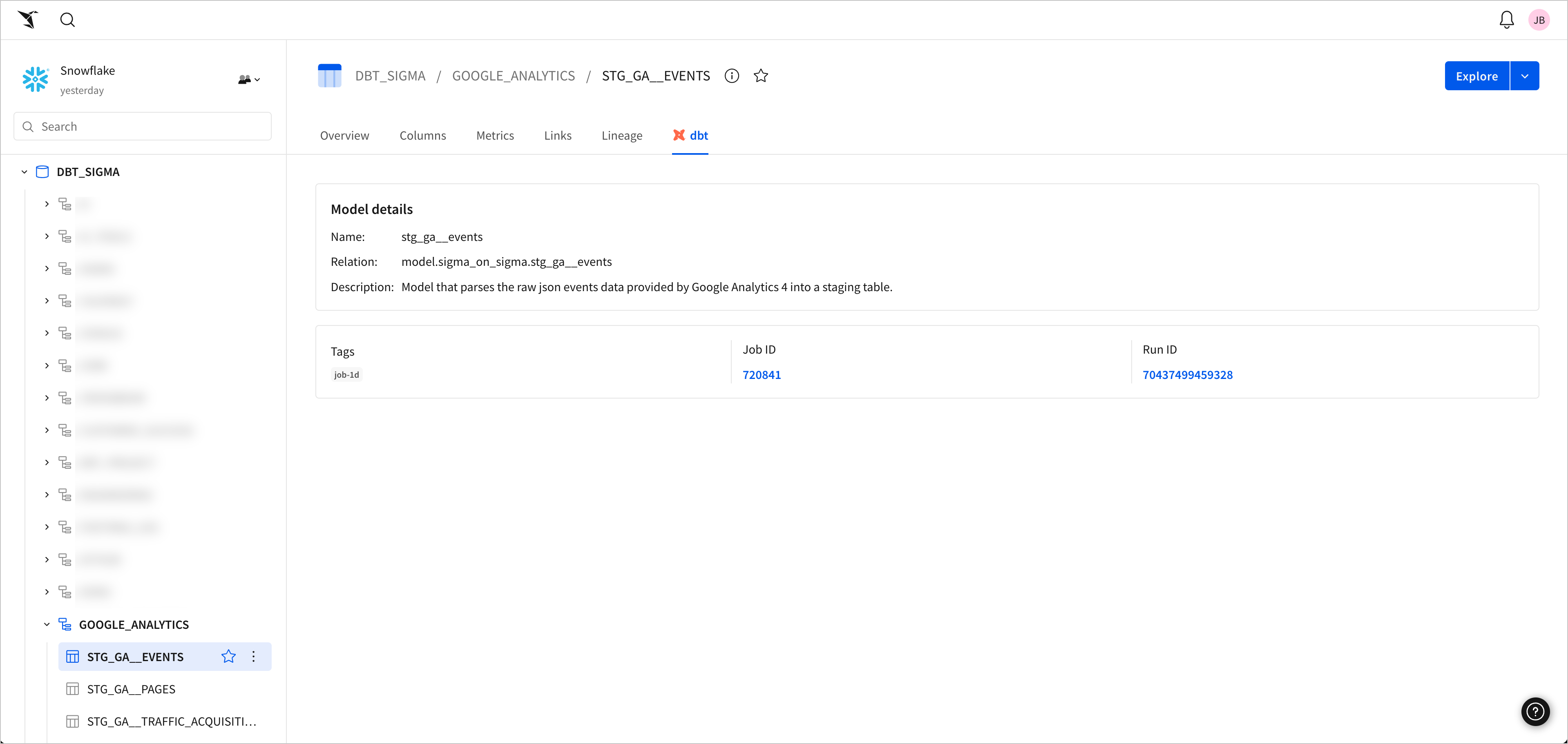
The dbt tab is not visible in the connection explorer until Sigma has received dbt metadata from either a completed dbt Cloud job or uploaded dbt Core artifacts.
Updated 10 days ago