

Configure data loading
Sigma uses queries to retrieve data from your connected data platform. To optimize performance and reduce the number of queries sent to your data platform, the browser cache is used. You can configure when an element uses the browser cache with Alpha Query to help accelerate the performance of some workbook elements.
To determine the best way to optimize performance for your workbook, see Best practices for improved document performance.
User requirements
You must have the Create, edit, and publish workbooks permission enabled on your account type and Can edit access to the workbook.
Configure data loading
To accelerate performance of your workbook, configure data loading for one or more elements in a workbook. Elements that benefit from configuring data loading include parent elements with multiple child elements, and elements referenced by other elements, such as with a lookup.
To configure data loading:
-
Open a workbook for editing.
-
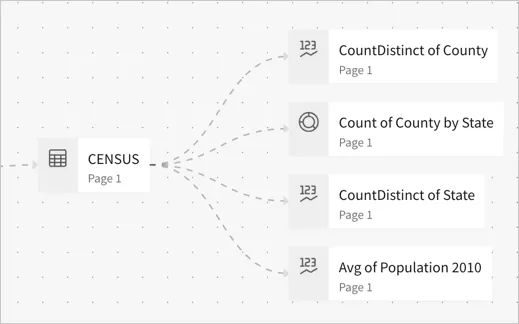
Open the workbook lineage to identify the optimal parent elements on which to configure this setting. Elements with multiple child elements are good candidates to configure data loading.
-
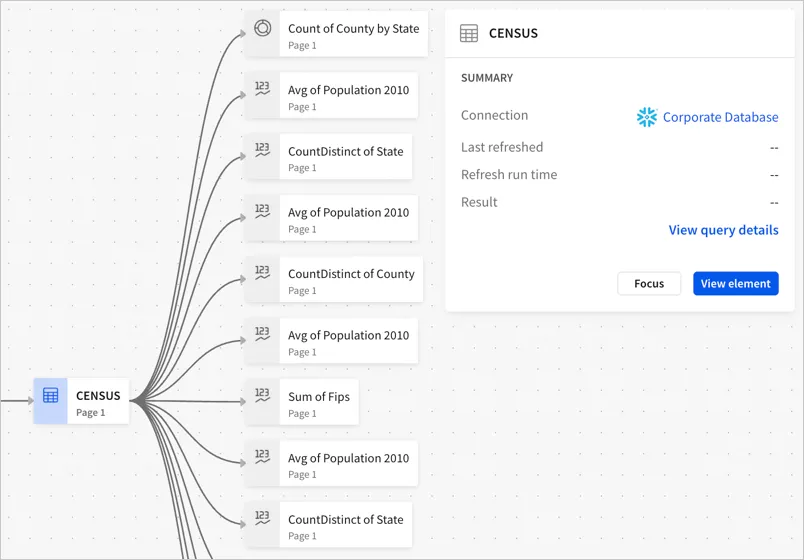
For each relevant parent element, click View element to open the workbook canvas with the element selected.
-
On the element toolbar, select
 More, then select Advanced options > Configure data loading….
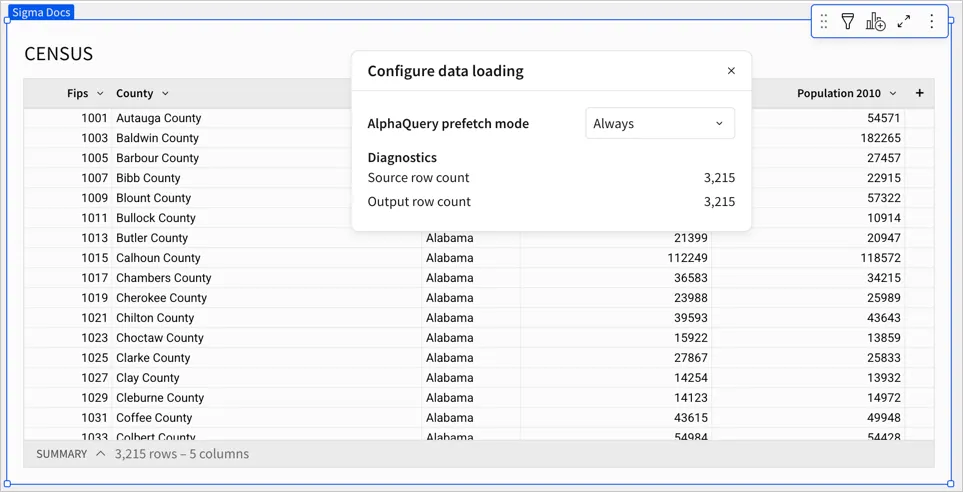
The Configure data loading popover appears.
-
Review the Diagnostics section to validate that the query results for the element are likely to be prefetched:
- The Source row count is at least 1. Alpha Query attempts to prefetch the entire data table to cache it in the browser cache, so smaller result sets are more likely to be prefetched. Wide tables or elements with JSON columns more quickly reach the browser cache limit, and instead might only have 10,000 rows of data cached.
- The Source row count and the Output row count match.
-
For Alpha Query prefetch mode, select Always.
Your changes are automatically applied to the draft of the workbook.
Data loading for an element has 3 possible modes:
-
Publish the workbook for your changes to take effect on the published version.
-
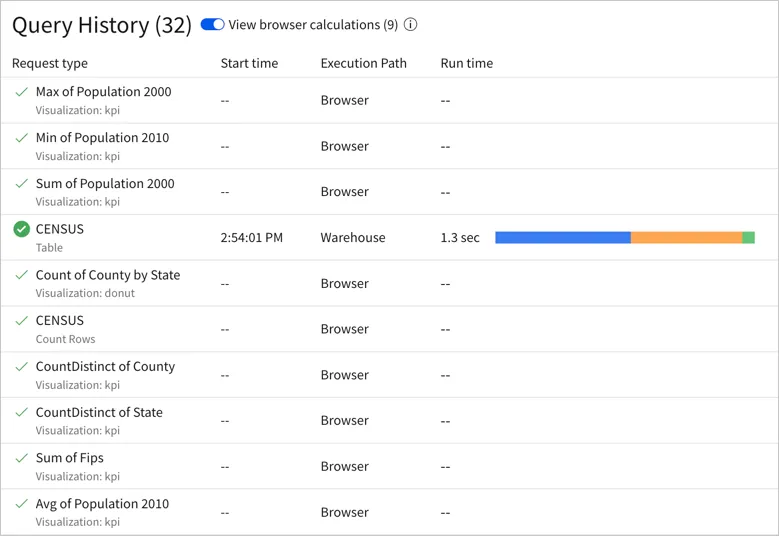
(Optional) Review the query history for the workbook to confirm that the selected element is the only element that is retrieving data from the warehouse when the workbook is first loaded, and subsequent actions rely on browser calculations.
What happens when data loading is set to Always
When you have multiple elements in your document that use or reference the same data element, like as a data source or for a lookup, Sigma performs a “prefetch query” to retrieve the data for the referenced data element and store it in the web browser cache. Normally, the parent element must load within the 8-second prefetch timeout. If the parent element takes longer to load, the prefetch query is cancelled and instead separate queries are run for each child element.
For example, if you have 10 charts that use a table in your document as a data source, Sigma runs one prefetch query to retrieve the data for the parent table, rather than running 11 individual queries to retrieve the data for each of the data elements.
After that prefetch query is performed, Alpha Query can process the data, performing calculations with the cached data instead of querying the data warehouse for every element.
If you configure data loading to Always on a parent element, Sigma always runs the prefetch query. If the prefetch query does not complete before the 8-second prefetch timeout, Sigma waits until the connection timeout for the query is reached before cancelling the prefetch query. After the prefetch query completes, the child elements use the cached data: