Create ad hoc calculations
Sigma supports creating ad hoc calculations in pivot tables. Ad hoc calculations allow you to perform one-off calculations in a pivot table without modifying the underlying dataset or restructuring your pivot table. This enables faster data exploration and greater flexibility. For example, you can use ad hoc calculations to compare performance between different regions, add custom KPIs, or calculate growth percentage and margins over different time periods.
Permissions
- You must be the workbook owner or be granted Can explore or Can edit access to the workbook.
Limitations
- Ad hoc calculations are only supported for pivot tables.
- Window function support is limited, and window functions may return unintuitive results.
- Ad hoc calculations can only be attached to underlying members in the pivot columns and total labels - and their visibility rules follow that of the value to which they are attached.
Create and edit ad hoc calculations
To create and edit ad hoc calculations:
-
Right-click on the pivot table row or column you want to attach your ad hoc calculation to. Your ad hoc calculation will use the values associated with that row, so any aggregations will be done at the level of the dimension it is attached to.
-
Select Insert row or Insert column, then select Above [Row]/ Below [Row] or Before [Column]/ After [Column], depending on where you want your ad hoc calculation to be displayed in the table. Whether the ad hoc calculation is above or below a row or column does not affect the calculations performed.
-
A new ad hoc calculation appears. In the formula bar, enter your desired formula. As aggregations are done at the level of the dimension your ad hoc calculation is attached to, if you want to perform calculations across dimensions, you can:
- Use a Lookup. See Lookup for more information.
- With the formula bar open, click on the other dimension you wish to perform a calculation on. Sigma automatically populates the formula bar.
You can double click the name of your new ad hoc calculation to rename it.
- To change the name, associated dimension, or position of your ad hoc calculation, open the Properties tab of the editor panel, then select the name of your calculation under Ad hoc calculations. Configure your changes in the modal:
The options shown in the modal may differ based on your specific ad hoc calculation and pivot table setup.
-
Calculation name: Rename your ad hoc calculation.
-
In column: Select the pivot table dimension you want to associate your ad hoc calculation with. Your calculation will use values associated with this dimension.
-
Position: Select a location in the pivot table for your ad hoc calculation. Depending on the selected position, the Select value menu may appear to let you pick a specific table row or column.
-
In: Select if you want the ad hoc calculation to be applied for a specific row value, or for All values.
-
To delete an ad hoc calculation, select Remove.
- (Optional) If you have a pivot table with multiple Values configured, and want your ad hoc calculation to use a different formula for each Value column, first add an ad hoc calculation with the steps above. Click on a cell in the Value column you want and then edit the formula in the formula bar. This formula will be automatically applied to all other Value columns in the table.
Example: Calculating the average price of a product category
Take for example a pivot table created using the PLUGS_ELECTRONICS_HANDS_ON_LAB_DATA data source with the following:
- Pivot rows: Product type and Product family
- Pivot columns: Store region
- Values: Sum of cost
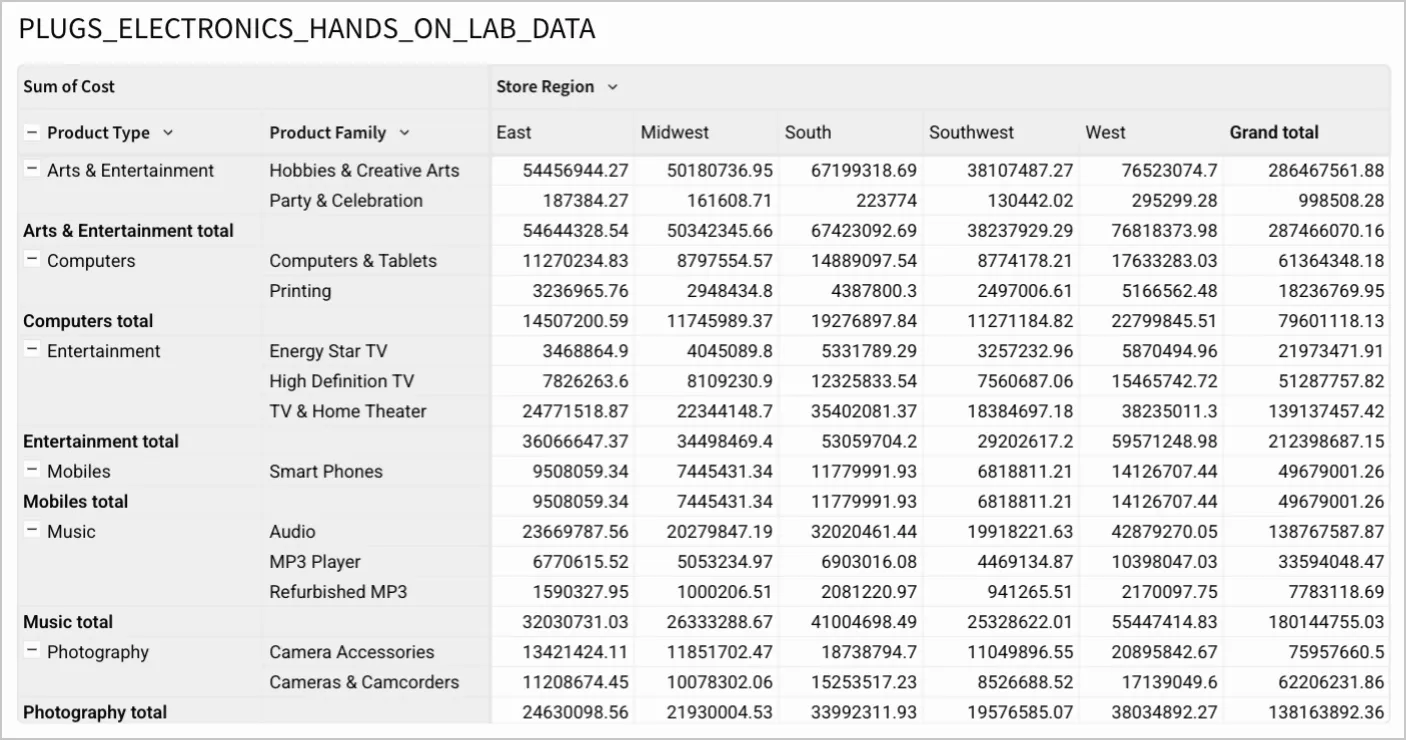
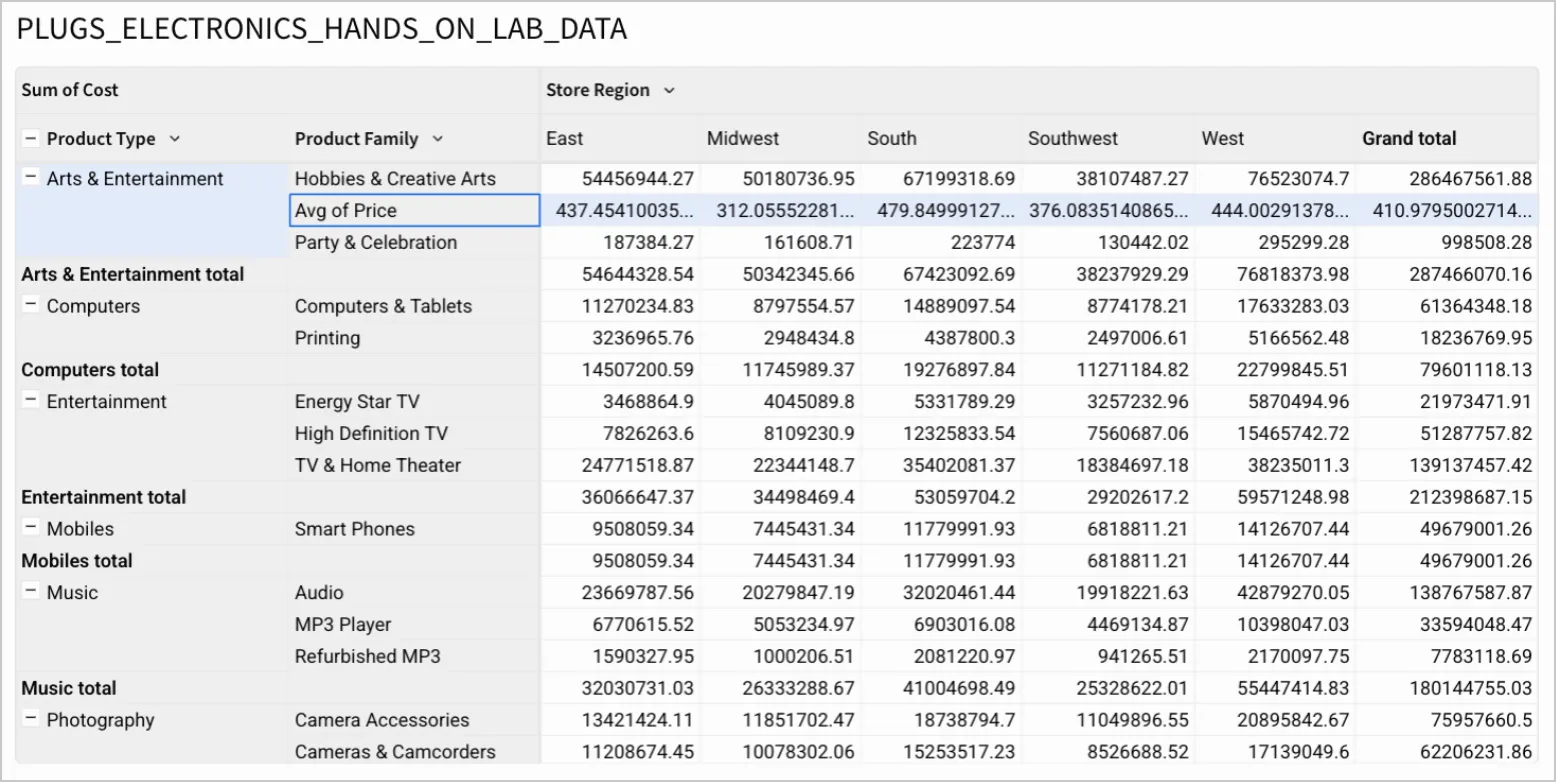
To get the average price of Hobbies & Creative Arts products sold in each region, you can create an ad hoc calculation:
-
Right-click the Hobbies & Creative Arts row. Select Insert row > Below Hobbies & Creative Arts.
-
In the formula bar, enter the following:
Avg([Price]).
An Avg of Price row appears that shows the average price of Hobbies & Creative Arts products sold in each region.