

Get around in Sigma
Sigma home page
When you log in to Sigma, you see your Home page. The following illustration and descriptions explain the main parts of the page.
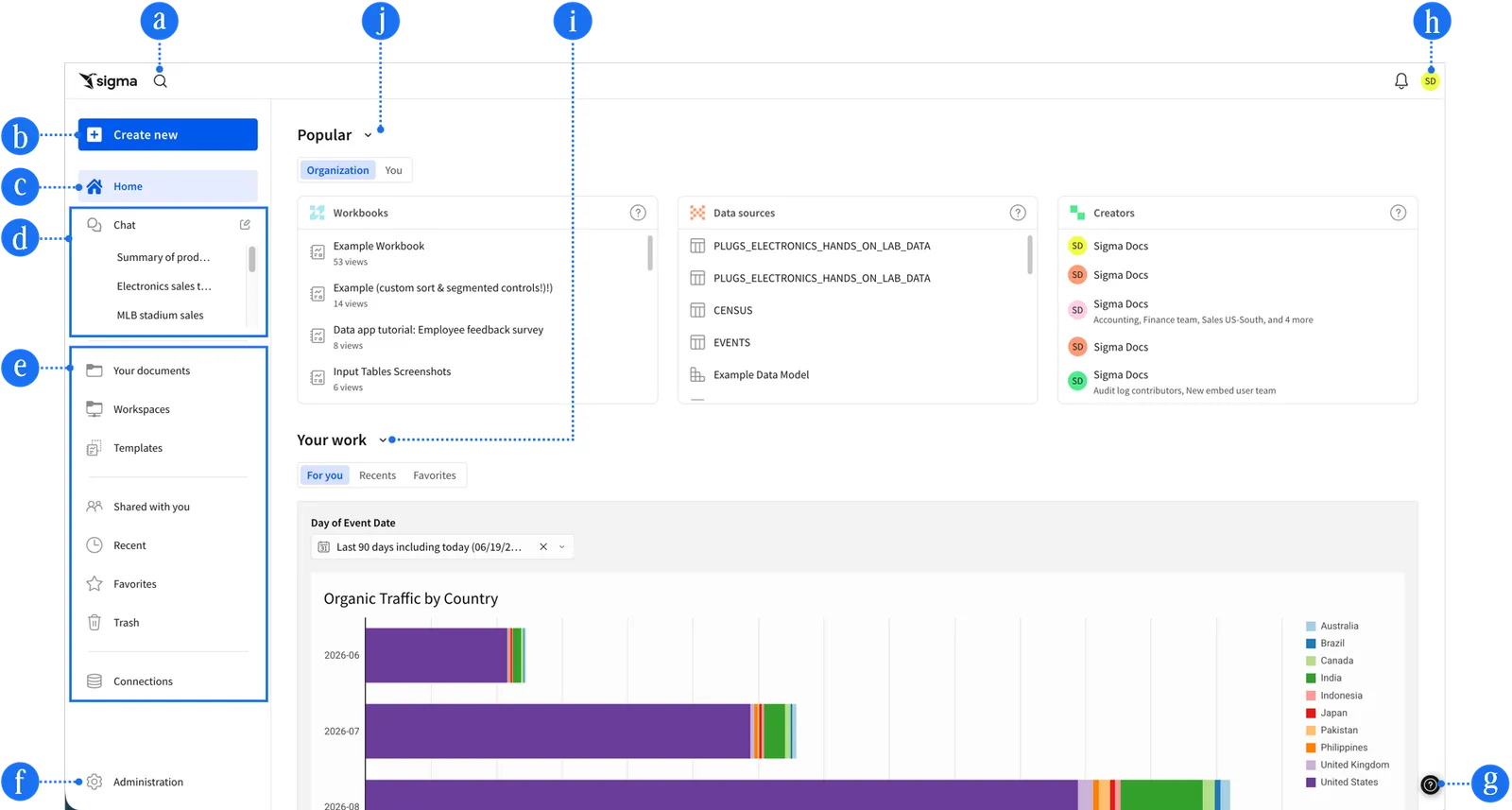
a. Search
Search for content in Sigma. See Search for files in your organization.
b. Create New
Create content, based on your role, including:
- Workbook: Analyze data using a spreadsheet-style interface and create visualizations. See Workbooks overview.
- Data model: Collect, relate, transform, and model data to share with others. See Get started with data modeling.
- Dataset: Curate data to be shared with others. Datasets are deprecated, so you might not see this option. See Create and manage datasets.
- Report: Build a pixel-perfect report to export to PDF or other destinations. See Create and edit reports.
- Write SQL: Write SQL to run against the data warehouse. See Write custom SQL.
- CSV upload: Upload a CSV-formatted file to perform analysis within a workbook. See Upload CSV data.
c. Home
Sigma Home. Includes Popular and Your work sections, including a custom home page if your organization has one configured for you.
d. Chat
- Chat: Start a chat with Sigma Assistant, or choose a warehouse agent to chat with instead. See Ask natural language queries with Sigma Assistant.
e. Your items
- Documents: A personal folder for you to save content that you create.
- Workspaces: A way to organize and share content with specific members or teams within your organization. Items placed in workspaces can be accessed by anyone who has permission to that workspace.
- Templates: Document and app templates shared with you. See Get started with templates.
f. Administration
Dedicated area for user management and other common configuration settings. Visible to admins and users with permission to perform specific admin tasks, such as those with the Manage users or Manage teams permissions enabled. See Administer Sigma.
g. Help
Links to useful information, such as the documentation or access to Sigma Support live chat.
h. User profile
Your username initial that links to your profile, where you can make changes to your preferences and sign out. Other options may or may not be visible to you depending on your permissions.
i. Popular
This documentation describes one or more public beta features that are in development. Beta features are subject to quick, iterative changes; therefore the current user experience in the Sigma service can differ from the information provided in this page.
This page should not be considered official published documentation until Sigma removes this notice and the beta flag on the corresponding feature(s) in the Sigma service. For the full beta feature disclaimer, see Beta features.
View top activity for your organization, for a selected team of which you are a member, or your own top activity. Select Organization, Teams, or You to set what contents display when you open Sigma Home. Select Hide ( ) to hide the contents of the section until you show it again.
- Workbooks: The workbooks with the most views across your entire organization, selected team, or by you. Top workbooks are ranked by total views by unique users, or by you, over the last 45 days, and are refreshed hourly.
- Data sources: The data sources with the most queries run across your entire organization, selected team, or by you. Top data sources are ranked by total count of queries per hour performed by unique users, or by you, in the last 45 days, and are refreshed daily.
- Creators: The top creators are the creators of the documents with the most views in your organization, team, or by you. Top viewed documents are ranked by total views by unique users, or by you, over the last 45 days, and are refreshed hourly.
j. Your work
This documentation describes one or more public beta features that are in development. Beta features are subject to quick, iterative changes; therefore the current user experience in the Sigma service can differ from the information provided in this page.
This page should not be considered official published documentation until Sigma removes this notice and the beta flag on the corresponding feature(s) in the Sigma service. For the full beta feature disclaimer, see Beta features.
View a homepage customized for you, recent, and favorite documents. Select Organization, Teams, or You to set what contents display when you open Sigma Home. Select Hide () to hide the contents of the section until you show it again.
- For you: If one is assigned, view a custom home page assigned by your admin.
- Recents: Items that you have recently accessed.
- Favorites: Items that you have designated as a favorite.