

Configure API credentials and connectors in Sigma
You can configure API connectors and credentials for use in Sigma workbooks.
Connectors are used when configuring a Call API action. Along with an associated credential, connectors define an API request, governing which APIs and endpoints users can access when configuring an action in Sigma. For more on using connectors in a workbook, see Create actions that call API endpoints.
This document describes how to configure API connectors and credentials.
Understanding API connectors
Application programming interfaces (APIs) are protocols for how two pieces of software interact with one another and exchange information. In the case of a public API, an application’s developers configure the API so that external developers can retrieve or manipulate data in their application programmatically, without a user interface.
API connectors in Sigma allow you to pre-configure the details required to make a request in a Call API action, including the endpoint, HTTP method, authentication credentials, query parameters, request body, and more. Without a connector, you cannot configure a Call API action in a workbook.
API connectors can be associated with a credential. The credential contains the authentication information required to access the API, and you can use it when configuring an API connector. Not all API connectors require a credential. For example, a connector for a public API that does not require authentication does not need a credential.
The API you create a connector for might be your own, a Sigma API, or a third-party API. This document sometimes refers to the API you configure a connection for as a third-party API, indicating that the API is not managed by Sigma or by the user.
User requirements
- To create and manage API connectors and credentials, you must be assigned an account type with the Manage API connectors permission enabled.
- You must be able to provide the required authentication credentials for the API endpoint.
If a user has Can use access granted on an API connector in Sigma and at least Can explore access to a workbook containing a Call API action, they can view all configuration details of the Call API action.
Add a new API credential to Sigma
Add a new API credential to Sigma before creating an API connector. For APIs that require authentication, you must create a credential to store the authentication information and use it in your connector. APIs that do not require authentication do not need a credential.
Any user with access to the credential and an account type with the Manage API connectors permission enabled can use the credential when creating new connectors. See Create a new API connector in Sigma.
Before creating a credential, retrieve the required credentials for making requests to the API. Sigma supports the following authentication methods for API credentials:
- Bearer token
- Basic auth
- API key
- OAuth (client credentials)
- OAuth (authorization code)
- OAuth (password credentials)
- AWS Signature V4
Using the credentials you retrieved for the desired API, create a credential in Sigma:
-
Go to Administration > API connectors.
- From the Sigma header, click your user avatar to open the user menu.
- Select Administration to open the Administration portal.
- From the side panel, select API connectors.
-
Select the Credentials tab.
-
Click Create credential.
-
On the New credential screen, configure the following fields in the Credential details section to define the name, description, and authorized domains:
-
Select an Authentication method that you have the required credentials for and configure the fields in the Authentication details section. If your organization has a secret manager integration set up and you want to use a secret for specific fields, turn on the Use secret manager toggle for that field, and then select the integration and secret you want to use.
Bearer token
Basic auth
API key
OAuth (client credentials)
OAuth (authorization code)
OAuth (password credentials)
AWS Signature V4
Secrets like tokens, passwords, and API secret keys are encrypted, and are never returned to any user in the Sigma UI.
- Click Save.
The credential is created and appears in the Credentials tab.
For more information on how Sigma constructs the API request header based on the authentication method you select, see How Sigma handles authentication types in the request header.
How Sigma handles authentication types in the request header
Based on the authentication method you select when creating an API credential, Sigma constructs a header or query parameter with the credentials you provide. Review the following examples for how selected authentication methods are formatted in the request header:
Bearer token
For Bearer token, Sigma formats the header like the following:
Here, <token> indicates the token you provide when creating the credential. The token is encrypted and never returned to the user.
Basic auth
For Basic auth, Sigma formats the header like the following:
Here, <encoding> is a Base64 encoding of the string username:password as you provide them when creating the credential. The password is encrypted and never returned to the user.
API key
For API key, Sigma formats the header like the following when the Pass in as option is set to Header:
For API key, Sigma formats the header like the following when the Pass in as option is set to Query parameter:
Here, key and value are the values you provided when creating the credential. The value is encrypted and never returned to the user.
OAuth (client credentials)
For OAuth (client credentials), Sigma makes a POST request at the Access token URL specified in the credential, and then uses the token in the header like a Bearer token:
For OAuth (client credentials), if the Send client credentials as option is set to Basic auth header, Sigma formats the header like the following:
For OAuth (client credentials), if the Send client credentials as option is set to Body, Sigma formats the body like the following:
Create a new API connector in Sigma
You can create an API connector in Sigma to use in a Call API action.
Any user with access to this connector and an account type with the Trigger API actions permission can use the connector when configuring a Call API action.
Before creating a connector, identify an existing credential to use, or Add a new API credential to Sigma for that API.
To create a new API connector in Sigma:
-
Go to Administration > API connectors.
- From the Sigma header, click your user avatar to open the user menu.
- Select Administration to open the Administration portal.
- From the side panel, select API connectors.
-
Click Create connector.
-
On the New API connector screen, configure the following fields to define the connector:
-
Review the endpoint preview for accuracy.
-
(Optional) Select Test connector to test the connector.
-
Click Save.
To use your API connector in a workbook, see Create actions that call API endpoints.
Import an OpenAPI specification
You can import an OpenAPI specification to Sigma to create a connector based on the definitions available in the specification:
-
Go to Administration > API connectors.
-
Select OpenAPI.
-
Select Create OpenAPI.
-
On the OpenAPI details screen, configure the following fields:
For a step-by-step example of using an OpenAPI specification to create an API connector, follow the instructions in Tutorial: Configure API credentials, connectors, and actions for the Sigma REST API.
-
Click Save.
The OpenAPI specification is imported and appears in the Select OpenAPI specification dropdown when creating a new API connector. You can update or delete the specification by selecting it from the list on the OpenAPI screen.
Create an API connector based on a cURL request
If you have an existing client URL (cURL) request that you want to migrate to Sigma, you can create a new API connector by importing the cURL request:
-
Go to Administration > API connectors.
-
Click Create connector.
-
On the New API connector screen, select Import from cURL in the header.
-
In the Import from cURL modal, enter a valid cURL request.
For example, to create a connector that calls the List data models endpoint, enter a request in the following format:
Example cURL import format
To test the request above, follow the instructions to Generate Sigma API credentials, store the token as an API credential used in the new connector, and enter the API request URL for your Sigma organization in place of the
<base_url>placeholder. -
Select Import.
Sigma parses the cURL request for a URL, HTTP verb, headers, and request body and populates their details as fields in the New API connector screen.
-
After configuring the remaining fields in the New API connector screen, click Save.
Configure query parameters for an API connector
When creating an API connector in Sigma, you can optionally set query parameters in the Request details section of the New API connector screen:
-
Under Query parameters, click
 Add parameter.
 -
For the query parameter, configure the following fields:
To identify valid arguments you can use as query parameters, review the documentation for the API as you configure the connector.
-
After configuring the remaining fields in the New API connector screen, click Save.
For Static parameter values, you can set a key and value for the query parameter, which appear in the endpoint in the following way:
For example, if you configure a Static query parameter with the key limit and the value 100, the endpoint is constructed in the following way:
For Dynamic parameter values, you can set a key for the query parameter, which appears in the endpoint preview like the following:
The dynamic value {{key}} is populated by the user that creates a Call API action with this connector. Any user with access to this connector, as well as an account type with the Trigger API actions permission enabled, can use it in a workbook with any valid value for the query parameter.
Configure a request body for an API connector
When creating an API connector in Sigma, you can optionally configure a request body in the Request details section of the New API connector screen.
See the following sections for guidance on formatting a request body:
- Configure a request body as a set of key-value pairs
- Configure a request body as raw JSON, Text, or XML
- Configure a request body for a GraphQL endpoint
- Configure dynamic values and types in a request body
Configure a request body as a set of key-value pairs
To configure the request body as a series of key-value pairs:
-
Under Request body, select form-data.
-
For form-data, configure the following fields:
-
(Optional) To configure additional keys for the request body, click
Add key and configure the fields as described in step 2. -
After configuring the remaining fields in the New API connector screen, click Save.
Configure a request body as raw JSON, Text, or XML
To configure the request body as JSON, Text, or XML:
-
Under Request body, select raw.
-
In the dropdown, select JSON, Text, or XML.
-
In the text area, configure the request body for the connector.
- If you configured any dynamic values in the request body, configure their types. For more information, see Configure dynamic values and types in a request body.
When configuring a request body as JSON, you can select Beautify to automatically format the JSON in the text area, making it easier to read, edit, and organize nested objects.
-
After configuring the remaining fields in the New API connector screen, click Save.
Configure a request body for a GraphQL endpoint
Sigma supports queries and mutations to GraphQL endpoints in addition to traditional REST API endpoints.
To configure an API connector that targets a GraphQL endpoint:
-
Under Request body, select GraphQL.
After selecting GraphQL, the HTTP method is set to POST, and the options to add Query parameters and Path parameters are removed.
-
Configure the following fields to define the request headers:
-
In the Request body field, define the query or mutation. If you configured any dynamic values in the request body, configure their types. For more information, see Configure dynamic values and types in a request body.
For example, to configure a query against an endpoint that returns details on countries, and declare a dynamic
$codeinput for the country, you can write a request body like the following:GraphQL query request body example
Or, to configure a mutation that creates a new post in a social media feed, and declare a dynamic
$inputfor the post’s contents, you can write a request body like the following:GraphQL mutation request body example
-
After configuring the remaining fields in the New API connector screen, click Save.
Configure dynamic values and types in a request body
When configuring a raw request body, you can add a dynamic value using the following syntax:
When configuring a GraphQL request body, you can add a dynamic value using the following syntax:
When using a connector with a dynamic value in a Call API action in a workbook, users can populate the dynamic values with a Static value, Control value, or Formula.
You can also apply types to dynamic values in the request body to enforce the data type of that value when users create a Call API action in a workbook. After entering a dynamic value in the request body, open the Type dropdown and select one of the following types:
- Text
- Number
- Logical
- Variant
- Array
When configuring a dynamic value with the Array type, you must set a type for the array’s contents. If you set the type of the array to Object, you must also set types for the properties of that object.
For example, to configure a connector that sends a request with a list of users, you can set a dynamic value with the type Array, set the type of that array’s contents to Object, and then set the types of each property in that object (e.g. user_id with type Number).
When users create a Call API action and populate a dynamic value with Static values, Sigma automatically applies the selected type. For example, if you configure a dynamic value with the type Text, Sigma automatically converts Static values to text when entered. If a user enters a number (e.g. 123), it is converted to a string (e.g. "123").
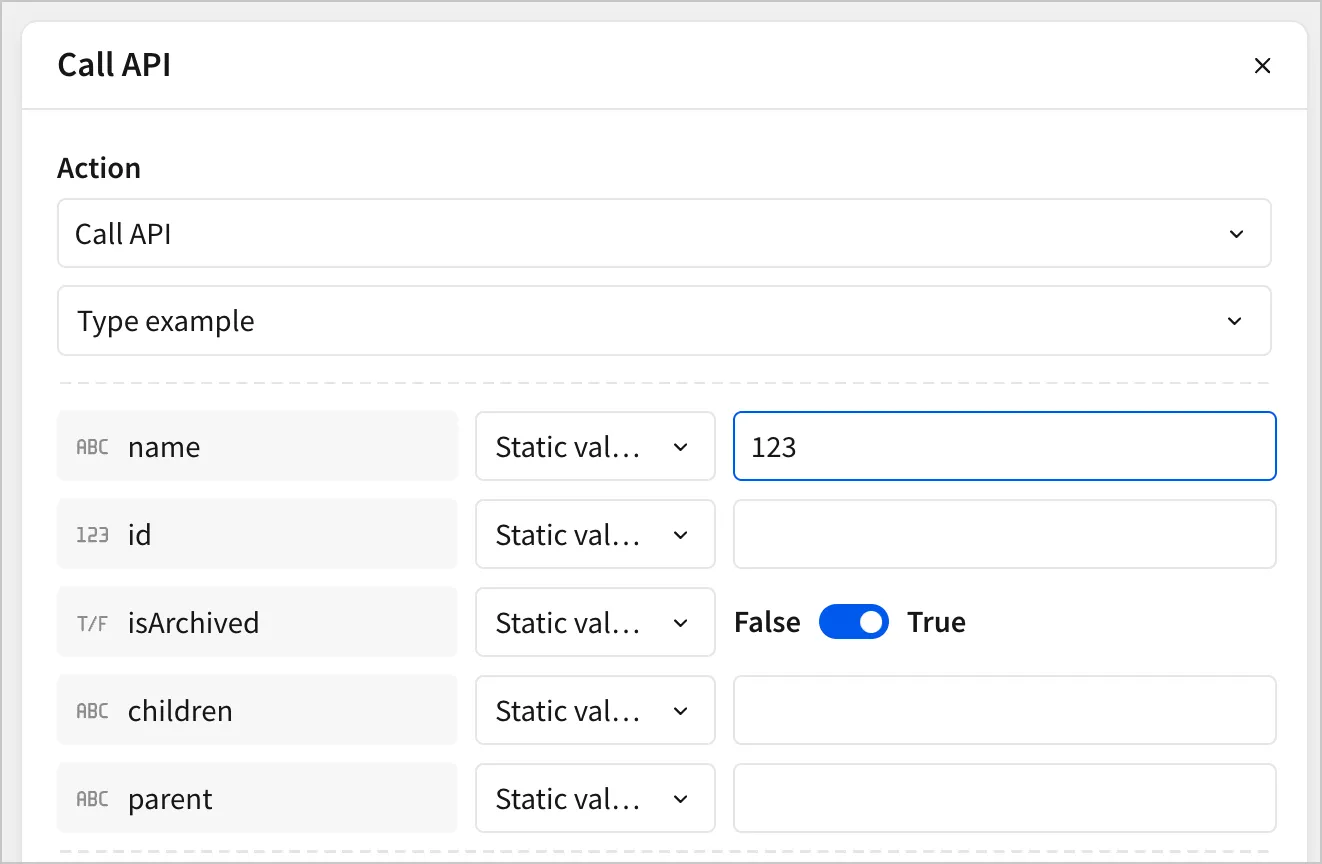
When users create a Call API action and populate a dynamic value with a Control value or Formula, Sigma performs validation for the selected type. For example, if you configure a dynamic value with the type Text, Sigma validates inputs from a Formula to ensure they are text data. If a user enters a number (e.g. 123) in the formula bar, Sigma shows an Invalid type error.

Controls are only shown in the Call API action if the type of the control matches the type of the dynamic value. For example, if you configure a dynamic value with the type Text, only controls with a Text type are shown.
Create custom action variables for an API connector
When creating an API connector in Sigma, you can parse the response to create custom variables for use in other workbook actions. For example, you can parse a response body, and then use that parsed response value in a Set control value action after calling the API to set the control based on the response from the API.
To add custom action variables while editing or creating an API connector:
-
Under Response output, click
+ Add. -
For the new action variable, configure the following fields:
Consider the data type of the response and the desired shape of the response variable when configuring the Shape and Accessor. For example, if you receive an array from the API connector, and want to return the first value of a field in the array to a Text control, select Text as the Shape, and use an accessor like
[response][0].key.Response output parsing only supports up to one level of nesting. You can parse an array of objects, or an object with an array as one of its properties. You can’t add keys for properties inside a nested object or array.
To use data with deeper nesting, you can use a Variant response shape to capture the whole response, and then parse the nested values with custom SQL or Python.
-
Click Save.
The custom action variable is available to use in workbook action sequences that use the API connector in a Call API action. For more information on using the action variable in an action sequence, see Use variables in actions.
Parse an API response body into multiple rows in an input table
You can parse an array from an API response body into multiple rows and columns in an input table using a custom action variable and the Insert row(s) action.
While creating a new API connector that returns an array in the response body, configure a custom action variable:
-
Under Response output, click
+ Add to add a new action variable. -
For the new action variable, configure the following fields:
-
(Optional) If you selected Object as the type for array items, select + Add key to parse one or more properties from the object and set their types in the output object. For example, if the API response body contains an array of objects with a numeric
Idvalue, add a property labeled Id with a type of Number to add it to the action variable. -
Click Save.
Then, in a workbook with an input table, add a Call API action that uses the API connector and writes to the input table:
-
In an action sequence, add a Call API action that uses the connector you defined an action variable for in the previous steps.
-
In the same action sequence, after the Call API action, add an Insert row(s) action, and configure it with the following settings:
When the action sequence triggers, new rows are added based on each object in the response body.
For an end-to-end example that includes defining an API connector and action variable, as well as parsing the contents of that action variable into a table, see Tutorial: Configure API credentials, connectors, and actions for the NYC Open Data API.
Configure governance settings for an API connector
When creating an API connector in Sigma, you can configure advanced settings to control timeouts, retries, redirects, and rate limiting.
To manage these settings, configure the following fields while editing or creating an API connector:
To enhance data security, or meet the requirements of a particular platform, you can add mutual authentication to a connector. For more information, see Configure mutual transport layer security (mTLS) in Sigma.
Test an API connector
When creating an API connector in Sigma, you can test the connector to ensure it is configured correctly and returns the expected response.
- After following the steps to create a new API connector in Sigma, but before clicking Save, click Test connector.
- In the Test connector modal, enter values for any dynamic parameters in Request headers, Query parameters, Path parameters, or the Request body.
- (Optional) Turn on the Dry run toggle to compile and review the request without sending it.
- Click Test.
- Review the response in the Test results section.
- Click Close.
When the Dry run toggle is on, Sigma shows you the compiled request that Sigma sends to the API endpoint without sending it. This can be used to review the method, URL, headers, and body of the request without incurring any costs associated with sending an actual request. To test the request and receive a response from the API endpoint, turn off the Dry run toggle.
Grant access to API credentials and connectors
For information on granting users and teams access to API credentials and connectors, see Manage API credential and connection access.
Examples
For step-by-step tutorials on how to configure API credentials and connectors, see the following:
- Tutorial: Configure API credentials, connectors, and actions for the Sigma REST API
- Tutorial: Configure API credentials, connectors, and actions for the NYC Open Data API
Related resources
- Manage API credential and connection access
- Create actions that call API endpoints
- Configure mutual transport layer security (mTLS) in Sigma
- Tutorial: Configure API credentials, connectors, and actions for the NYC Open Data API
- Tutorial: Configure API credentials, connectors, and actions for the Sigma REST API