

Tutorial: Configure API credentials, connectors, and actions for the NYC Open Data API
You can create API credentials and connectors for third-party APIs in Sigma, allowing users to create actions that call those APIs in workbooks. For instructions on how to configure API credentials and connectors, see Configure API credentials and connectors in Sigma.
By following this tutorial, you can configure a credential and connector that allow you to call an endpoint from NYC Open Data, an NYC program that provides open access to data created by city agencies. This example uses a credential with basic authentication, as well as a dynamic query parameter that can be used to Get JSON data from the NYC Open Data API in a workbook.
User requirements
- You must be assigned an account type with the Manage API connectors and Create, edit, and publish workbooks permissions enabled.
Configure a credential and connector for an NYC Open Data API endpoint
To start, you must:
- Create an API credential to store your authentication credentials for the NYC Open Data platform.
- Create an API connector to use in a workbook.
Setup and background
To follow along with this example step-by-step, you first need to create a free account with NYC Open Data, and create a new API key in the developer settings for your profile. The secret key can only be copied from the screen at the time of creation, so be sure to store it somewhere secure and accessible once created.
This example uses the 311 Service Requests from 2010 to Present dataset. Each record in this dataset is a service request made to 311, a city agency that fields requests for information and complaints to city agencies.
Create a credential
Create a credential to store your authentication credentials for the NYC Open Data platform.
- Go to Administration > API connectors.
- From the Sigma header, click your user avatar to open the user menu.
- Select Administration to open the Administration portal.
- From the side panel, select API connectors.
- Select the Credentials tab.
- Click Create credential.

-
On the New credential screen, configure the following fields to define the credential:
Though the NYC Open Data platform uses the term API key for the credential they provide, you can read in their documentation that the API expects a basic authorization header in the request. For more information on correctly formatting the authorization header in cases like this, see How Sigma handles authentication types in the request header.
-
Click Save.
Create a connector
Using the credential from the previous section, create a connector to use in a Call API action.
- Go to Administration > API connectors.
- From the Sigma header, click your user avatar to open the user menu.
- Select Administration to open the Administration portal.
- From the side panel, select API connectors.
- Click Create connector.

-
On the New API connector screen, configure the following fields to define the connector:
Field Value Name NYC Open Data 311 with dynamic incident_address Description Basic auth connector for the 311 endpoint. GET request with dynamic parameter for incident_address. Credentials Select NYC Open Data Developer Credentials. Certificate Select No client certificate. Base URL Select GET and enter the base URL https://data.cityofnewyork.us/resource/erm2-nwe9.json.Query parameters Select  Add parameter. Enter
 incident_addressas the key and select Dynamic for the values.To create a dynamic connector that could be used for several NYC Open Data endpoints, you can use a path parameter in the Base URL, like the following:
https://data.cityofnewyork.us/resource/:resourceUnder Path parameters, you can then set the mode to Dynamic to populate the
/:resourceparameter, allowing you to change the endpoint when using the connector in a workbook.
Get JSON data from the NYC Open Data API in a workbook
You can create actions that call third-party APIs and make the response body available in your workbook for further manipulation or data enrichment.
By following this example, you can configure actions in a workbook that call the NYC Open Data API for data on 311 Service Requests. Users can provide an address to a dynamic parameter to see the service requests made at a specific address.
Setup
To follow along with this example step-by-step, you first need to configure an API credential and connector as described in Configure a credential and connector for an NYC Open Data API endpoint.
Configure workbook elements
In a new workbook page, add and configure the following elements:
-
From the Add element bar, select UI, and then Button.
-
From the Add element bar, select Controls, and then Text Input.
-
From the Add element bar, select Controls, and then Text Area.
-
Select the text area element. In the editor panel, configure it with the following settings:
- Rename the control Response body
- Set the Control ID to response-body
-
Select the text input element. In the editor panel, configure it with the following settings:
- Rename the control Enter incident address
- Set the Control ID to enter-incident-address
-
Select the button element. In the editor panel, configure it with the following settings:
- Under Properties, set Text to Call 311 API
- Under Actions, click Add action to add two new actions to the Action sequence triggered On click
-
Configure the first action in the action sequence to call the API connector:
-
Configure the second action in the action sequence to update the text area control with the response body:
-
To test the Call API action, connector, and credentials, enter an NYC address into the Enter incident address control, and click the button to trigger the action sequence. If you want a sample address, try
124 EAST 14 STREET.
When configured correctly, the text area control populates with the response body from the NYC Open Data API.
Break the response body into tabular data
You can use a custom action variable and an Insert row(s) action to break the API response body into several rows and columns in an input table.
First, edit the API connector from the Create a connector section to add a custom action variable:
-
Go to Administration > API connectors.
-
Select the NYC Open Data 311 with dynamic incident_address connector.
-
Select Edit.
-
In the Response output section, select + Add.
-
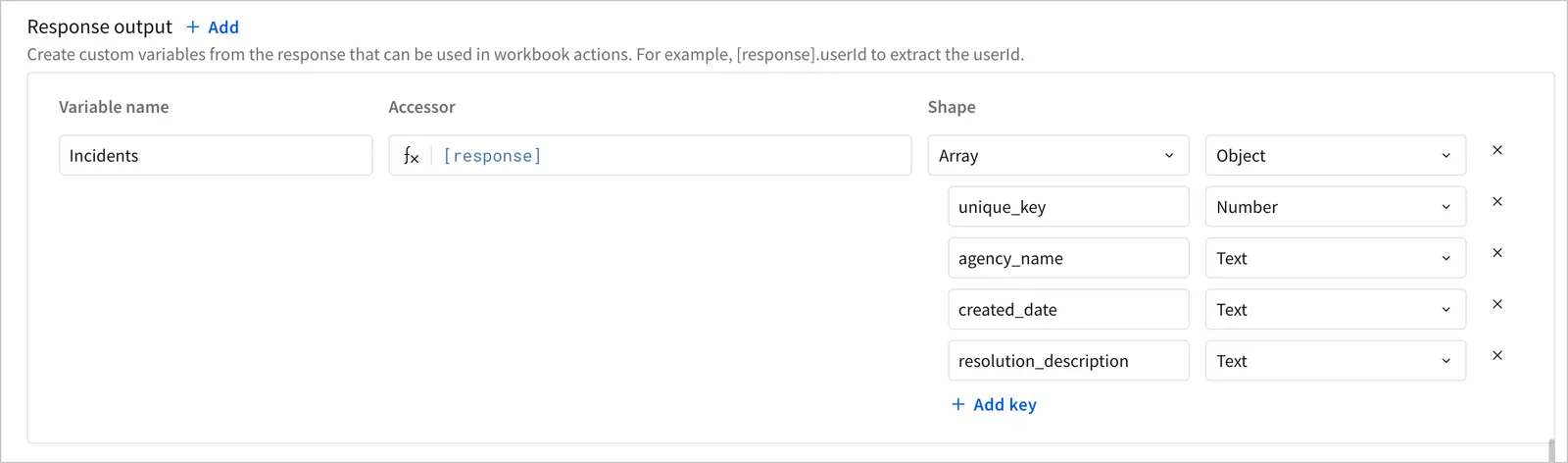
Configure an action variable with the following settings:
-
Select + Add key to add and configure the following four properties to parse from each object in the array:
- Select Save.
After adding the action variable to the API connector, return to the workbook you configured in the Configure workbook elements section and add an input table and an action to insert data from the response body as rows in the input table:
-
In the Add element bar, select Input > Empty.
-
Select a connection, and then select Create.
-
Name the input table 311 Incidents.
-
Configure the input table with the following columns:
-
Select the Call 311 API button element.
-
In the editor panel, select Actions.
-
In the same action sequence with the Call API action you configured in the Configure workbook elements section, select
Add action. -
Configure the action with the following settings:
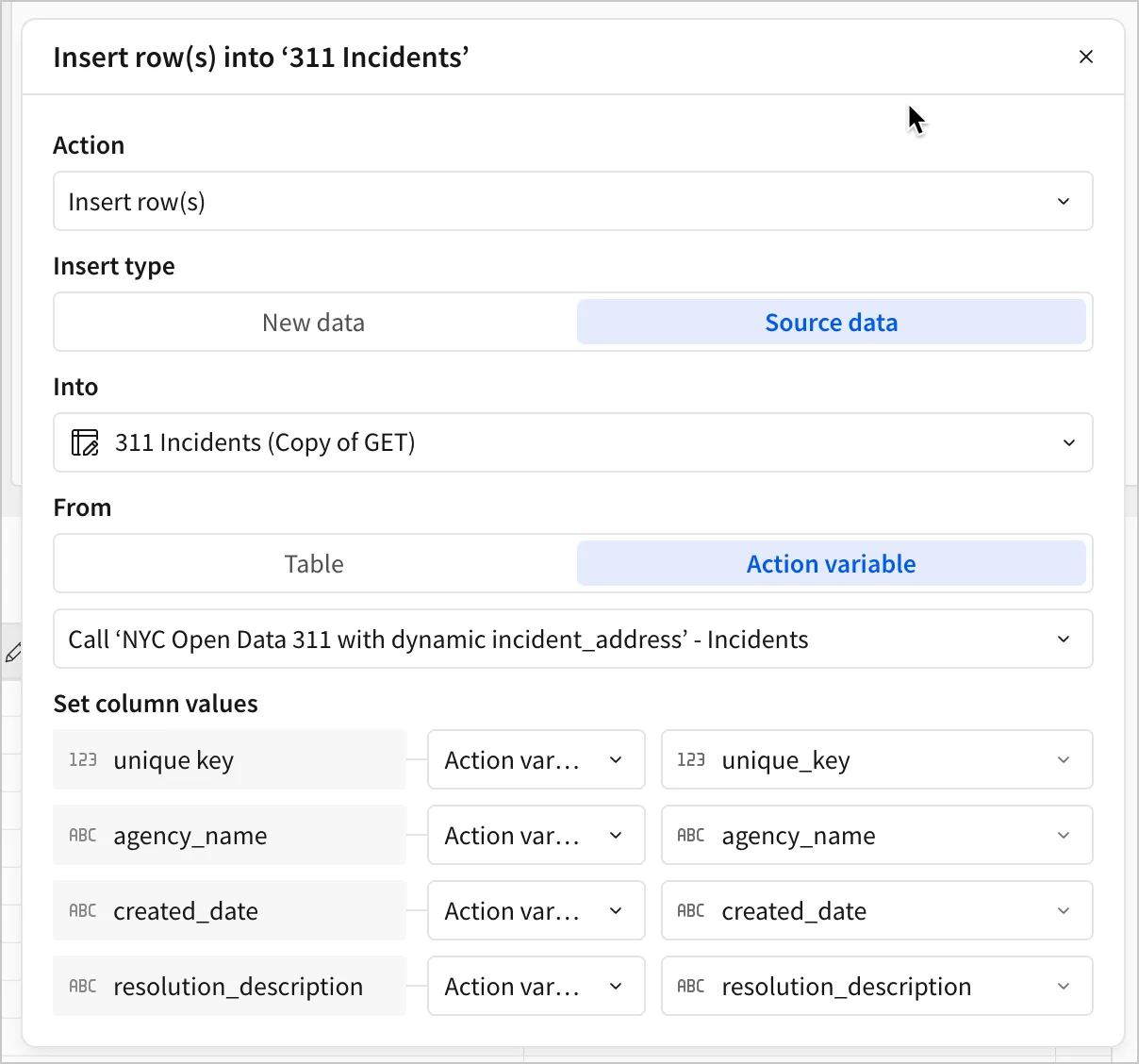
When the action sequence triggers, each object in the response array is inserted into its own row, with each configured property parsed into the selected column.