

Create actions that call API endpoints
Workbooks support actions that call API endpoints, allowing you to retrieve data from external services, trigger workflows, and create integrations.
This document explains how to create actions that call an API endpoint. For more information about actions in Sigma, see Intro to actions.
Considerations
- Third-party APIs come with their own access and usage limitations that are not controlled by Sigma.
System and user requirements
The ability to create and manage API actions requires the following:
- You must be assigned an account type with the Full explore or Create, edit, and publish workbook permissions enabled, and the Trigger API actions permission enabled.
- You must be the workbook owner or be granted Can explore1 or Can edit workbook access.
- You must have the required authorization credentials to use the third-party API, and must be granted permission to use those credentials in Sigma. See Add a new API credential to Sigma and Manage API credential and connection access.
- You must have one or more connectors in your Sigma organization to use in the Call API action, and must be granted permission to use them. See Create a new API connector in Sigma and Manage API credential and connection access.
The ability to trigger API actions requires the following:
- You must be assigned an account type with the Trigger API actions permission enabled.
- You must be granted access to the API connector.
1If you’re granted Can explore workbook access, you can configure actions in custom, saved, and shared views. Actions configured in views or saved views do not apply to the workbook’s published version.
If a user has Can use access granted on an API connector in Sigma and at least Can explore access to a workbook containing a Call API action, they can view all configuration details of the Call API action.
Call an API from an action
Create an action that calls an API:
-
Open the draft, a custom view, or a saved view of a workbook. If you open a saved view, go to the workbook header and click
 Customize this view to enable changes.
 -
Select the trigger element (the element users must interact with to initiate the action).
If the trigger element is a plugin, select the name of the plugin configuration object under Custom plugin. In your code editor, refresh your plugin, then test the action in the workbook. For more information, see Configure plugins to use as trigger elements.
-
In the editor panel, open the Actions tab.
-
Create a new sequence, or locate an existing sequence that you want to modify.
-
Select the default action (if creating a new sequence), or click
 Add action to add a new action to the sequence.
 -
In the modal, configure the required fields to define the response:
Configure a text area control to display the response of an API action
You can use an action variable to display the response data of a Call API action in your workbook.
Each Call API action creates three different action variables, one for each of the response data, status, and headers.
In a workbook with a Call API action configured:
-
In the Add element bar, select Controls, then select Text area.
-
In the Action sequence where the Call API action is configured, click
 Add action.
 -
In the action modal, configure the fields to define the response:
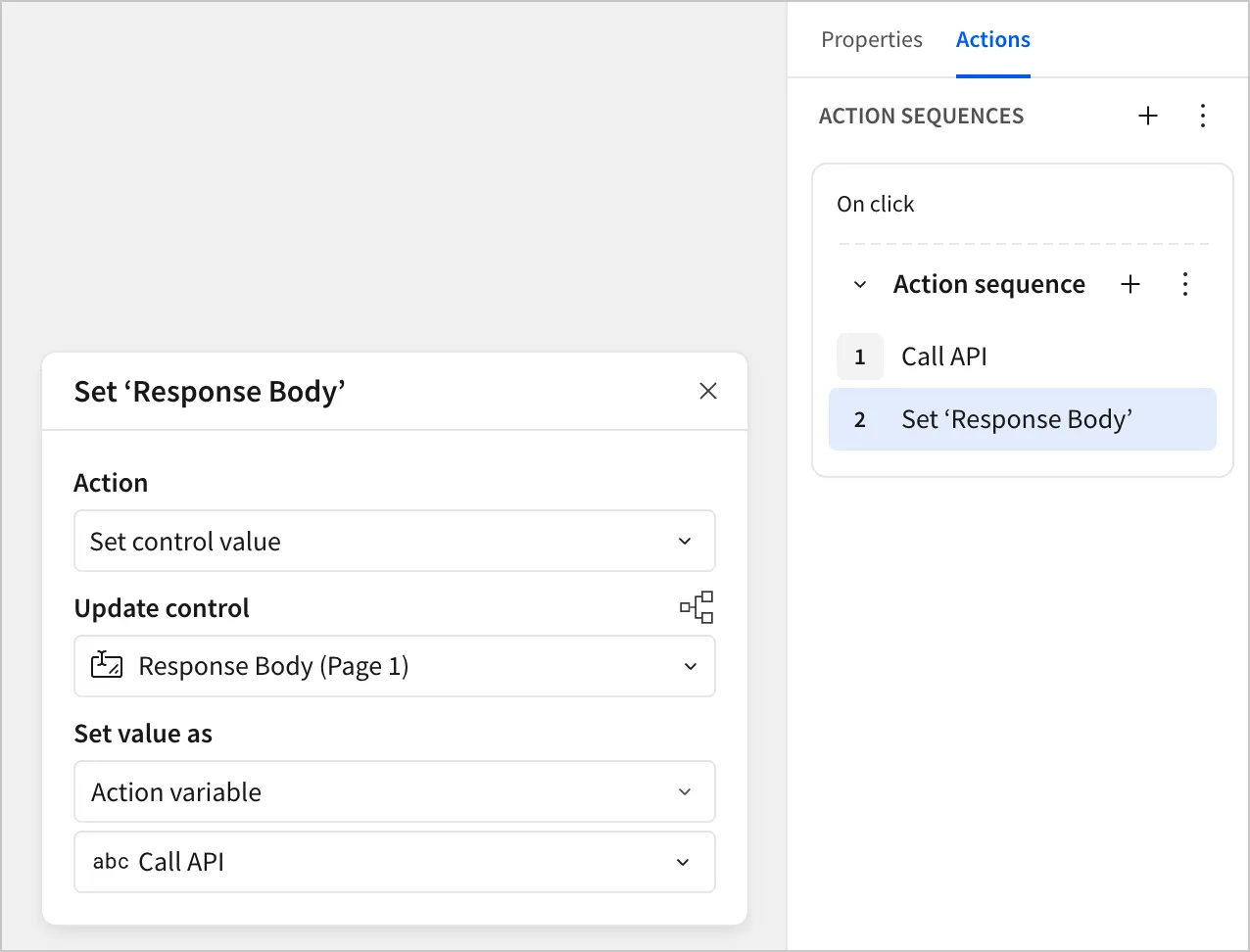
- Trigger the action sequence. The response body populates in the text area control.
In this example and others, the response body is displayed using a text area control. Though other controls can be used to display outputs from a Call API action, the data type of the control must match the data type of the action variable. For the response data, the data type is text, which matches that of the text area control.
Examples
For step-by-step tutorials on how to create actions that call API endpoints, see the following examples: