Use forms to streamline user data entry (Beta)

🚩

This documentation describes one or more public beta features that are in development. Beta features are subject to quick, iterative changes; therefore the current user experience in the Sigma service can differ from the information provided in this page.

This page should not be considered official published documentation until Sigma removes this notice and the beta flag on the corresponding feature(s) in the Sigma service. For the full beta feature disclaimer, see Beta features.

Use forms to create an interface for user data entry. Forms allow you to collect users' inputs and incorporate them into action workflows, such as adding rows to input tables, setting control values, and calling stored procedures. Forms can be created manually or from an existing data source.

Forms are a layout element, allowing you to guide users and create focused interfaces as you build AI apps in Sigma.
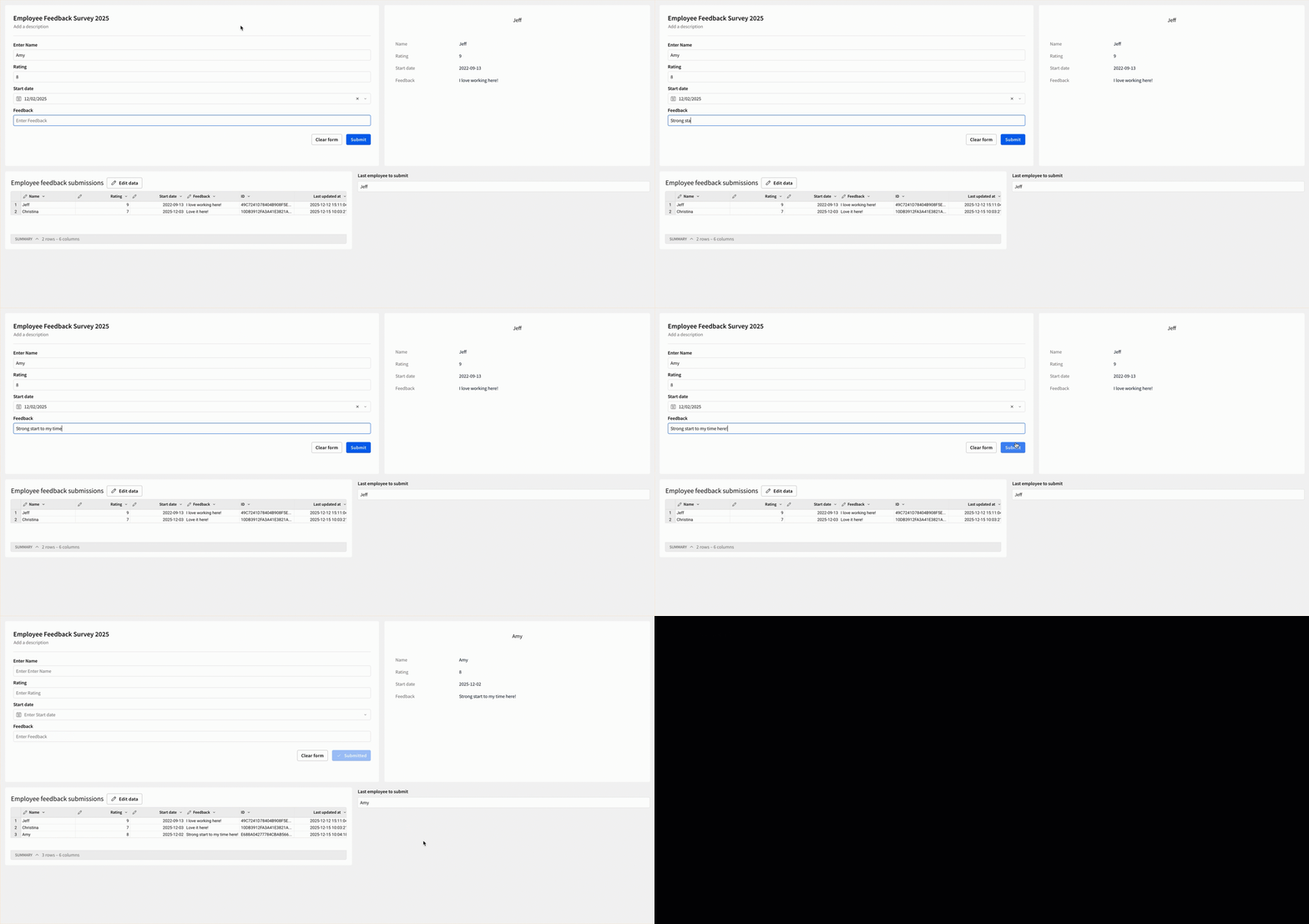
A user demonstrates entering information into a form and clicking submit. A new row appears in an input table, and a control and single row container update.

Use forms when you want to:

  • Create a survey or poll
  • Create an interface for user data entry in an AI app
  • Update multiple controls or input tables from one set of user inputs

Prerequisites

  • You must be the owner or have Can edit or Can explore permissions on the workbook.
  • You must be in Edit or Explore mode for the workbook. See workbook modes overview.

Add a form to a workbook

Forms in Sigma are customizable interfaces for data entry that can submit data to multiple data sources and elements, such as input tables, controls, and actions. Though you can create a form from an existing data source for convenience, the form can be customized to send data to other elements as well, or created from scratch to send data to any applicable element in the workbook.

You can create a form from scratch, or from an existing data source.

  1. In the Add element bar, select Layout, and then select Form.
  2. In the Create new form modal, select the method you want to use to create the form.

You can also create a form as the child element of an input table to automatically configure the form fields and actions to insert a row into the input table. For more information, see Create a form as a child element of an input table.

Create a form from scratch

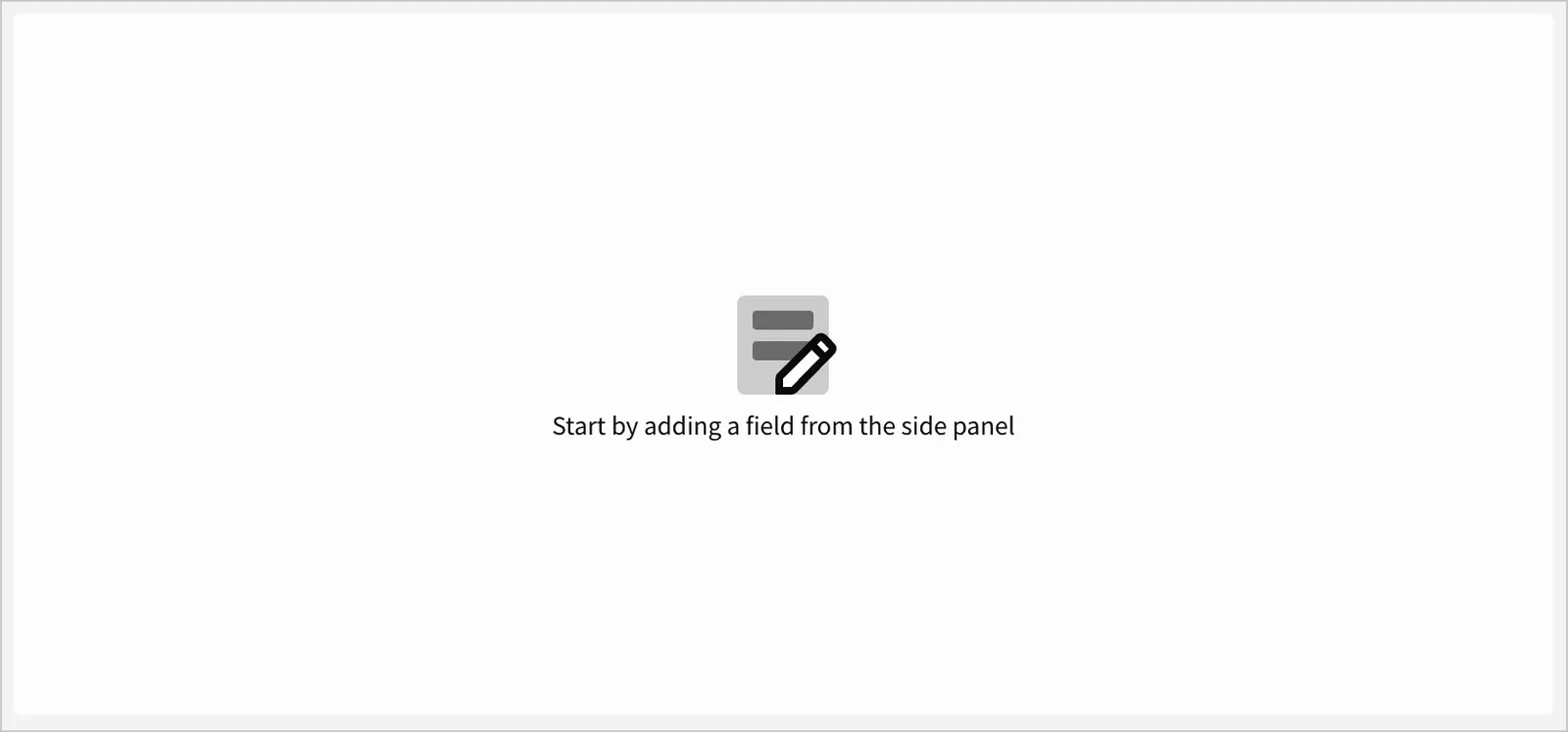
After selecting Start building in step 2 of Add a form to a workbook, a new form element appears on the canvas with no form fields configured. Creating a form from scratch allows you to fully customize form fields and their destinations based on your use case.

A form element in the empty state

To manually add form fields:

  1. Select the form element.
  2. In the editor panel, select Properties.
  3. In the Form fields section, click Add new field.
  4. In the New field popover, select a field type.
📘

Field types limit the data type of user input. For example, a Short text field only accepts text data, and a Number field only accepts number data. For more information on data types, see Data types and formats.

The field is added to the form element.

To manually configure the destination of a form field:

  1. Select the form element.
  2. In the editor panel, select Actions.
  3. In the action sequence with an On submit trigger, click Add action.
  4. Configure an action to set the destination of the form field. For example, you can configure an Insert row action to add a row to an input table based on the current form field values. For more information, see Configure form actions.

Create a form from an existing data source

After selecting Select source in step 2 of Add a form to a workbook, the Select form fields from source modal opens. Creating a form this way allows you to quickly configure fields and actions based on the columns in an existing data source. You can customize the form fields and actions as needed after the form is created.

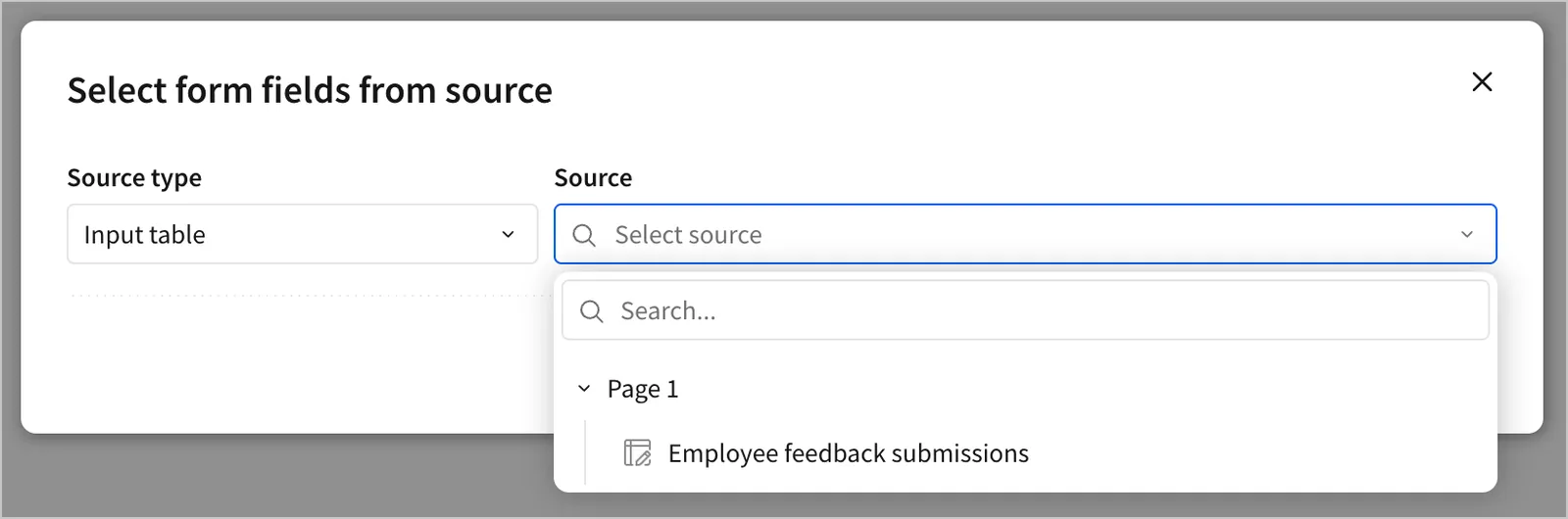
  1. In the Select form fields from source modal, select a Source type and Source to use for the form's fields.
The Select form fields from source modal, with a source type of Input table and a source dropdown showing Employee feedback submissions.
📘

You can create a form from an input table or stored procedure.

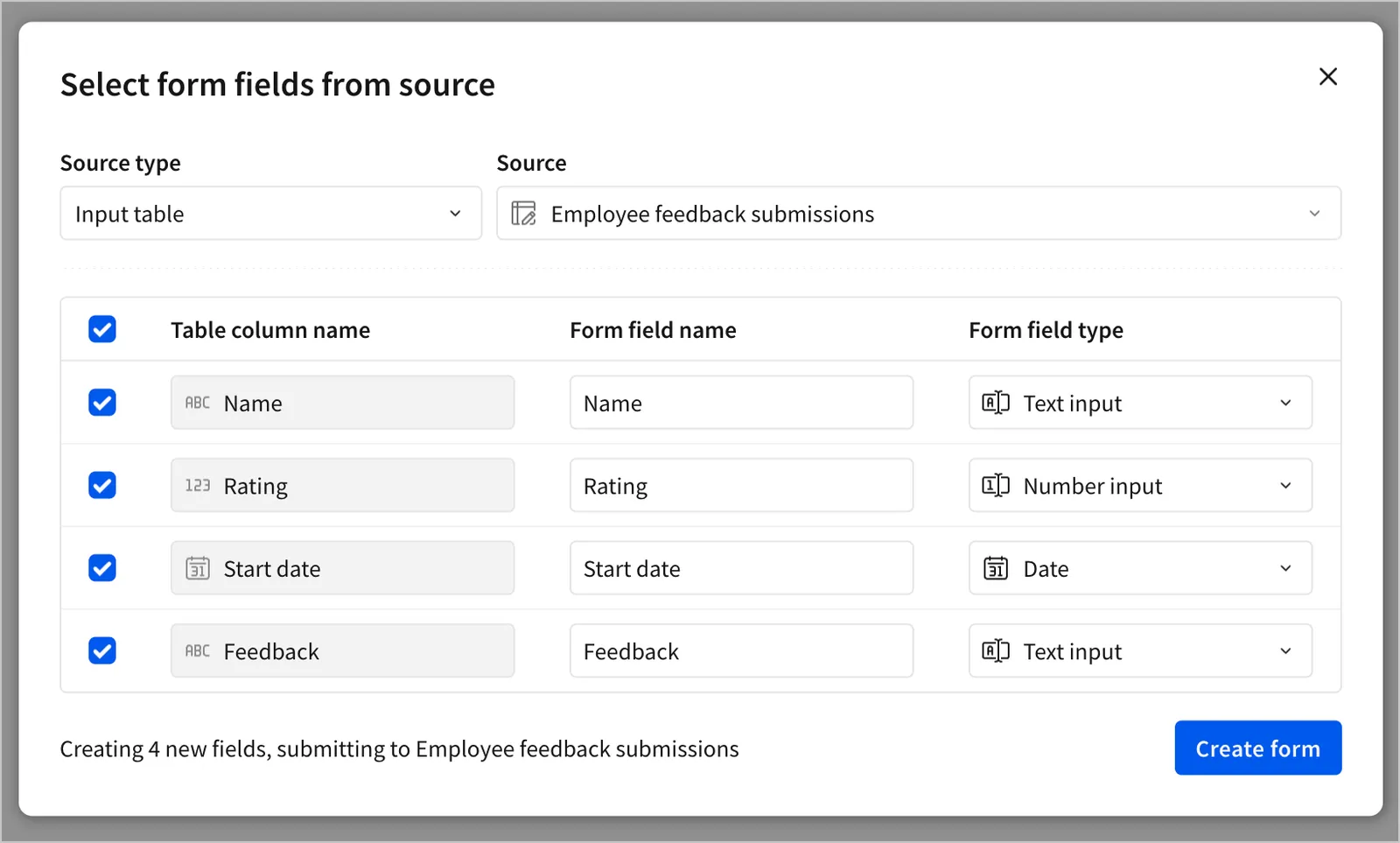
  1. Select the fields to include in the form. For each column in an input table, or for each argument in a stored procedure, you can set a form field name, and select a form field type from a list of compatible options for the column or argument's data type.
The Select form fields from source modal from the previous step shows four fields, each with a name and a field type.
  1. Click Create form.

The form element is added to the canvas with the selected fields. By default, the form includes an action sequence with an On submit trigger that submits the data to the selected data source and then clears the form fields.

Create a form as a child element of an input table

To create a form as the child element of an input table:

  1. Navigate to the element you want to use as the data source for the form.
  2. Select Create child element > Form.

The form element is added to the canvas with a form field for each column in the input table, as well as an action sequence with an On submit trigger that inserts a row into the input table and then clears the form fields. The form fields are configured with the same name and data type as the corresponding column in the input table.

Import form fields from a data source

You can add fields to an existing form by importing them from a data source:

  1. Select the form element.
  2. In the editor panel, select Properties.
  3. In the Form fields section, click Add new field.
  4. Select Import fields from....
  5. In the Select form fields from source modal, select a Source type and Source to import fields from.
  6. Select the fields to import.
  7. Click Add new form fields.

The selected fields are added to the form element, along with an action sequence with an On submit trigger that submits the form data to the data source and then clears the form fields.

Create an input table from a form

If a form has no input table targeted by an action sequence, you can create an input table from the form to collect form submissions:

  1. Select the form element.
  2. In the editor panel, select Properties.
  3. In the notice to create an input table, click Create.
  4. In the Create input table from form modal, select a connection for the input table data, and click Create.

The input table is created with a column for each form field, and an action sequence with an On submit trigger that inserts a row into the input table and then clears the form fields.

Customize a form

To customize the fields, actions, and style of a form, see the following sections:

Configure form fields

In the editor panel, select Properties. Depending on the Field type, configure the following options for each field:

Short text

OptionsDetails
LabelEnter a name for the field. When the form is created from a data source, the Label inherits the name of the connected column.
PlaceholderEnter text to appear when the field is empty.
Default valueEnter a default value for the field from either a Static value or a Custom formula.
Read-onlyTurn on the toggle to disable editing while leaving the field visible. If the field has a default value, it can be submitted via an action. Off by default.
Required inputTurn on the toggle to make the field required. Required fields must be populated before the user can submit. Required fields are marked with an asterisk next to the Label. Off by default.
ValidationConfigure a validation rule for the field, including a Comparison operator and Text match pattern. Turn on the Case sensitive toggle to make the validation case sensitive.
Field IDEnter a unique identifier for the field.

Long text

OptionsDetails
LabelEnter a name for the field. When the form is created from a data source, the Label inherits the name of the connected column.
PlaceholderEnter text to appear when the field is empty.
Default valueEnter a default value for the field from either a Static value or a Custom formula.
Read-onlyTurn on the toggle to disable editing while leaving the field visible. If the field has a default value, it can be submitted via an action. Off by default.
Required inputTurn on the toggle to make the field required. Required fields must be populated before the user can submit. Required fields are marked with an asterisk next to the Label. Off by default.
ValidationConfigure a validation rule for the field, including a Comparison operator and Text match pattern. Turn on the Case sensitive toggle to make the validation case sensitive.
Field IDEnter a unique identifier for the field.

Number

OptionsDetails
LabelEnter a name for the field. When the form is created from a data source, the Label inherits the name of the connected column.
FormatSelect a format for the number, such as currency or percentage.
PlaceholderEnter text to appear when the field is empty.
Default valueEnter a default value for the field from either a Static value or a Custom formula.
Read-onlyTurn on the toggle to disable editing while leaving the field visible. If the field has a default value, it can be submitted via an action. Off by default.
Required inputTurn on the toggle to make the field required. Required fields must be populated before the user can submit. Required fields are marked with an asterisk next to the Label. Off by default.
ValidationEnter a range of valid values for the field.
Field IDEnter a unique identifier for the field.

Date

OptionsDetails
LabelEnter a name for the field. When the form is created from a data source, the Label inherits the name of the connected column.
PlaceholderEnter text to appear when the field is empty.
Default valueEnter a default value for the field from either a Static value or a Custom formula.
Read-onlyTurn on the toggle to disable editing while leaving the field visible. If the field has a default value, it can be submitted via an action. Off by default.
Required inputTurn on the toggle to make the field required. Required fields must be populated before the user can submit. Required fields are marked with an asterisk next to the Label. Off by default.
ValidationEnter a range of valid values for the field.
Field IDEnter a unique identifier for the field.

Checkbox

OptionsDetails
LabelEnter a name for the field. When the form is created from a data source, the Label inherits the name of the connected column.
Default valueEnter a default value for the field from either a Static value or a Custom formula.
Read-onlyTurn on the toggle to disable editing while leaving the field visible. If the field has a default value, it can be submitted via an action. Off by default.
Required inputTurn on the toggle to make the field required. Required fields must be populated before the user can submit. Required fields are marked with an asterisk next to the Label. Off by default.
Field IDEnter a unique identifier for the field.

File upload

OptionsDetails
LabelEnter a name for the field. When the form is created from a data source, the Label inherits the name of the connected column.
Default valueUpload a default file for the field, or select a file using a Custom formula.
Required inputTurn on the toggle to make the field required. Required fields must be populated before the user can submit. Required fields are marked with an asterisk next to the Label. Off by default.
Allow multiple filesTurn off the toggle to allow only one file to be uploaded. On by default.
Restrict number of filesTurn on the toggle to restrict the number of files that can be uploaded. When turned on, set a Max number. Off by default.
Accepted file typesSelect one or more file types to accept.
Max sizeEnter a maximum file size for the upload. Default 200 MB.
Field IDEnter a unique identifier for the field.

Radio group

OptionsDetails
LabelEnter a name for the field. When the form is created from a data source, the Label inherits the name of the connected column.
Value sourceSelect a source for the list of values. Either enter a Manual list or select an column from an existing Data source.
Manual listValue typeSelect the data type for the values in the list. For Number and Date, you can also select a Format.
ValuesEnter values to include in the list. Optionally, enter a display value to show in the list instead of the raw data value.
Set display valuesTurn on the toggle to add the option to set display values for the list. Off by default.
Default valueEnter a default value for the field from either a Static value or a Custom formula.
Data sourceSource columnSelect a column from the data source to use as the list of values.
Set display columnSelect a mapping column to use as the display values for the list. For example, you might select a column with product names as the display values and a column with product IDs as the source values.
Default valueEnter a default value for the field from either a Static value or a Custom formula.
Read-onlyTurn on the toggle to disable editing while leaving the field visible. If the field has a default value, it can be submitted via an action. Off by default.
Required inputTurn on the toggle to make the field required. Required fields must be populated before the user can submit. Required fields are marked with an asterisk next to the Label. Off by default.
Field IDEnter a unique identifier for the field.

Segmented choice

OptionsDetails
LabelEnter a name for the field. When the form is created from a data source, the Label inherits the name of the connected column.
Value sourceSelect a source for the list of values. Either enter a Manual list or select an column from an existing Data source.
Manual listValue typeSelect the data type for the values in the list. For Number and Date, you can also select a Format.
ValuesEnter values to include in the list. Optionally, enter a display value to show in the list instead of the raw data value.
Set display valuesTurn on the toggle to add the option to set display values for the list. Off by default.
Default valueEnter a default value for the field from either a Static value or a Custom formula.
Data sourceSource columnSelect a column from the data source to use as the list of values.
Set display columnSelect a mapping column to use as the display values for the list. For example, you might select a column with product names as the display values and a column with product IDs as the source values.
Default valueEnter a default value for the field from either a Static value or a Custom formula.
Read-onlyTurn on the toggle to disable editing while leaving the field visible. If the field has a default value, it can be submitted via an action. Off by default.
Required inputTurn on the toggle to make the field required. Required fields must be populated before the user can submit. Required fields are marked with an asterisk next to the Label. Off by default.
Field IDEnter a unique identifier for the field.

Dropdown

OptionsDetails
LabelEnter a name for the field. When the form is created from a data source, the Label inherits the name of the connected column.
Value sourceSelect a source for the list of values. Either enter a Manual list or select an column from an existing Data source.
Allow multiple selectionTurn off the toggle to limit the user to selecting a single value.
Manual listValue typeSelect the data type for the values in the list. For Number and Date, you can also select a Format.
ValuesEnter values to include in the list. Optionally, enter a display value to show in the list instead of the raw data value.
Set display valuesTurn on the toggle to add the option to set display values for the list. Off by default.
PlaceholderEnter text to appear when the field is empty.
Default valueEnter a default value for the field from either a Static value or a Custom formula.
Data sourceSource columnSelect a column from the data source to use as the list of values.
Set display columnSelect a mapping column to use as the display values for the list. For example, you might select a column with product names as the display values and a column with product IDs as the source values.
PlaceholderEnter text to appear when the field is empty.
Default valueEnter a default value for the field from either a Static value or a Custom formula.
Read-onlyTurn on the toggle to disable editing while leaving the field visible. If the field has a default value, it can be submitted via an action. Off by default.
Required inputTurn on the toggle to make the field required. Required fields must be populated before the user can submit. Required fields are marked with an asterisk next to the Label. Off by default.
Field IDEnter a unique identifier for the field.

Checkbox group

OptionsDetails
LabelEnter a name for the field. When the form is created from a data source, the Label inherits the name of the connected column.
Value sourceSelect a source for the list of values. Either enter a Manual list or select an column from an existing Data source.
Allow multiple selectionTurn off the toggle to limit the user to selecting a single value. On by default.
Manual listValue typeSelect the data type for the values in the list. For Number and Date, you can also select a Format.
ValuesEnter values to include in the list. Optionally, enter a display value to show in the list instead of the raw data value.
Set display valuesTurn on the toggle to add the option to set display values for the list. Off by default.
Default valueEnter a default value for the field from either a Static value or a Custom formula.
Data sourceSource columnSelect a column from the data source to use as the list of values.
Set display columnSelect a mapping column to use as the display values for the list. For example, you might select a column with product names as the display values and a column with product IDs as the source values.
Default valueEnter a default value for the field from either a Static value or a Custom formula.
Read-onlyTurn on the toggle to disable editing while leaving the field visible. If the field has a default value, it can be submitted via an action. Off by default.
Required inputTurn on the toggle to make the field required. Required fields must be populated before the user can submit. Required fields are marked with an asterisk next to the Label. Off by default.
Field IDEnter a unique identifier for the field.

Configure form actions

By default, forms have two action sequences, one with an On submit trigger and one with an On clear trigger.

To configure the action sequence with an On submit trigger:

  1. Select the form element.
  2. In the editor panel, select Actions.
  3. In the action sequence with an On submit trigger, click Add action.
  4. Configure an action to define the behavior when the form is submitted.

For several action types, including Insert row, Update row(s), Set control value, and Set single row container, you can use a form field as the source for a value. For example, you can configure an Insert row action to add a row to an input table based on every form field, submitting them directly to corresponding columns in an input table.

To configure the action sequence with an On clear trigger:

  1. Select the form element.
  2. In the editor panel, select Actions.
  3. In the action sequence with an On clear trigger, click Add action.
  4. Configure an action to define the behavior when the Clear button is clicked.

For forms created from a data source, an On submit action sequence is automatically added to insert a row into the data source, and an On clear action sequence is automatically added to clear the form fields after submission.

Style a form

In the editor panel, select Format to set the style options in each section.

In the Form style section, set the following options:

StyleDetails
SpacingSpecify the amount of space to include between fields in the form. If padding is turned on, the spacing setting also determines the amount of padding.
PaddingAdds padding to the form. Turn the toggle off to remove padding between fields and the edges of the form. On by default.
Background colorSelect a background color for the form.
BorderSpecify a border for the form. Defaults to None, and can be set to 1, 2, or 3 pixels. You can also choose a color for the border.
CornerChoose a corner shape for the form. Choose between square, round, and pill. Defaults to round.
Field gapAdds padding between elements in the form. Turn the toggle off to remove padding between fields. On by default.

In the Header section, set the following options:

StyleDetails
Show titleShows the title. On by default. Turn the toggle off to hide the title.
Title formattingEnter a title and use the formatting options to set text weight, color, size, and alignment. Press = on the keyboard to include a dynamic value defined by a formula expression.
Show descriptionShows the description. On by default. Turn the toggle off to hide the description.
Description formattingEnter a description and use the formatting options to set text weight, color, and size. Press = on the keyboard to include a dynamic value defined by a formula expression.

In the Form field style section, set the following options:

StyleDetails
Label positionSelect the label position for form fields as either Top or Left. Set to Top by default.
Label formattingSet a text weight and color.

In the Buttons section, set the following option:

StyleDetails
Expand to full widthExpands the Submit and Clear form buttons to the full width of the element. Turned off by default.

To rename buttons, select Properties in the editor panel, and select the button in the Buttons section. Enter a name in the Label field.