

Add custom page panels to a workbook
You can create custom panels that appear on one or more workbook pages by enabling the page header and page sidebar options. Because the same panel can be enabled on multiple pages, you can present the same content — like navigation elements and branding — across multiple workbook pages.
This document explains how to enable, customize, and manage page panels.
User requirements
- To configure a page header or page sidebar in a saved or custom view, you must be assigned an account type with the Full explore permission, and have Can explore access to the workbook.
- To configure a page header or page sidebar in the published version of a workbook, you must be assigned an account type with the Create, edit, and publish workbooks permission, and have Can edit access to the workbook.
Add a header to your workbook
Enable a page header for your workbook in workbook settings:
- Select the background of your workbook. In the side panel, select Workbook settings.
- Open the Workbook navigation section.
- Select the Page header checkbox to enable the page header.
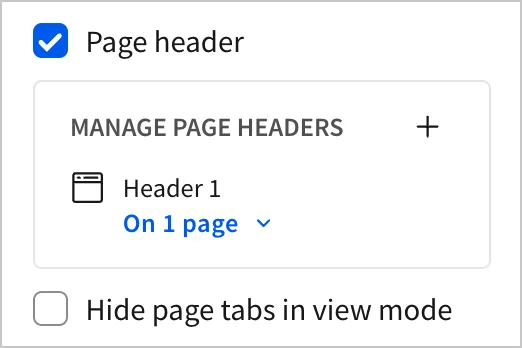
A blank header appears on all workbook pages. To create additional page headers and manage their visibility, see Manage multiple page panels.
Add a sidebar to your workbook
Enable a sidebar for your workbook in workbook settings:
- Select the background of your workbook. In the side panel, select Workbook settings.
- Open the Workbook navigation section.
- Select the Page sidebar checkbox to enable the page sidebar.
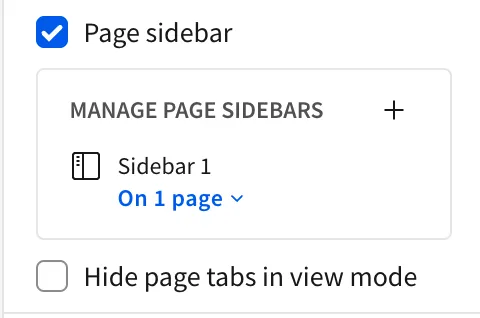
A blank sidebar appears on all workbook pages. To create additional page sidebars and manage their visibility, see Manage multiple page panels.
Manage panels on the same page
You can control how a sidebar and header interact on the same page using workbook settings and the scroll style.
To set the stacking order of the panels:
- Select the background of your workbook. In the side panel, select Workbook settings.
- Open the Workbook navigation section.
- Select either Sidebar or Header in the Primary navigation setting.
The panel selected in Primary navigation overlays the other panel.
If the header and sidebar do not have the same Scroll style, the Primary navigation setting does not determine which overlays the other. Whichever panel has the Scroll style set to Fixed overlays the other.
Customize page panels
Customize a page header
You can customize the size, scroll style, background color, and contents of a custom page header.
Header settings
To resize a custom page header, select the header and use the drag handle on the bottom edge of the header.
You can customize the following setting for a page header in the Properties tab of the editor panel:
You can rename, duplicate, or delete a header in the Manage header menu:
- Select the background of your workbook. In the side panel, select Workbook settings.
- Open the Workbook navigation section.
- Under Manage page headers, select
 More options for the header you want to customize, and select Rename, Duplicate, or Delete.
Style a header
In the editor panel, select Format to set the style options in each section.
In the Page header style section, set the following options:
| Style | Details |
|---|---|
| Background color | Select  Background color and choose a color for the header. Background color and choose a color for the header. |
| Border style | Choose between Line, Shadow, or None for the border style. The Shadow border style is only available when the Scroll style is set to Fixed. |
Header contents
You can add any element to a page header. Because one header can appear on multiple pages, adding an element to a header makes it visible on every page where that header appears.
There are multiple ways to add an element to a header:
- With the header selected, select an element in the Add element bar. The element appears inside the header.
- Select an element from the workbook page. Drag and drop the element inside the header.
Customize a page sidebar
You can customize the size, scroll style, background color, and contents of a page sidebar.
Sidebar settings
You can customize the following settings for a page sidebar in the Properties tab of the editor panel:
You can rename, duplicate, or delete a sidebar in the Manage page sidebars menu:
- Select the background of your workbook. In the side panel, select Workbook settings.
- Open the Workbook navigation section.
- Under Manage page sidebars, select More options for the sidebar you want to customize, and select Rename, Duplicate, or Delete.
Style a sidebar
In the editor panel, select Format to set the style options in each section.
In the Page sidebar style section, set the following options:
| Style | Details |
|---|---|
| Background color | Select Background color and choose a color for the sidebar. |
| Border style | Choose between Line or None. |
Sidebar contents
You can add any element to a page sidebar. Because one sidebar can appear on multiple pages, adding an element to a sidebar makes it visible on every page where that sidebar appears.
There are multiple ways to add an element to a sidebar:
- With the sidebar selected, select an element in the Add element bar. The element appears inside the sidebar.
- Select an element from the workbook page. Drag and drop the element inside the sidebar.
Add a background image to a page panel
To add a background image to a page panel:
-
Select the panel.
-
In the editor panel, select Format and open the Background image section.
-
Select Upload image and select an image file from the file browser.
-
Select a Sizing option for the image:
-
(Optional) Turn on the Tile toggle to repeat the image across the panel until it covers the entire area.
-
Configure the alignment of the background image:
- Horizontal: Select the horizontal alignment of the background image within the panel, by choosing one of Left align, Center align, or Right align.
- Vertical: Select the vertical alignment of the background image within the panel, by choosing one of Top align, Center align, or Bottom align.
Manage multiple page panels
You can create multiple page headers and page sidebars in the same workbook and choose which pages each panel appears on.
View pages by panel
To view which pages a header is assigned to:
- Select the background of your workbook.
- In the side panel, select Workbook settings.
- Open the Workbook navigation section.
- Under Manage page headers, open the menu option for the number of pages with that header.
- In the Go to menu, you can see the list of pages that header is assigned to.
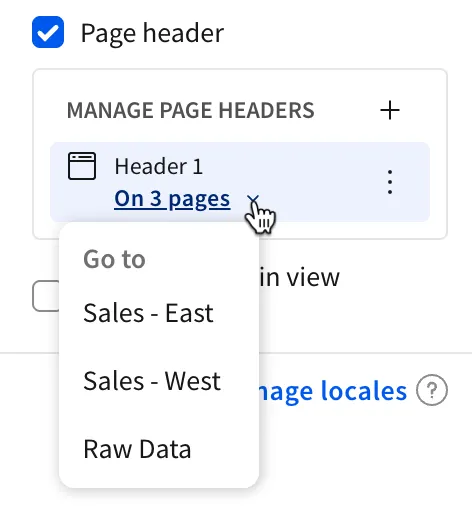
To view which pages a sidebar is assigned to:
- Select the background of your workbook.
- In the side panel, select Workbook settings.
- Open the Workbook navigation section.
- Under Manage page sidebars, open the menu option for the number of pages with that sidebar.
- In the Go to menu, you can see the list of pages that sidebar is assigned to.
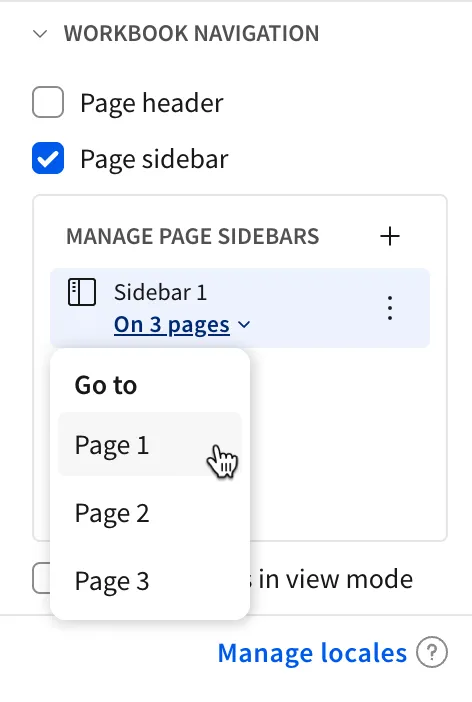
Add a new panel
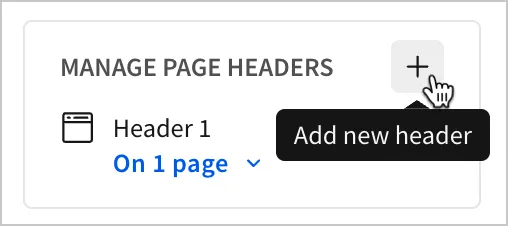
To create a new header:
- Select the background of your workbook. In the side panel, select Workbook settings.
- Open the Workbook navigation section.
- Under Manage page headers, select
 Add new header.
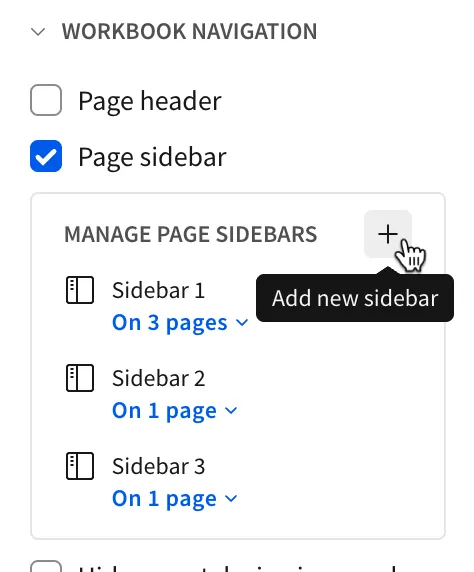
To create a new sidebar:
- Select the background of your workbook. In the side panel, select Workbook settings.
- Open the Workbook navigation section.
- Under Manage page sidebars, select Add new sidebar.
Set the panel for a page
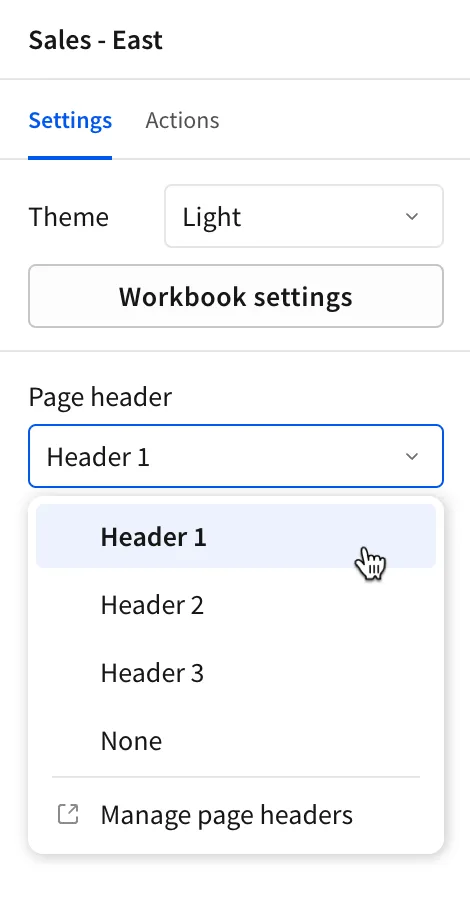
To set which header is visible on a page:
- Navigate to the page you want to set the header for.
- Select the background of the workbook.
- In the side panel, open the Page header dropdown.
- Select the header to be visible on the page.
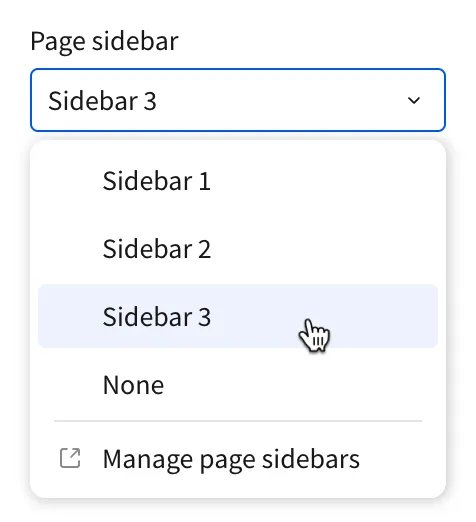
To set which sidebar is visible on a page:
- Navigate to the page you want to set the sidebar for.
- Select the background of the workbook.
- In the side panel, open the Page sidebar dropdown.
- Select the sidebar to be visible on the page.
Manage mobile layout
You can see how header and sidebar layouts render for mobile users, even while building in the desktop view.
To preview mobile layout:
- Open the draft of a workbook.
- In the document header, next to the Publish button, select
 > Switch to mobile view.
 - Select
 to preview the primary panel.
 - If sidebar is the primary panel, select
 Expand page header to preview the header. If header is the primary panel, select
  Expand page sidebar to preview the sidebar.
The mobile preview opens for the selected panel.
Example: Use a page header and navigation element to create a custom navigation bar
You can use a page header and navigation element to create a custom navigation bar for your workbook. The navigation element provides a list of destinations for users to explore, and the page header keeps the navigation bar visible as users switch pages and scroll.
Setup
To follow along with this example step-by-step, create a new workbook with the following pages:
- Sales - East
- Sales - West
- Raw Data

Add a page header
To start, enable a page header for the workbook:
- Select the background of your workbook. In the side panel, select Workbook settings.
- Open the Workbook navigation section.
- Select the Page header checkbox.
A page header appears on all workbook pages. You can confirm this by going to Workbook settings > Workbook navigation > Manage page headers and opening the On 3 pages dropdown for the header. Though you can create multiple headers, this example uses one shared header for all workbook pages.
Add a navigation element to the header
Now, add a navigation element to the page header to make it available across all workbook pages:
- Select the header.
- In the Add element bar, select Layout > Navigation.
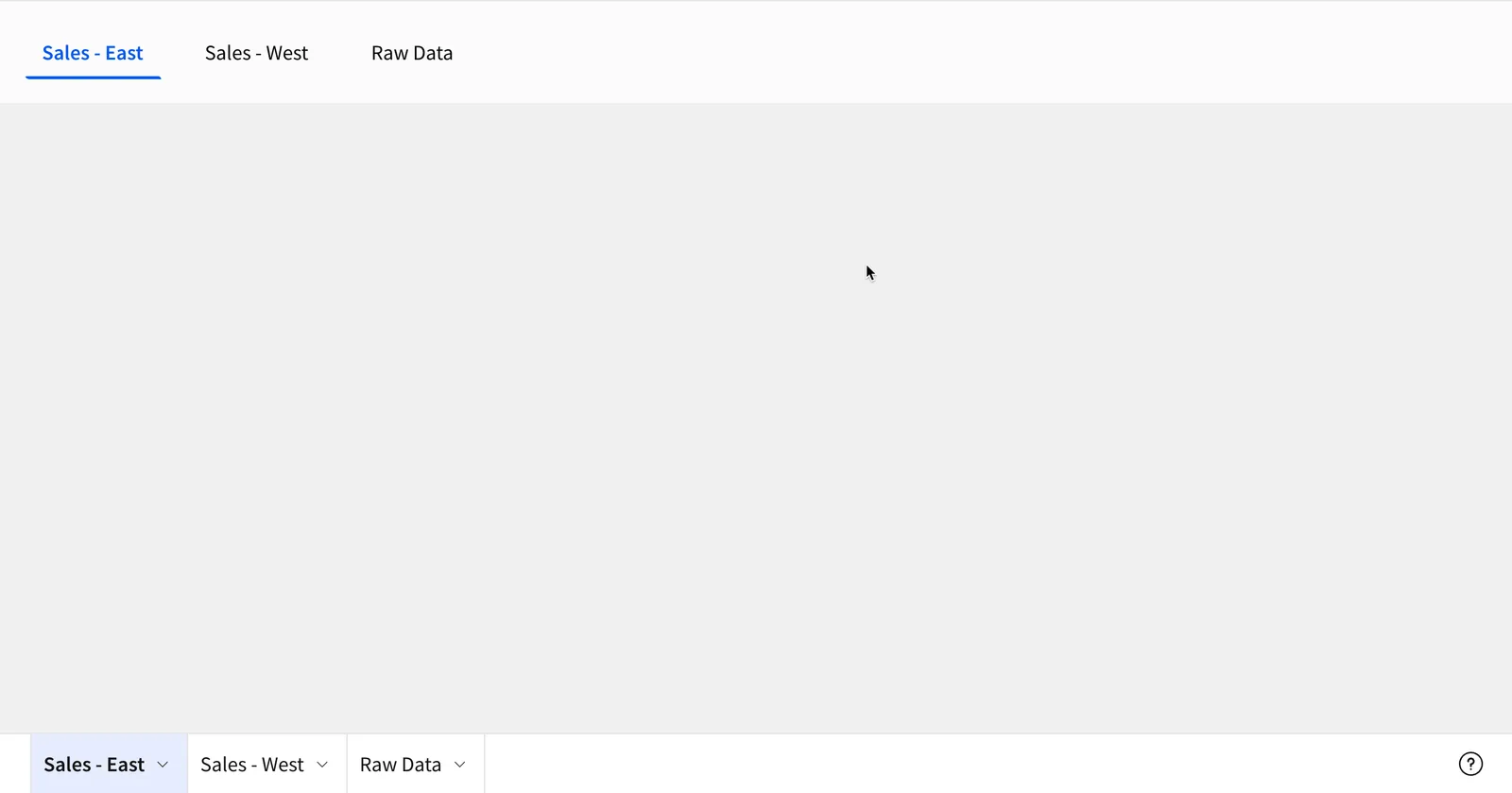
The navigation element appears in the header. By default, it populates with the current workbook pages as the navigation options.
Hide the workbook page tabs
Because the page header and navigation element appear across all workbook pages, a user can navigate the workbook without the workbook page tabs. You can hide the workbook page tabs to create a cleaner interface for users.
- Select the workbook page.
- In the editor panel, under Settings, select Workbook settings.
- Open the Workbook navigation section.
- Select the Hide page tabs in view mode checkbox.
- In the confirmation modal, select Confirm.
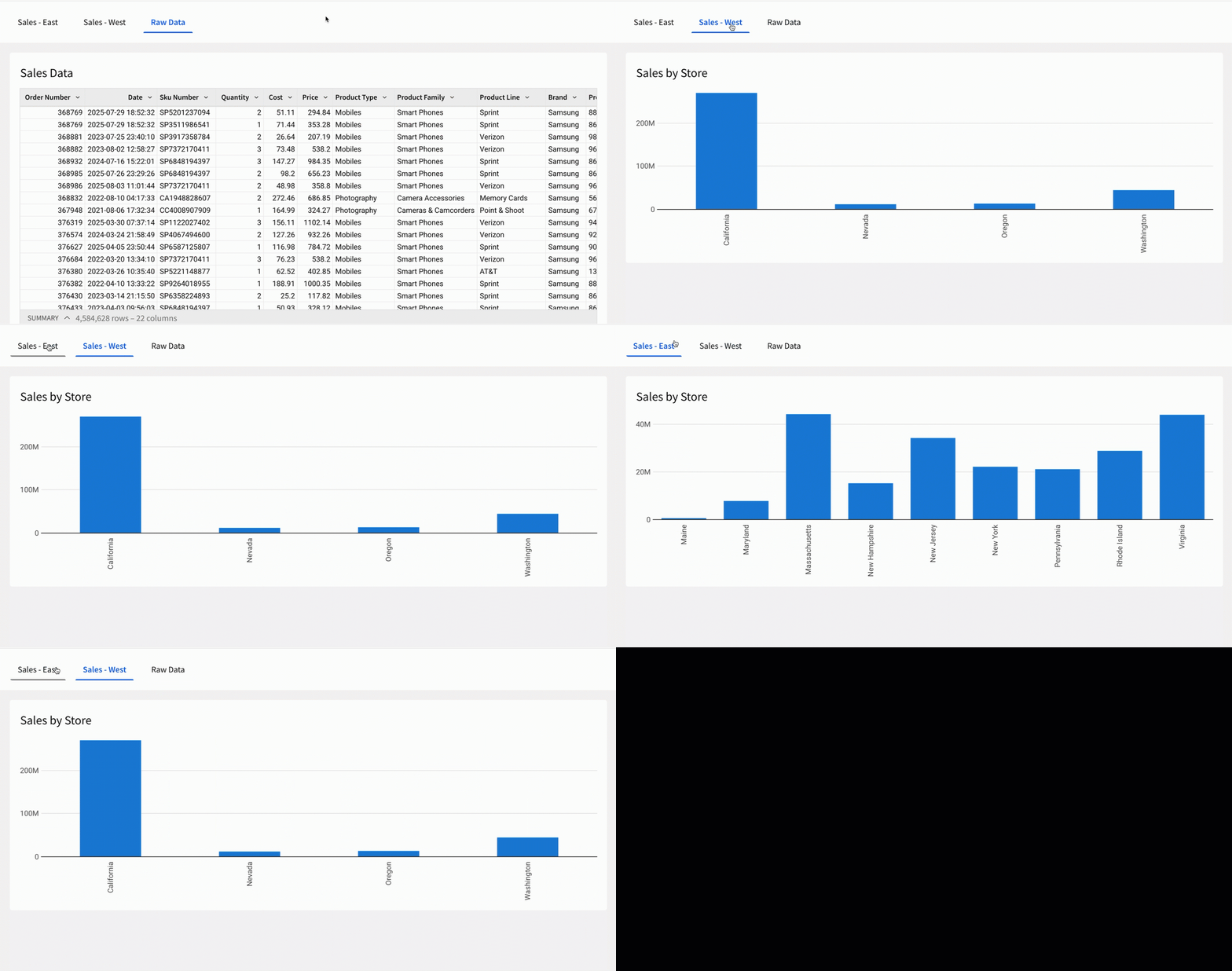
From here, you can customize the navigation options by adding external links, submenus, and more as you need. Because the workbook page tabs are hidden, you don’t have to worry about potential user confusion that might arise from the navigation element and page tabs differing.
Hiding page tabs does not prevent users from navigating to the page from a direct link, and is not a security feature. To restrict access to data, use a data model with row-level security or column-level security. For more information, see Set up row-level security and Configure column-level security.