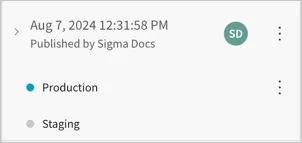

Tag a workbook, data model, or report version
You can tag a version of a workbook, data model or report. When you tag a document, you create a read-only version of the document that you can then share with others or embed.
For more details about how version tagging works, see About version tags to workbooks, data models, and reports.
Tagged versions of data models are not available to Sigma Assistant. If an admin chooses a data model to include in the data sources available to Sigma Assistant, only the published version of that data model is available, and only users who have access to the published version can receive answers from Sigma Assistant that reference that data model. For more information, see Configure AI features for your organization.
User requirements
To tag a document version, the following must be true:
-
You are granted Can edit access to the document.
-
You are granted an account type with the Apply tag permission enabled.
-
Depending on the document type you want to tag, your account must have the following account type permissions enabled:
- For workbooks: The Create, edit, and publish workbooks permission.
- For reports: The Create, edit, and publish reports permission.
- For data models: The Create, edit, and publish data models permission.
-
If the document contains an input table, your account type must also have the Create input tables permission enabled.
Some tags might be protected and require additional permissions to set on a document. To set a protected tag, you must also be assigned the Admin account type or be granted access to set the protected tag. If you don’t have access to set the protected tag, you can send a request to add it to a document. See Create and manage version tags.
Limitations
- If a document only contains custom SQL elements, you cannot swap the source when you tag the document version.
- If a custom SQL element contains
#identifiersyntax, swapping the source when you tag a document might fail with a “Failed to parse and replace sql” error. - If a workbook contains a stored procedure action, swapping the source when you tag the document might fail with a “Failed to tag workbook” error if the stored procedure is not synced in the connection that you’re swapping to. Manually sync the schema that contains the stored procedure in the target connection before you swap the source. See Manually sync your data.
Set a tag on a document
To set a tag on a document, follow these steps.
-
Open the document and locate the version that you want to tag:
-
To tag the latest published version of the document:
- Next to the document name, click the down arrow (
 ) to open the document menu.
 - Select Versions > Tag this version. If the document is in draft and has unpublished edits, you instead see Tag latest published version.
- Next to the document name, click the down arrow (
-
To tag a specific version of the document:
- Next to the document name, click the down arrow () to open the document menu.
- Select Versions > Version history, then locate the version you want to tag.
- Click
 More > Set tag on this version.
- Next to the document name, click the down arrow (
The Set tag on version modal appears.
-
-
For Choose tag, select a tag.
If you choose a protected tag that you do not have permission to apply, you’re prompted to send a request to approvers for the tag:
-
For Request reason, enter a message to include in the email request to justify why you want to apply the protected tag to the document.
-
Click Request tag on version.
Sigma sends an email to users that can approve the request.
-
-
(Optional) If you want the tagged version of the document to use a different data source, select the checkbox for Swap sources of the tagged version. For example, use a different connection, database or catalog, table, data model, or dataset for the tagged version. See Swap the source of a tagged document version.
Source swapping is not supported for tables created from CSV uploads. However, it’s supported for input tables created from CSV uploads. For more information, see Use input tables with version tagging.
-
(Optional) If you want users that only have access to the tagged version of the document to open the tagged version by default, select the checkbox for Set this tag as default. See Set a default version tag for a document.
-
For a version tagged workbook or report, you can select the checkbox for Allow user to use data sources when they “Save as”. When you select this checkbox, users with access to the tagged version of the document gain access to data sources in the following ways:
- For datasets and tables sourced directly from a connection, users inherit Can view access.
- If the document uses 1 or more data models, you must grant users Can view access to the data model. See Share the data model.
If this checkbox is not selected, users access the tagged version of the document without data.
-
Click Set tag.
For input tables with data entry permissions set to Editable in draft, data is copied to the tagged version. For input tables with data entry permissions set to Editable in published version, data is not copied to the tagged version when applying the tag. For more information, see Data entry permissions and input table version tagging.
Set a default version tag for a document
When you apply a tag to a document, you can set the tag as the default. The default tag determines what version of a document displays by default to a user who does not have access to the published version. If a user does have access to the published version, the published version takes precedence over the default tag.
If a user does not have access to the published version of a document and there is no default version tag set, the document loads the latest created tagged version that the user has access to.
Any user with Can edit access to a document can set a tag as the default:
- Next to the document name, click the down arrow () to open the document menu.
- Select Versions > Version history.
- Locate the tagged version that you want to set as a default version, then select More.
- Click Set tag as default.
To remove a tag as default without replacing it with a different default tag, follow these steps:
-
Next to the document name, click the down arrow (
) to open the document menu. -
Select Versions > Version history.
-
Next to the default version tag, select
More. -
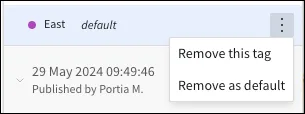
Click Remove as default.
Remove a tag from a document version
When you remove a tag from a version of a workbook, data model, or report, the version is still accessible from the version history, but anyone who only has access to the tagged version of the document loses access to the document.
You might remove a tag from a document version if you tagged the wrong document version or if you want to restrict access to users that only have access to the tagged version. If you want to update a tagged version, see Make changes to a tagged document version.
To remove a tag from a document version:
-
Next to the document name, click the down arrow (
) to open the document menu. -
Select Versions > Version history.
To collapse the details changes for each version, select the down arrow next to the most recent version.
-
Locate the tagged version and select
More > Remove this tag.When you remove the tag, the canvas shows the tagged version.
Swap the source of a tagged document version
If your workbook or report contains elements from multiple data sources, you cannot swap the source of the tagged workbook version.
To swap the source of a tagged document version, for example to use a test connection for a workbook tagged “testing” and swap to a production connection for a workbook tagged “production”, follow these steps. The steps are different if your document uses a data model for the data source or not:
- Swap the data model source used by a tagged document version.
- Swap the dataset or connection source used by a tagged document version.
- Swap the sources used by agents, Model Context Protocol (MCP) connectors, and API connectors in a tagged document version.
For more details about changing a document data source, see Change the data source for a workbook, data model, or element.
Swap the data model source used by a tagged document version
If your document (like a workbook or report) uses a data model as the data source, and you want the tagged version to use a different data source than the published version, first tag the data model and swap the source of the tagged data model, then tag the workbook or report and use the tagged data model as the source.
If the data model used by the workbook or report as a data source relies on another data model, tag the source data model as well.
If you swap the connection used by a data source, swapping the source by tagging a data model version instead of a workbook version helps you more easily manage and control access to data sources.
Tag the data model and swap the source
-
Open the data model for editing, then choose the version to tag:
-
To tag the latest published version of the data model:
- Next to the document name, click the down arrow () to open the document menu.
- Select Versions > Tag this version. If the document is in draft and has unpublished edits, you instead see Tag latest published version.
- Next to the document name, click the down arrow (
-
To tag a specific version of the data model:
- Next to the document name, click the down arrow () to open the document menu.
- Select Versions > Version history, then locate the version you want to tag.
- Click More > Set tag on this version.
- Next to the document name, click the down arrow (
The Set tag on version modal appears.
-
-
For Choose tag, choose a tag to apply to the data model. Choose the same tag that you plan to use with the report or workbook.
-
Select the checkbox for Swap sources of the tagged version.
-
Click Set tag.
-
In the Swap sources modal, in Sources of tagged data model, select a new data source to use for the tagged version. If you want to instead change the database or catalog, schema, or table, hover over the current object name, then click Select and choose a different object, then click Confirm.
-
Select Swap and tag.
Tag the workbook or report and swap the source to the tagged data model
-
Open the workbook or report for editing, then choose the version to tag:
-
To tag the latest published version of the document:
- Next to the document name, click the down arrow () to open the document menu.
- Select Versions > Tag this version. If the document is in draft and has unpublished edits, you instead see Tag latest published version.
- Next to the document name, click the down arrow (
-
To tag a specific version of the document:
- Next to the document name, click the down arrow () to open the document menu.
- Select Versions > Version history, then locate the version you want to tag.
- Click More > Set tag on this version.
- Next to the document name, click the down arrow (
The Set tag on version modal appears.
-
-
For Choose tag, choose the tag to apply to the version of the workbook or report.
-
Select the checkbox for Swap sources of the tagged version.
-
Click Set tag.
-
In the Swap sources modal, for Sources of tagged workbook/report open the drop-down menu and choose the corresponding tagged version of the data model.
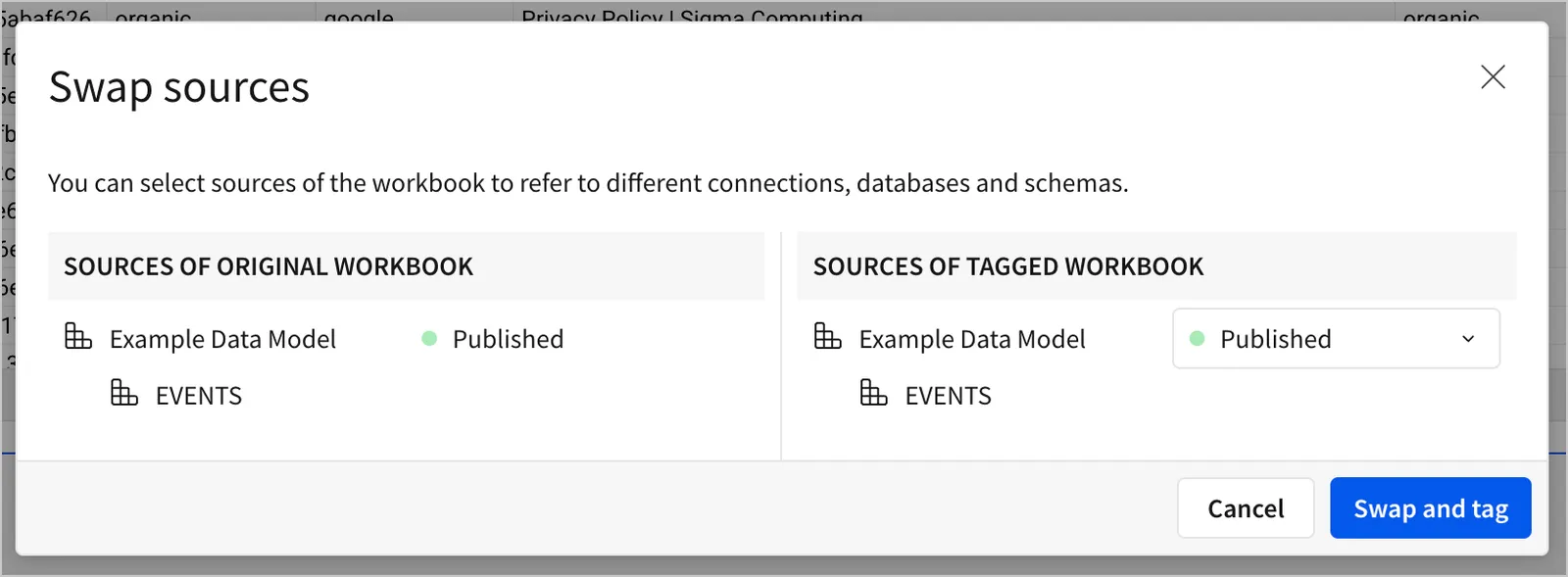
If the workbook or report contains multiple data sources from the same connection, you see the option to swap sources for each data source.
-
Select Swap and tag.
Swap the dataset or connection source used by a tagged workbook or report version
To select a different connection path, database, or schema for a tagged workbook or report version, do the following:
-
Open the workbook or report for editing, then choose the version to tag:
-
To tag the latest published version of the document:
- Next to the document name, click the down arrow () to open the document menu.
- Select Versions > Tag this version. If the document is in draft and has unpublished edits, you instead see Tag latest published version.
- Next to the document name, click the down arrow (
-
To tag a specific version of the document:
- Next to the document name, click the down arrow () to open the document menu.
- Select Versions > Version history, then locate the version you want to tag.
- Click More > Set tag on this version.
- Next to the document name, click the down arrow (
The Set tag on version modal appears.
-
-
For Choose tag, choose the tag to apply to the workbook or report version.
-
Select the checkbox for Swap sources of the tagged version, then click Set tag
-
In the Swap sources modal, in Sources of tagged data model, select a new data source to use for the tagged version. If you want to instead change the database or catalog, schema, or table, hover over the current object name, then click Select and choose a different object, then click Confirm.
-
Click Swap and tag.
Swapping the source updates the tagged version of the workbook or report to use the new connection. If your workbook or report uses a dataset, Sigma creates a copy of the dataset on the new connection.
Swap the sources used by agents, MCP connectors, and API connectors in a tagged document version
If your document contains actions that call API endpoints or Sigma agents, you can swap the following when you tag a document version:
- API connectors used in actions
- MCP connectors used in Sigma agents
- Warehouse agents used in Sigma agents
If you plan to swap a document with a Sigma agent that uses MCP connectors or warehouse agents, make sure the agent instructions reference the tool using an @-mention instead of in plain text. After swapping the tool source, the agent can still follow instructions relevant to the tool even if the name changes.
When you swap the sources used by agents, MCP connectors, and API connectors, the following limitations apply:
- Changes to API connectors and MCP connectors apply to all instances in the document. You cannot swap an MCP connector for a specific agent or an API connector for a specific action.
- You cannot swap warehouse search services set up as tools for an agent.
- Swapping API connectors, MCP connectors, and warehouse agents are only supported when you swap the sources of a tagged document version. Changing the source of these objects outside of a tagged version is not yet supported.
Make changes to a tagged document version
If you want to make changes to a tagged version of a workbook or report, you must first return the tagged version to a draft, then make changes, publish the changes, and re-tag the version.
If you follow these steps for a document that contains an input table, Sigma recreates the input table in the tagged version to match the restored version of the document. See Use input tables with version tagging.
If the input table contains edits that exist only in the tagged version of the document, those edits will be overwritten when you re-apply the tag to the restored version. To avoid data loss, make a copy of any important input table data before re-tagging.
For example, if you follow a development lifecycle where you tag a workbook version with the “testing” tag before tagging a workbook with the “production” tag to indicate that it’s ready to use in production, you might want to iterate on the testing tag.
To update the “testing” tagged version of the workbook or report, do the following:
-
Open the document for editing.
-
Next to the document name, click the down arrow (
) to open the document menu. -
Select Versions > Version history.
-
Locate the tagged version and select the date of the associated version to open it.
-
For the version, select
More > Restore version as draft.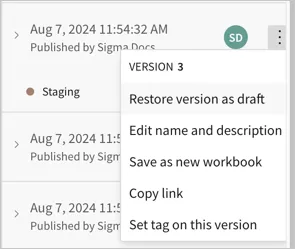
-
Make your desired changes in the draft.
-
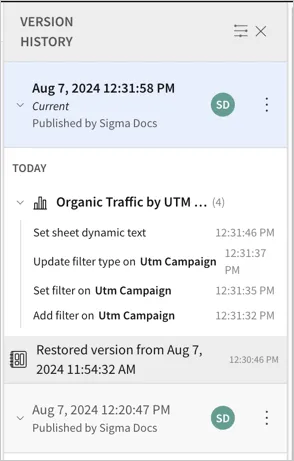
When you finish making changes, publish your changes.
-
Reopen the version history by clicking the down arrow (
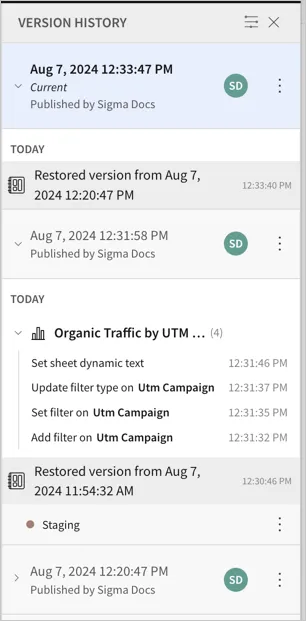
) to open the document menu, then selecting Versions > Version history.In the version history, you see a line item for Restored version from <date>, then additional changes listed before that version in the version history.
-
For the latest published version that contains your changes, select
More > Set tag on this version.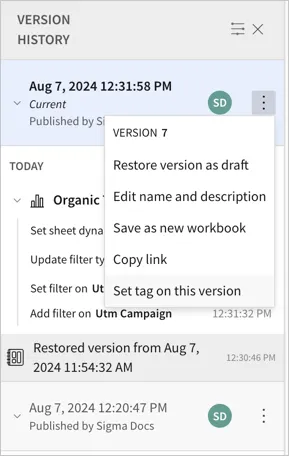
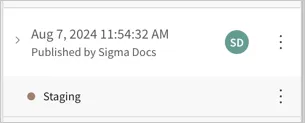
Sigma tags the latest version and updates the contents to match. The version history lists the previously tagged version with a grayed-out version of the version tag.
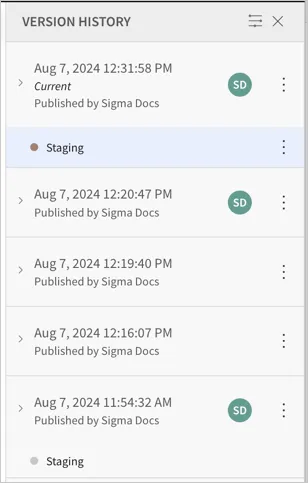
Do not remove the testing tag from the previous version. If you do so, anyone that has access only to that tagged version of the document will lose access. If you re-tag a different version, sharing is preserved.
If you had other changes that you want to preserve and continue working with, return to the version before you restored the tagged version as the latest draft, and select More > Restore version as draft.
Update a tagged version to use another tag
For example, if you want to promote a tagged workbook version from the “staging” version tag to the “production” version tag, do the following:
When you update a tagged version to use another tag, sources swapped from the published version to the tagged version must be swapped again when you apply a new tag.
-
Open the document for editing.
-
Next to the document name, click the down arrow (
) to open the document menu. -
Select Versions, then choose the tag that you want to view. For example, “Staging”.
The tagged version opens.
-
Open the document menu, then choose Versions > Tag this version.
The Set tag on version modal opens.
-
In the modal, select any relevant options, then select Set tag. If the original tagged version used a swapped source, select the checkbox for Swap sources of the tagged version and repeat the same source swap. See Swap the source of a tagged document version.
Sigma adds the “Production” tag to the version.
-
Next, remove the “Staging” tag from the version. Open the document menu, then select Versions > Version history.
-
In the version history, locate the version with the “Staging” tag applied, then select
More > Remove this tag.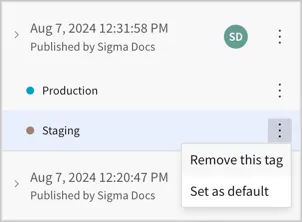
-
In the modal, acknowledge that users granted access only to this tagged version, or embeds that use the link to the tagged version, lose access to the tagged version after removing the tag by selecting Remove.
The version appears with a current tag of “Production” and a previous tag of “Staging”.