

Manage Sigma agents for your organization
As an admin, gain observability into agent creation and usage across your organization. Monitor how many agents are being created, by whom, and for what use cases. To track usage more closely, refer to the AI usage dashboard.
Requirements
- You must be assigned the Admin account type.
- To see an agent on this page, the workbook containing the agent must have been published (or a version tagged) after August 24, 2026. If you do not see an agent you expect to see, publish or re-tag the workbook.
Manage agents across your organization
- Go to Home and select the user icon with your initials.
- Select Administration > Agents.
On the Agents page, you can review every agent published across your organization and monitor adoption and usage trends. Review trends for the last 7 days, 30 days, 60 days, or 90 days.
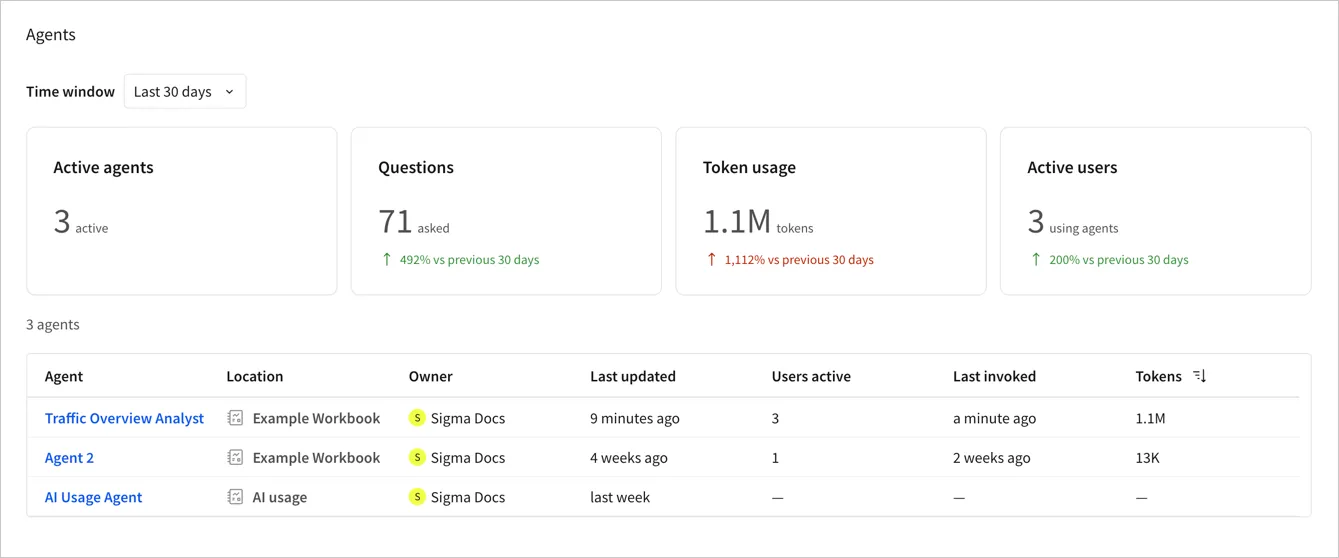
For all the agents that you can access as an admin, review KPIs with details about the agents in your organization:
- Active agents: The total number of agents used in the selected time window.
- Questions: The total number of messages sent to all agents.
- Token usage: The total input and output tokens consumed across all agents.
- Active users: The number of distinct users who interacted with an agent.
An agent table lists every agent in your organization with details about the location, workbook owner, and last updated date for the agent name or description. Sort the table by Users active, Last invoked, or Tokens to find your highest-usage, recently used, or highest-cost agents.
Users active, Last invoked, and Tokens require the AI usage dashboard to be set up. If tracking isn’t configured for your organization, these columns don’t appear. To set up the AI usage dashboard, see Configure the AI usage dashboard.
Review specific agent details and usage
On the Agents page, select an agent to review more details. You can view a summary of the agent, showing the agent’s location, names of data sources, names of configured tools, and instructions.
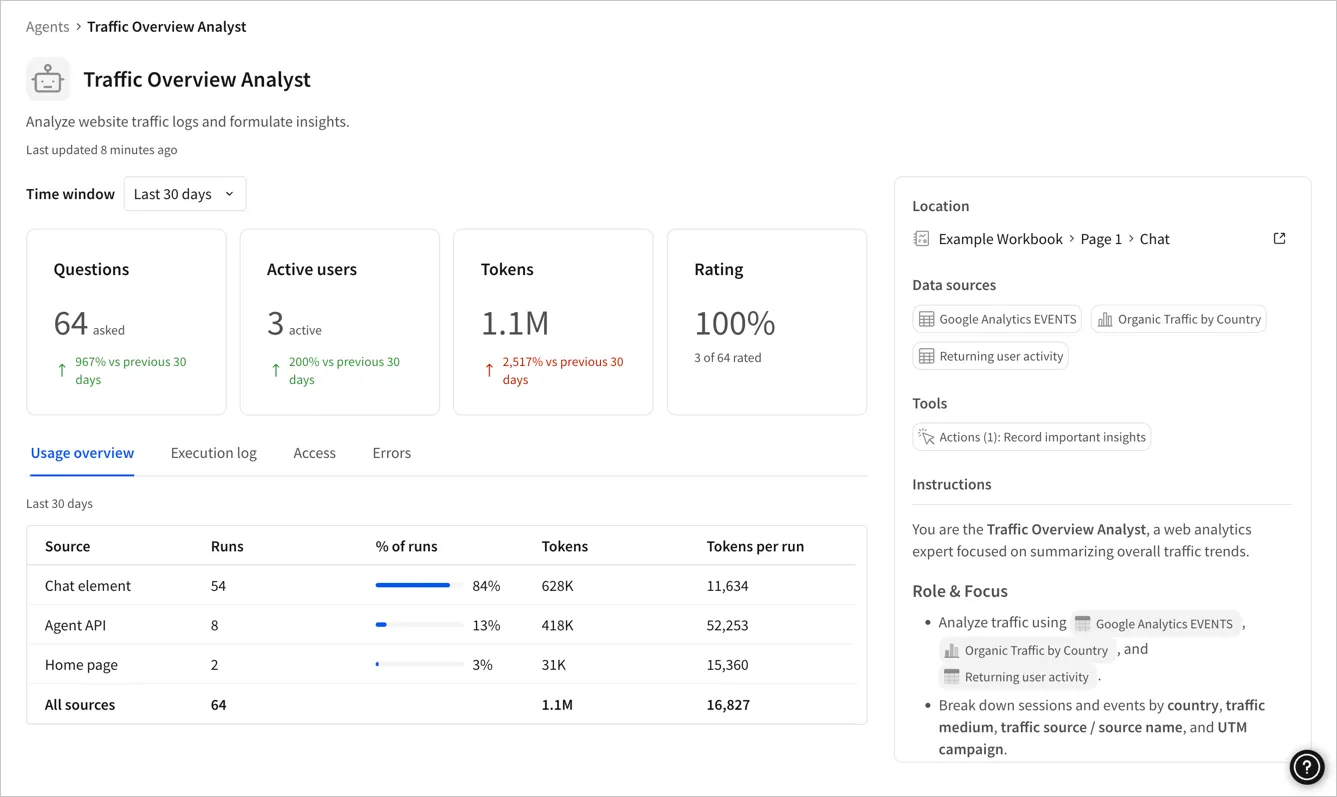
For each agent, you can review the following for the selected time period:
- Questions: The total number of messages sent to the agent across all versions.
- Active users: The number of distinct users who interacted with the agent.
- Tokens: The total input and output tokens consumed by the agent.
- Rating: The sentiment rating provided by users of the agent, relative to the total number of messages. Users can provide feedback on agent responses by clicking (Good response) or (Bad response).
To monitor specific agent activity, review the details in the tabs:
- Usage overview: Displays all conversation turns by source, for example a chat element, automated action, the API, or the home page. Review the number of turns in conversations, percentage of total conversation turns, and tokens consumed for each source.
- Execution log: Lists individual conversations by session, including when each started, who invoked it, its source, execution path, tokens consumed, latency, and outcome. Filter the log by source or error type. Click View details on a conversation to review the details, including each turn’s question and response.
- Errors: Displays failed runs by error type, including the number of failed runs, percentage of failures, and when each error type was last seen. Click View runs on an error to open the Execution log tab filtered to that error.
- Access: Shows who has access to the agent, inherited from its source workbook. See Manage access to an agent.
Manage access to an agent
Access to an agent is controlled by the access grants on the source workbook. If a user is assigned an account type with the Create and manage agents permission enabled, they can also create an agent in a workbook.
As an admin, if you use the API with impersonation, you can impersonate a user with Can view, Can explore, or Can edit access to the workbook to call the agent on their behalf.
To audit who currently has access to a specific agent, open the agent details and select the Access tab. The Access tab lists every user and team with access to the agent’s source workbook, how each user or team was granted access (directly on the workbook, inherited from a folder or workspace, or as the workbook owner), and how many of the users used the agent in the selected time period.
To change who has access to an agent, click Manage agent access on the workbook to open the workbook’s sharing settings.