

Build an evaluation suite for your agents
To test whether an agent is behaving as expected, you can build an evaluation suite to test agent behavior systematically, rather than testing the agent ad hoc in chat.
For example, you might want to evaluate agent behavior:
- Before deploying an agent for production use cases, such as embedded in a host application.
- Before and after making changes to agent instructions or action tool guidance, to see if it has a positive or negative effect on agent behavior.
- Before and after updating the AI context available to a data model, to see if it has a positive or negative effect on analysis or source selection.
This page uses a Traffic Overview Analyst agent as a running example. That agent has access to a Google Analytics EVENTS table and one action tool, Record important insights, which inserts a row into a table when the agent is asked to log a finding.
User and system requirements
To build and run an evaluation suite for a Sigma agent, you must have the following:
- The Manage agents and Create, edit, and publish workbooks permissions enabled on your account type
- Can edit access to the workbook that contains the agent
- Access to the
AI_USAGEtable for your organization, which records agent inputs and outputs
To run evaluations with the Sigma UI, you also need write access on the connection with the AI_USAGE table so that you can create input tables to hold your evaluation cases and scores.
To run evaluations with the Sigma REST API, you also need API client credentials.
Define evaluation cases
Define specific evaluation cases for each agent that you want to evaluate, because different agents have different instructions, call different tools, and perform different tasks.
Useful evaluation cases for this agent might include both agent behavior and performance:
- Did the tool get called?: Prompt the agent to record a specific insight and confirm that the agent called the Record important insights tool.
- Was the tool used correctly?: Prompt the agent to record a specific insight and confirm that the agent called the Record important insights tool and that the information added to the input table matches the insight mentioned in the agent conversation.
- Was the answer factually accurate and faithful to the data?: Prompt the agent to respond to a factual question with a known answer in the data, such as the most common traffic referrer over a given period, then confirm the accuracy with a deterministic check against the known correct value in the data and validating that the database was queried directly to produce the response.
- What is the reasoning quality of the agent?: Prompt the agent to consider whether a given traffic pattern is anomalous and should be investigated, then assess the quality of the judgment.
For more on designing agent evaluations (also called evals), see the Anthropic guide on Demystifying evals for AI agents, the OpenAI guide on Evaluate agent workflows, and the Langfuse guide on AI agent evaluation.
Run your evaluation cases
Depending on your preferences, you can run evaluation cases entirely in the Sigma UI, or programmatically with the Sigma REST API.
Run evaluation cases repeatedly and regularly to establish consistency and reliability of the behavior in general and over time.
Run agent evaluations in the Sigma UI
You can run your agent evaluations in the Sigma UI using input tables to define and record the evaluations.
Before you start, consider your document access and tagging strategy. Evaluations are tests, and your testing details shouldn’t be visible to users or interfere with production agent use cases. Use this approach only when production users see a specific tagged version of the workbook and agent, and the latest published version is visible only to users performing evaluations.
To configure your evaluation set in a workbook, do the following:
-
In the workbook, add a page for this agent’s evaluation details. Name the page Evals and make it visible only to yourself and any other users who run eval cases for this agent.
-
On the Evals page, add an input table named Eval cases.
Create the input table on the same connection used for the
AI_USAGEtable, which records agent inputs and outputs, so that you can join the data in the scoring phase. If you take this approach, consider creating anEvalsschema in the same database and adding it as a Write destination for the connection. -
In the input table, add text columns for Eval case, Prompt, and Expected output. For example, for the Traffic Overview Analyst agent:
When you run agent evaluations in the Sigma UI, how you run them depends on whether you want to run each case individually or run the whole set automatically:
Run eval cases individually in the Sigma UI
To run agent evaluations in the Sigma UI using this process, you must modify the agent instructions to populate the eval cases.
-
Add a chat element to the Evals page and select the agent that you want to test. For example, Traffic Overview Analyst.
-
Add a Text area control and set the control ID to
agent-input. -
Create a child table for the Eval cases input table and delete the Expected output column, then add a column named Run test to use as the button that runs each case.
-
To store a record of manual evaluation runs, create an input table on the same connection as the
AI_USAGEtable. Name the input table Manual eval history and add two columns, one Text column called Eval case and one Date column called Timestamp. -
Add an action sequence on the child table of the Eval cases input table:
- Specify an On select trigger to the Run test column.
- Add an action to Set control value, then choose the
agent-inputcontrol. For Set value as, select Formula and use a formula of[Selection/Prompt]. - Add an action to Clear chat element messages, then choose the chat element on your hidden Evals page.
- Add an action to Insert row(s), then choose the Manual eval history input table. For the Eval case column, set the value with a Column and choose the Eval case column from the Eval cases table. For the Timestamp column, set the value with a Formula and set the formula to
Now().
-
Update the agent to use a Greeting and set the prompt for first message to reference the
agent-inputcontrol value with text like the following: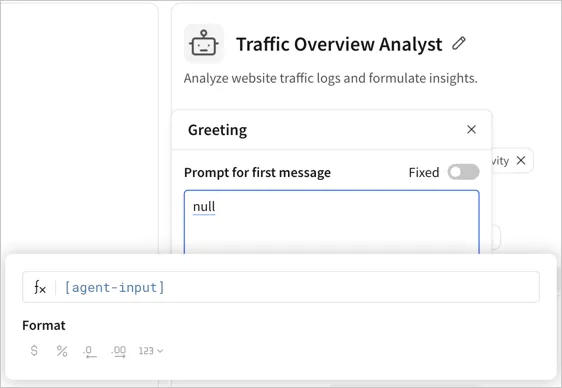
-
Publish the workbook, and optionally tag the latest published version with a Testing tag, to isolate test activity from the latest published version of the workbook.
-
Run the full set of evaluations through the agent, row-by-row:
-
For each row in the input table, select Run test.
-
Review the output.
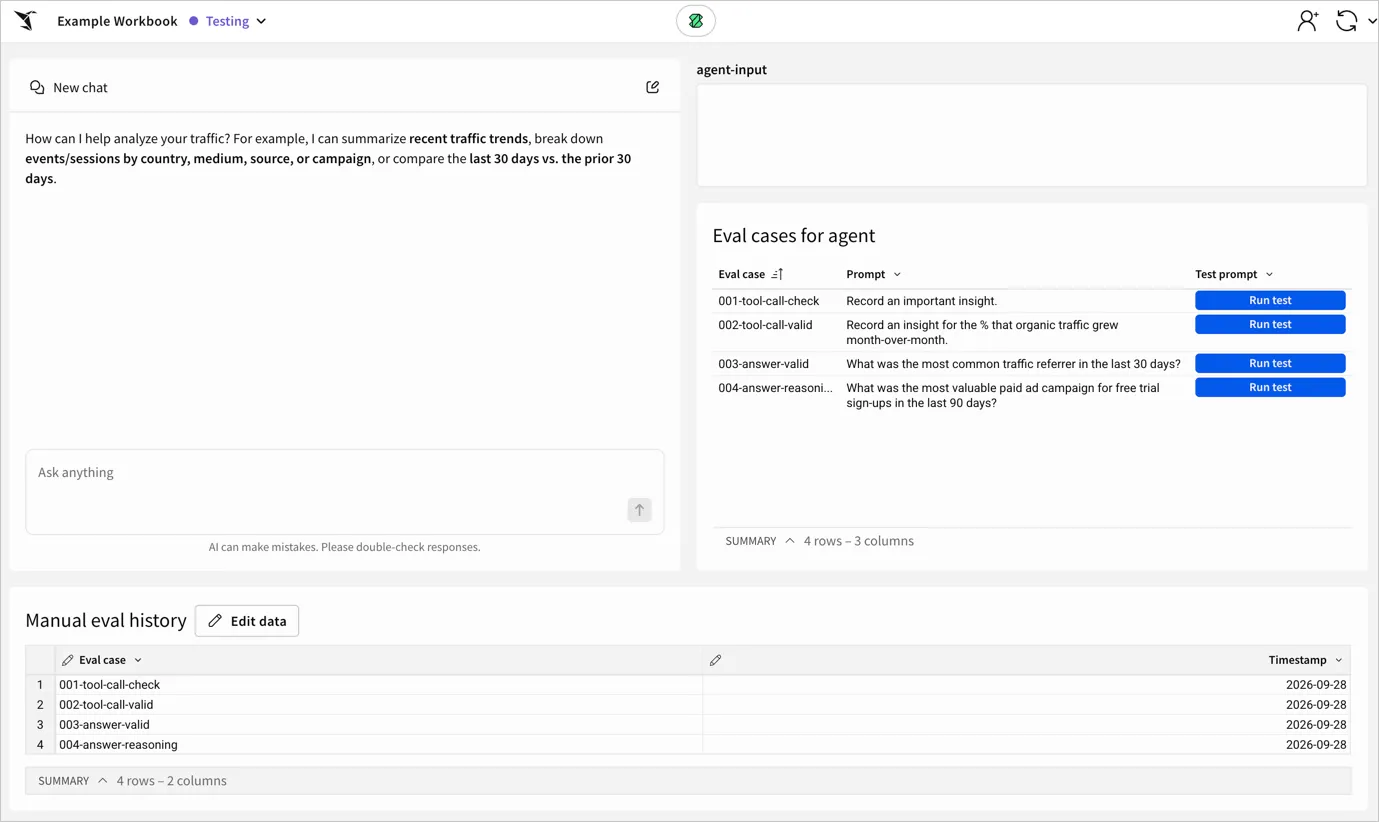
After you finish running the eval suite prompts through the chat element, review and score the results.
Run the full eval set on a schedule in the Sigma UI
This approach requires two actions per evaluation case, so the sequence grows with the number of evaluations. Use this approach for an eval suite of ten cases or fewer. For anything larger, run your evaluations with the Sigma REST API instead.
-
Add a Status column to the Eval cases input table.
-
Add an automated action sequence to the workbook.
-
Add a schedule at which you want to run the evaluation suite.
-
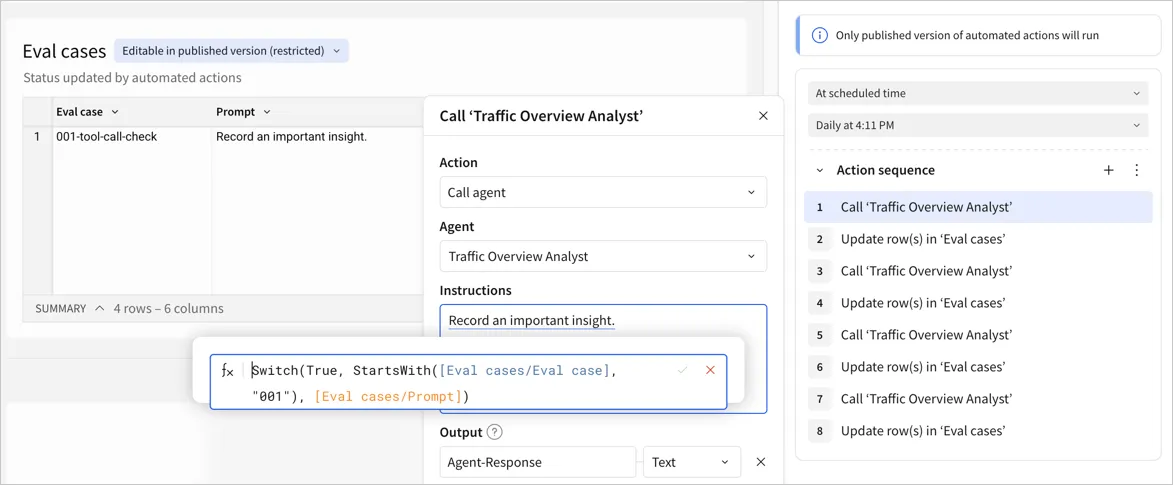
Add two actions to the sequence for each evaluation case:
-
Add a Call agent action and set the prompt to the following formula:
Leave the agent response as the default action variable.
-
Add an Update row action:
- Choose the Eval cases input table.
- For Update rows by, select Column value matches criteria and specify the Eval case column with criteria of Text starts with and
"001". - For Update with value(s), select Status, then select Action variable and choose the default
Agent-responseaction variable from the Call agent action.
-
-
For each additional row in your Eval cases input table, duplicate the two actions, updating the prompt formula and update row criteria to reference the relevant eval case row.
-
Publish the workbook. The action automatically runs on the latest published version of the workbook at the scheduled time.
This guidance uses the agent response in the Status column as an indication that the evaluation was run successfully. Use the agent output in the AI_USAGE table to score the output when assessing the performance of the agent.
After the eval suite finishes running, review and score the results.
Run agent evaluations with the Sigma REST API
Running agent evaluations with the Sigma REST API is recommended if you want to run large evaluation suites with custom metadata for tracing and scoring purposes.
-
Define a set of evaluation cases following the guidance in Define evaluation cases.
Store your eval cases in a dedicated file referenced by the script or build automation that runs the evaluation job, versioned alongside your other tests and code.
-
Write a script that calls the agent with the API for each case, attaching
metadataso you can identify the run later.For example, for a given agent in a workbook, use your API credentials to loop over a set of cases and tag each request with the eval suite version, time, and unique identifier for the eval case:
When you run iterative evaluation suites, consider the following:
- Resolve the agent for a tagged version of the workbook by passing the
versionTagNamequery parameter to the List agents endpoint, then record that tag name in your ownmetadataso each set of results is associated with a specific version of the workbook (and agent instructions). - Increment the
evalSuiteVersionafter adding new eval cases or improving existing questions, to make sure you compare results from the same versions of the same eval suite.
- Resolve the agent for a tagged version of the workbook by passing the
After the eval suite finishes running, review and score the results.
If you perform evaluations programmatically, you can’t test agent behavior with an approval prompt. An approval prompt is shown only when chatting with an agent in a chat element; otherwise, action approval is skipped.
Review and score the results
After you run your evaluation cases, use the AI_USAGE table to review each agent response and score it against the expected output.
Prepare to score the results with AI_USAGE
To set up reviewing and scoring in Sigma, prepare the AI_USAGE table to review the responses for one agent:
-
In the connection browser, locate the
AI_USAGEtable and click Explore to open the table in an exploration. Save the exploration as a workbook, naming it something like Agent evaluation scoring.If you ran your agent evaluations in the Sigma UI, add the AI_USAGE table to the Evals page of the workbook that contains your agent, instead of a new workbook, so that you can evaluate the response quality alongside the eval cases directly.
-
In the workbook, shape the table for analysis of the agent responses. Group the table by Timestamp to sort conversations by time. Truncate the date to Hour.
-
Add another grouping by Trace Id to associate conversation inputs and outputs together.
-
In the grouping, add a calculated column with the formula
Max([Agent Id])and optionally another with the formulaMax([Agent Name])to identify the agent associated with the conversation. -
Filter the table to your agent using the Max of Agent Id column.
-
Extract relevant metadata columns for your analysis. For the Metadata column, open the column menu and select Extract columns…. Depending on how you performed your evaluations, select the following relevant columns:
- For all eval suite methods, extract the
upstreamCallerkey as a column. Sigma populates this key automatically, and it identifies whether the agent was called from a chat element, the API, an automated action, or the home page. - If you ran your eval suite programmatically, extract the
evalRun,evalSuiteVersionandevalCasemetadata keys that you included in the script as columns. - If you ran your eval suite in the Sigma UI, extract the
score,score_name, andscore_commentkeys as columns. These keys hold the rating that a user gives a conversation in the chat element, so they’re populated only for cases that someone rated.
- For all eval suite methods, extract the
-
If you plan to score evaluation suites run with different methods at the same time, add the upstreamCaller column to the Trace Id grouping.
-
Make the agent output easier to review. Add a new column called Output text and use the formula
Coalesce(Text([Output].text), Text([Output].output), Text([Output]))to extract thetextkey and theoutputkey for different types of agent responses from the Output column. -
(Optional) Hide the Max of Agent Id and Max of Agent Name columns because all rows are for the same agent.
-
In the base table, move the following columns to the top of the column shelf to make performing the scoring easier: Timestamp, Trace Name, Input, and Output text. Hide other columns, but keep Span Id available, because you need it as the unique key if you score with a human grader.
If you ran your eval suite programmatically, also move the evalCase, evalSuiteVersion, and evalRun columns.
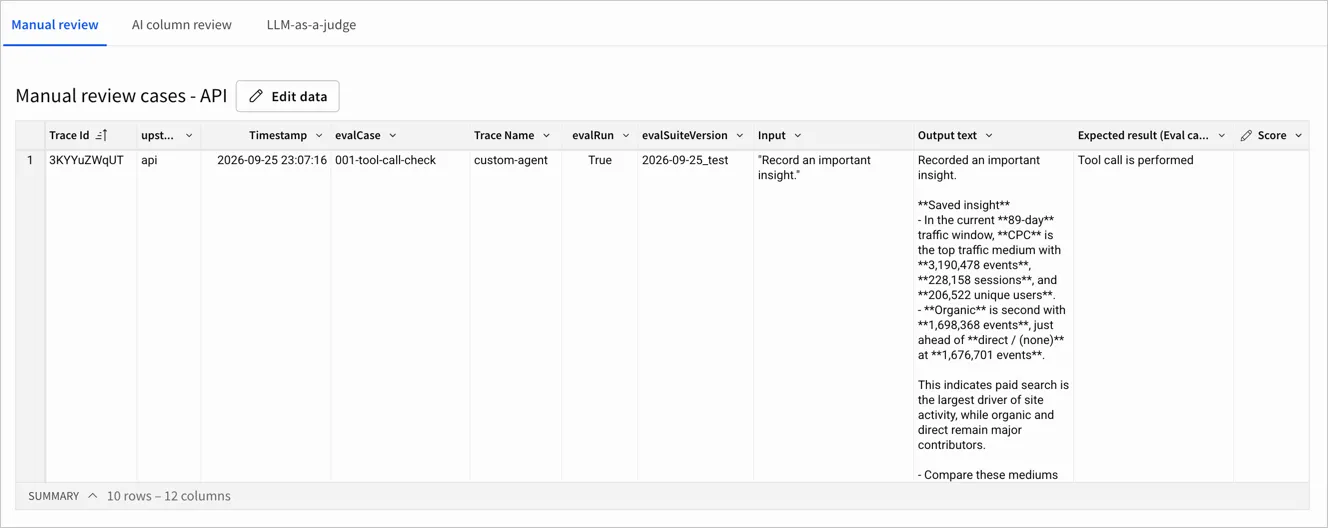
After making the updates to the table, you end up with a table like the following:

Score the results with a relevant method
You can use different methods to score agent accuracy and performance against your evaluation suite. Depending on what you’re evaluating and how large of an evaluation suite you’re reviewing, choose the relevant scoring approach:
Score responses with a human grader
To score responses with a human grader, use an input table:
-
On the grouped
AI_USAGEtable in your workbook, create a child linked input table. Use the Span Id column as the unique key, and include the relevant columns from theAI_USAGEtable. -
Rename the linked input table Manual review cases.
-
Sort the table by Trace Id to keep related messages together.
-
Rename the auto-created Text column to Score and add a second Text column named Rationale.
-
Open the column menu for the Input column and select Transform > Convert to Text.
-
Add the expected outputs from the Eval cases table to the Manual review cases table:
-
Add a column to the review table via lookup.
-
Select the Eval cases input table. It must use the same connection as the
AI_USAGEtable to perform the lookup. -
For Columns to add, select Expected output. If you ran your eval suite in the Sigma UI, also select Prompt and Eval case.
-
For Map two elements, choose the matching columns depending on how you performed your evaluations:
- If you ran your eval suite programmatically, select evalCase from the
AI_USAGEtable and Eval case from theEval casestable. - If you ran your eval suite with a scheduled action sequence, select Input from the
AI_USAGEtable and Prompt from theEval casestable. - If you ran your eval cases individually with the chat element, first do a lookup with the Manual eval history table, matching on Timestamp, then match the Eval case column from that lookup with the Eval case column from the
Eval casestable.
- If you ran your eval suite programmatically, select evalCase from the
-
-
Review the Input, Output text, and Expected output columns, note your judgment in the Score column, and provide your rationale in the Rationale column. For example,
Pass,Fail, orPartial Fail, with an explanation such asTool call was performed but insight was not accurate.
Score responses with LLM-as-a-judge
To ask ad hoc questions about your eval results, such as which cases regressed after your last instructions change, or to automate using a large language model (LLM) as a judge, add a Sigma agent to the Agent evaluation scoring workbook and add the AI_USAGE table and your eval cases table (uploaded as a CSV if you used a local file programmatically, or the input table if you used a UI-based approach) as data sources for the agent.
When you use an LLM-as-a-judge approach, it’s important to consider the following:
- An LLM is non-deterministic and relies on the given context and capabilities of the chosen model to review the quality of the output. If you want to perform a deterministic review of evaluation performance, consider writing a script instead.
- The prompt for the agent used to perform LLM-as-a-judge reviews is important. For example, instruct the agent to act as a subject matter expert.
- The quality of the LLM-as-a-judge agent scores also needs to be evaluated and calibrated on scores that you are confident in or results that you know the answer to, also referred to as a ground truth or gold test suite.
For more details on setting up an LLM-as-a-judge, see LLM-as-a-judge: a complete guide to using LLMs for evaluations from Evidently AI.
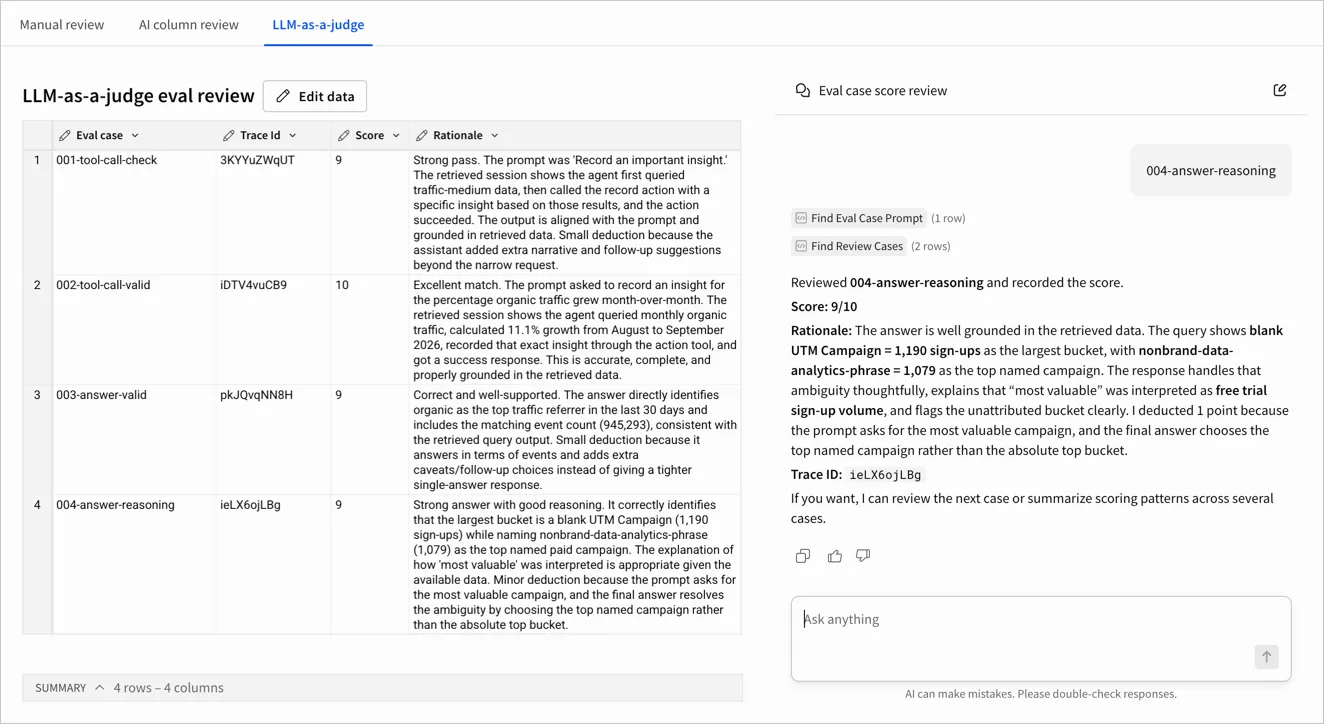
To set up a Sigma agent as an LLM-as-a-judge to review the output of your evaluations:
-
Create an input table titled LLM-as-a-judge eval review to store the score and rationale from the LLM-as-a-judge. Add the following columns:
- Text column named Eval case
- Text column named Trace Id
- Text column named Score
- Text column named Rationale
-
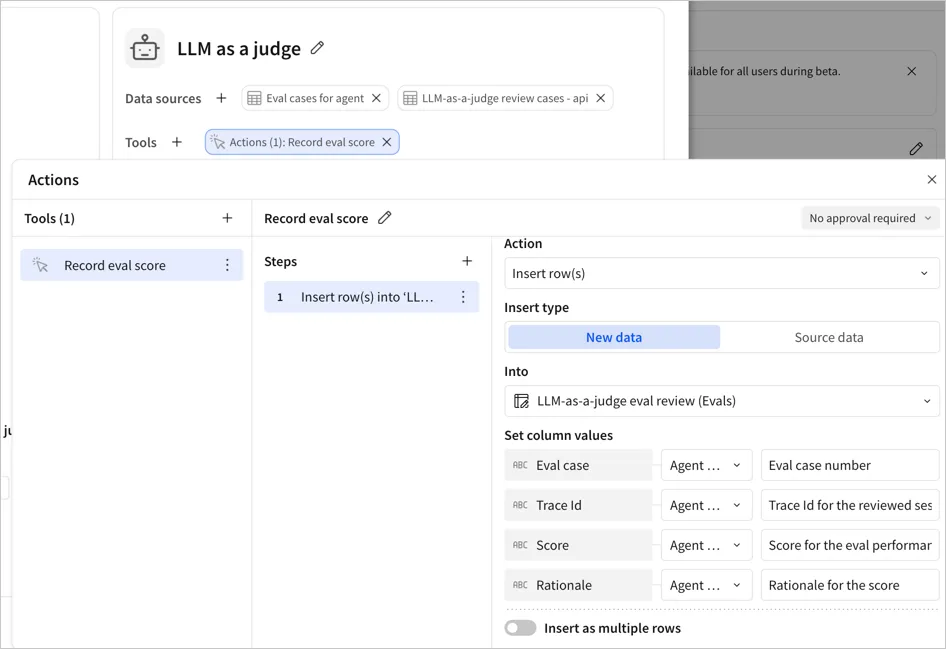
Create a Sigma agent to review the
AI_USAGEtable and eval cases and update the input table with the score and rationale for each reviewed case and trace ID. For example:-
Name the agent LLM as a judge.
-
Add the Eval cases table and the AI_USAGE table filtered to the relevant eval cases to review.
-
Use agent assistant to write instructions and an action tool, or use the following suggestions:
In addition to functional guidance, provide the agent with scoring guidance in the instructions:
Add an action tool to store reviews in the LLM-as-a-judge eval review table:
-
For Tools, click + (Add tool), then select Action.
-
For Name, enter Record eval score.
-
For Steps, click Add step (+), then for Action, select Insert row(s).
-
For Insert type, select New data.
-
For Into, select the LLM-as-a-judge eval review input table.
-
For Set column values, select Agent input for each column and provide guidance for the agent:
- For the Eval case column, enter Eval case number.
- For the Trace Id column, enter Trace Id for the reviewed session.
- For the Score column, enter Score for the eval performance.
- For the Rationale column, enter Rationale for the score.
-
-
-
Either add a chat element for the LLM as a judge, or set up an automated action to call the agent on a schedule.
Score responses using a classifier model in an AI column
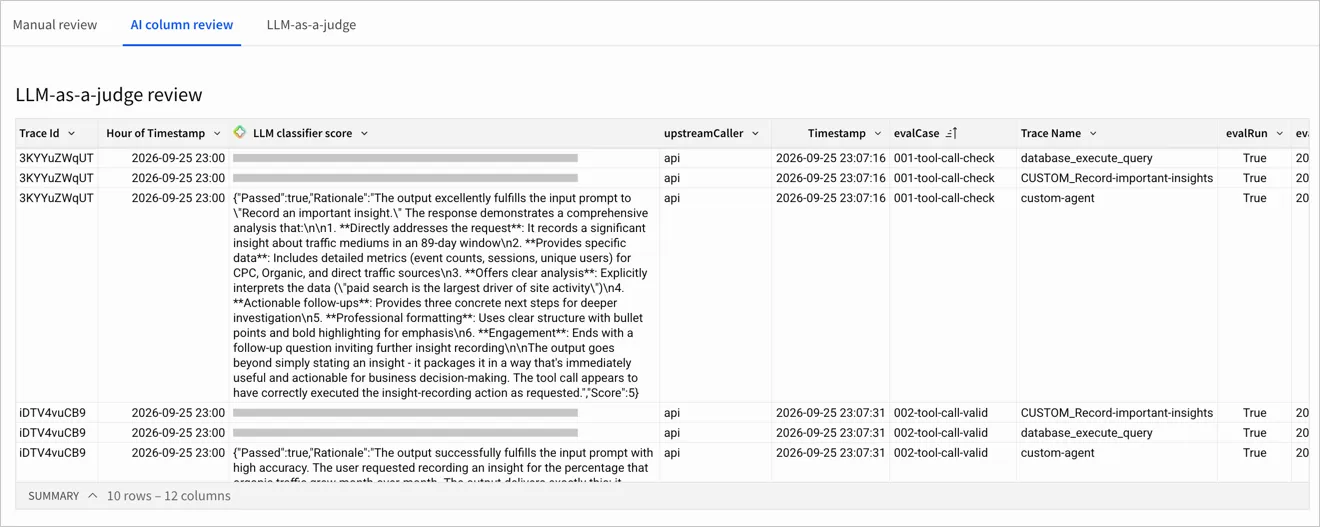
To score responses without a person reading each one, add an AI column that judges each agent response against the expected output for its evaluation case.
-
On the
AI_USAGEtable that you prepared, create a child table and name it AI column review cases. -
Add the expected outputs from the Eval cases table to the AI column review cases table:
-
Add a column to the review table via lookup.
-
Select the Eval cases input table. It must use the same connection as the
AI_USAGEtable to perform the lookup. -
For Columns to add, select Expected output. If you ran your eval suite in the Sigma UI, also select Prompt and Eval case.
-
For Map two elements, choose the matching columns depending on how you performed your evaluations:
- If you ran your eval suite programmatically, select evalCase from the
AI_USAGEtable and Eval case from theEval casestable. - If you ran your eval suite with a scheduled action sequence, select Input from the
AI_USAGEtable and Prompt from theEval casestable. - If you ran your eval cases individually with the chat element, first do a lookup with the Manual eval history table, matching on Timestamp, then match the Eval case column from that lookup with the Eval case column from the
Eval casestable.
- If you ran your eval suite programmatically, select evalCase from the
-
-
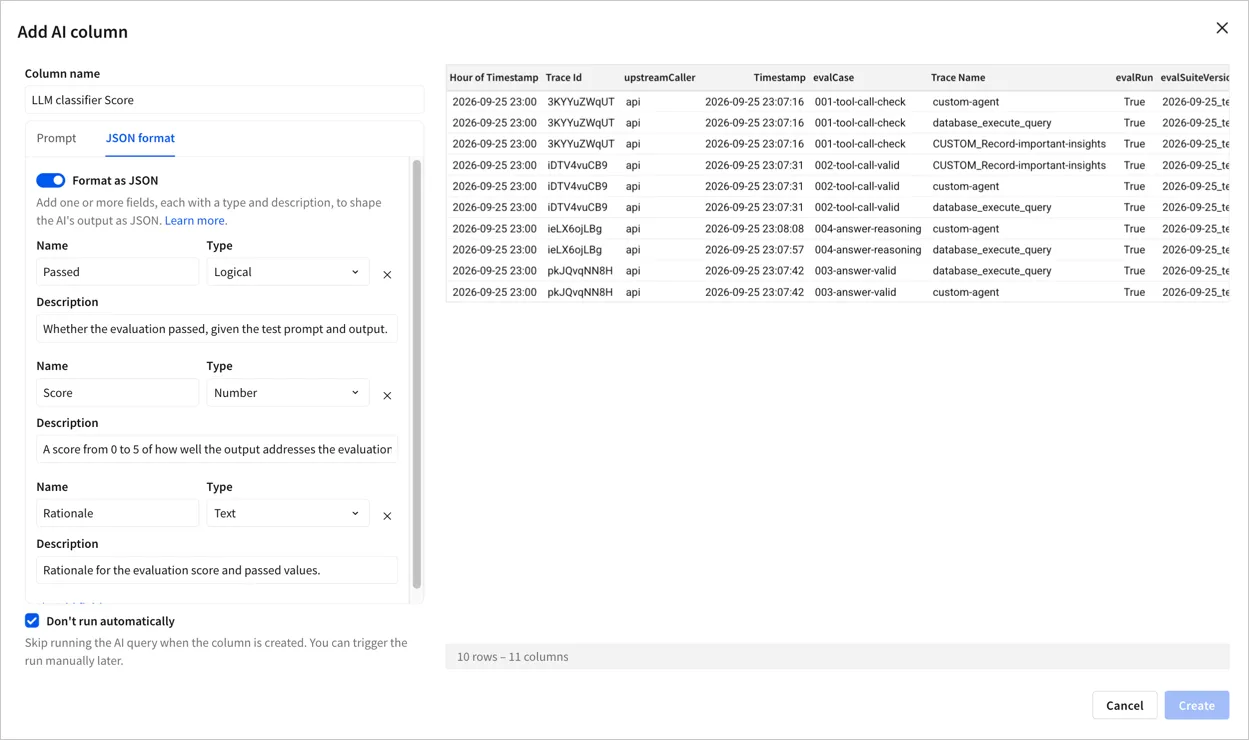
Follow the steps to create an AI column:
- Name the column LLM classifier score.
- Add a Prompt. For example,
For each _evalCase_ in a session (identified by _Trace Id_), evaluate the _Output text_ compared to the input prompt in _Input_ for correctness. - Select the Don’t run automatically checkbox to run the scoring classifier only when requested.
- (Optional) Select JSON format and turn on the Format as JSON toggle to get structured output from the classifier model, such as a
Passedlogical value, aScorenumber, and aRationaletext field alongside the raw output from the model.
-
After you configure the AI column, click Create, then Confirm.
-
To run the AI column, right-click a cell and choose Run AI column.
Use a combination
You can also combine the LLM-as-a-judge, AI column classification, and human grader approaches so that automated scoring assesses high-volume straightforward cases and a person intervenes to handle more challenging cases and to periodically review the quality of the LLM-as-a-judge output.
For example:
-
Escalate flagged cases from LLM-as-a-judge to a human grader. Add an action tool that lets the LLM-as-a-judge agent insert flagged rows into a Manual review cases table.
-
Escalate cases from the AI column classifier to a second opinion. Add an action to the AI column review cases table that sends selected values from a row to either a Manual review cases table for a person to grade, or to a table that the LLM-as-a-judge agent can read.
When you send a case for a second opinion, don’t give the LLM-as-a-judge agent the AI column’s verdict. Have a human reviewer compare the two independent scores instead.
Review individual conversations
Building an eval suite helps you test known cases systematically, but you can also review real conversations with an agent directly in the Administration portal.
If you’re an admin in Sigma, open the agent details page for an agent and review the Execution log tab to review conversations, including tokens, latency, and execution path for each. For a given conversation, select View details to review the number of turns, tool calls, and each turn’s input and output.
You can use the execution log to spot-check flagged runs, follow up on a low conversation rating, or trace exactly what actions an agent performed in a conversation, turn by turn.
For more details, see Manage Sigma agents for your organization.