
Use version tagging with Sigma tables (Beta)
This documentation describes one or more public beta features that are in development. Beta features are subject to quick, iterative changes; therefore the current user experience in the Sigma service can differ from the information provided in this page.
This page should not be considered official published documentation until Sigma removes this notice and the beta flag on the corresponding feature(s) in the Sigma service. For the full beta feature disclaimer, see Beta features.
When you apply a version tag to a workbook, Sigma handles local and organization-wide Sigma tables differently.
- Local: The tagged version uses a copy of each local Sigma table, and the copy is independent of its source in the published version. Sigma copies the schema and primary key, and you choose whether to carry over the data. The copy doesn’t sync with the published version, so data edits in one version don’t appear in the other.
- Organization-wide: The tagged version uses the same organization-wide Sigma table as the published version. Both versions read and write to the same underlying database table, so data edits in one version appear in the other. If you swap the source of an organization-wide Sigma table in the tagged version,however, edits in one version don’t appear in the other.
This page explains how version tagging affects Sigma tables and how to apply a version tag to a workbook that contains them. For information about version tags, see About version tags to workbooks, data models, and reports. For general information about Sigma tables, see Sigma tables overview.
Sigma tables are currently supported by Snowflake, Databricks, and PostgreSQL connections.
Requirements
To apply a version tag to a workbook that contains Sigma tables:
- You must be assigned an account type with the Apply tag and Create, edit, and publish workbooks permissions enabled.
- To set a protected tag, you must be assigned the Admin account type or be granted access to set the protected tag. See Create and manage version tags.
- You must be granted Can edit workbook access.
- You must be granted Can own table access on every local Sigma table in the workbook. (When you create a local Sigma table, you own it by default.)
For more information about tagging requirements, see Tag a workbook, data model, or report version.
How version tagging affects Sigma tables
When you apply a version tag to a workbook with Sigma tables, the effect on each Sigma table depends on the following conditions:
- The type of Sigma table (local or organization-wide)
- For local Sigma tables, whether you turn on the Carry over data option
- Whether you apply the tag for the first time or apply a re-tag (a version tag that has already been applied to the workbook)
Limitations and considerations
The following limitations and considerations apply to local Sigma tables only:
-
Re-tagging with local Sigma tables
- When you re-tag a workbook without carrying over data, Sigma adds new columns from the source table in the published version but doesn’t copy other schema changes, like removed or renamed columns.
- Sigma adds new columns only if both of the following are true:
- You’re assigned an account type with the Edit input tables permission enabled.
- You’re granted Can own table access on the tagged copy of the local Sigma table.
- Sigma adds new columns only if both of the following are true:
- To re-tag a workbook without carrying over data, the primary keys of the local Sigma table in the tagged and published version must match. If they don’t match, you can carry over data or change the primary key in the published version before you re-tag the workbook.
- Sigma copies the direct grants on a local Sigma table the first time you apply a specific tag. When you re-tag, Sigma doesn’t change the grants on the tagged copy, even if the source table’s grants have changed.
- When you re-tag a workbook without carrying over data, Sigma adds new columns from the source table in the published version but doesn’t copy other schema changes, like removed or renamed columns.
-
Source swapping with local Sigma tables
- When you swap sources, Sigma creates copies of the local Sigma tables on the new connection, which must support Sigma tables (Snowflake, Databricks, or PostgreSQL with write access enabled). If it doesn’t support Sigma tables, Sigma doesn’t apply the tag.
- When you re-tag a workbook, Sigma reuses the existing copy of each local Sigma table if you swap to the same connection as the previously tagged version. If you swap to a different connection, Sigma creates a new copy of each local Sigma table on the new connection, as it does for a first-time tag.
- Sigma uses the default write-back schema of the new connection for copies of local Sigma tables in the tagged version. You can select a different schema only when swapping to an OAuth connection.
- You can carry over local Sigma table data only when the published version’s connection and the new connection use Snowflake or Databricks. If either uses another platform, Sigma doesn’t apply the tag unless you choose to not carry over data. For example, you can swap from a Snowflake connection to a Databricks connection, or from one Snowflake connection to a different Snowflake connection and carry over data. You cannot swap from a Databricks connection to a PostgreSQL connection and carry over data.
Apply a version tag to a workbook containing Sigma tables
To apply a version tag to a workbook containing Sigma tables, complete the following steps:
- Open the draft or published version of a workbook that contains one or more local Sigma tables.
- In the header, select the workbook name to open the document menu.
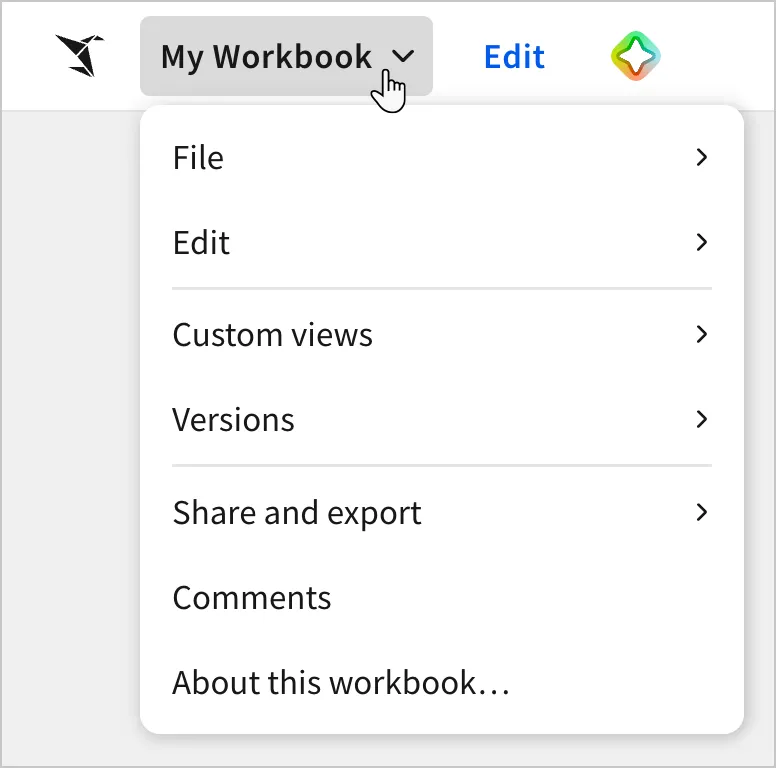
- Select Versions > Tag this version (if viewing the published version) or Tag latest published version (if viewing the draft).
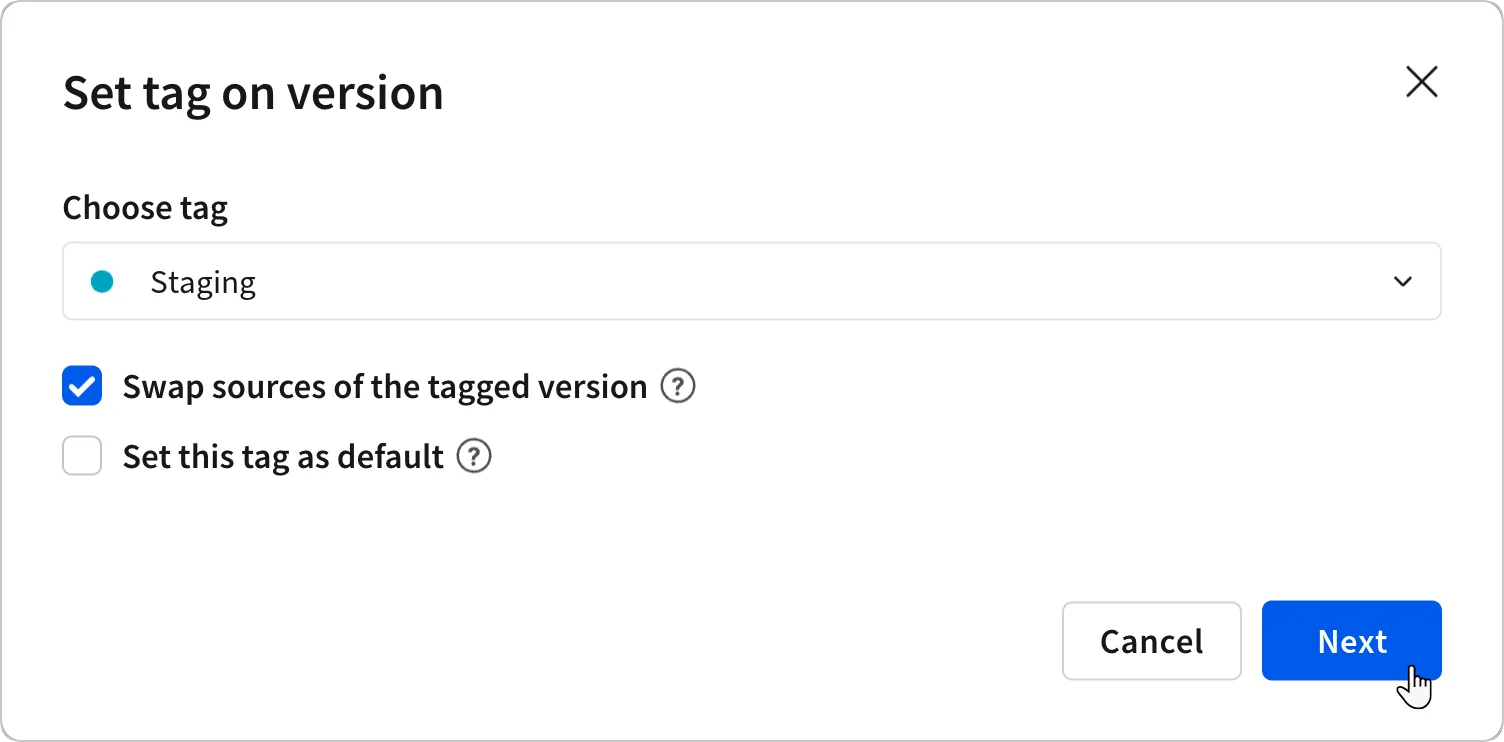
- In the Set tag on version modal, configure the tag settings:
- In the Choose tag field, select a tag.
- (Optional) To use different data sources in the tagged version, select the Swap sources of the tagged version checkbox.
- (Optional) To make the tagged version the default version of the workbook for users who don’t have access to the published version, select the Set this tag as default checkbox.
- Select Next.
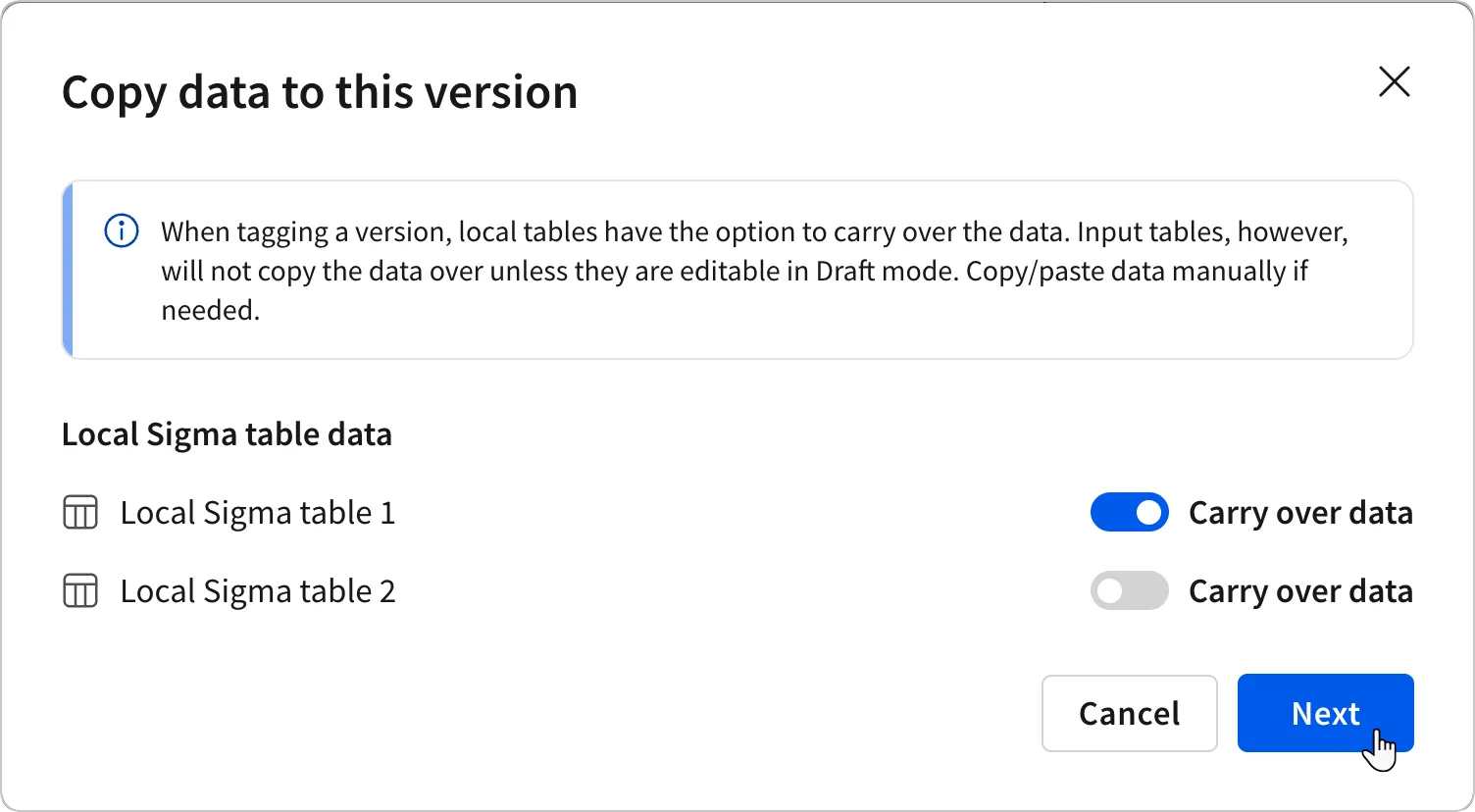
- In the Copy data to this version modal, configure the Carry over data setting for each local Sigma table:
- Determine which data to copy to the tagged version:
- To copy data from the source table, turn on the Carry over data toggle.
- First-time tag: Creates a copy with the schema, primary key, and data of the source table.
- Re-tag: Replaces the schema, primary key, and data in the tagged copy.
- To tag without copying data, turn off the Carry over data toggle.
- First-time tag: Creates an empty copy with the columns and primary key of the source table.
- Re-tag: Keeps the existing primary key and data in the tagged copy and adds any new columns from the source table. If the primary keys in the tagged and published versions don’t match, Sigma doesn’t apply the tag.
- To copy data from the source table, turn on the Carry over data toggle.
- Select Set and view tag to apply the tag, or select Next and continue to step 6 if you chose to swap sources.
- Determine which data to copy to the tagged version:
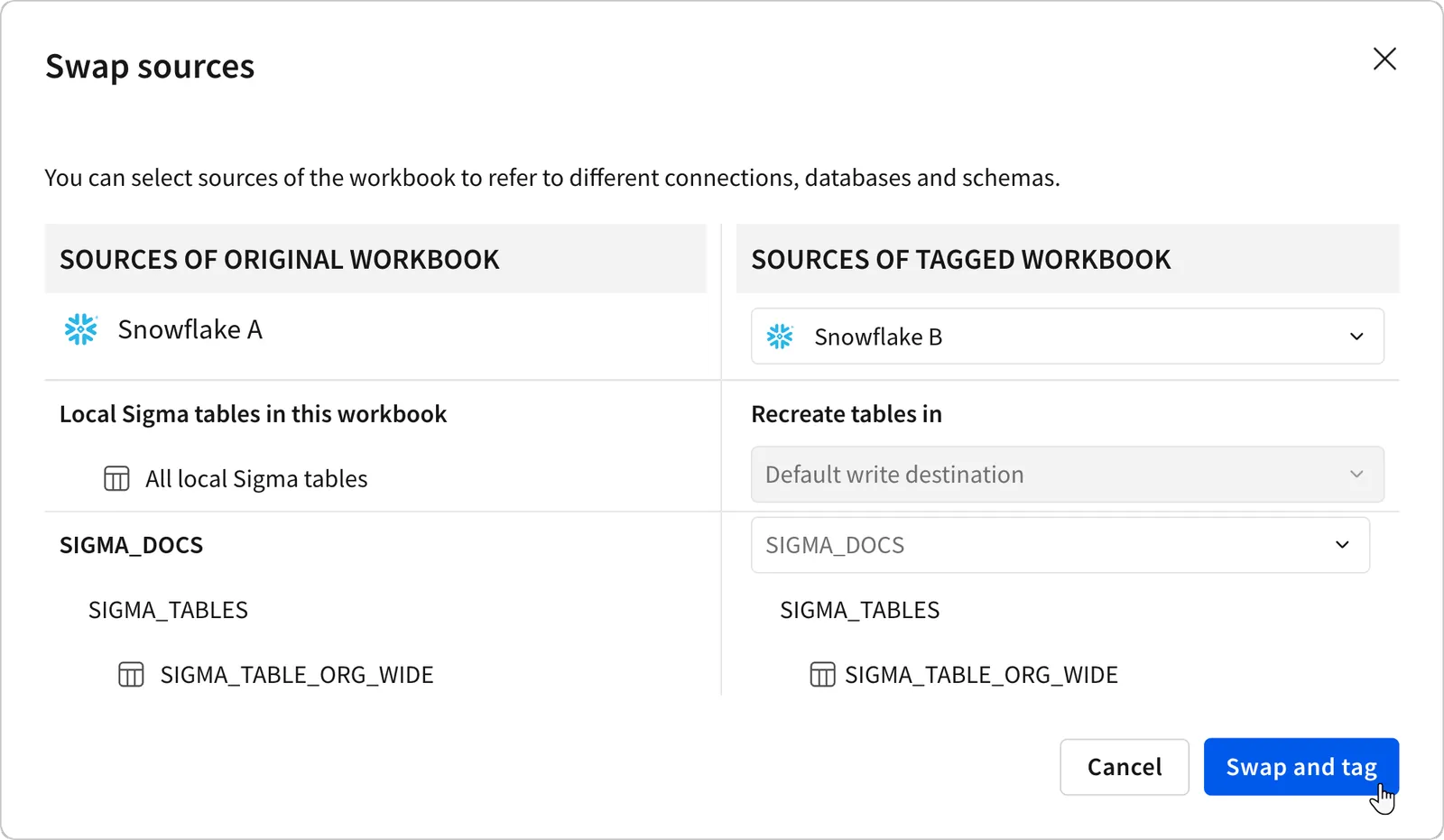
- If you selected the option to swap sources, configure the new sources in the Swap sources modal:
- Select a connection to use for the tagged version.
- If you select an OAuth connection, select a write-back schema in the Recreate tables in field.