

Example use cases for Sigma agents
You can use Sigma agents to perform actions and help you accomplish tasks. For guidance and inspiration, refer to the following example implementations:
- Example: Add agent memory as an action tool
- Example: Notify a user when an anomaly is detected
- Example: Run a forecasting model
- Example: Retrieve details from a third-party API
- Example: Nightly usage summary agent
- Example: Build a personalized sales copilot
For more examples of Sigma agents built for real-world use cases, see:
- For examples of AI-assisted workflows built by Sigma Support, including monitoring team availability, recovering support tickets sent erroneously to spam, detecting incident patterns across regions, and interpreting third-party error messages, see Sigma agents at work in the Sigma community.
- For an example of a scheduled agent that aggregates context from multiple sources and produces one personalized briefing per recipient, see An AI-powered approach to consistent, scalable call preparation in the Sigma community.
- For an example of configuring a Sigma agent to research prospects, companies, or trends using a web search API connector, see Web search agent in Sigma Quickstarts.
Example: Add agent memory as an action tool
To help the agent remember important context from conversations, add an input table to your workbook and create an action tool for the agent to use.
-
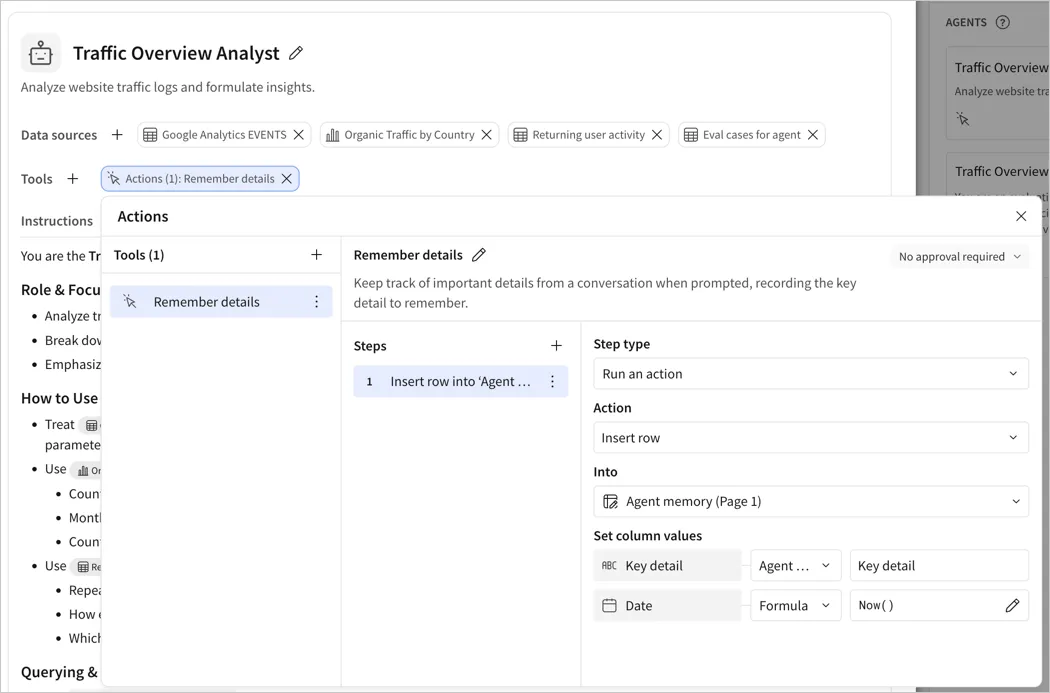
Add an input table to the workbook titled Agent memory. Add one date column called Date, and one text column called Key detail.
-
Select an agent and follow the steps to add an action tool:
-
For Tools, click + (Add tool), then select Action.
-
For Name, enter Remember details.
-
For Description, enter Keep track of important details from a conversation when prompted, recording the key detail to remember.
-
For Steps, click Add step (+).
-
For the step, select a Step type of Run an action.
-
For Action, select Insert row, then select the Agent memory input table.
-
For Map with values, do the following:
- For the Date column, select Formula and enter
Now()to record the date when the key detail was added to the table. - For the Key detail column, select Agent input and replace the placeholder text with Key detail to remember.
- For the Date column, select Formula and enter
-
Select Close (x) to return to editing the agent.
-
-
Update the agent instructions with guidance for using the new action tool, using an @-mention to reference the tool. Add a sentence like When asked to remember a key detail, use the Remember details tool.
-
To allow the agent to reference the key details stored in the Agent memory input table as context, add the input table as a data source.
Agent memory can get stale. Consider adding guidance to the instructions to check with the user before acting on guidance older than 2 months, or a similar review mechanism.
-
Click Save to save the agent.
-
Add a chat element to interact with the agent.
Using this method creates agent memory that is shared with all users of the workbook. If you want the agent to store key details specific to each user, add a Created by system column from the Row edit history, then follow the steps to set up row-level security using the user email address.
Example: Notify a user when an anomaly is detected
For example, if you want to monitor anomalous page visits to your website, you might have a workbook with your website analytics data.
You can configure an alert that sends a Slack message when page views exceed a known threshold, but you can also use a Sigma agent to review non-deterministic anomalies and send an alert.
You can recreate this example with the Sigma Sample Database Google Analytics Events data.
-
In a workbook, add the Sigma Sample Database Google Analytics Events table and an input table called Detected anomalies with two columns, one Text column titled Anomaly detected and one Text column titled Message body.
-
Create a Sigma agent and name it Anomaly Detection Agent.
-
For the agent, add a data element with the website analytics data table. If you use complex calculations to identify page views or unique users, use a table with metrics for those calculations defined.
-
Provide instructions to the agent with guidance like the following:
Set up an MCP connector to Microsoft SharePoint to allow the agent to refer to a company marketing calendar stored in Microsoft SharePoint for details about launch announcements or social media activity to help explain anomalies.
-
To store the message contents, follow the steps to add an action tool to the agent to update the input table:
-
For Tools, click + (Add tool), then select Action.
-
For Name, enter Stage message contents.
-
For Description, enter Draft simple valid HTML to provide as a Microsoft Teams message. Refer to https://learn.microsoft.com/en-us/microsoftteams/platform/bots/how-to/format-your-bot-messages for supported syntax.
-
For Steps, click Add step (+).
-
For the step, select a Step type of Run an action.
-
For Action, select Insert row.
-
For Into, choose the Detected anomalies input table.
-
For the Anomaly detected column, select Agent input, then update the placeholder text to
Summary of detected anomaly. -
For the Message body column, select Agent input, then update the placeholder text to
Message body in Microsoft Teams message syntax.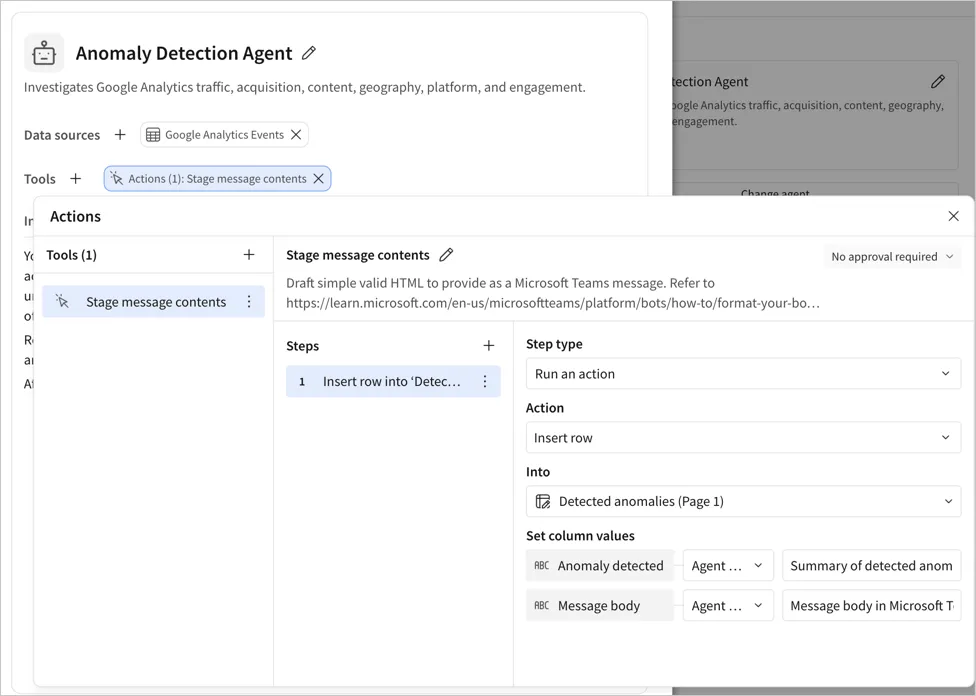
-
Select Close (x) to return to editing the agent.
-
-
To send a notification about identified anomalies, follow the steps to add an action tool to the agent:
-
For Tools, click + (Add tool), then select Action.
-
For Name, enter Notify about anomalies.
-
For Description, enter When you identify an anomaly, notify a human in Microsoft Teams.
-
For Steps, click Add step (+).
-
For the step, select a Step type of Run an action.
-
For Action, select Notify and export, then select a Destination of Microsoft Teams.
-
For To, choose Specific channels and enter the URL to the relevant alert Microsoft Teams channel.
-
For Message, press
=, then type[Detected anomalies/Message body]to reference the Message body column of the input table updated by the agent. -
(Optional) Turn off the Link to workbook toggle.
-
(Optional) Turn off the Attachment toggle.
![The Notify about anomalies action tool with a Notify via Teams step, Specific channels selected, and the formula bar showing [Detected anomalies/Message body] as the message.](/_fern-files/_img/d93ec473759527d0cdc9d9e5342525ab640fb4b7dd4420dd2ba0e4b7c96e391a.webp)
-
Select Close (x) to return to editing the agent.
-
-
Click Save to save the agent.
-
Schedule the agent to run on a regular cadence:
-
Select the workbook page.
-
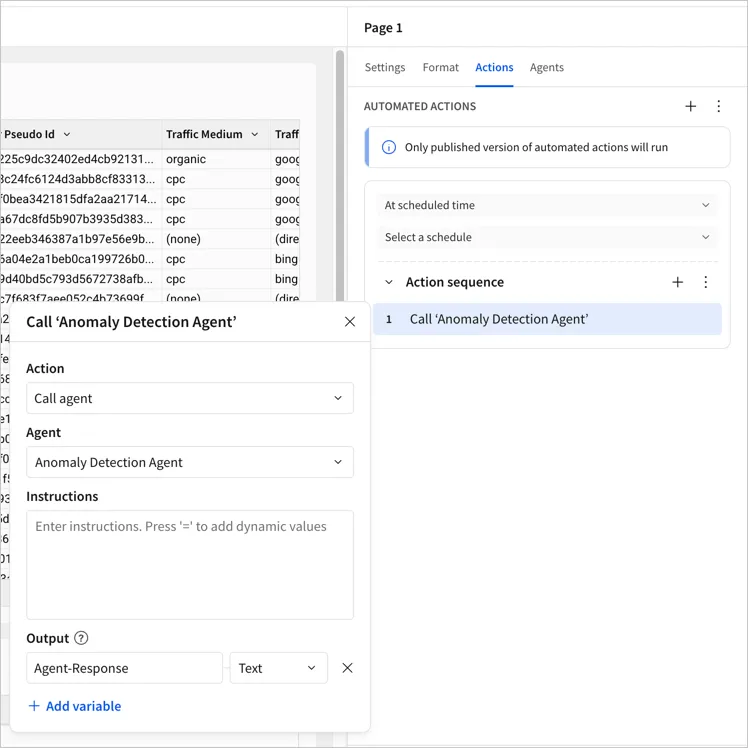
In the editor panel, click Actions.
-
For At scheduled time, click Select a schedule and choose Weekly and a preferred time.
-
Click Add action (+).
-
For Action, select Call agent.
-
For Agent, select the Anomaly Detection Agent.
-
For Instructions, enter If an anomaly has been detected, use the staged message contents to notify about anomalies.
-
Click Close to save the settings.
-
Publish the workbook to schedule the automated action.
-
Example: Run a forecasting model
If you want to combine deterministic forecasting models with agent-informed forecasting, you can add a Sigma agent to a workbook with an existing Python code element that you use to run a forecasting model.
-
In a workbook, add a Python element with the code for the forecasting model. Include the
sigma.output()method to make the code available as a child element, and create a table with the code output. Add another table with relevant inputs for the forecasting model, such as a historical product inventory table. -
Create a Sigma agent.
-
Provide instructions to the agent with guidance like the following. Use an @-mention to reference the specific table:
-
For Data sources, add both the historical product inventory table and the table containing the output.
-
To make the agent capable of running the forecasting model, add an action tool to the agent to run the Python element:
- For Tools, click + (Add tool), then select Action.
- For Name, enter Run forecasting model.
- For Description, enter Retrieve deterministic inventory forecasting using a trend projection technique.
- For Steps, click Add step (+).
- For the step, select a Step type of Run an action.
- For Action, select Run Python element.
- For Element, choose the Python element that contains the inventory forecasting model.
- Select Close (x) to return to editing the agent.
-
Click Save to save the agent.
-
Add a chat element to interact with the agent, or schedule the agent to run on a regular cadence.
Example: Retrieve details from a third-party API
A Sigma agent can retrieve details from a third-party API, summarize the response, and use the response to take further action in Sigma.
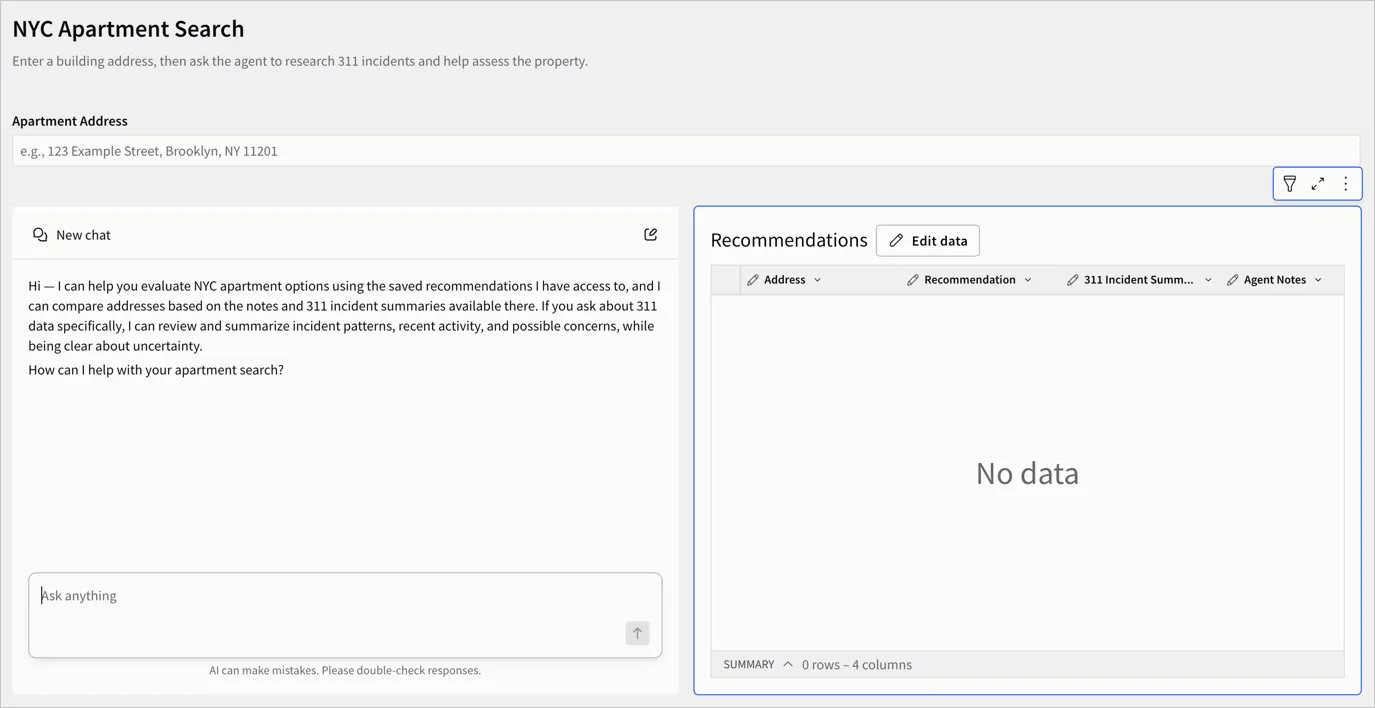
For example, if you want to build a Sigma agent to help search for an apartment in New York City, NY, USA, you might want to inform your search with data from 311 to identify whether and what type of incidents are commonly reported for the apartment building address.
-
In your Sigma organization, configure API credentials and connectors for the NYC Open Data API.
-
In your workbook, add a text input to use for entering relevant apartment addresses, and an input table named Recommendations to store recommendations from the Sigma agent.
-
Create a Sigma agent.
-
Provide instructions to the agent with guidance like the following, using an @-mention to refer to the exact tool:
-
For Data sources, add the Recommendations input table.
-
To make the agent capable of calling an API with 311 incident data in NYC, add an action tool to call an API action:
-
For Tools, click + (Add tool), then select Action.
-
For Name, enter Retrieve 311 incidents.
-
For Description, enter Call 311 with the specified address and summarize the response.
-
For Steps, click Add step (+).
-
For the step, select a Step type of Run an action.
-
For Action, select Call API.
-
For Select an API connector, choose the NYC Open Data connector.
-
For Map with values, if any API parameters are dynamically set, such as the incident address, choose Control and specify the text input control.
To let the agent provide the input, select Agent input instead of Control.
-
Select Close (x) to return to editing the agent.
-
-
To make the agent capable of updating the recommendations, add an action tool to add rows to the Recommendations input table:
-
For Tools, click + (Add tool), then select Action.
-
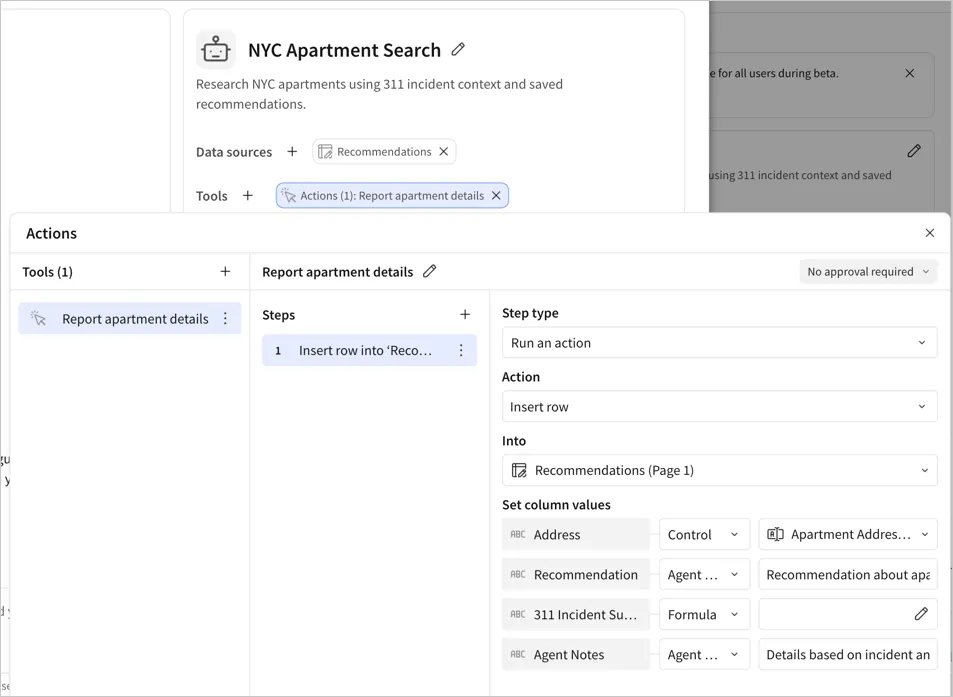
For Name, enter Report apartment details.
-
For Description, enter Store apartment recommendation based on 311 incident report.
-
For Steps, click Add step (+).
-
For the step, select a Step type of Run an action.
-
For Action, select Insert row.
-
For Set column values, specify how to populate each column:
- For the Address column, select Control, then select the Apartment address control.
- For the Recommendation column, select Agent input, then provide guidance for the agent: Recommendation about apartment quality.
- For the 311 Incident Summary column, select Formula, then specify the action variable for the 311 incident action tool.
- For the Agent notes column, select Agent input, then provide guidance for the agent: Details based on incident analysis.
-
Select Close (x) to return to editing the agent.
-
-
Click Save to save the agent.
-
Add a chat element to interact with the agent, or schedule the agent to run on a regular cadence.
Example: Nightly usage summary agent
In this example, an agent runs every night to review the last 24 hours of usage data across multiple sources and send an email with the summary.
The agent is configured with the following:
-
Multiple sources of usage data in the workbook for data from the last 24 hours.
-
Instructions to provide a concise summary for a business systems analyst:
To set up this workflow:
-
Select the workbook page, then select the Actions tab.
-
Create an automated action sequence with the following actions:
-
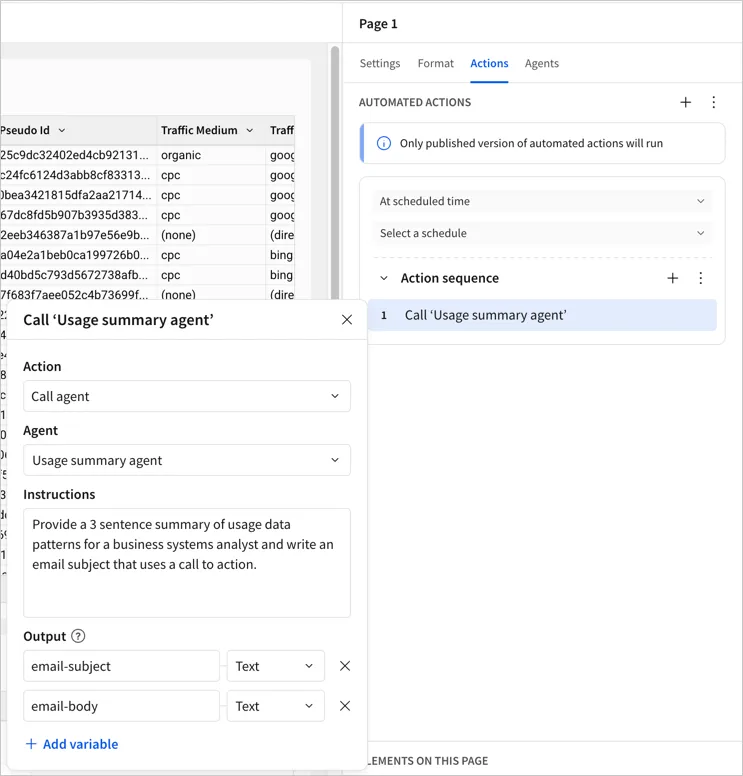
Call agent action with the following configuration:
-
Select the agent.
-
For Instructions, enter guidance to provide a concise summary of the latest usage data to send via email, with an action-oriented email subject. For example,
Provide a 3 sentence summary of usage data patterns for a business systems analyst and write an email subject that uses a call to action. -
For Output, add the following action variables:
email-subjectwith a data type ofText.email-bodywith a data type ofText.
-
-
Notify and export action with the following configuration:
- Select a destination of Email, then choose recipients.
- For Subject, press
=, then type[email-subject]to reference the email subject action variable from the Call agent action. - For Message, press
=, then type[email-body]to reference the email body action variable from the Call agent action. - Complete the remaining configuration options.
![The Notify via email step as the second action in the sequence, with the Subject set to [email-subject] and the Message set to [email-body].](/_fern-files/_img/576cc6dd590243f69d374090024ed83cbf68643fffc8c3fdfca06518673d3496.webp)
-
-
After configuring the action sequence, follow the steps to run the action sequence automatically at your preferred frequency, such as every night at 11 PM.
-
Publish the workbook to activate the schedule.
Example: Build a personalized sales copilot
To help sales representatives review their own pipeline and prepare for upcoming renewals, set up an agent that drafts follow-up messages and requires human review and approval before sending.
-
In a workbook, add a sales pipeline table, such as one added to your data platform from your customer relationship management (CRM) software, with columns like Rep Email, Account, Renewal Date, and Deal Stage.
-
Add a text area control named Review Slack message.
-
Create a Sigma agent and add the pipeline table as a data source.
-
Provide instructions to the agent with guidance like the following:
You can also use the agent assistant to draft instructions and set up the action tools below instead of configuring them by hand.
-
To let the agent draft a follow-up message for review, add an action tool:
- For Tools, click + (Add tool), then select Action.
- For Name, enter Draft Slack follow-up.
- For Description, enter Draft a short Slack message following up with the account about their upcoming renewal.
- For Steps, click Add step (+).
- For the step, select a Step type of Run an action.
- For Action, select Set control value.
- For Update control, choose the Review Slack message text area control.
- For Set value as, select Agent input.
- Select Close (x) to return to editing the agent.
-
To let the agent send the reviewed message, add a second action tool:
- For Tools, click + (Add tool), then select Action.
- For Name, enter Send Slack follow-up.
- For Description, enter When the rep confirms the draft is ready, send it to the account’s Slack channel.
- For Steps, click Add step (+).
- For the step, select a Step type of Run an action.
- For Action, select Notify and export, then select a Destination of Slack.
- For To, choose Specific users / teams and enter the relevant Slack channel name, channel ID, or member ID.
- For Message, press
=, then reference the control ID of the Review Slack message text area control. - To make sure the agent only sends the message after the sales representative reviews it, switch this tool from No approval required to Requires approval.
- Select Close (x) to return to editing the agent.
-
Click Save to save the agent.
-
Add a chat element to interact with the agent.
This use case requires user review and approval before the agent sends the message. The pattern works only in a chat, because control values can’t be set on a schedule and approval prompts are skipped when an automated action calls an agent.
Related resources
- About Sigma agents
- Build Sigma agents
- Chat with Sigma agents
- Call Sigma agents with the API
- Create actions to interact with Sigma agents
- AI usage dashboard
- Get started with templates, including the budget variance analysis and revenue forecasting app templates, which include finance-oriented agents.