

Build a progress bar (Beta)
Build a progress bar (Beta)
This documentation describes one or more public beta features that are in development. Beta features are subject to quick, iterative changes; therefore the current user experience in the Sigma service can differ from the information provided in this page.
This page should not be considered official published documentation until Sigma removes this notice and the beta flag on the corresponding feature(s) in the Sigma service. For the full beta feature disclaimer, see Beta features.
Progress bars display values as a percentage or proportion of a target value or defined goal. Create progress bars to track your status toward a goal, monitor your team’s budget usage, and more.
This document describes how to add a progress bar to a workbook or report and introduces key properties and format options to help you get the most out of your charts.

User requirements
The ability to create progress bars requires the following:
- To create a chart in a workbook, you must be assigned an account type with Full explore or Create, edit, and publish workbooks permission enabled.
- To create a chart in a report, you must be assigned an account type with the Create, edit, and publish reports permission enabled.
- You must be the workbook/report owner or be granted Can explore or Can edit access to the document.
Create a progress bar
Add a progress bar element to a workbook or report, and configure the required properties:
-
Open a workbook or report in a draft or custom view.
-
In the Add element bar, select UI and then Progress bar.
-
In the Properties tab of the editor panel, choose how you want the progress bar to display the configured value:
- To display progress as a percentage, select Percent.
- To display progress as a value within a defined range, select Value.
-
Select the Value field to open the formula bar, and enter a constant value or a dynamic text formula that references a control value or column.
You can use dynamic text to change your progress bar’s value based on your workbook’s data. For example, if your revenue goal is defined by a control with the ID
revenue-target, the formulaSum([Revenue]) / [revenue-target]can dynamically calculate cumulative revenue as a proportion of that goal. See the function index for more information on writing formulas in Sigma. -
(Optional) To change how the value is displayed, use the Format options available in the formula bar popover..
-
(Optional) If you selected Value in step 3, configure the progress bar’s minimum and maximum values in the Minimum and Maximum fields, using a constant value or a dynamic text formula that references a control value or column.
You can convert a progress bar to a progress ring while retaining all property and format configurations by selecting Ring in the Properties tab of the editor panel.
Customize a progress bar
You can customize a progress bar’s appearance by changing its color, stroke, and alignment, adding conditional formatting, and modifying its label, value text, and description.
Configure the color of a progress bar
You can change the color of a progress bar to fit your workbook or report’s theme or to help emphasize different kinds of goals.
-
Select the progress bar you want to modify.
-
In the Format tab of the editor panel, select Bar format to expand the section.
-
Configure the color for the part of the progress bar you want to customize:
-
To change the color of the progress fill, select
 Fill color and choose a color.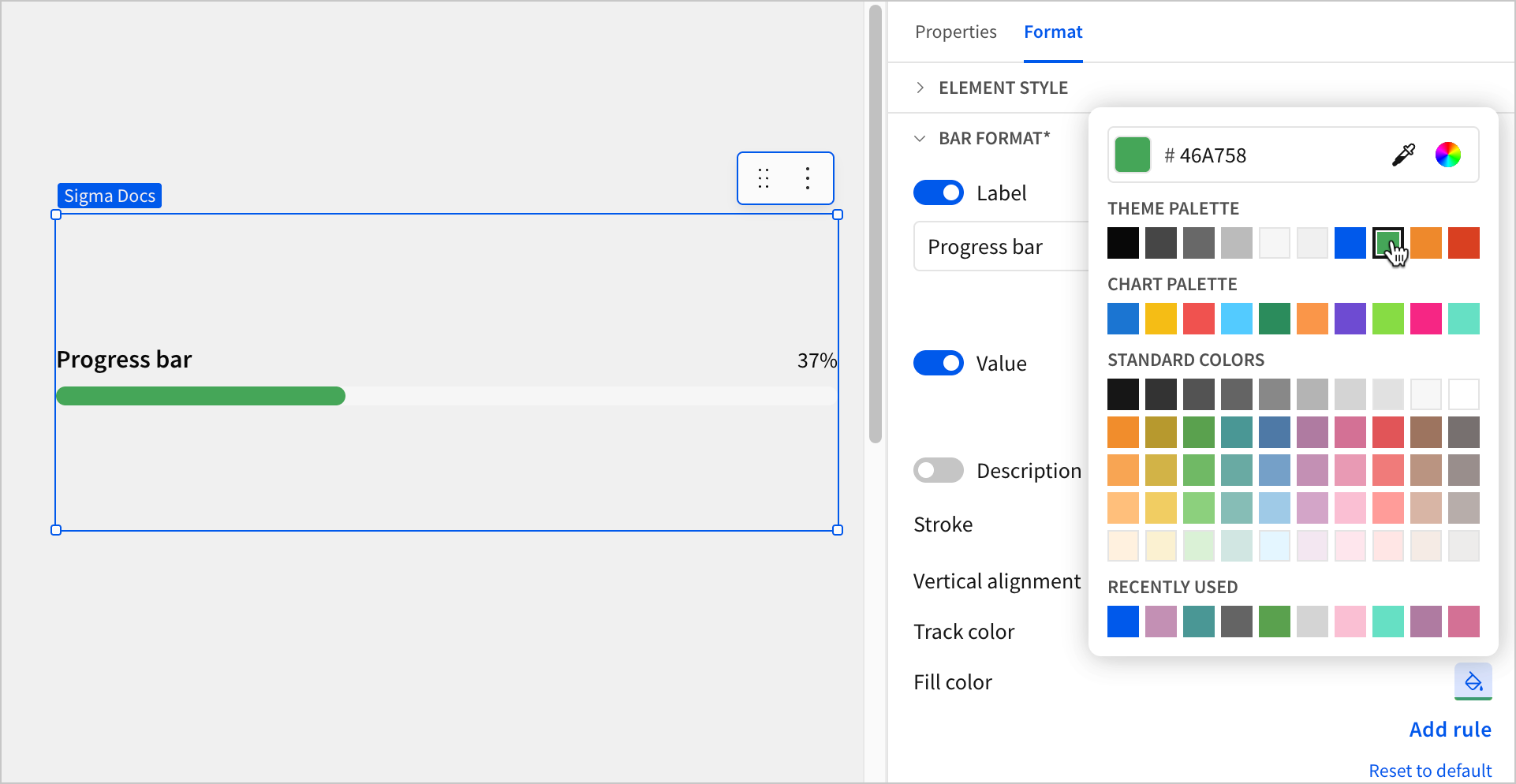
-
To change the color of the unfilled part of the bar, select
Track color and choose a color.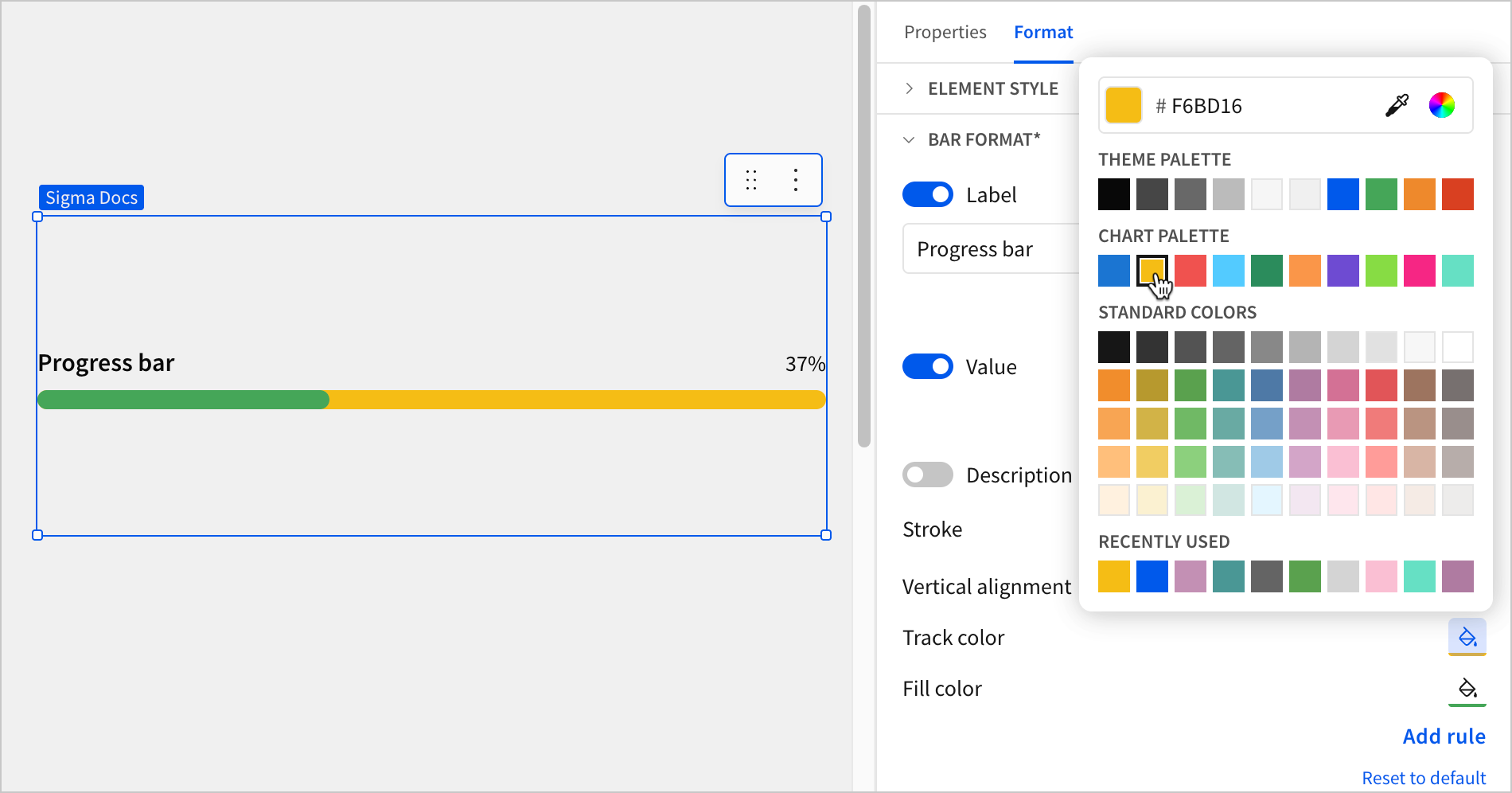
-
Add conditional formatting to a progress bar
To highlight or emphasize a progress bar’s value when it meets a specified condition, you can add a conditional formatting rule:
- Select the progress bar you want to modify.
- In the Format tab of the editor panel, select Bar format to expand the section.
- Under Fill color, select Add rule.
- For Formatting rule, configure a condition to evaluate.
- Select Color and choose a color to apply to the progress bar when the configured conditions are met.
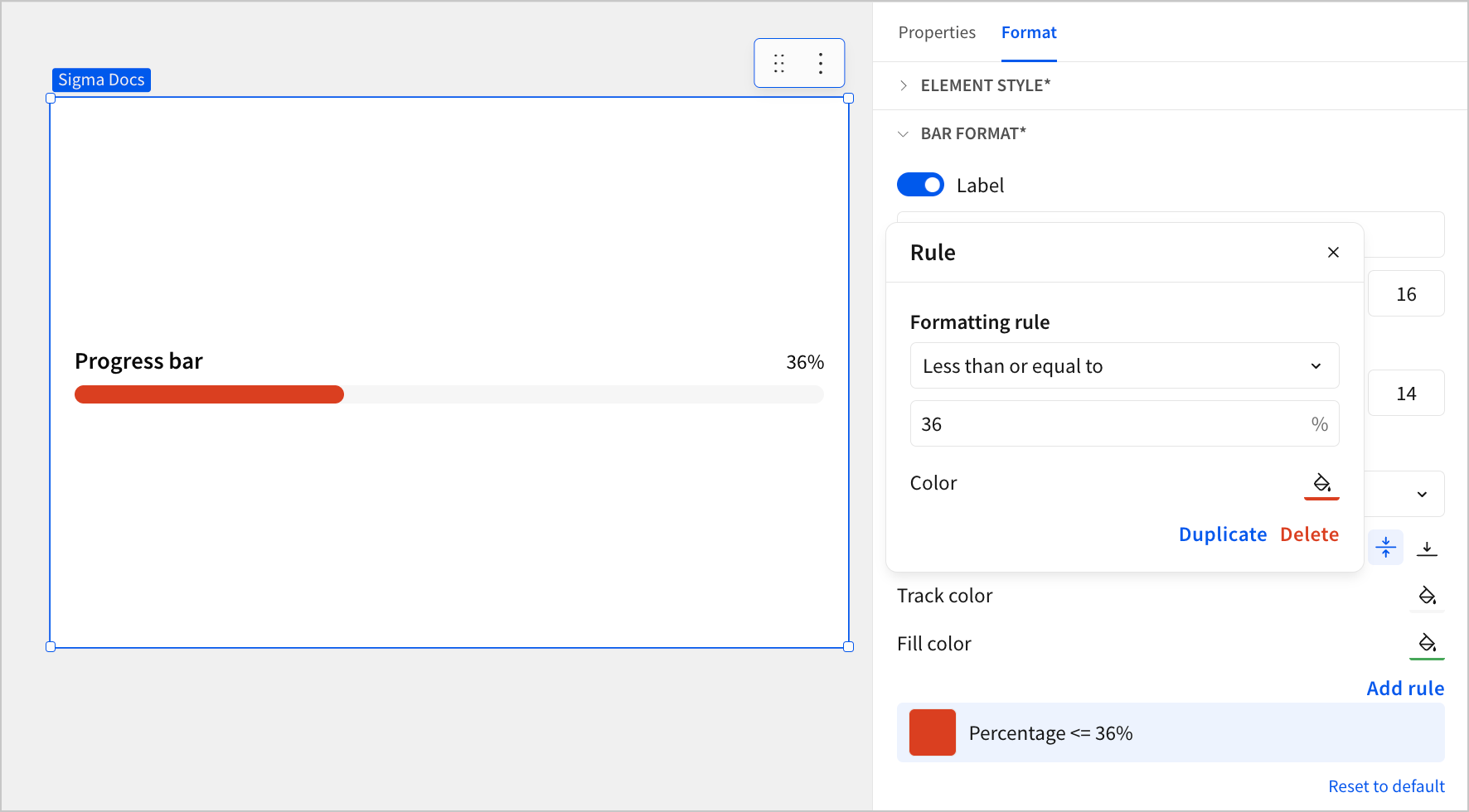
Change the stroke of a progress bar
To change the thickness of the progress bar, modify the stroke:
- Select the progress bar you want to modify.
- In the Format tab of the editor panel, select Bar format to expand the section.
- Select Stroke and, from the dropdown, choose Thin, Medium, or Thick.
Configure the alignment of a progress bar
You can change the alignment of a progress bar to modify its orientation on the workbook or report page.
- Select the progress bar you want to modify.
- In the Format tab of the editor panel, select Bar format to expand the section.
- For Vertical alignment, select Top align, Center align, or Bottom align.
Customize the label of a progress bar
You can modify the text and appearance of the label for a progress bar, as well as choose whether to display it at all.
- Select the progress bar you want to modify.
- In the Format tab of the editor panel, select Bar format to expand the section.
- Configure the label:
- To hide the label, turn off the Label toggle. To display it again, turn on the Label toggle.
- To change the label text, enter the text you want to display in the text field for Label.
- To change the font color, select
 Text color and choose a color by using the color picker, entering a hex code, or choosing from one of the standard colors configured for your workbook or report’s theme.
 - To change the font weight, select
 Bold to turn bold formatting on or off.
 - To change the font size, select the font size field and select a size from the dropdown.
Customize the value text of a progress bar
You can modify the appearance of the value text for a progress bar, as well as choose whether to display it at all.
- Select the progress bar you want to modify.
- In the Format tab of the editor panel, select Bar format to expand the section.
- Configure the value text:
- To hide the value, turn off the Value toggle. To display it again, turn on the Value toggle.
- To change the font color, select Text color and choose a color by using the color picker, entering a hex code, or choosing from one of the standard colors configured for your workbook or report’s theme.
- To change the font weight, select Bold to turn bold formatting on or off.
- To change the font size, select the font size field and select a size from the dropdown.
Add a description to a progress bar
You can add a description to a progress bar to add further context or explain the goal it tracks.
- Select the progress bar you want to modify.
- In the Format tab of the editor panel, select Bar format to expand the section.
- Turn on Description.
- Enter a description for the progress bar, or press
=to enter a dynamic text formula that references a column or control. - (Optional) To customize the text color, size, and weight of the description, use the available formatting options:
- To change the font color, select Text color and choose a color by using the color picker, entering a hex code, or choosing from one of the standard colors configured for your workbook or report’s theme.
- To change the font weight, select Bold to turn bold formatting on or off.
- To change the font size, select the font size field and select a size from the dropdown.
- To change the font color, select
Additional formatting options for progress bars
Progress bars also support the additional options for customizing element style.