

Manage JWT bearer OAuth key sets
When you use JSON Web Token (JWT) bearer tokens for connection-level OAuth, Sigma signs each token with a private key from a key set, and your identity provider (IdP) verifies the token against the matching public key. A key set can hold up to 1 active key that signs tokens and 1 inactive key staged for rotation. Sigma publishes the keys in the set at its JSON Web Key Set (JWKS) URL, so your IdP can detect a new key before Sigma starts signing with it.
This document covers creating, managing, and reviewing JWT bearer OAuth key sets for any connection configured to use JWT bearer tokens for connection-level OAuth, such as Snowflake or BigQuery.
Requirements
To create, activate, and delete keys and key sets, you must have the Admin account type.
To view available key sets and choose a key set for a connection, your account type must include Manage connections permission.
Review key status
To review the status of the keys in a connection’s key set:
-
Go to Administration > Connections.
-
Select the connection you want to review, then select Edit.
-
In the OAuth features section, select Manage key sets.
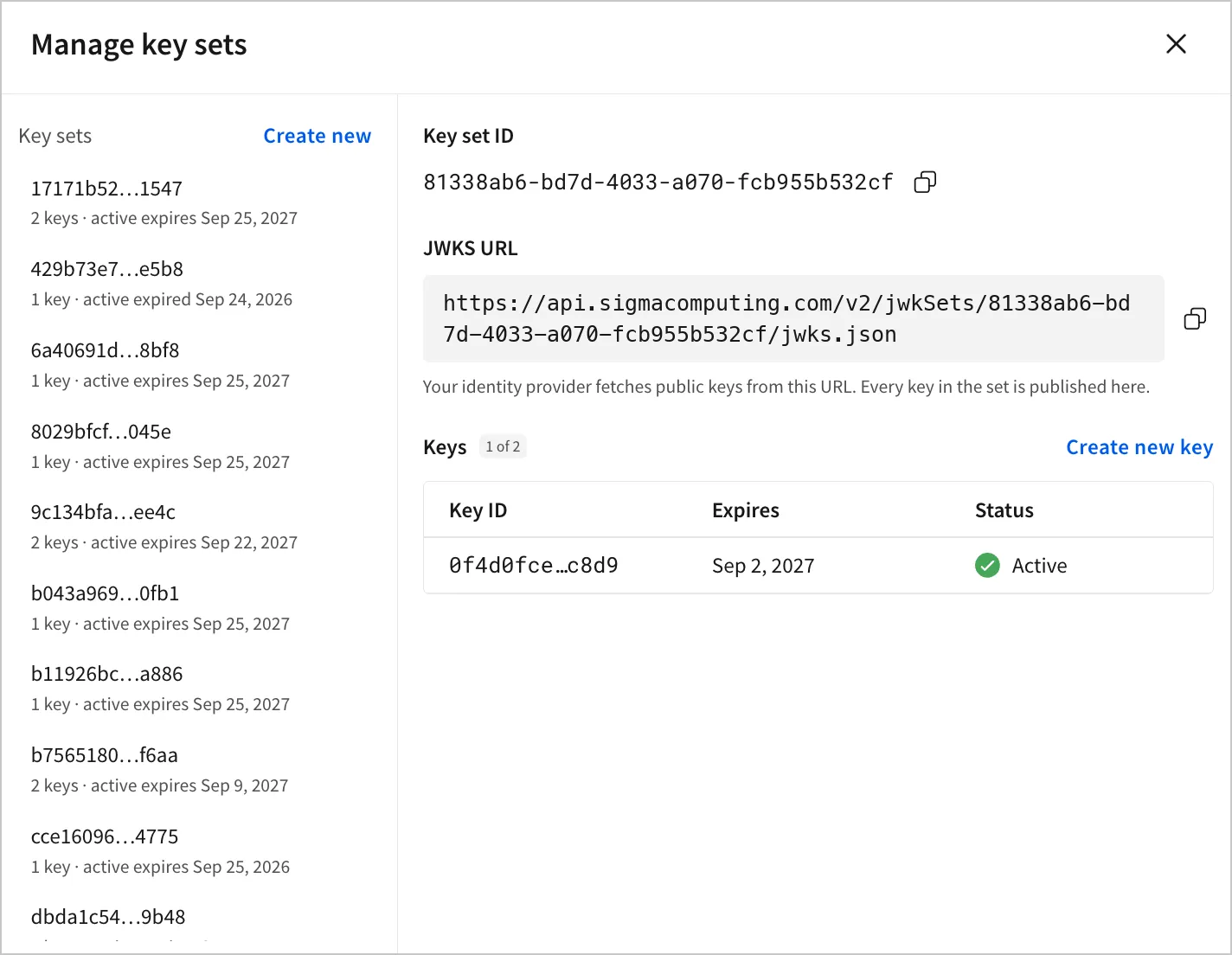
Keys have the following statuses:
Create a key set for a connection
To create a new key set:
-
Go to Administration > Connections.
-
Select the connection you want to modify, then select Edit.
-
In the OAuth features section, select Manage key sets.
If you’re setting up a new connection, you can also access the Manage key sets modal during connection setup.
-
In the Manage key sets modal, next to Key sets, select Create new.
-
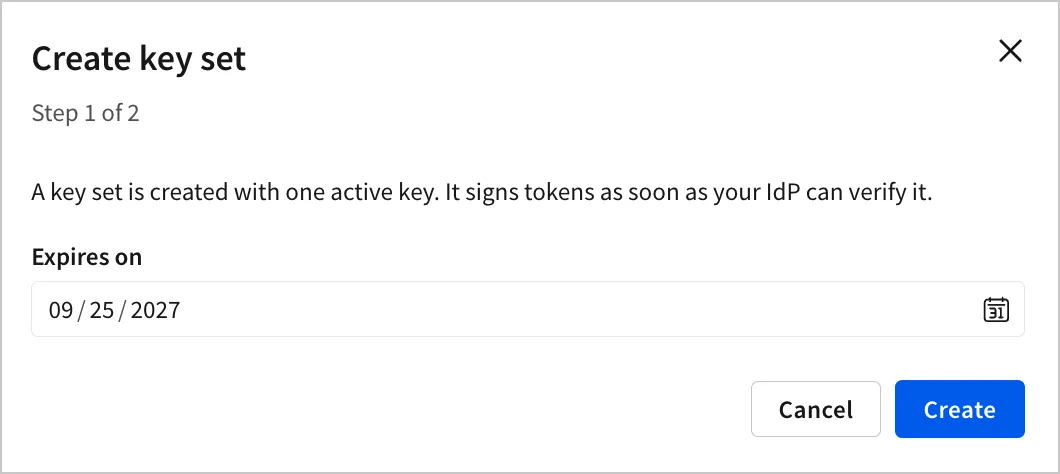
For Expires on, choose an expiration date for the initial key.
-
Select Create.
-
Copy the JWKS URL, then select Done.
-
Configure your IdP to fetch public keys from the JWKS URL. If your IdP doesn’t support JWKS, copy or download the public key and add it to your IdP. For information on where to provide the key in your IdP, see Configure a Sigma OAuth application.
-
Close the Manage key sets modal.
-
In the Key set field, select the new key set.
-
Select Save.
Sigma creates a key set with 1 active key and publishes it at the JWKS URL immediately. Each key set has its own JWKS URL, which stays the same when you add or activate keys in that set. The URL returns every key in the set.
Rotate keys before the active key expires
To replace an active key before it expires without disrupting authentication, create a new key, configure your IdP to verify it, then activate it. A key set can hold up to 2 keys, so the new key stays inactive and the current key keeps signing until you activate the new key. When you activate the new key, it becomes the signing key and the previous key becomes inactive.
-
Go to Administration > Connections.
-
Select the connection you want to modify, then select Edit.
-
In the OAuth features section, select Manage key sets.
-
In the Manage key sets modal, select the key set that you want to add a key to.
-
Select Create new key.
-
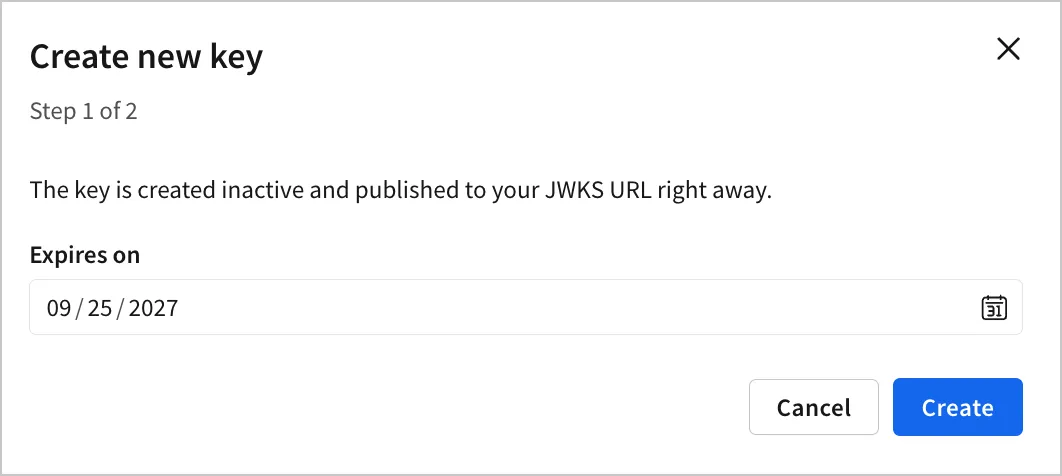
For Expires on, choose an expiration date later than the current key’s, then select Create.
-
In step 2 of the Create new key modal, select Activate later so the current key keeps signing.
-
In the OAuth application for Sigma, update the signing-key configuration in your IdP:
- If your IdP supports JWKS, configure it to fetch keys from this key set’s JWKS URL. The URL stays the same when keys in the set change, and Sigma publishes the replacement key there when you create it.
- If your IdP requires a manually configured key, next to the inactive key, select
 More actions, then select Copy or Download. Add the public key in your IdP. Your IdP might call this a public key or signing certificate.
For information on where to provide the key in your IdP, see Configure a Sigma OAuth application.
-
Use the refresh, status, or log tools in your IdP to confirm it has fetched the replacement key from the JWKS URL or added the public key manually. The Sigma connection settings don’t show whether your IdP has the key.
-
Activate the replacement key after your IdP is ready to verify it.
Activate an inactive key
To activate a currently inactive key and use it as the key that signs tokens without disrupting authentication:
When a key is activated, Sigma begins signing tokens with that key immediately. Before you activate a key, make sure your IdP can verify tokens with the replacement key. Otherwise, OAuth authentication fails until the IdP is updated.
- Go to Administration > Connections.
- Select the connection you want to modify, then select Edit.
- In the OAuth features section, select Manage key sets.
- In the Manage key sets modal, select the key set that contains the key you want to activate.
- For the inactive key, select More actions, then select Activate.
- Select Activate to confirm.
Sigma starts signing with this key immediately. The previous key remains published at the JWKS URL until you delete it.
Revoke an inactive key
To revoke an inactive key, delete it from the key set. Sigma removes its public key from the JWKS URL. Delete the previous key only after your IdP stops using it to verify tokens. To revoke an active key, first activate a replacement, then delete the previous key.
Deleting a key removes it from the JWKS URL immediately. An IdP that still depends on this key might not be able to verify tokens signed with it. This action can’t be undone.
To delete an inactive key:
- Go to Administration > Connections.
- Select the connection you want to modify, then select Edit.
- In the OAuth features section, select Manage key sets.
- In the Manage key sets modal, select the key set that contains the key you want to delete.
- Next to the key, select More actions, then select Delete.
- Select Delete to confirm.
You can only delete an inactive key. To replace an active or expired key, rotate keys to activate a replacement, then delete the previous key when your IdP no longer needs it.
Delete a key set
When you delete a key set, Sigma removes all of its keys, and the key set’s JWKS URL no longer returns any keys. To avoid disruption, select another key set for each connection that uses this set, save the connections, and configure your IdP to verify the replacement keys before you delete the set.
Deleting a key set can’t be undone. Confirm that no connection depends on its keys, or configure those connections and their IdPs to use another key set before you delete it.
To delete a key set:
- Go to Administration > Connections.
- Select the connection you want to modify, then select Edit.
- In the OAuth features section, select Manage key sets.
- In the Manage key sets modal, select the key set that you want to delete.
- In the key set panel, select Delete key set.
- Select Delete to confirm.