

Pass values to a data model with source parameters
A source parameter passes a value from a control element to a control element in a data model, filtering the data model based on user input.
Use a source parameter when you want users to filter the data model used as the source for the workbook, instead of filtering specific workbook elements. For example, a user can select a date range in a workbook control to filter every element sourced from an underlying data model, rather than filtering only the elements on the current workbook page.
To set up a source parameter in Sigma, you must make updates in two places:
- Add a control element in the data model that targets the relevant elements to filter.
- Add a control element in the workbook to store the user input and target the data model control.
Requirements
- You must be assigned an account type with the Create, edit, and publish data models and at least Full explore permissions enabled.
- You must be the document owner or be granted Can edit document permission for the data model and at least Can explore for the workbook.
Add and target a control element in a data model
Before you can pass a value to a data model, it must have a control element that targets one or more of the data model’s data elements.
- Open the data model for editing.
- Add a control element. See Add a control element.
- Add one or more targets to the control so that it filters data elements in the data model when a value is selected. See Specify the target of the control.
- In the editor panel, in the Settings tab, note the Control ID for the control, or update it to a descriptive value. You select this control ID from the workbook in the next section. See About control IDs.
- To make the control and its targets available to workbooks that use the data model as a source, publish the data model.
Target the data model control from a workbook
After the data model has a configured control element, add the data model as a data source in a workbook, then target the data model’s control from a workbook control element.
-
Open a workbook for editing or customizing.
-
If the data model isn’t already used in the workbook, add it as a data source. See Create a data element.
-
Select a control element, or add a new one.
-
In the Properties tab of the editor panel, select the Targets tab.
-
Select Add source parameter, then choose the data model with the control that you want to target.
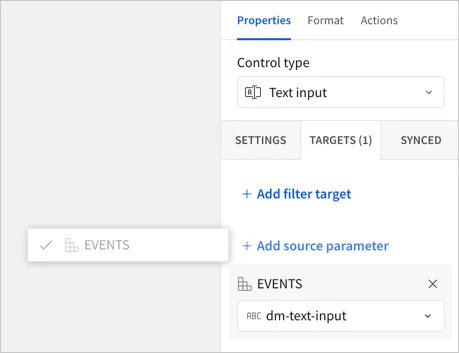
-
In the dropdown list, select the control ID that you noted or set in the data model. Only control elements with a matching, supported data type are available to select.
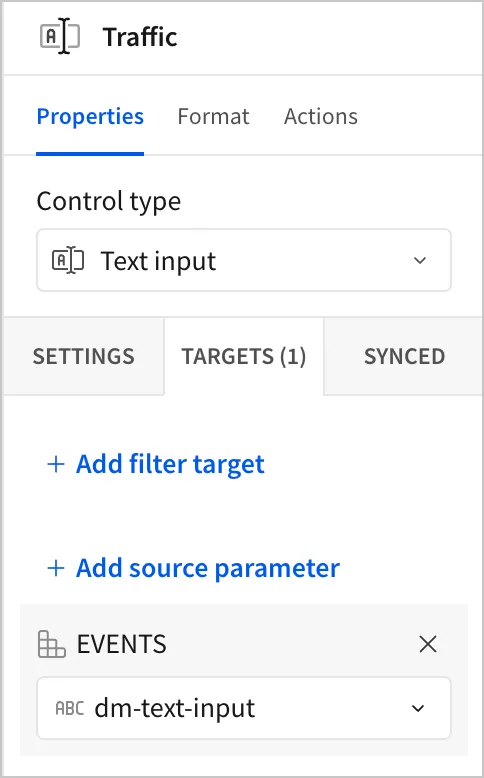
-
To make the changes visible to those without edit access, publish the workbook.
If the control ID you expect isn’t available to select, confirm that the control element’s data type in the data model matches the output type of the workbook control, and that the data model’s control has at least one target configured. A control in the data model with no targets is not available to select as a source parameter.