Manage password authentication
To see an overview of the all available authentication methods for your Sigma organization, see Authentication methods for your Sigma organization.
Sigma supports password authentication as a method of authenticating to your Sigma organization. This document covers how to manage password authentication and mandatory two-factor authentication for your Sigma organization, including:
- Overview of password authentication
- Configuring authentication methods and options
- Admin-initiated password reset
- Bulk password reset
- Reset two-factor authenticator app
User requirements
To manage authentication methods and options for your organization, you must be assigned the Admin account type.
Overview of password authentication
With password authentication, Sigma prompts new organization members to create a unique password for their Sigma account that is at least 8 characters long and not a commonly used or similar password. If you use password authentication for Sigma, two-factor authentication is automatically enabled.
About two-factor authentication
Any user that logs in to Sigma using a password, including with SAML or Password or OAuth or Password authentication configurations, is prompted to enter a two-factor code after successfully logging in with their password. The two-factor code must be entered to finish logging in to Sigma.
By default, two-factor codes are sent to a user’s email address, but users can also set up an app to generate two-factor codes. See Set up an app for two-factor authentication.
As an admin, you can reset the two-factor authentication app setup for a user. See Reset two-factor authenticator app.
Manage authentication method and options
The steps to manage the authentication method and options for your organization differ depending on if your organization uses multiple identity providers.
Tip: To check if your organization uses multiple IdPs: Go to Administration > Authentication. If you see an + Add authentication method option under Authentication Methods, your organization uses multiple IdPs.
If your organization doesn’t have multiple identity providers enabled:
-
Go to Administration > Authentication.
-
Under Authentication Method & Options, select Edit.
-
From the Authentication Method dropdown, select and configure your authentication method:
- To use password authentication, select Password.
- If you select SAML or password, see Single Sign On with SAML for further configuration steps.
- If you select OAuth or password, see About using OAuth with Sigma for further configuration steps.
-
(Optional) To enable guest user accounts, turn on the toggle for Allow Guest Access. See Guest User Accounts.
-
(Optional) To customize how frequently users are prompted to re-authenticate, set a Session Length in Hours. This setting only applies to users logging in with SAML or a password.
-
(Optional) To ensure users are automatically logged out after a certain length of inactivity in the product, turn on Enforce Inactivity Timeouts toggle. See Set up inactivity timeouts.
-
(Optional) To authorize anyone with an email from one or more domains to create an account in your organization without a personalized invite, specify one or more comma-separated email domains under Company Domain Signup. For more details, see Company domain signup.
-
After configuring authentication for your organization, click Save.
If your organization has multiple identity providers enabled:
-
Go to Administration > Authentication.
-
Under Authentication Methods, select Edit next to an existing authentication method, or select Add authentication method to create a new authentication method.
-
Select Password as your authentication method.
-
(Optional) You can also configure Company domain signup. To authorize anyone with an email from one or more domains to create an account in your organization without a personalized invite. Specify one or more comma-separated email domains under Company Domain Signup. For more details, see Company domain signup.
-
(Optional) To configure other options, under Authentication Options, select Edit.
- To enable guest user accounts, turn on the toggle for Allow Guest Access. See Guest User Accounts.
- To customize how frequently users are prompted to re-authenticate, set a Session Length in Hours. This setting only applies to users logging in with SAML or a password.
- To ensure users are automatically logged out after a certain length of inactivity in the product, turn on the toggle for Enforce Inactivity Timeouts. See Set up inactivity timeouts.
-
(Optional) You can also configure another authentication method, such as SAML or OAuth, in addition to password authentication. Select Add authentication method to create a new authentication method, then follow the steps for your chosen authentication method:
- SAML: See Set up single sign-on with SAML.
- OAuth: See About using OAuth with Sigma.
Company domain signup
When you use an authentication method that supports Password authentication, you can choose to add domains to an allowlist. By default, new users can only sign up when they receive an invitation. Adding your company’s email domain lets anyone with a company email address create a Sigma account without a personalized invitation.
Sigma prompts new users to enter their email from a domain on the allowlist. After confirming their email, the user can create an account and register as a Sigma user.
Admin-initiated password reset
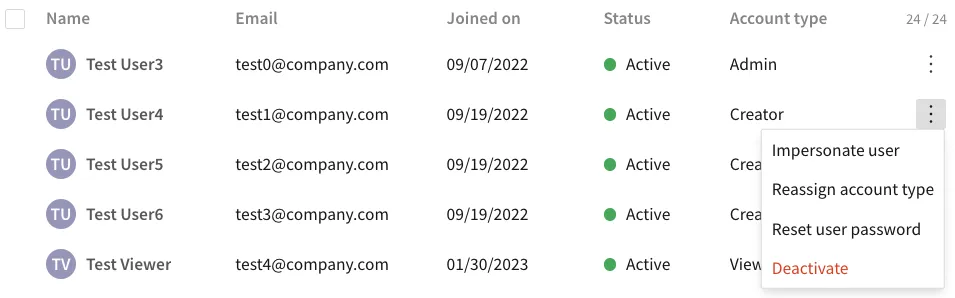
If you are assigned the Admin account type and your organization is using a password-based authentication method, you can send password reset emails to users in your organization:
-
In the Admin Portal, click Users.
-
On the Users tab, search or browse to locate the user. You can search by name or email address.
-
For the user, click
 More > Reset user password.
Sigma sends a reset password email to the user. The email informs the user that the admin has requested that they reset their password.
Bulk password reset
If you are assigned the Admin account type and your organization is using a password-based authentication method, you can initiate a password reset for multiple users.
-
In the Admin Portal, click Users.
-
On the Users tab, for each user, select the checkbox to the left of their name.
-
In the toolbar, click Reset password.
-
Review your selection and click Confirm.
The selected users receive an email informing them that the admin has requested that they reset their password.
Reset two-factor authenticator app
If a user needs to reset their two-factor authentication app method, such as if they lose or replace their device with the app installed, an admin can reset the authenticator app option for the user.
You must be assigned the Admin account type and your organization must be using a password-based authentication method.
- Go to Administration > Users in your Sigma organization.
- On the Users tab, search or browse to locate the user. You can search by name or email address.
- For the user, click More > Reset authenticator app.
- When prompted, click Reset.
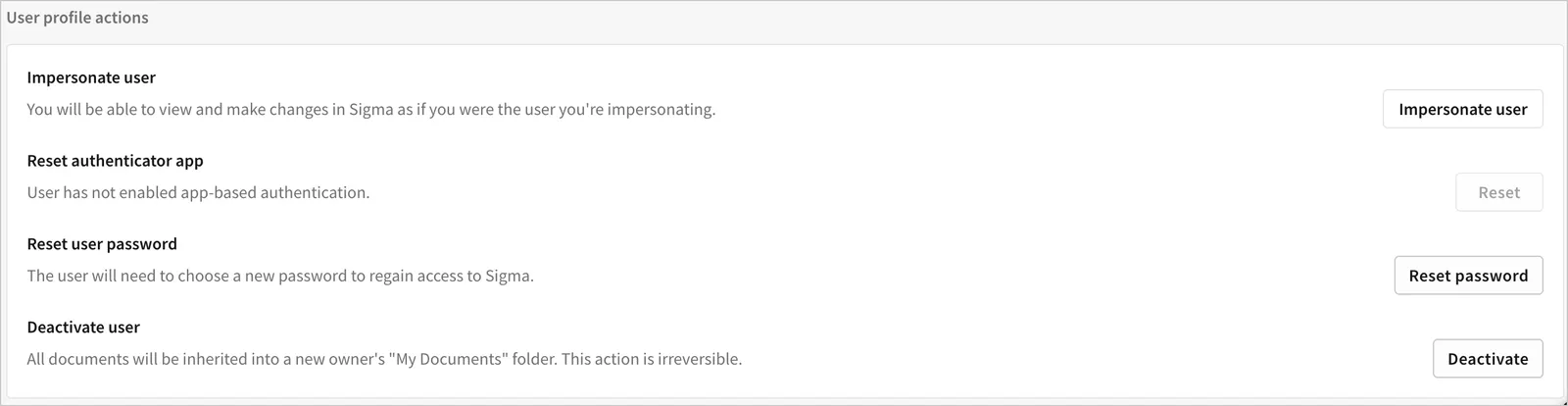
You can also reset the authenticator app from an individual user page that opens after clicking a user on the Users tab. In the User profile actions section, click Reset.