> For clean Markdown of any page, append .md to the page URL.
> For a complete documentation index, see https://help.sigmacomputing.com/llms.txt.
> For AI client integration (Claude Code, Cursor, etc.), connect to the MCP server at https://help.sigmacomputing.com/_mcp/server.
# Manage password authentication
To see an overview of the all available authentication methods for your Sigma organization, see [Authentication methods for your Sigma organization](/docs/organization-authentication-methods).
Sigma supports password authentication as a method of authenticating to your Sigma organization. This document covers how to manage password authentication and mandatory two-factor authentication for your Sigma organization, including:
* [Overview of password authentication](#overview-of-password-authentication)
* [Configuring authentication methods and options](#manage-authentication-method-and-options)
* [Admin-initiated password reset](#admin-initiated-password-reset)
* [Bulk password reset](#bulk-password-reset)
* [Reset two-factor authenticator app](#reset-two-factor-authenticator-app)
## User requirements
To manage authentication methods and options for your organization, you must be assigned the **Admin** [account type](/docs/account-type-and-license-overview).
## Overview of password authentication
With password authentication, Sigma prompts new organization members to create a unique password for their Sigma account that is at least 8 characters long and not a commonly used or similar password. If you use password authentication for Sigma, two-factor authentication is automatically enabled.
You can also set up [SAML](/docs/single-sign-on-with-saml) or [OAuth](/docs/configure-oauth) with password-based authentication.
### About two-factor authentication
Any user that logs in to Sigma using a password, including with SAML or Password or OAuth or Password authentication configurations, is prompted to enter a two-factor code after successfully logging in with their password. The two-factor code must be entered to finish logging in to Sigma.
By default, two-factor codes are sent to a user's email address, but users can also set up an app to generate two-factor codes. See [Set up an app for two-factor authentication](/docs/app-based-authentication-for-users).
As an admin, you can reset the two-factor authentication app setup for a user. See [Reset two-factor authenticator app](#reset-two-factor-authenticator-app).
## Manage authentication method and options
The steps to manage the authentication method and options for your organization differ depending on if your organization uses [multiple identity providers](/docs/using-multiple-identity-providers-for-your-sigma-organization).
Tip: To check if your organization uses multiple IdPs: Go to **Administration** > **Authentication**. If you see an **+ Add authentication method** option under **Authentication Methods**, your organization uses multiple IdPs.
If your organization doesn’t have multiple identity providers enabled:
1. Go to **Administration** > **Authentication**.
2. Under **Authentication Method & Options,** select **Edit**.
3. From the **Authentication Method** dropdown, select and configure your authentication method:
* To use password authentication, select **Password**.
* If you select **SAML or password**, see [Single Sign On with SAML](/docs/single-sign-on-with-saml) for further configuration steps.
* If you select **OAuth or password**, see [About using OAuth with Sigma](/docs/configure-oauth) for further configuration steps.
4. (Optional) To enable guest user accounts, turn on the toggle for **Allow Guest Access**. See [Guest User Accounts](/docs/guest-user-accounts).
5. (Optional) To customize how frequently users are prompted to re-authenticate, set a **Session Length in Hours**. This setting only applies to users logging in with SAML or a password.
6. (Optional) To ensure users are automatically logged out after a certain length of inactivity in the product, turn on **Enforce Inactivity Timeouts** toggle. See [Set up inactivity timeouts](/docs/set-up-inactivity-timeouts).
7. (Optional) To authorize anyone with an email from one or more domains to create an account in your organization without a personalized invite, specify one or more comma-separated email domains under **Company Domain Signup**. For more details, see [Company domain signup](/docs/manage-password-authentication#company-domain-signup).
8. After configuring authentication for your organization, click **Save**.
If your organization has [multiple identity providers](/docs/using-multiple-identity-providers-for-your-sigma-organization) enabled:
Using multiple identity providers for your Sigma organization is in public beta.
This documentation describes a public beta feature and is under construction. This documentation should not be considered part of our published documentation until this notice, and the corresponding Beta flag on the feature in Sigma, are removed. As with any beta feature, the feature discussed below is subject to quick, iterative changes. The latest experience in the Sigma service may differ from the contents of this document.
Beta features are subject to the disclaimer on [Beta features](/docs/sigma-product-releases#beta-features).
1. Go to **Administration** > **Authentication**.
2. Under **Authentication Methods**, select **Edit** next to an existing authentication method, or select **Add authentication method** to create a new authentication method.
3. Select **Password** as your authentication method.
4. (Optional) You can also configure **Company domain signup**. To authorize anyone with an email from one or more domains to create an account in your organization without a personalized invite. Specify one or more comma-separated email domains under **Company Domain Signup**. For more details, see [Company domain signup](docs:manage-password-authentication#company-domain-signup).
5. (Optional) To configure other options, under **Authentication Options**, select **Edit**.
* To enable guest user accounts, turn on the toggle for **Allow Guest Access**. See [Guest User Accounts](/docs/guest-user-accounts).
* To customize how frequently users are prompted to re-authenticate, set a **Session Length in Hours**. This setting only applies to users logging in with SAML or a password.
* To ensure users are automatically logged out after a certain length of inactivity in the product, turn on the toggle for **Enforce Inactivity Timeouts**. See [Set up inactivity timeouts](/docs/set-up-inactivity-timeouts).
6. (Optional) You can also configure another authentication method, such as **SAML** or **OAuth**, in addition to password authentication. Select **Add authentication method** to create a new authentication method, then follow the steps for your chosen authentication method:
* **SAML**: See [Set up single sign-on with SAML](/docs/single-sign-on-with-saml).
* **OAuth**: See [About using OAuth with Sigma](/docs/configure-oauth).
### Company domain signup
When you use an authentication method that supports **Password** authentication, you can choose to add domains to an allowlist. By default, new users can only [sign up when they receive an invitation](/docs/invite-new-organization-members). Adding your company's email domain lets anyone with a company email address create a Sigma account without a personalized invitation.
Sigma prompts new users to enter their email from a domain on the allowlist. After confirming their email, the user can create an account and register as a Sigma user.
## Admin-initiated password reset
If you are assigned the **Admin** [account type](/docs/account-type-and-license-overview) and your organization is using a password-based authentication method, you can send password reset emails to users in your organization:
1. In the Admin Portal, click **Users**.
2. On the **Users** tab, search or browse to locate the user. You can search by name or email address.
3. For the user, click  **More** > **Reset user password**.
Sigma sends a reset password email to the user. The email informs the user that the admin has requested that they reset their password.

### Bulk password reset
If you are assigned the **Admin** [account type](/docs/account-type-and-license-overview) and your organization is using a password-based authentication method, you can initiate a password reset for multiple users.
1. In the Admin Portal, click **Users**.
2. On the **Users** tab, for each user, select the checkbox to the left of their name.
3. In the toolbar, click **Reset password**.
4. Review your selection and click **Confirm**.
The selected users receive an email informing them that the admin has requested that they reset their password.
## Reset two-factor authenticator app
If a user needs to reset their two-factor authentication app method, such as if they lose or replace their device with the app installed, an admin can reset the authenticator app option for the user.
You must be assigned the **Admin** [account type](/docs/account-type-and-license-overview) and your organization must be using a password-based authentication method.
1. Go to **Administration** > **Users** in your Sigma organization.
2. On the **Users** tab, search or browse to locate the user. You can search by name or email address.
3. For the user, click **More** > **Reset authenticator app**.
4. When prompted, click **Reset**.
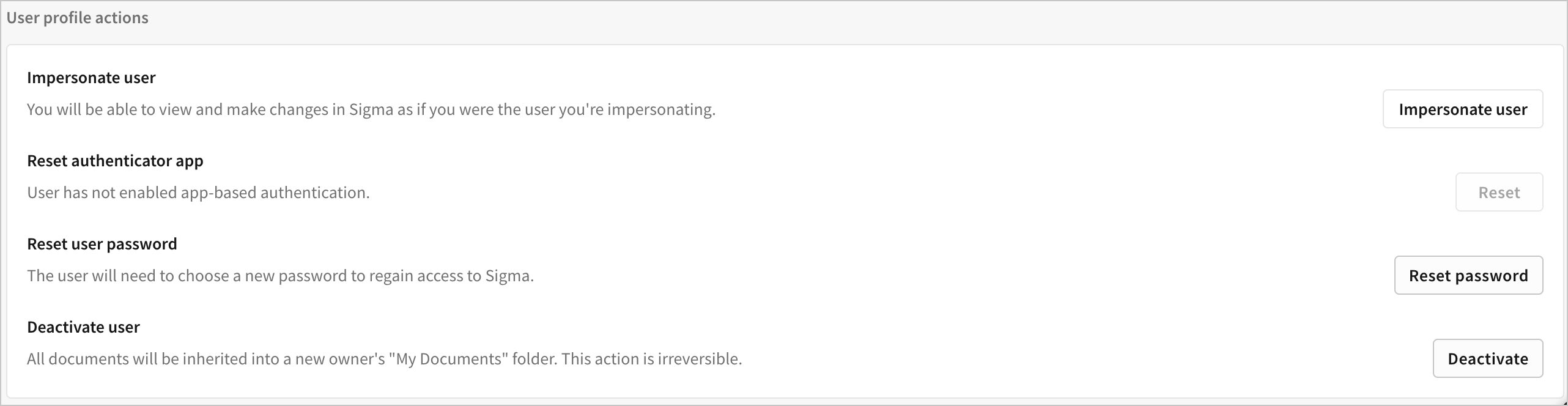
You can also reset the authenticator app from an individual user page that opens after clicking a user on the **Users** tab. In the **User profile actions** section, click **Reset**.
## Related resources
* [Set up single sign-on with SAML](/docs/single-sign-on-with-saml)
* [Invite people to your organization](/docs/invite-people-to-your-organization)
* [User account types](/docs/user-account-types)
*
Single Sign-On with Sigma and Okta (QuickStarts)
* [About using OAuth with Sigma](/docs/configure-oauth)
**More** > **Reset user password**.
Sigma sends a reset password email to the user. The email informs the user that the admin has requested that they reset their password.

### Bulk password reset
If you are assigned the **Admin** [account type](/docs/account-type-and-license-overview) and your organization is using a password-based authentication method, you can initiate a password reset for multiple users.
1. In the Admin Portal, click **Users**.
2. On the **Users** tab, for each user, select the checkbox to the left of their name.
3. In the toolbar, click **Reset password**.
4. Review your selection and click **Confirm**.
The selected users receive an email informing them that the admin has requested that they reset their password.
## Reset two-factor authenticator app
If a user needs to reset their two-factor authentication app method, such as if they lose or replace their device with the app installed, an admin can reset the authenticator app option for the user.
You must be assigned the **Admin** [account type](/docs/account-type-and-license-overview) and your organization must be using a password-based authentication method.
1. Go to **Administration** > **Users** in your Sigma organization.
2. On the **Users** tab, search or browse to locate the user. You can search by name or email address.
3. For the user, click **More** > **Reset authenticator app**.
4. When prompted, click **Reset**.
You can also reset the authenticator app from an individual user page that opens after clicking a user on the **Users** tab. In the **User profile actions** section, click **Reset**.

## Related resources
* [Set up single sign-on with SAML](/docs/single-sign-on-with-saml)
* [Invite people to your organization](/docs/invite-people-to-your-organization)
* [User account types](/docs/user-account-types)
*
Single Sign-On with Sigma and Okta (QuickStarts)
* [About using OAuth with Sigma](/docs/configure-oauth)