

Grant access to a local Sigma table (Beta)
This documentation describes one or more public beta features that are in development. Beta features are subject to quick, iterative changes; therefore the current user experience in the Sigma service can differ from the information provided in this page.
This page should not be considered official published documentation until Sigma removes this notice and the beta flag on the corresponding feature(s) in the Sigma service. For the full beta feature disclaimer, see Beta features.
Manage grants on a local Sigma table to control who can edit the table data or structure.
This page explains local Sigma table grant types and how to grant them to users, teams, or your entire organization. To manage access to organization-wide Sigma tables, see Configure access for organization-wide Sigma tables. For general information about Sigma tables, see Sigma tables overview.
Sigma tables are currently supported by Snowflake, Databricks, and PostgreSQL connections.
User requirements
To manage grants on a local Sigma table:
- You must be assigned an account type with the Create, edit, and publish workbooks permission enabled.
- You must be the workbook owner or be granted Can edit access.
- You must be granted Can own access to the table. By default, you own any Sigma table you create.
Limitations
- At the workbook level, you can grant access to local Sigma tables only.
- A grant applies to the entire table. You cannot currently grant access to specific rows or columns.
- Local Sigma table grants apply in Sigma only. They don’t limit access in your data platform or in other tools that query the underlying database table directly.
Local Sigma table grant types
Table grants control who can change the table’s data and structure. They don’t control changes like adding calculated columns, renaming or hiding columns, and converting columns to a different type. Those are workbook-level changes that depend on workbook access, not on the table grant.
The following table lists each grant type, what it allows, and the workbook access required to take those actions.
1Editing cell data also requires an account type with the Edit input tables permission enabled.
When you manage grants for local Sigma tables on an OAuth connection, you can grant Own access only. Each user reads and writes with their own data platform identity, so your data platform controls whether they can write to the table. For more information, see Configure OAuth with write access and Configure access for organization-wide Sigma tables.
Default grants from workbook sharing
The first time you share a workbook with a specific user or team, Sigma automatically grants default access on the local Sigma tables you own:
- If you grant Can edit workbook access, Sigma grants Own access on local Sigma tables you own.
- If you grant Can explore workbook access, Sigma grants Write access on local Sigma tables you own.
To update default table access, see Edit a local Sigma table grant.
If you change the workbook access level for a user or team who already has access to the workbook, Sigma doesn’t automatically update their existing local Sigma table grant. You must edit or revoke the grant manually.
On an OAuth connection, granting Can explore access to a workbook doesn’t automatically grant Write access on local Sigma tables. See Local Sigma table grant types.
Grant access to a local Sigma table
To give users, teams, or your entire organization write or own access to a local Sigma table, add a new grant on the table.
-
Open the workbook draft containing the local Sigma table you want to grant access to.
-
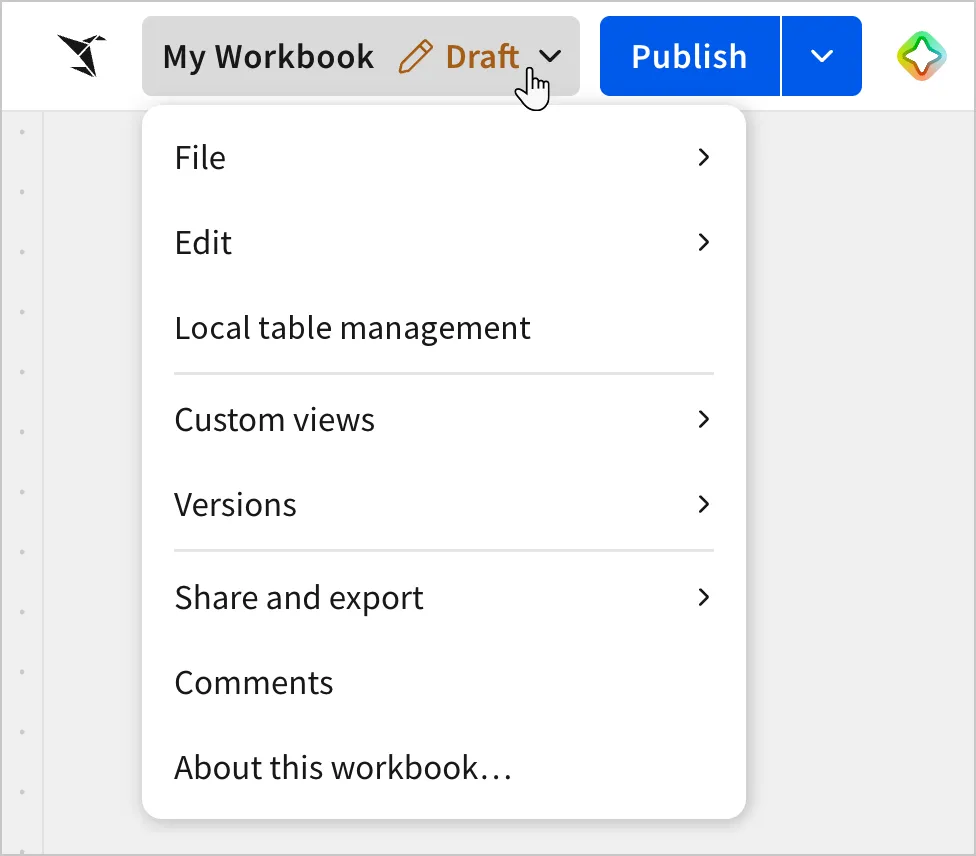
In the header, select the workbook name to open the document menu.
-
Select Local table management.
-
In the Local table management modal, browse Data sources > Local tables and select the relevant table.
-
In the Table grants section, select
 Grant access.
-
In the Add grant access modal, complete the fields:
- In the Grant type field, select an option.
- In the Grant access to field, select individual users, teams, or your entire organization (All members option). Names displayed with a checkmark receive the grant.
- Select Add.
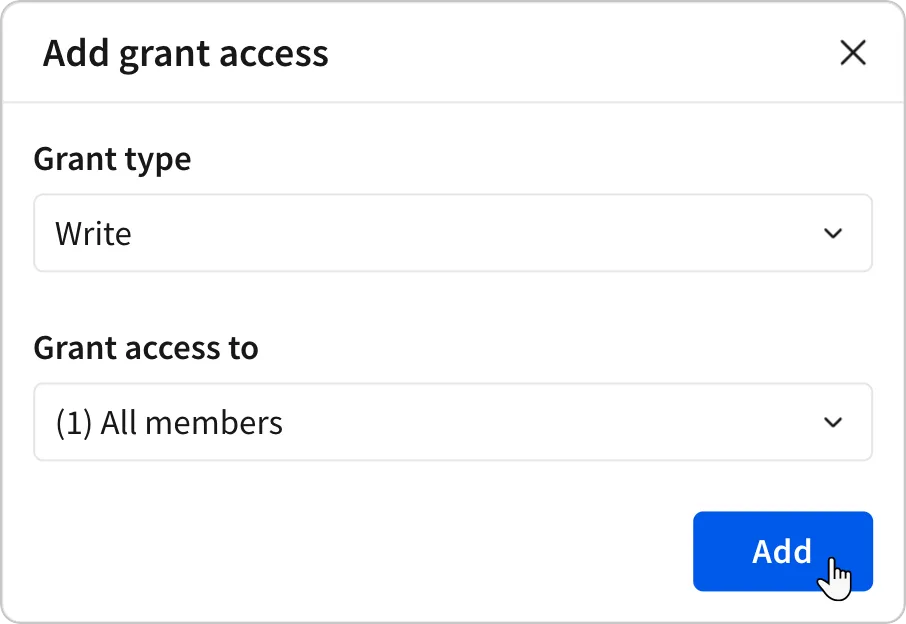
Individual users, teams, or your entire organization appear separately in the list of table grants with the grant type you chose.
Edit a local Sigma table grant
To give users, teams, or your entire organization more or less access to a local Sigma table, change the grant type on the existing grant.
- Open the workbook draft containing the relevant local Sigma table.
- In the header, select the workbook name to open the document menu.
- Select Local table management.
- In the Local table management modal, go to the Data sources > Local tables list and select the relevant table.
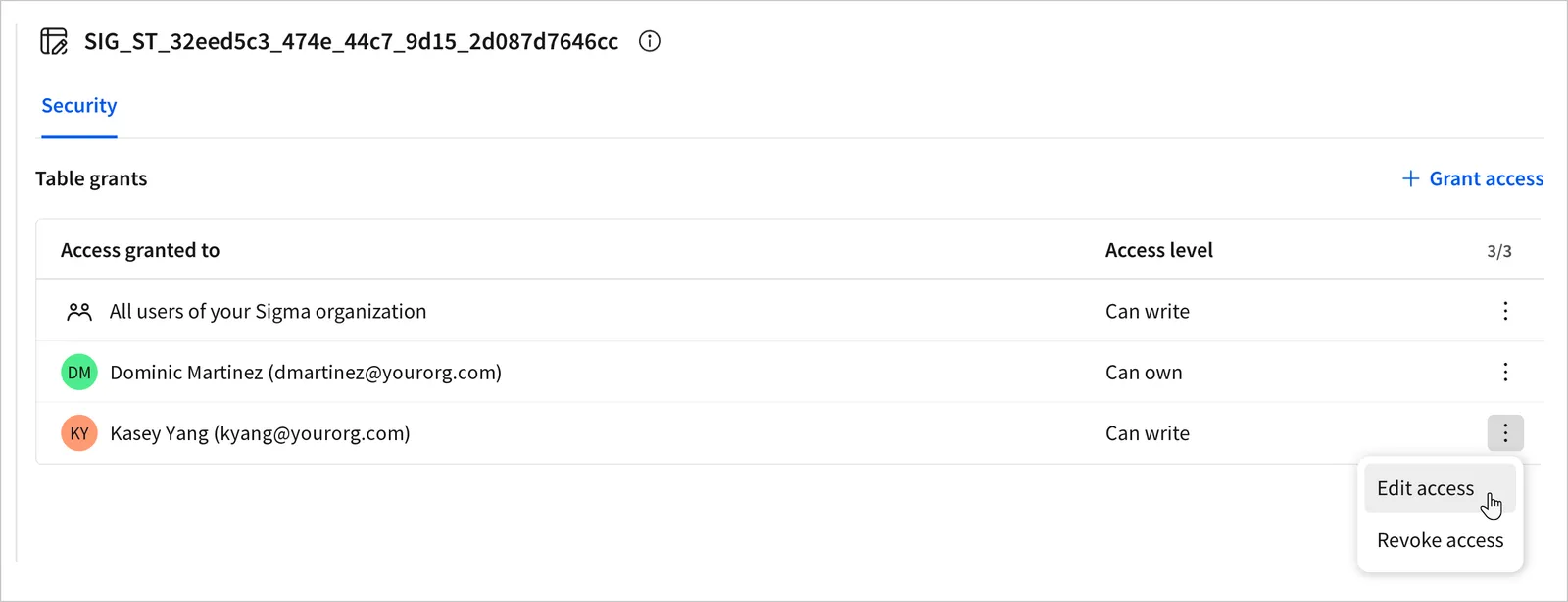
- In the Table grants list, locate the grant you want to change.
- In the grant’s row, select
 More, then select Edit access.
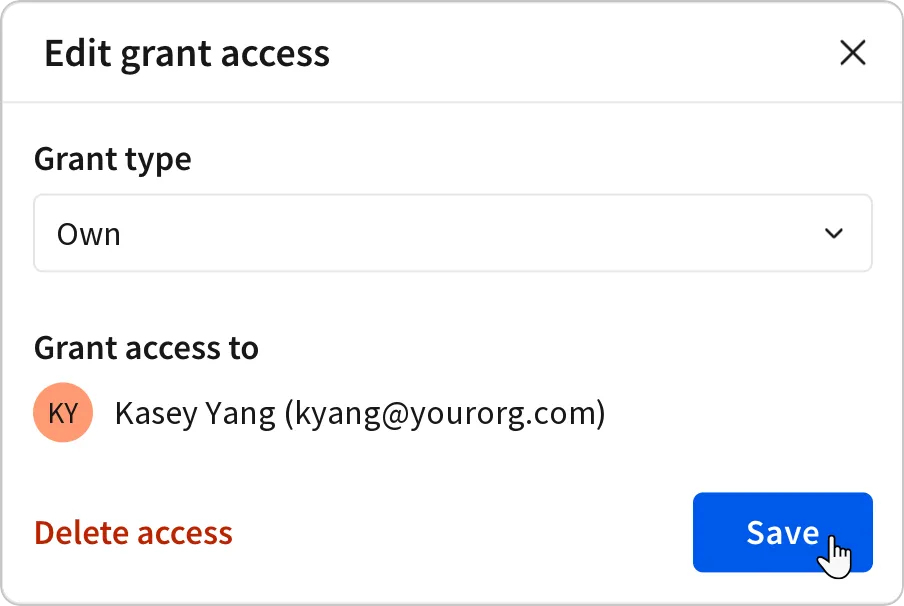
- In the Edit grant access modal, change the selection in the Grant type field.
- Click Save.
Revoke a local Sigma table grant
To remove the ability for users, teams, or your entire organization to edit a local Sigma table’s data or structure, revoke an existing grant.
- Open the workbook draft containing the relevant local Sigma table.
- In the header, select the workbook name to open the document menu.
- Select Local table management.
- In the Local table management modal, go to the Data sources > Local tables list and select the relevant table.
- In the Table grants list, locate the grant you want to change.
- In the grant’s row, select More, then select Revoke access.
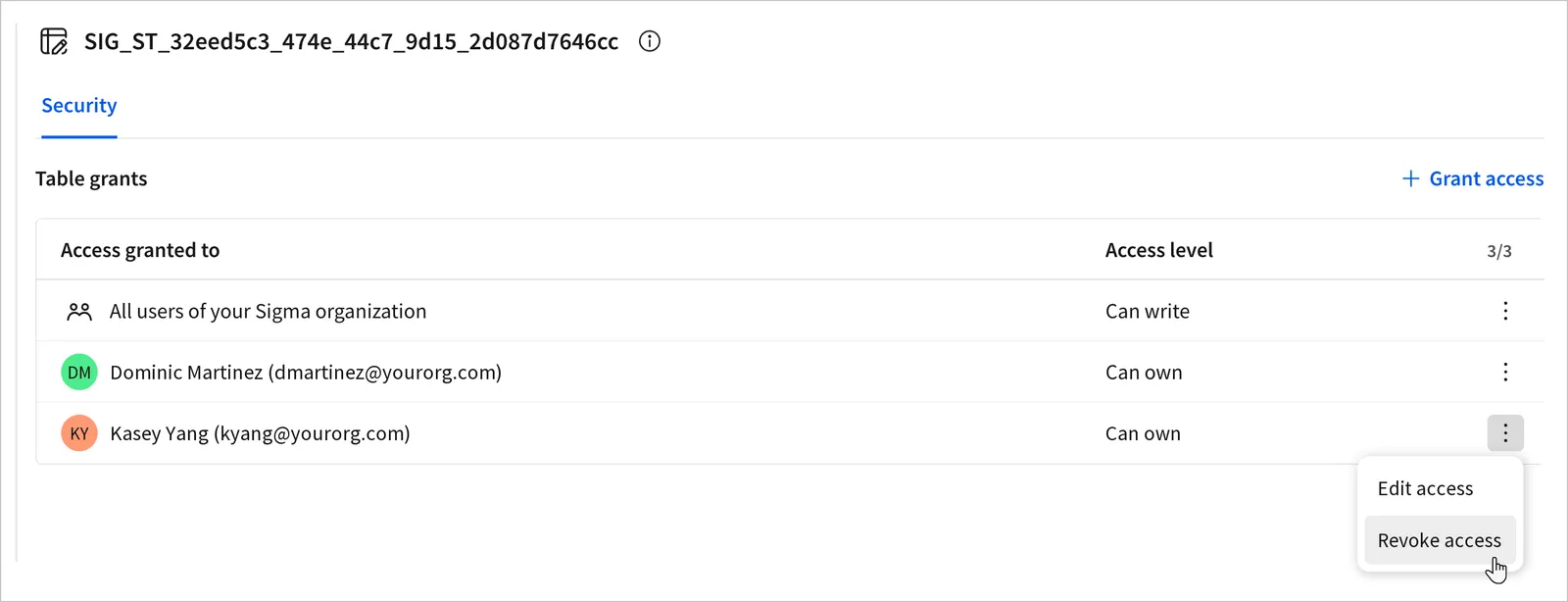
Sigma removes the grant immediately, but anyone who can view the workbook can still read the table.