
Reference control values as parameters
You can reference the inputted or selected value in a control element in a formula or a SQL statement.
For example:
- To evaluate whether any contract expiration dates are occurring in within a month of a configurable date, create a date control, then reference the value of the date control in a formula.
- To dynamically adjust the weights of a linear regression calculation by creating a number input control for each configurable weight, then referencing the control values in the formula to calculate the linear regression.
- To reference the selected value in a control in the title of a chart, use dynamic text in the chart to add a formula that references the selected control value.
- Filter the results of a SQL query.
You can reference control values as parameters in workbooks or data models. Datasets use a different type of parameter, but you can also pass the value from a control to a dataset parameter. See Create and manage dataset parameters.
To reference a control value:
- Identify the control ID for a control.
- Determine the data type outputted by the control. See Types of controls in Intro to control elements.
- Reference the control value:
- In a formula, such as a calculated column or dynamic text. See Reference a control value in a formula.
- In a SQL statement. See Reference workbook control values in SQL statements.
Requirements
- You must have Can Edit access to the workbook.
- You must be assigned an account type with the Create, edit, and publish workbooks permission enabled.
Identify the control ID for a control
To reference a control value as a parameter, use the control ID. To locate the control ID:
-
Select a control.
-
In the element properties, in the Settings tab, locate the Control ID. In the following screenshot, the control ID is
text-area: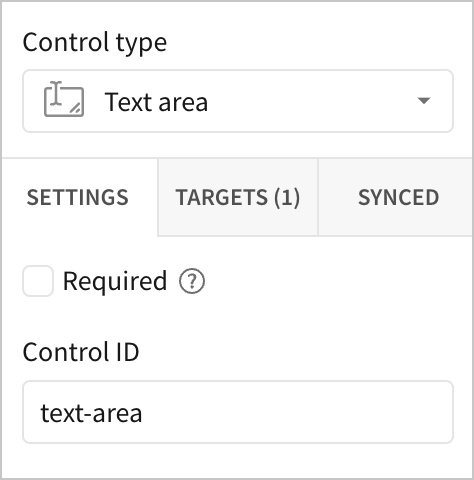
To reference a control ID as a parameter, enclose the ID in square brackets:
[New-Control-1]
The formula bar also displays control IDs as autocomplete suggestions.
You can update the control ID to a different value, but changing the ID can break existing parameters that reference the control.
If you change a control ID, update any references to the control ID in formulas or custom SQL. Elements that reference the control are listed in the Targets tab in the Currently referenced by: section.
For more details about control IDs, see About control IDs.
Reference a control value in a formula
The syntax that you use to reference a control value in a formula is different for different control types, due to the type of output for the control value:
- Single value (Most control types)
- Min/max values (Number range or range slider)
- Start/end values (Date range control)
- Multiple values (Multi-select list control)
- Hierarchical values (Hierarchy control)
Reference a single value control value in a formula
For controls that return a single value at a time, you can reference the control value as a parameter in a formula or custom SQL.
Supported control types:
- Single select list values
- Text input
- Text area
- Number input
- Date
- Segmented
- Drilldown
- Slider
- Checkbox
- Switch
- Top N
Syntax:
To reference the control value in a formula, enclose the control ID in square brackets and use the following syntax:
[New-Control-ID]
When referencing the control value as a parameter, make sure that the data type expected by the formula or the custom SQL statement exactly matches the data type of the control value. For example, a number input control can only have values of a Number data type, so cannot be used with Text functions unless first transformed in the formula.
Reference a number range or range slider control value in a formula
A number range or range slider control contain a minimum and a maximum value. When referencing the control as a parameter, specify which value to retrieve.
Supported control types:
Syntax:
To retrieve the minimum value, use the following syntax:
[Range-Control-ID].min
To retrieve the maximum value, use the following syntax:
[Range-Control-ID].max
Reference a date range control value in a formula
A date range control contains a start value and an end value. When referencing the control as a parameter, specify which value to retrieve.
Supported control types:
Syntax:
To retrieve the start value, use the following syntax:
[Date-Range-Control-ID].start
To retrieve the end value, use the following syntax:
[Date-Range-Control-ID].end
When you use a date range control as a parameter in a formula, the data type and the format of the date column must match. You cannot reference a date range start value in a formula if the date formats do not match.
For example, if a date range control Date-Range-Control-One outputs values in the format 2024-09-03 00:00:00 and another column Contract Expiry Date contains dates in the structure 2024-09-03, you might write a formula in a calculated column, Contract Status to evaluate the control value with the column value:
If([Date-Range-Control-One].end = [Contract Expiry Date], "Renew", [Date-Range-Control-One].end > [Contract Expiry Date], "Past Due", [Date-Range-Control-One].end < [Contract Expiry Date], "Valid")However, because the column date values do not match, the formula is invalid.
Reference a multi-select control value in a formula
A list control that allows multi selection returns values as an array. As a result, treat the parameter that retrieves those control values as an array data type.
Supported control types:
Syntax:
For example, to evaluate if the selected options contain a specific option, use the ArrayContains function:
ArrayContains([Weekday-List-Multi-ID], "monday")
See Array functions.
Reference a hierarchy control value in a formula
A hierarchy control returns values as an array of arrays.
Supported control types:
Syntax:
Array functions support hierarchy as a data type. If you want to use the contents of a hierarchy as an argument for another non-array function, you should convert it to one of the other supported data types (text, number, date, logical or geography).
You can use hierarchy control values in dynamic text, such as in the title of a table to show what hierarchy values are being selected. For example, for a hierarchy control with a control ID of Store-location-hierarchy:
([Store-location-hierarchy])
Returns the following selected values from the control:
[["West","California],["West","Washington"],["West","Oregon"]]These values can be used in the title of the a table, in a combination of regular and dynamic text. For example:

In the table header above, "Quantity sold by product family in" is regular text. For the dynamic text portion, the formula ArrayJoin(([Store-location-hierarchy]), "/") is used to join the array of array of hierarchy values into a single string, with each element separated by a forward slash. When different values in the control are selected, the table title updates to reflect the selected values.
Updated 2 months ago