
Set up custom home pages
In Sigma, you can set up custom home pages to provide the most relevant information to different users in your organization. You can set up multiple custom home pages, each for different teams, and tailor them depending on individual team needs.
For example, you might want to create a "New user onboarding" home page that recommends guides, templates and internal experts to new users. Alternatively, you can recommend the most used documents for a specific sales or engineering team in a custom home page so those team members have convenient access.
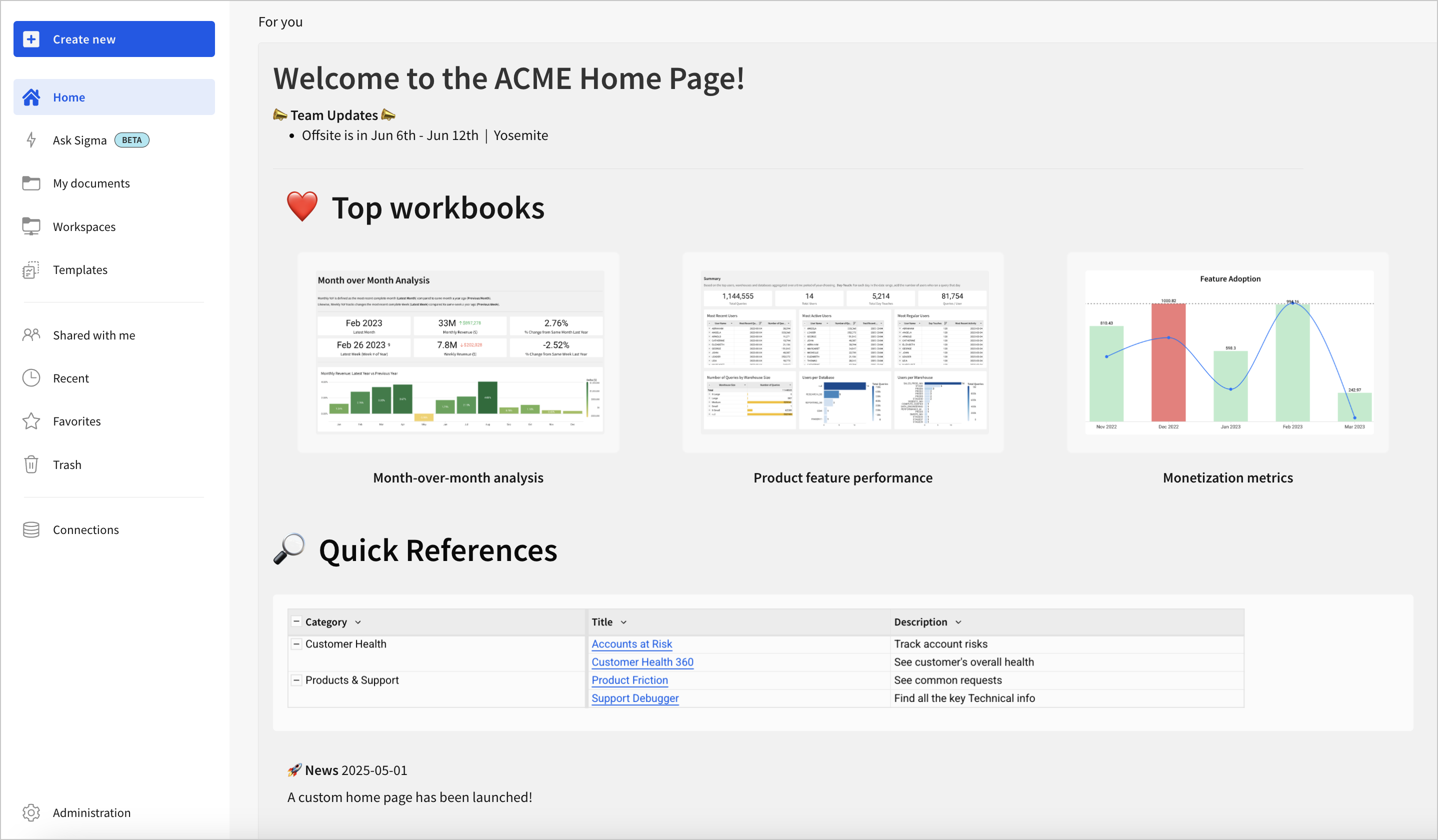
A custom home page lets you embed the first page of a specific workbook as part of the Sigma home page your organization or team lands on. Because a custom home page is embedded, you can leverage workbook elements such as charts, images, videos embedded in an embed element, text and links in a text element, KPIs and more.
When you set up a custom homepage, the custom homepage appears in a For you section when a user visits Sigma home.
This document covers how to set up custom home pages and how to change existing home page configurations.
System and user requirements
- You must be assigned the Admin account type to enable and assign home pages.
- If you want different home pages for different groups of users, create a Sigma team for each group of users.
- The workbook you want to set as a custom home page must be shared with the intended users, granting those users at least Can view access to the workbook.
If the workbook that you plan to set as a custom home page uses data from a connection authenticated with OAuth, Sigma recommends setting that workbook to run with service account credentials.
If the workbook runs queries with the user's OAuth credentials, if the user's OAuth session expires the home page might fail to load and show errors.
To avoid this scenario, configure any workbook you use on a custom homepage to run with service account credentials. See Run a workbook with service account credentials.
Set up a custom home page
To set up and a custom home page:
-
Go to Administration > Account > General settings.
-
In the Custom home pages section, select Enable.
The User attributes page opens for the
home_pageattribute. -
Click Assign attribute.
-
Search for and select the user or team you want to set the custom home page for.
If you want to use the same home page for the entire organization, search for and select All members of your Sigma organization.
-
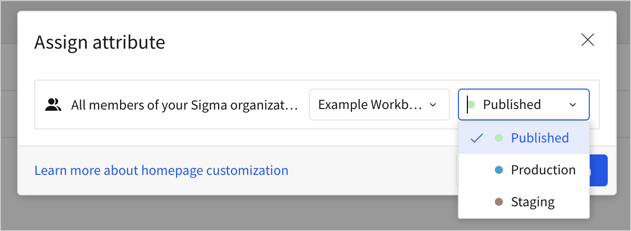
In the Assigned value dropdown, search for and select the workbook you want to assign to the user or team for the custom home page.
-
(Optional) If the workbook has a tagged version, choose a tag to use the tagged version of the workbook as the home page. By default, the published version is selected.
-
Select Assign.
If you want to set up a different home page for different teams or users, repeat these steps for each team or user. If a team already has a custom home page set up, the team is not listed.
Edit or remove a custom home page assignment
To edit or remove a custom home page assignment for a user or team:
-
Go to Administration > Account > General settings.
-
In the Custom home pages section, select Edit.
The User attributes page opens for the
home_pageattribute. -
Locate the teams or user for whom you want to edit the assignment, then click
 More and choose an option:
- To change which document is assigned as a custom home page, select Edit value and choose a new custom home page.
- To delete the custom home page assignment, select Unassign.
Edit custom home page priority
For users in multiple teams, you can decide which home page takes priority and reorder them accordingly:
-
Go to Administration > Account > General settings.
-
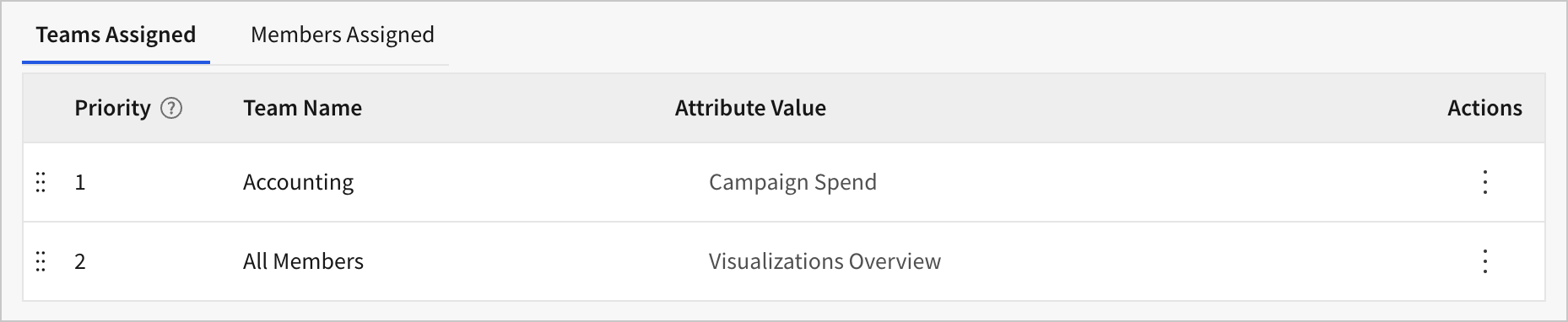
On the Teams assigned tab, use the drag handle (
 ) to drag and drop the teams to change the priority. Sigma shows the higher priority assignment's workbook to the users.
For example, you might have one home page for one team and another home page for all users in your organization. Place the team assignment in the first position so that the team members see their assigned workbook as the home page. Users outside that team see the workbook assigned to All Members as their custom home page.
Updated about 1 month ago