
Get around in the Sigma home page (Beta)
Get around in the Sigma home page (Beta)
This documentation describes one or more private beta features that are in development. Beta features are subject to quick, iterative changes; therefore the current user experience in the Sigma service can differ from the information provided in this page.
This page should not be considered official published documentation until Sigma removes this notice and the beta flag on the corresponding feature(s) in the Sigma service. For the full beta feature disclaimer, see Beta features.
If you are interested in joining a limited test group and enabling this feature in your Sigma organization, contact Support or reach out to your Account Executive.
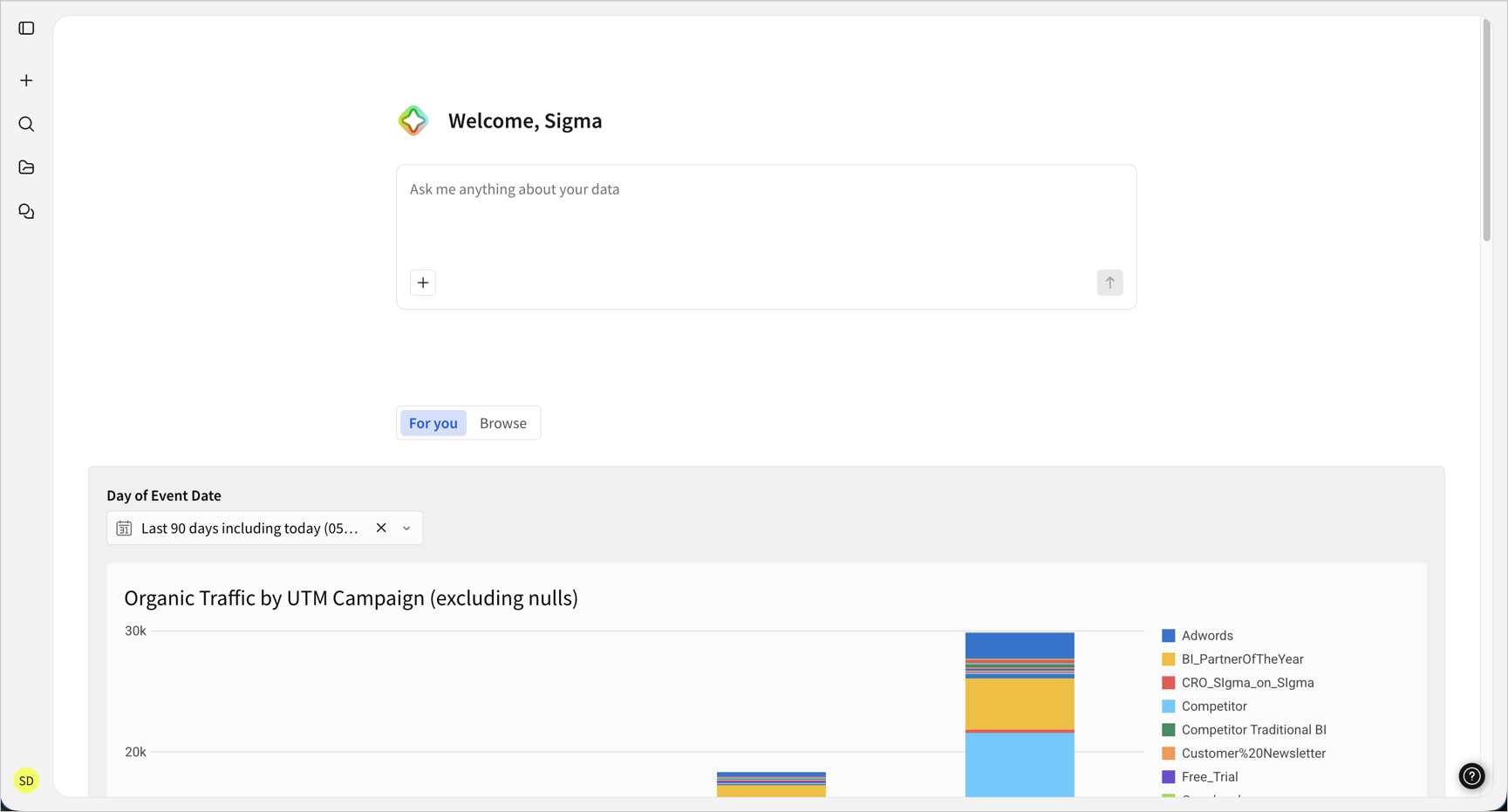
The Sigma home page is redesigned and includes Sigma Assistant, ready to help you start working immediately.
Get around the home page
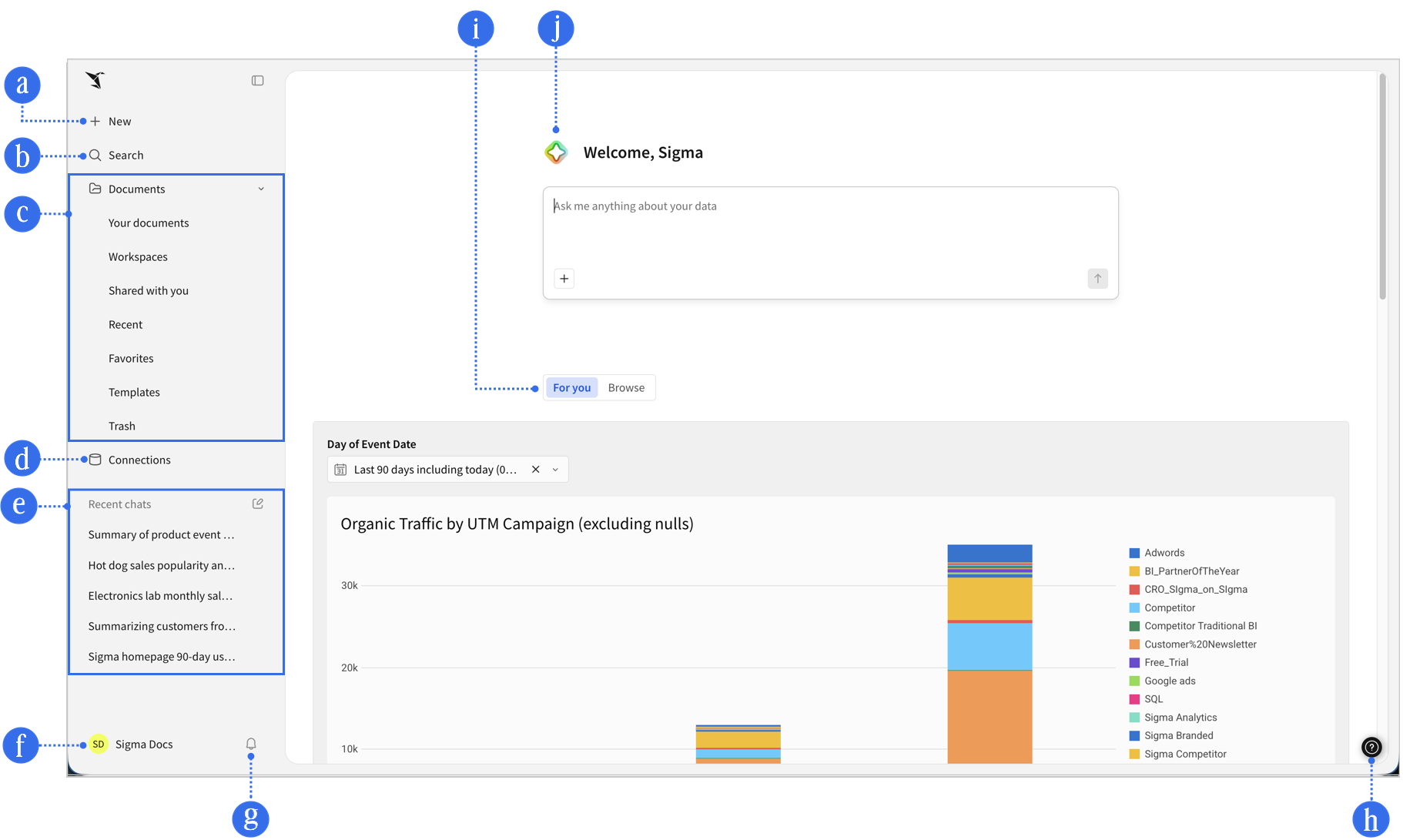
During the beta period, the home page continues to be updated. This screenshot might not exactly match what you see in your Sigma organization.
a. New
Create content, based on your role, including:
- Chat: Start a chat with Sigma Assistant or a warehouse agent. See Chat with Sigma Assistant on the homepage.
- Workbook: Analyze data using a spreadsheet-style interface and create visualizations. See Workbooks overview.
- Data model: Collect, relate, transform, and model data to share with others. See Get started with data modeling.
- Report: Build a pixel-perfect report to export to PDF or other destinations. See Create and edit reports.
- Write SQL: Write SQL to run against the data warehouse. See Write custom SQL.
- CSV upload: Upload a CSV-formatted file to perform analysis within a workbook. See Upload CSV data.
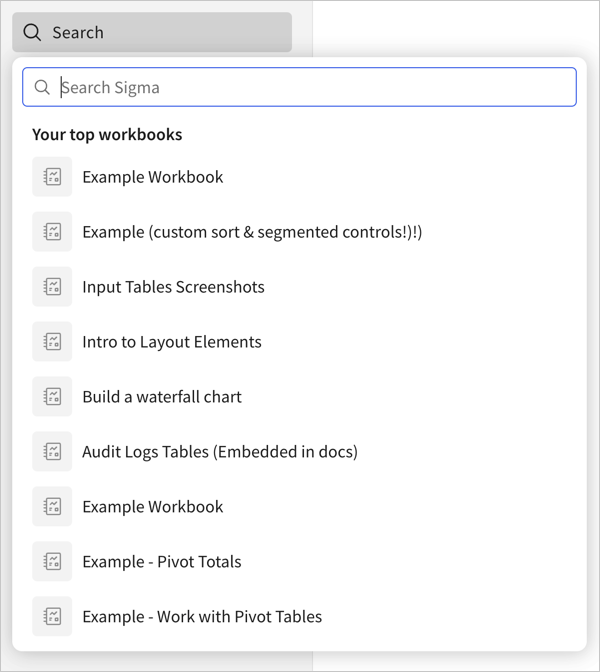
b. Search
Search for content in Sigma. See Search for files in your organization.
c. Documents
Expand the documents section to see items relevant to you:
- Your documents: A personal folder for you to save content that you create.
- Workspaces: A way to organize and share content with specific members or teams within your organization. Items placed in workspaces can be accessed by anyone who has access to that workspace.
- Shared with you: Access documents directly shared with you. Documents that you can access by link, or shared with you through a workspace, do not appear in Shared with you.
- Recent: A list of documents you have recently accessed.
- Favorites: Access documents that you have added to your favorites.
- Templates: Document templates shared with you, including workbook and app templates created by Sigma. See Get started with templates.
- Trash: Deleted documents appear in the trash. You can recover deleted documents at any time.
d. Connections
If you have access to browse connections, quickly access data from your data platform and explore the data catalog in Sigma. For more details, see Review and manage your data catalog.
e. Recent chats
This documentation describes one or more public beta features that are in development and available only to customers who meet certain conditions. For more information, contact your Account Executive.
Beta features are subject to quick, iterative changes; therefore, the current user experience in the Sigma service can differ from the information provided in this page.
This page should not be considered official published documentation until Sigma removes this notice and the beta flag on the corresponding feature(s) in the Sigma service. For the full beta feature disclaimer, see Beta features.
Start a new chat with Assistant, or access recent chats. For more details about chat history, see Chat with Sigma Assistant on the home page.
f. User profile
Your username that links to a menu where you can access the following:
- Profile, where you can make changes to your preferences, manage connection sessions, view the Model Context Protocol (MCP) server URL, and more.
- Administration, if you have access to perform Admin tasks or view Usage dashboards. See Administer Sigma.
- Add connection, to quickly add a connection to a new data platform. See Connect to data sources. You must be an Admin or assigned an account type with the Manage connections permission enabled to see this option.
- Documentation, to open the Sigma documentation.
- Sign out, to sign out of Sigma and end your user session.
g. Notifications
Access notifications in Sigma, such as access requests, template share details, and more.
h. Help
Links to useful information, such as the documentation, keyboard shortcuts, Sigma release notes, and access to Sigma Support live chat.
i. For you / Browse
- For you: View the custom home page assigned by your admin, if one exists.
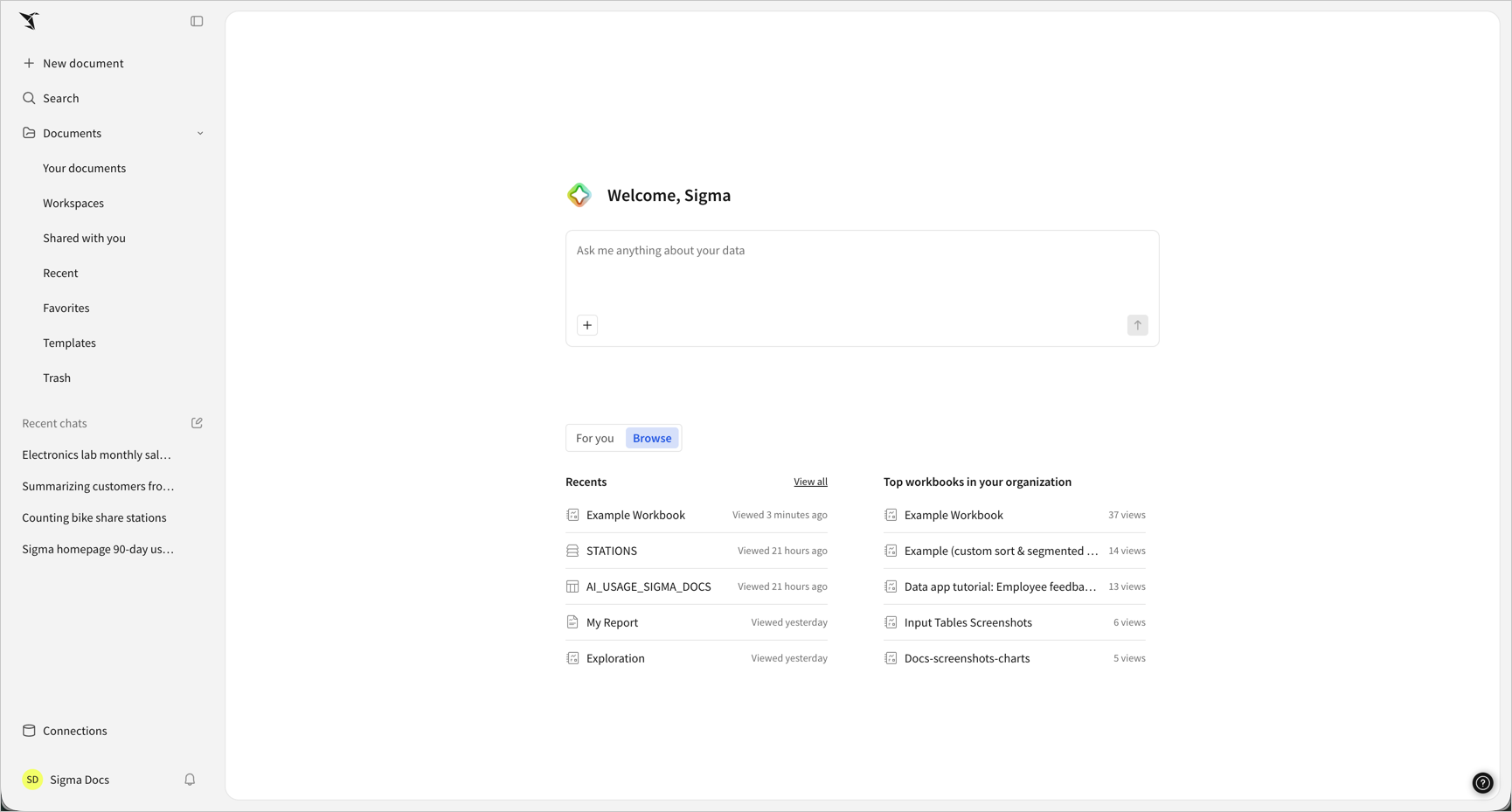
- Browse: View the 5 most recent items that you accessed in Sigma, and view the top workbooks in your organization.
If you don’t have a custom home page, you only see document lists:
j. Sigma Assistant
Start chatting with Assistant. If you have access to warehouse agents, you can start a conversation with Sigma Assistant or a warehouse agent. For more details, see Chat with Sigma Assistant on the home page.
Customize your home page view
For a more focused home page, you can click Collapse sidebar ().