

Chat with Sigma Assistant on the home page (Beta)
Chat with Sigma Assistant on the home page (Beta)
This documentation describes one or more private beta features that are in development. Beta features are subject to quick, iterative changes; therefore the current user experience in the Sigma service can differ from the information provided in this page.
This page should not be considered official published documentation until Sigma removes this notice and the beta flag on the corresponding feature(s) in the Sigma service. For the full beta feature disclaimer, see Beta features.
If you are interested in joining a limited test group and enabling this feature in your Sigma organization, contact Support or reach out to your Account Executive.
Sigma Assistant is a natural-language query (NLQ) interface that lets you ask questions about your data and interact with AI-generated responses from the Sigma home page. Extract factual information from your data, ask questions that generate charts you can explore in a workbook, or have a conversation with Sigma Assistant to iterate on a specific data analysis task.
Chat with Assistant and ask follow-up questions about the data or the analysis steps Assistant performed. Revisit previous conversations and have multiple chat sessions at the same time.
You can also choose a Snowflake Cortex Agent or a Databricks Genie Agent to answer your questions. For requirements, setup steps, and limitations, see Use warehouse agents with Sigma and Interact with warehouse agents in Sigma Assistant.
Limitations
You cannot use Assistant on the home page to perform any of the following tasks:
- Search for documents based on a description. Instead, use Search.
- Create a workbook, report, or data model from the conversation. You can open a chart from the conversation in a workbook, but you cannot build documents from Assistant on the home page. If you have access, you can build a workbook with Assistant in the workbook. See Use AI to build dashboards and apps.
The following data source limitations apply:
- You cannot select a tagged version of a data model as a source. If a data model is selected as a data source by an admin, only the published version is used to answer questions. Only users with access to the published version can get answers that reference that data model.
- If you use a Snowflake semantic view as a data source, Sigma Assistant treats it as a set of individual tables and does not recognize the metrics or relationships defined in the semantic view.
The following chat content limitations apply:
- Assistant responds with Markdown-formatted tables instead of table elements. As a result, you cannot add a table from a response to a workbook.
System and user requirements
The ability to chat with Sigma Assistant from the home page requires the following:
- An AI provider must be set up for your organization. See Set up an AI provider.
- You must be assigned an account type with the Use Assistant permission enabled. See Account type and license overview.
- To move analysis from Sigma Assistant into a workbook, you must be assigned an account type with the Create, edit, and publish workbooks permission enabled.
- To use warehouse tables or semantic views as data sources in Assistant, you must have the View connections permission enabled on your account type.
- To use data models as data sources in Assistant, you must have the View data models permission enabled on your account type.
Start a conversation with Assistant
To start a conversation with Sigma Assistant from the Sigma home page:
-
In the Ask me anything about your data box, enter a question, then press Enter or Send .
Assistant interprets your question, searches data sources, and selects what it determines to be the best source to answer your question, using semantic relevance, data source metadata, and data source usage. You can optionally select a specific data source.
-
Sigma Assistant provides a response. If your question is vague, Assistant might prompt you to clarify what you’re asking for before responding.
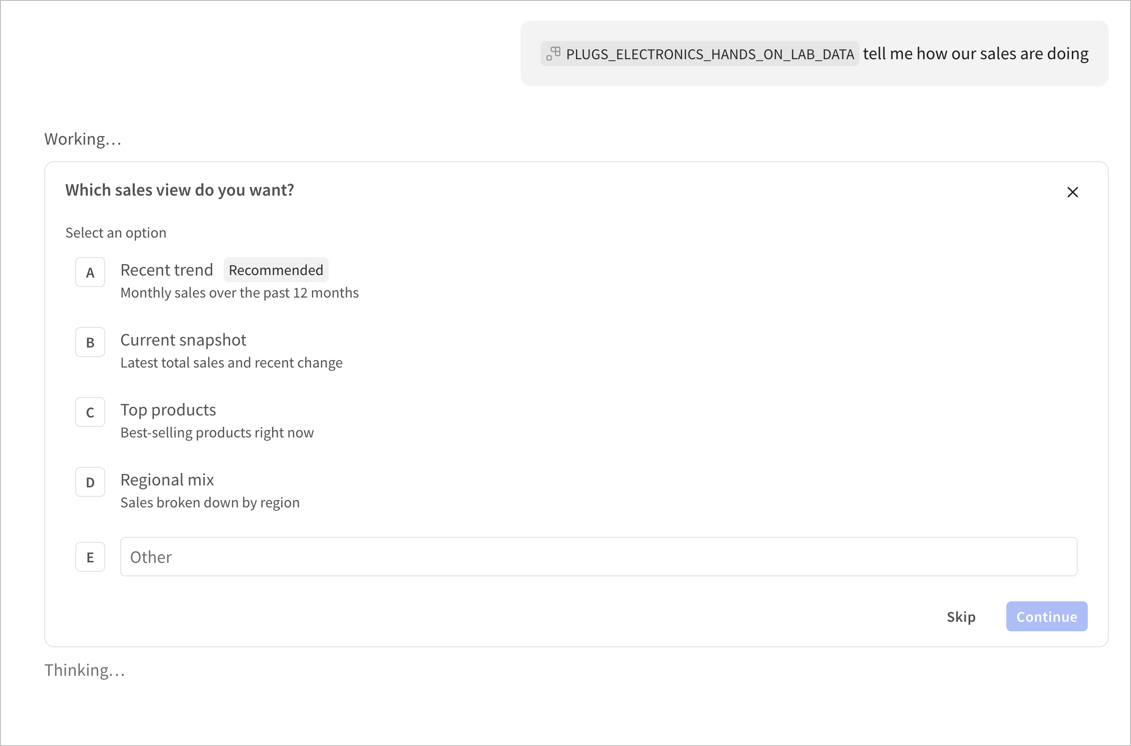
For more details, see Review and interact with Assistant responses.
-
Ask follow-up questions to refine your analysis or understanding of the data source. For example, if you asked about profitability in one region, you might follow up by asking about another region. If Assistant is still responding to your previous message, your follow-up message is queued.
-
If you think of an unrelated analysis that you want to perform in a different chat session, start a new chat:
- In the conversation, click New chat () to start a new chat.
- If chat history is turned on for your organization, in the sidebar, click New chat () and start a new chat. At any time you can access your previous chat conversation and return to it from Recent chats. See Manage chat conversations.
Choose a data source
Sigma Assistant has access to the same data sources you can access by default. If you know exactly which data source you want to ask questions of, you can select it before asking your question:
-
From the chat prompt, click Add data source ().
-
Browse to or search for the data source that you want to add. You can select from any of the following data sources that you have access to:
- Data model (select Use entire data model)
- Table in a data model
- Table in your data platform
- Snowflake semantic view
- Dataset (deprecated)
If your admin has selected specific sources, you can also choose from the list of Admin-selected sources.
-
The source appears as part of the prompt and you can enter your question, then press Enter or click Send () to ask questions about that data source.
All data access grants that apply elsewhere in Sigma also apply in Sigma Assistant. For example, if row-level security or column-level security is applied to a data source, Sigma Assistant only works with data that you have access to. For a data model, you must have access to the published version.
Review and interact with Assistant responses
When Sigma Assistant responds to your question, it summarizes its reasoning and basis for the response and how long it worked for. If Assistant ran a query to answer your question, you can review the query details:
-
Click Worked for… to expand the details of the actions Assistant performed.
-
In the details, click Gathered data from… to expand the queries that Assistant performed as part of its analysis.
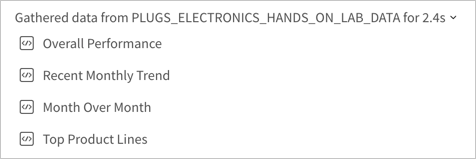
-
For each query, select Show query details to view the tabular output of the query.
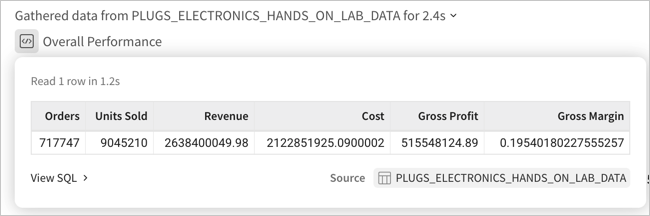
-
Click View SQL to review the exact query Assistant sent to your data platform.
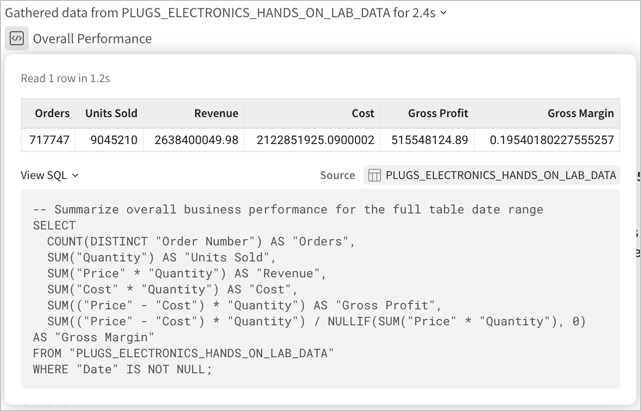
Interact with a response
After Assistant responds, you can interact with the response by saving content for later or providing feedback:
-
If the response includes a chart, you can click Download to save a PNG-formatted image of the chart to your computer.

The Download permission is not required to download a PNG of a chart.
-
If you’re assigned an account type with the Create, edit, and publish workbooks permission enabled, hover over a chart and select Open in workbook to open an exploration in a new tab with the selected output and any underlying data tables.
-
Copy the response to share with someone else.
-
To provide feedback to Sigma about the quality of the response from Assistant, select (Good response) or (Bad response). If you select Bad response, optionally provide details about what was wrong. Only the feedback details are shared with Sigma. Details about your conversation with Assistant are not provided to Sigma.
Admins can also review scores and feedback for Sigma Assistant interactions in the AI usage table. See AI usage dashboard.
Review a summary of source details and your conversation
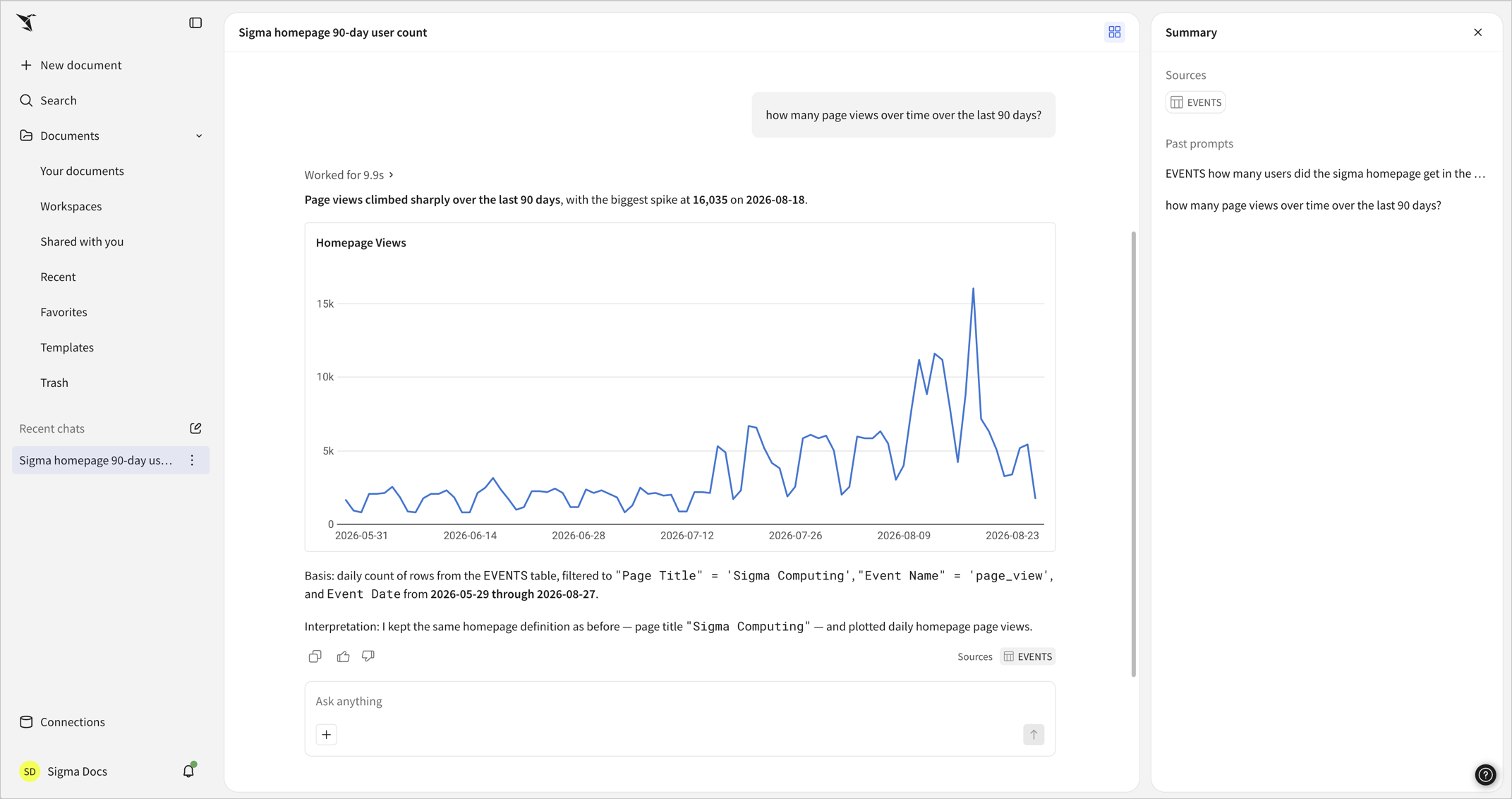
At any point in your conversation, you can select (Show summary panel) to display a summary of your conversation:
- Review the sources used by Assistant throughout your conversation. Select a source to preview the data and confirm it is the relevant source. When previewing a source, click Open table or Open data model () to open the source in a new tab.
- Review your past prompts in the conversation. Select a prompt to review the response to that prompt in the summary panel. For example, you can compare different responses side by side from your analysis.
Manage chat conversations
This documentation describes one or more public beta features that are in development and available only to customers who meet certain conditions. For more information, contact your Account Executive.
Beta features are subject to quick, iterative changes; therefore, the current user experience in the Sigma service can differ from the information provided in this page.
This page should not be considered official published documentation until Sigma removes this notice and the beta flag on the corresponding feature(s) in the Sigma service. For the full beta feature disclaimer, see Beta features.
All chat conversations that you have with Assistant are stored in Sigma. Your admin can configure chat history settings. Your chat history is only visible to you on the home page, and admins can review all conversation details, including deleted chats, in the AI usage dashboard if it is configured.
Your chat history contains the conversations you have with Sigma Assistant on the home page. Conversations with a warehouse agent are not currently stored in chat history. See Limitations.
- In the Recent chats section of the navigation sidebar, review the automatically named chats.
- To locate an older chat, scroll the list until you locate it.
- To rename a chat, select More (), then select Rename to enter a new name for the chat.
- To delete a chat, select (), then select Delete. The chat is immediately deleted from your history, but admins can still review it in the AI usage dashboard.
Conversations with Sigma agents or Assistant in the workbook are not yet stored or visible on the home page.