

Build a line chart
You can use line charts to assess how values change over time, spot trends, and identify anomalies in your dataset. You can also build advanced multi-line charts to analyze and compare multiple variables over the same period of time.
This document details basic line chart requirements and introduces key properties and format options to help you enhance your workbook charts.
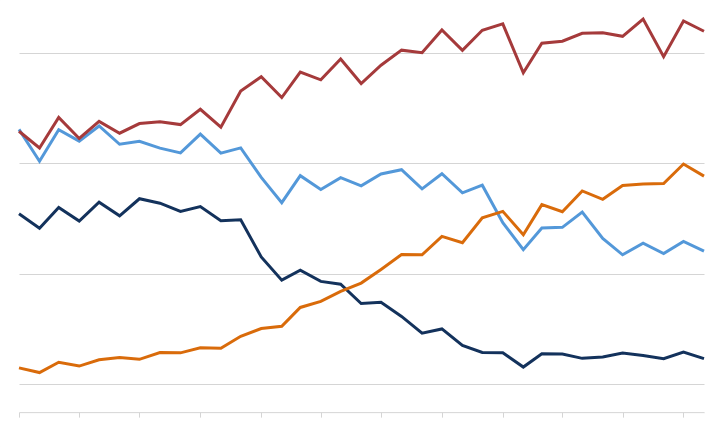
Example use cases:
-
Consumer packaged goods (CPG) analytics: Compare monthly profit margins by product category to understand profit trends and gain insight into overall business profitability.
-
Manufacturing analytics: Track machine uptime percentage by the hour to identify productivity lapses and reliability issues.
-
Air travel analytics: Assess monthly percentage of on-time flight departures by airline to understand seasonal patterns and compare operational efficiency across companies.
User requirements
The ability to create line charts and other charts requires the following:
-
To create a chart in a workbook, you must be assigned an account type with the Full explore or Create, edit, and publish workbooks permission enabled.
-
To create a chart in a report, you must be assigned an account type with the Create, edit, and publish reports permission enabled.
-
You must be the workbook or report owner or be granted Can explore or Can edit access to the document.
Basic line chart requirements
To plot a line chart, configure the following settings in the Properties tab of the editor panel:
In a line chart, the x-axis typically represents time-based categories (like dates, months, years) that correspond with individual data points. The y-axis represents a variable that measures a value (like sales, leads, expenses) for each category and determines the vertical placement of each data point.
At the core of every chart is an underlying data table (derived from the data source) that supplies the information visualized by the chart. As you build a line chart, Sigma automatically calculates and structures the data to map the element properties to source columns in the underlying data table. For information about how to view the underlying data while you configure the chart, see Maximize or minimize a data element.
Add a line chart
Add a line chart element to a workbook or report and specify a data source:
- Open a document for editing or customizing.
- From the Add element bar, select Charts, then select Line.
- In the Select source modal, select a data source for the chart.
Define the x-axis categories
Configure a source column to define the x-axis categories.
-
In the X-axis property, click + Add column and select an option from the menu:
-
To generate categories based on distinct values in an existing column, search or scroll the Select column list and select the desired column name.
-
To generate categories based on a custom formula, select + Add new column and enter the formula in the toolbar.
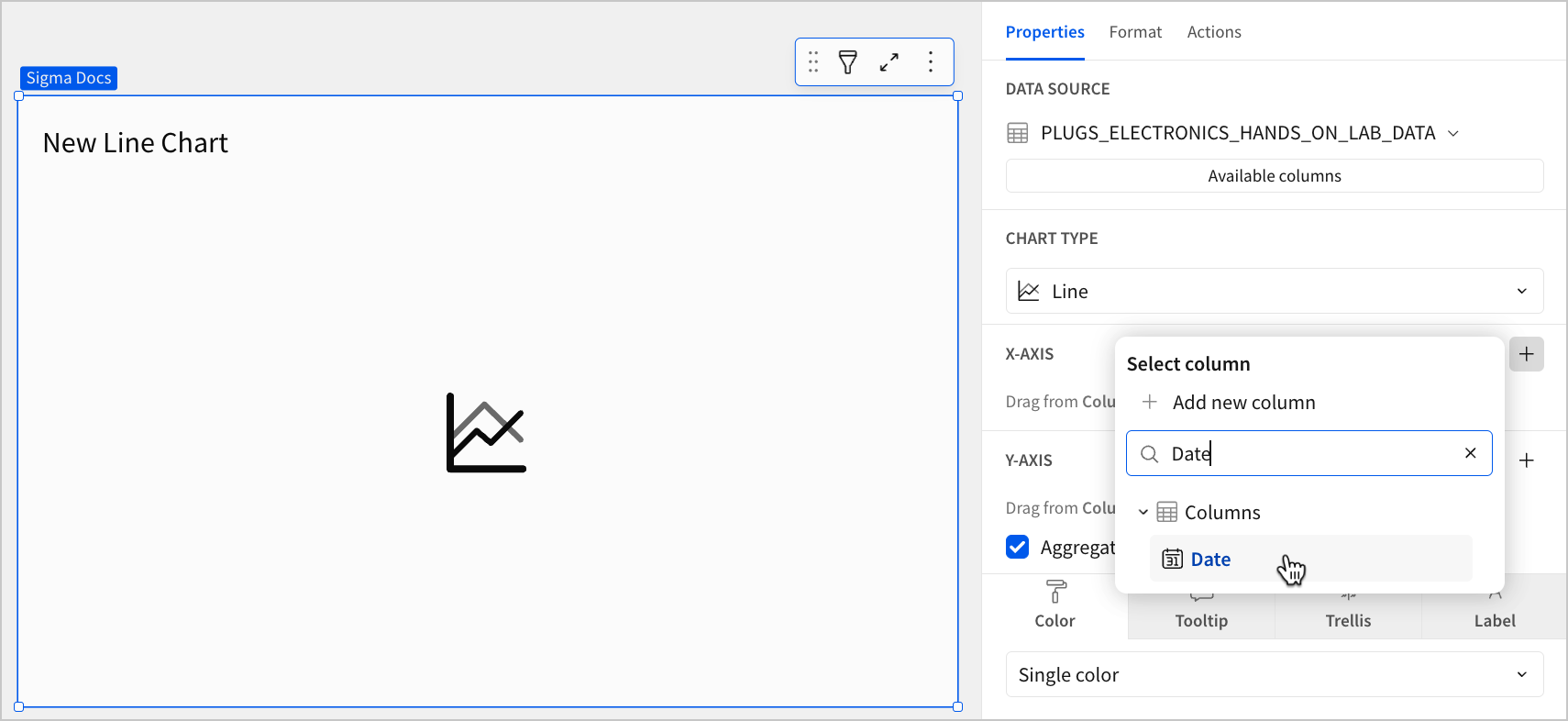
You can also select or replace an existing column by dragging and dropping a column name from the Columns list to the X-axis property.
-
-
(Optional) Control how the source column data is categorized and displayed in the chart:
-
Hover over the source column name, then click the down arrow (
 ) to open the column menu.
 -
Hover over any of the following items, then select the preferred option:
Column menu items vary depending on the data type of the column. For example, Truncate date is only available for date columns.
-
Define the y-axis variable
Configure a source column to define the y-axis variable. Sigma automatically aggregates values associated with the same x-axis category.
-
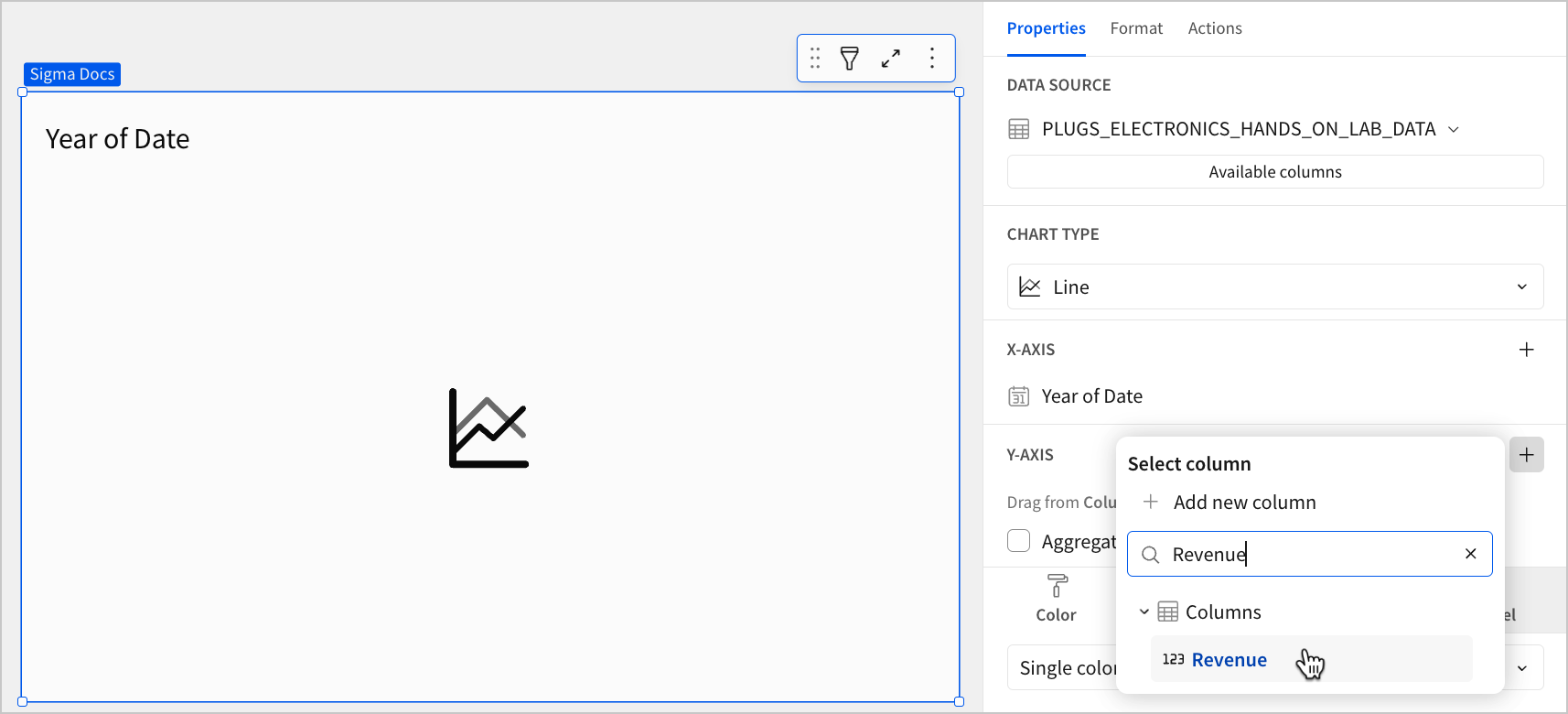
In the Y-axis property, click + Add calculation and select an option from the menu:
-
To aggregate values of an existing column, search or scroll the Columns list and select the desired column name.
-
To calculate values based on a custom formula, select + Add new column and enter the formula in the toolbar.
-
To count the number of rows associated with each category, select Row count.
This visualization supports up to 25,000 data points. If the configurations result in a data set that exceeds this limit, the visualization displays the first 25,000 data points, and a warning message indicates that the chart is incomplete. To reduce the number of data points, aggregate the values or apply data filters to the visualization or source element.
-
-
(Optional) Control how the source column data is calculated and displayed in the chart:
-
Hover over the source column name, then click the down arrow (
) to open the column menu. -
Hover over any of the following items, then select the preferred option:
To plot the source column data without aggregating values, clear the Aggregate values checkbox in the Y-axis property. If this results in an incomplete chart that exceeds the 25,000 data point limit, reaggregate the values or apply data filters to reduce the number of data points.
-
-
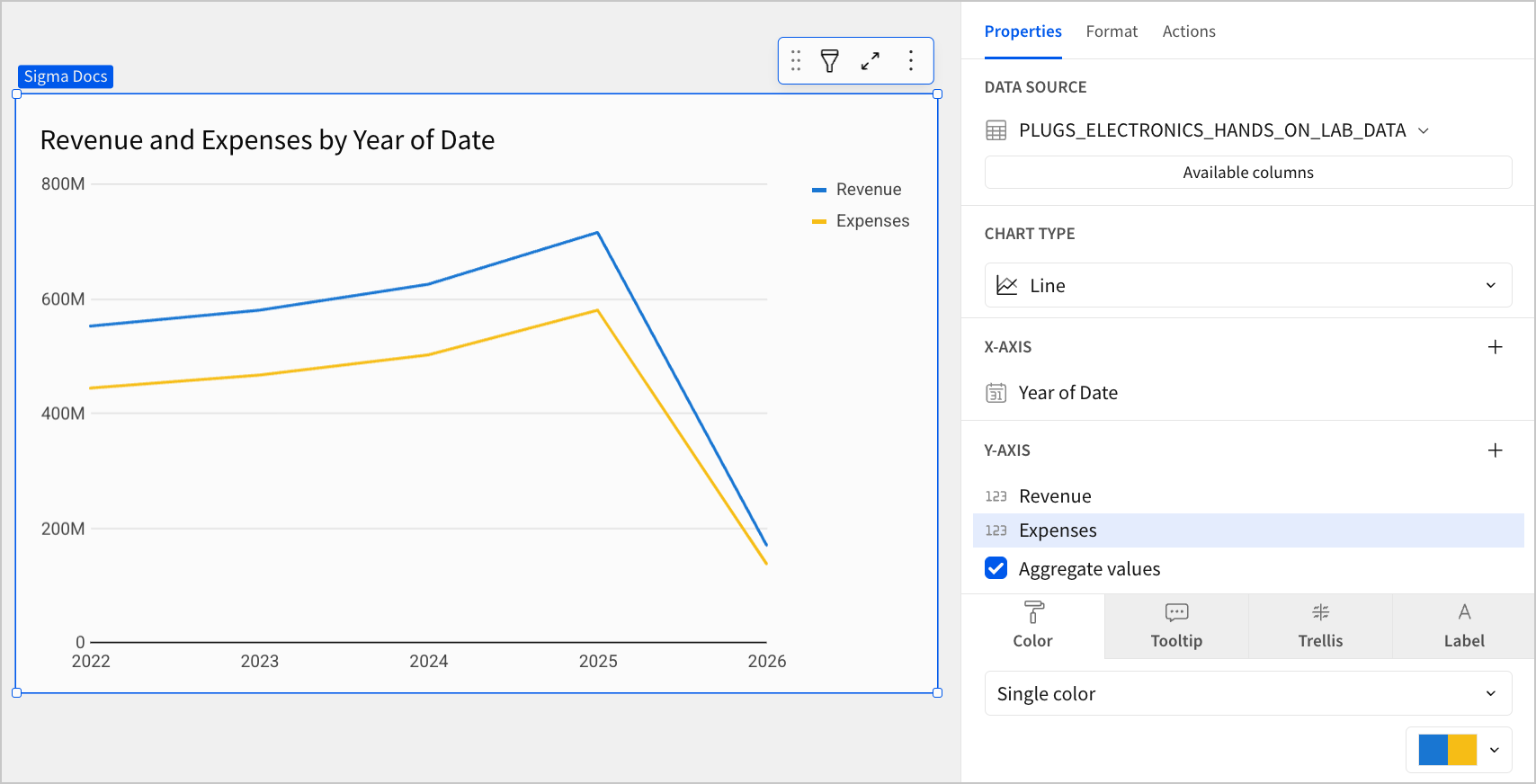
(Optional) Repeat the previous steps to configure multiple y-axis source columns. Sigma plots each as a separate line series on the chart.
-
(Optional) Sigma auto-generates source column names and chart titles to reflect the visualized data, but you can customize these fields as needed:
-
To rename a source column, double-click the column name in the X-axis or Y-axis property, then enter a new name. Changes are reflected in the default chart title.
-
To edit the chart title, double-click the title in the chart, then enter a new title.
Sigma generates a default chart title. If you customize the title, changes to the source columns or column names are not automatically reflected in the title.
-
Advanced line chart properties
You can also build advanced line charts and variations, including multi-line, step-line, and dual-axis line charts.
The following sections introduce configurations that can enhance your line charts and help you deliver specific insights with meaningful and actionable information.
Configure line color
To configure line mark colors, select the Properties tab in the editor panel, then click Color. Use color settings to differentiate data, highlight associations, or split your chart colors by category.


Multiple variables in the y-axis result in a multi-line chart in which each data series represents a measure of a different variable. The By category color setting can also generate a multi-line chart, but the resulting series represent sub-categories (within the x-axis categories) that measure the same variable.
Customize line style
You can customize the line style by selecting the Format tab in the editor panel and clicking Line style to expand the section. When the line chart contains multiple y-axis variables, you can modify the different data series individually or together.
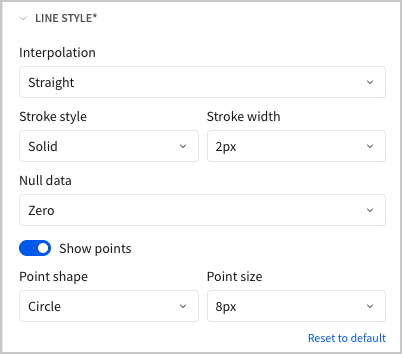
In the Line style section, you can change the line style to be solid, dashed, or dotted, as well as configure the weight of the line to be between 1 and 5 pixels thick. In addition, you can choose from the following types of interpolation paths:


You can use step-line charts to help visualize changes that occur at irregular intervals, such as pricing, interest rates, or inventory.
You can also show or hide individual data points and control how the line chart handles null values:
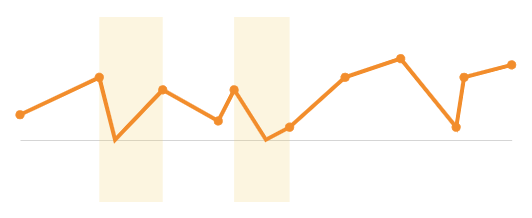
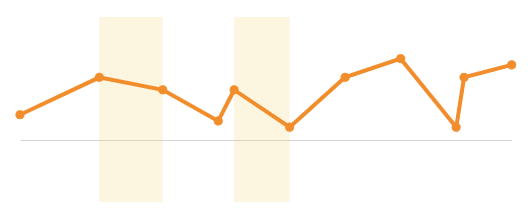
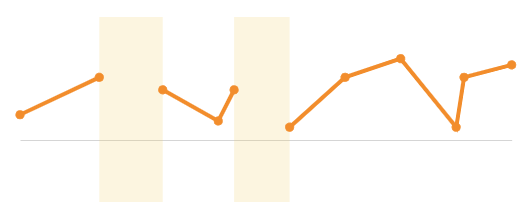
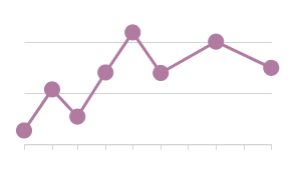
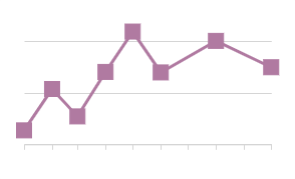
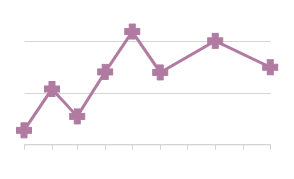
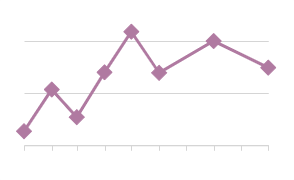
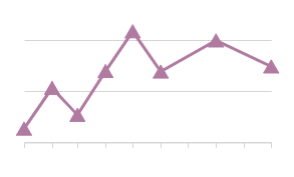
By default, line charts hide distinct data points between line connections. If you select the Show points checkbox, you can display the points and customize their size (2-15px) and shape:
Show a single series or multiple series in a tooltip
You can configure a tooltip to display data from a single series or from all series in your chart. By default, line charts show all series values in the tooltip.
- On the workbook page, select the line chart you want to modify.
- In the editor panel, click Format, then select Tooltip to expand the section.
- Turn off the Show multiple series toggle to show only the value for the series the cursor is over. Turn on the Show multiple series toggle again to show all series in the tooltip.
The option to choose between displaying a single series or multiple series in the tooltip is available only for bar, line, and area charts.
All line chart format options
- Element style
- Title
- X-axis
- Y-axis
- Legend
- Trellis
- Data labels
- Tooltip
- Reference marks
- Trend lines
- Line style
- Background image