

Manage workbook page visibility
By default, workbook pages are visible to all users with permission to view, explore, or edit the workbook. You can change the visibility of individual pages to restrict viewing specific workbook content.
This document describes Sigma’s page visibility options and explains how to customize the visibility of a particular page.
User requirements
The ability to manage workbook page visibility requires the following:
- You must be assigned an account type with the Create, edit, and publish workbooks permission enabled.
- You must be the workbook owner or be granted Can edit workbook permission.
Understanding page visibility
Page visibility is not a security feature. If you need to restrict access to data, use row-level security or column-level security. See Set up row-level security and Configure column-level security.
At least one page in a workbook must not have any page visibility restrictions applied.
Page visibility settings apply in View and Explore mode only. The workbook owner and any user granted Can edit permission for the particular workbook can access all pages in Edit mode, regardless of page visibility settings.
When a user with Save as permissions saves a copy of a workbook, all pages are visible in the copy, regardless of page visibility settings in the original workbook.
Page visibility icons
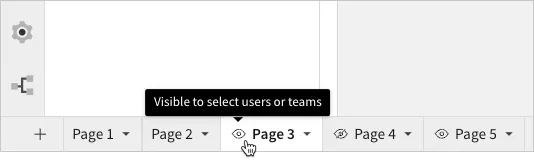
Page tabs display icons to indicate the current page visibility setting:
| no icon | Indicates the page is visible to all users. |
 | Indicates the page is visible to select users or teams. |
 | Indicates the page is hidden from all users. |
Page visibility in workbook versions and secure embeds
Tagged versions
Tagged workbook versions inherit the page visibility settings saved to the workbook when the tag is applied. Therefore, a page can be accessible to a user in one version and hidden from the same user in another.
Secure embeds
Page visibility in secure embeds is determined by team settings. A page is only visible to an embed user when shown to the user’s assigned team (via Show page to all users or Only show to select users or teams).
When a secure embed user saves a copy of an embedded workbook, all pages are visible in the copy, regardless of page visibility settings in the original workbook.
Hide or unhide a page
Use the Hide page and Unhide page options to quickly update the page visibility for all users.
-
Open a workbook in Edit mode.
-
Locate the tab for the page you want to customize.
-
Click the caret (
 ) in the tab to open the page menu, then select the available option: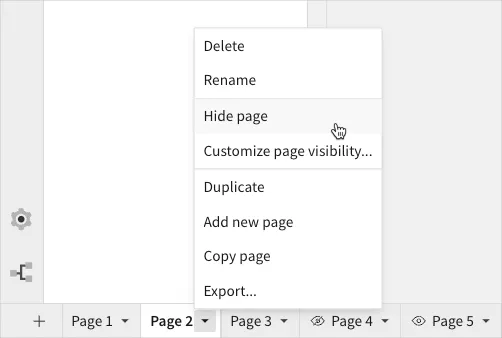
Customize page visibility
Use the Customize page visibility option to update the page visibility for all users or specific users and teams.
-
Open a workbook in Edit mode.
-
Locate the tab for the page you want to customize.
-
Click the caret (
) in the tab to open the page menu, then select Customize page visibility.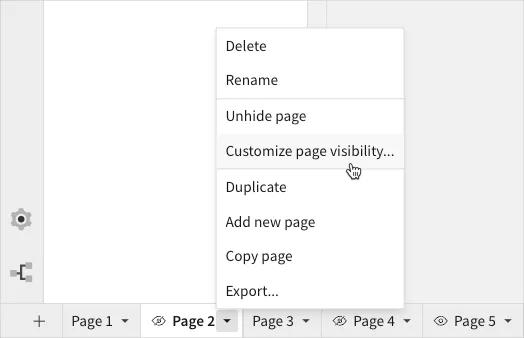
-
In the Customize Page Visibility modal, configure the page visibility:
-
Click the Page visibility setting field and select an option from the dropdown:
-
If you selected Only show to select users or teams in step 4a, use the Select users field to search for and select applicable users and teams.
-
Click Save to apply the page visibility change.
-