> For clean Markdown of any page, append .md to the page URL.
> For a complete documentation index, see https://help.sigmacomputing.com/llms.txt.
> For AI client integration (Claude Code, Cursor, etc.), connect to the MCP server at https://help.sigmacomputing.com/_mcp/server.
# Respond to account upgrade requests
> Respond to Sigma account upgrade requests when users need to create or explore workbooks. Admins receive email for each request.
Users can request an account upgrade when attempting to create or explore a workbook. When a user submits an account upgrade request, all Sigma admins in the organization receive an email.
As a Sigma admin, you can approve or deny account upgrade requests. For more details about license types and account types, see [Account type and license overview](/docs/account-type-and-license-overview).
For more details on when users can submit an account upgrade request, see [About upgrade requests](/docs/license-upgrade-requests#about-upgrade-requests).
If you don't want users to be able to request upgrades, see [Enable or disable account upgrade requests](/docs/license-upgrade-requests#enable-or-disable-upgrade-requests).
If your organization uses SCIM to manage users and teams, do not use the Sigma UI to change a user's account type. If SCIM is configured, any account type changes you make in the Sigma UI are overridden by your SCIM configurations. See [Manage users and teams with SCIM](/docs/manage-users-and-teams-with-scim).
## Approve an upgrade request
To respond to an upgrade request, do the following:
If you respond to an email requesting an upgrade, the link from the email opens the **Reassign account type** modal.
1. Go to **Administration**.
2. Select **People**, then open the **Upgrade Requests** tab.\
Any pending requests to review are displayed.
3. For the user requesting the upgrade, review the message in the **User justification** column.
4. Select  **More**, then select **Reassign account type**.
5. In the **Reassign account type** modal, review the current account type for the user and the permission that the user is requesting. To approve the request, choose an account type to reassign to the user. Only account types with the requested permission are available to select.
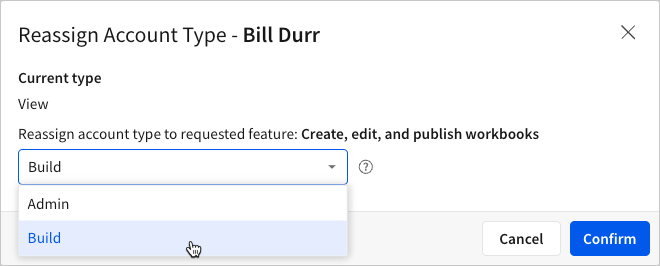
6. Select **Confirm**.
## Deny an upgrade request
To reject or deny an upgrade request and remove it from the list of requests, do the following:
1. Open the Sigma **Administration** portal.
2. Select **People**, then open the **Upgrade Requests** tab.\
Any pending requests to review are displayed.
3. For the user requesting the upgrade, review the message in the **User justification** column.
4. To reject or remove the upgrade request, select **More**, then select **Remove request**.\
The request is removed from the list.
**More**, then select **Reassign account type**.
5. In the **Reassign account type** modal, review the current account type for the user and the permission that the user is requesting. To approve the request, choose an account type to reassign to the user. Only account types with the requested permission are available to select.

6. Select **Confirm**.
## Deny an upgrade request
To reject or deny an upgrade request and remove it from the list of requests, do the following:
1. Open the Sigma **Administration** portal.
2. Select **People**, then open the **Upgrade Requests** tab.\
Any pending requests to review are displayed.
3. For the user requesting the upgrade, review the message in the **User justification** column.
4. To reject or remove the upgrade request, select **More**, then select **Remove request**.\
The request is removed from the list.