 ), select **Schedule exports**.
The **Schedule Exports** dialog opens.
2. You can review the list of scheduled exports for the workbook, reviewing the times and types of exports to identify overlapping schedules or recipients.
3. For a specific scheduled export, you can click the
), select **Schedule exports**.
The **Schedule Exports** dialog opens.
2. You can review the list of scheduled exports for the workbook, reviewing the times and types of exports to identify overlapping schedules or recipients.
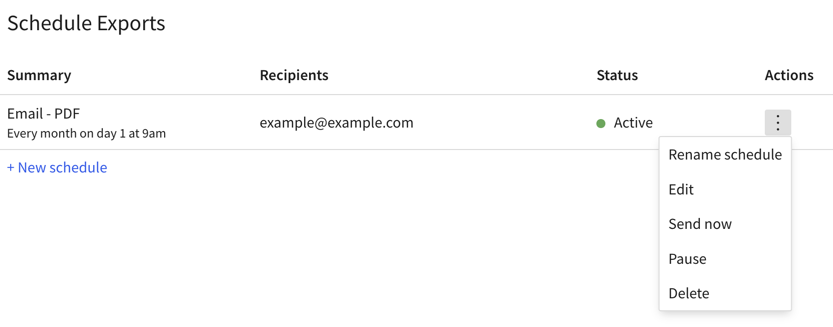
3. For a specific scheduled export, you can click the  **More** menu to rename the schedule, edit the schedule, send the configured scheduled export immediately, pause the scheduled export, or delete it.
### Edit or delete a schedule
1. From the workbook menu (), select **Schedule exports**.
The **Schedule Exports** dialog opens.
2. Locate the schedule you want to send and click the **More** menu.
3. Click **Delete** to delete the schedule or **Edit** to make changes to the schedule.

### Send a scheduled export on demand
If you want to send a scheduled export without waiting for the next scheduled run of the export, you can send it on demand.
1. From the workbook menu (), select **Schedule exports**.
2. Locate the schedule that you want to send and click the **More** menu (), then select **Send now**.
### Pause or resume a scheduled export
You can manually pause and resume scheduled exports.
1. From the workbook menu (), select **Schedule exports**.
The **Schedule Exports** dialog opens.
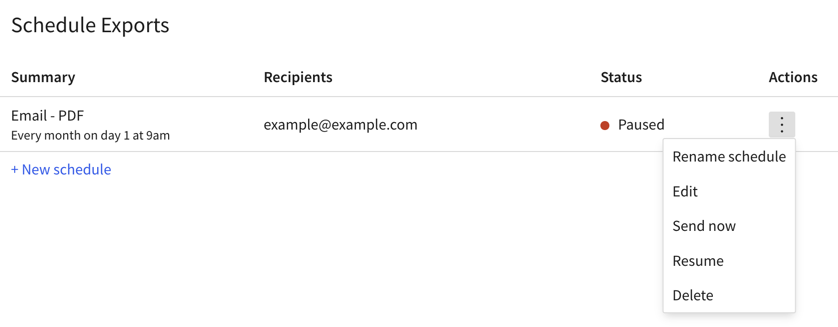
2. In the **Actions** column, click **More** () and select **Pause**.

3. In the **Status** column, the status changes to **Paused**.
4. To resume an export, repeat the above steps but choose **Resume** from the **More** menu.
### Duplicate a scheduled export
You can duplicate scheduled exports.
1. From the workbook menu, select **Schedule exports**.
The **Schedule Exports** dialog opens.
2. From the export you want to duplicate, select the **More** menu, then select **Duplicate**.
#### Auto-paused scheduled exports
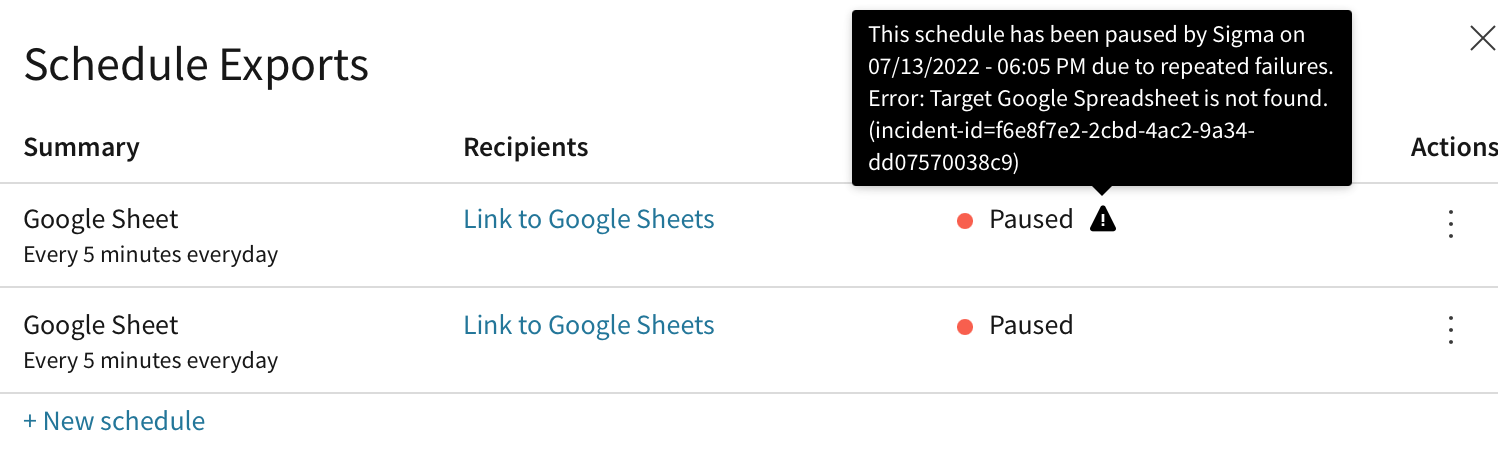
If a scheduled export fails more than 10 times consecutively, Sigma pauses the export schedule and the owner of the schedule receives an email notification.
The email notification contains the following message:
`Document export failed. Sigma has paused one of your scheduled exports. Please use the below link to the workbook to check details.`
You can manually resume the export. The **Status** column shows **Paused** with an exclamation point. To resume the paused export, choose **Resume** from the **More** menu in the **Actions** column.
## Manage your scheduled exports and subscriptions
From your user profile, you can view and manage scheduled exports that you own or receive.
If you are an admin, you can view or manage all scheduled exports for your organization. See [Manage organization schedules](/docs/manage-organization-schedules).
### View and manage schedules in your profile
To view and manage scheduled exports from your profile, do the following:
1. Go to **Home** and select the user icon with your initials, then select **Profile**.
2. From the dropdown menu, select **Profile**.
3. From your user profile, select **Scheduled Exports**.
4. Choose which scheduled exports you want to view and manage:
* Select **Owned by you** to view and manage scheduled exports created by you. If you're an admin, you also see schedules inherited from organization members that you deactivated.
* Select **Your subscriptions** to view and manage exports sent to your email address, whether owned by you or others.
You can search, filter, and sort the listed schedules to more easily locate the schedule you want to find.
To make changes to a specific schedule, select the name of the workbook to open the workbook and manage the schedule. See [Manage schedules for a workbook](#manage-schedules-for-a-workbook).
The following information is available about your organization's scheduled exports:
| | |
| :------------------------- | :----------------------------------------------------------------------------------------------------------------------------------------------------------------------------------------------------------------------------------------------------------------------------------------------------------------------------------------------------------------------------------------------- |
| **Schedule/Document** | The name of your scheduled export and the name of the document being exported. |
| **Destination/Attachment** | The export destination and export attachment type. |
| **Frequency** | How frequently the export is being sent. |
| **Last run time** | The start time of the most recent export run. |
| **Last run status** |
**More** menu to rename the schedule, edit the schedule, send the configured scheduled export immediately, pause the scheduled export, or delete it.

### Edit or delete a schedule
1. From the workbook menu (), select **Schedule exports**.
The **Schedule Exports** dialog opens.
2. Locate the schedule you want to send and click the **More** menu.
3. Click **Delete** to delete the schedule or **Edit** to make changes to the schedule.

### Send a scheduled export on demand
If you want to send a scheduled export without waiting for the next scheduled run of the export, you can send it on demand.
1. From the workbook menu (), select **Schedule exports**.
2. Locate the schedule that you want to send and click the **More** menu (), then select **Send now**.
### Pause or resume a scheduled export
You can manually pause and resume scheduled exports.
1. From the workbook menu (), select **Schedule exports**.
The **Schedule Exports** dialog opens.
2. In the **Actions** column, click **More** () and select **Pause**.

3. In the **Status** column, the status changes to **Paused**.
4. To resume an export, repeat the above steps but choose **Resume** from the **More** menu.

### Duplicate a scheduled export
You can duplicate scheduled exports.
1. From the workbook menu, select **Schedule exports**.
The **Schedule Exports** dialog opens.
2. From the export you want to duplicate, select the **More** menu, then select **Duplicate**.
#### Auto-paused scheduled exports
If a scheduled export fails more than 10 times consecutively, Sigma pauses the export schedule and the owner of the schedule receives an email notification.
The email notification contains the following message:
`Document export failed. Sigma has paused one of your scheduled exports. Please use the below link to the workbook to check details.`
You can manually resume the export. The **Status** column shows **Paused** with an exclamation point. To resume the paused export, choose **Resume** from the **More** menu in the **Actions** column.

## Manage your scheduled exports and subscriptions
From your user profile, you can view and manage scheduled exports that you own or receive.
If you are an admin, you can view or manage all scheduled exports for your organization. See [Manage organization schedules](/docs/manage-organization-schedules).
### View and manage schedules in your profile
To view and manage scheduled exports from your profile, do the following:
1. Go to **Home** and select the user icon with your initials, then select **Profile**.
2. From the dropdown menu, select **Profile**.
3. From your user profile, select **Scheduled Exports**.
4. Choose which scheduled exports you want to view and manage:
* Select **Owned by you** to view and manage scheduled exports created by you. If you're an admin, you also see schedules inherited from organization members that you deactivated.
* Select **Your subscriptions** to view and manage exports sent to your email address, whether owned by you or others.
You can search, filter, and sort the listed schedules to more easily locate the schedule you want to find.
To make changes to a specific schedule, select the name of the workbook to open the workbook and manage the schedule. See [Manage schedules for a workbook](#manage-schedules-for-a-workbook).
The following information is available about your organization's scheduled exports:
| | |
| :------------------------- | :----------------------------------------------------------------------------------------------------------------------------------------------------------------------------------------------------------------------------------------------------------------------------------------------------------------------------------------------------------------------------------------------- |
| **Schedule/Document** | The name of your scheduled export and the name of the document being exported. |
| **Destination/Attachment** | The export destination and export attachment type. |
| **Frequency** | How frequently the export is being sent. |
| **Last run time** | The start time of the most recent export run. |
| **Last run status** | The status of the most recent export run:
The current status of the export:
**More > Delete**.
### Unsubscribe from a subscription
To unsubscribe from a subscription to a scheduled export:
1. Go to **Home** and select the user icon with your initials, then select **Profile**.
2. Select **Scheduled Exports**.
3. Select **Your subscriptions** and locate the subscription that you want to unsubscribe from.
4. Click **More > Unsubscribe**.
## Related resources
* [Send and schedule exports from workbooks](/docs/send-and-schedule-exports-from-workbooks)
* [Manage organization schedules](/docs/manage-organization-schedules)