> For clean Markdown of any page, append .md to the page URL.
> For a complete documentation index, see https://help.sigmacomputing.com/llms.txt.
> For AI client integration (Claude Code, Cursor, etc.), connect to the MCP server at https://help.sigmacomputing.com/_mcp/server.
# Invite new users to your organization
You can invite new members to your organization from the **Administration** portal. This document explains how to invite new members and resend or delete pending invitations.
## System and user requirements
The ability to invite new password-authenticated members to your Sigma organization requires the following:
* You must be assigned the **Admin** [account type](/docs/create-and-manage-account-types#default-account-types).
If your organization uses only SAML or OAuth to authenticate members, you must first assign new members in the IdP or authorization server. If a member receives an invite before this step is complete, they see an IdP error and will be unable to log in to Sigma.
## Invite a new user
To invite a new user to your Sigma organization:
1. Go to **Administration** > **Users**:
1. In the Sigma header, click your user avatar to open the user menu.
2. Select **Administration** to open the **Administration** portal.
3. In the side panel, select **Users**.
2. In the **Users** page, click **Invite users**.
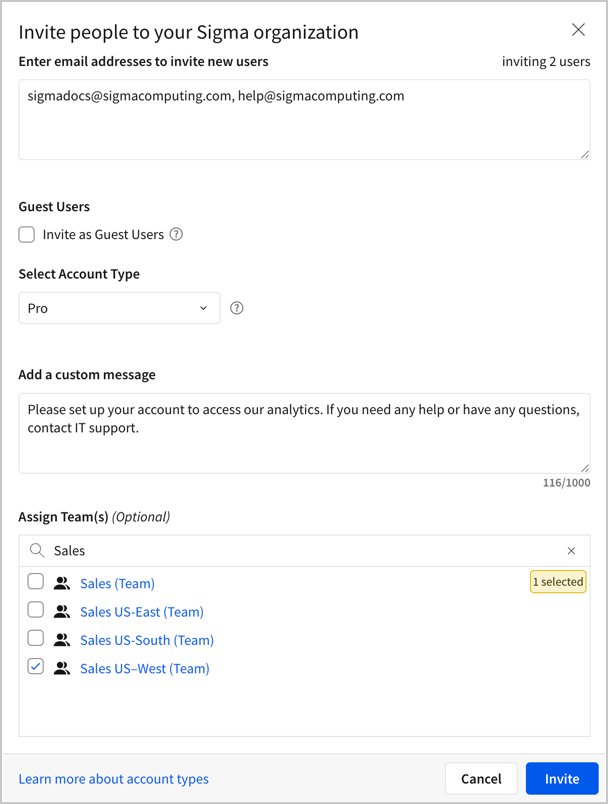
3. In the **Invite people to your Sigma organization** modal, set up and send the invitation:
1. In the **Enter email addresses...** field, enter the email address of one or more members to invite.
Sigma recommends inviting no more than 1,000 members at a time.
2. (Optional) In the **Guest users section**, select the **Invite as guest users** checkbox to limit user interactions to content explicitly shared with them or their assigned teams.
3. (Optional) In the **Select account type** dropdown, select an account type to assign the new members. You can change the account type assigned by default. See [Manage default invitation account type](/docs/create-and-manage-account-types#manage-default-invitation-account-type).
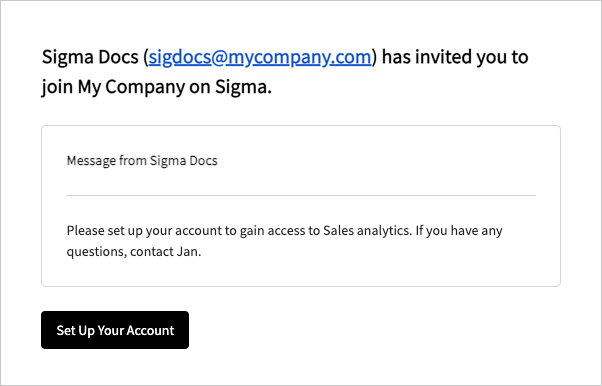
4. (Optional) In the **Add a custom message** field, enter a message to include in the invitation email. You can set up a default email message. See [Customize welcome and invite emails](/docs/customize-welcome-and-invite-emails) to set up a default email message.
5. (Optional) In the **Assign team(s)** section, select the teams to assign the new members.
6. Click **Invite** to send an invitation to the email addresses provided.
Sigma sends an invitation to the provided email addresses. You can track invite details in the **Users** > **Pending invitations** tab until members set up their accounts.
## Resend a pending invitation
To resend a pending invitation to a user:
1. Go to **Administration** > **Users**:
1. In the Sigma header, click your user avatar to open the user menu.
2. Select **Administration** to open the **Administration** portal.
3. In the side panel, select **Users**.
2. In the **Users** page, select the **Pending invitations** tab.
3. Resend an invitation to one or more members:
1. To resend an invitation to an individual member, locate their email address, then click  **More** and select **Resend invite**.
2. To resend invitations to multiple members, select the checkbox next to each applicable email address, then click
**More** and select **Resend invite**.
2. To resend invitations to multiple members, select the checkbox next to each applicable email address, then click  **Resend invites**.
When the invite is successfully sent, Sigma displays an "Invites re-sent" confirmation message at the bottom of the page.
## Revoke a pending invitation
To revoke a pending invitation to a user:
1. Go to **Administration** > **Users**:
1. In the Sigma header, click your user avatar to open the user menu.
2. Select **Administration** to open the **Administration** portal.
3. In the side panel, select **Users**.
2. In the **Users** page, select the **Pending invitations** tab.
3. Revoke an invitation sent to one or more members:
1. To revoke an invitation sent to an individual member, locate their email address, then click **More** and select **Revoke invite**.
2. To revoke invitations sent to multiple members, select the checkbox next to each applicable email address, then click
**Resend invites**.
When the invite is successfully sent, Sigma displays an "Invites re-sent" confirmation message at the bottom of the page.
## Revoke a pending invitation
To revoke a pending invitation to a user:
1. Go to **Administration** > **Users**:
1. In the Sigma header, click your user avatar to open the user menu.
2. Select **Administration** to open the **Administration** portal.
3. In the side panel, select **Users**.
2. In the **Users** page, select the **Pending invitations** tab.
3. Revoke an invitation sent to one or more members:
1. To revoke an invitation sent to an individual member, locate their email address, then click **More** and select **Revoke invite**.
2. To revoke invitations sent to multiple members, select the checkbox next to each applicable email address, then click  **Revoke invites**.
Sigma removes the revoked invitations from the list, and the **Set up your account** link in any previously sent emails are invalidated.
## Related resources
* [User account types](/docs/user-account-types)
* [Authentication methods for your Sigma organization](/docs/organization-authentication-methods)
**Revoke invites**.
Sigma removes the revoked invitations from the list, and the **Set up your account** link in any previously sent emails are invalidated.
## Related resources
* [User account types](/docs/user-account-types)
* [Authentication methods for your Sigma organization](/docs/organization-authentication-methods)