> For clean Markdown of any page, append .md to the page URL.
> For a complete documentation index, see https://help.sigmacomputing.com/llms.txt.
> For AI client integration (Claude Code, Cursor, etc.), connect to the MCP server at https://help.sigmacomputing.com/_mcp/server.
# Format a Slack message
If a [Slack integration](/docs/manage-slack-integration) is enabled for your organization, you can send notifications to Slack users from a Slack export or Slack notification action. See [Send notifications by Slack](/docs/create-actions-that-send-notifications-and-export-data#send-notifications-by-slack) and [Export to Slack](/docs/export-to-slack).
This document describes specific syntax you can use to format text, create hyperlinks, and tag users when sending Slack notifications from Sigma.
## System and user requirements
The ability to send Slack notifications requires the following:
* The [Slack integration](/docs/manage-slack-integration) must be enabled for your organization. If you want to send notifications to a private channel, you must also add Sigma to the private channel. See [Adding Sigma to a private Slack channel](/docs/manage-slack-integration#adding-sigma-to-a-private-slack-channel) . Only one Sigma organization can connect to one Slack workspace.
* You must be assigned an [account type](/docs/account-type-and-license-overview) with the **Export to Slack** permission enabled.
## Supported syntax
Slack supports specific markup formatting for Slack notifications.
When adding text to a message body, you can use the following syntax to format text, create hyperlinks, and tag users and groups:
| Formatting | Syntax | Details |
| ------------------- | --------------------- | ---------------------------------------------------------------------------------------------------------------------------------------------------------------------------------------- |
| Notify a user | `<@user_id>` | Get the Slack member ID for the user from their Slack user profile. See [Find Slack User ID](#find-slack-user-id). |
| Notify a channel | `@here` or `@channel` | See Notify a channel or workspace in the Slack Help Center. |
| Hyperlink text | `` | For example, to hyperlink the Sigma documentation, type `` |
| Bold text | `*text*` | Bold the enclosed text (**text**) in your message. |
| Strike through text | `~text~` | Strike through the enclosed text (~~text~~) in your message. |
| Format text as code | \``text`\` | Format the enclosed text (`text`) as code in your message. |
| Reference a group | `` | See the Slack documentation on Browse people and user groups in Slack. |
See Format your messages in the Slack Help Center for additional reference. Sigma does not support all Slack markup.
## Find Slack user and channel ID
When sending Slack notifications, you can identify Slack users and channels in the **To** field by ID. To find the ID values for a user or channel, see the sections below.
### Find Slack user ID
1. In Slack, navigate to your conversation with the user.
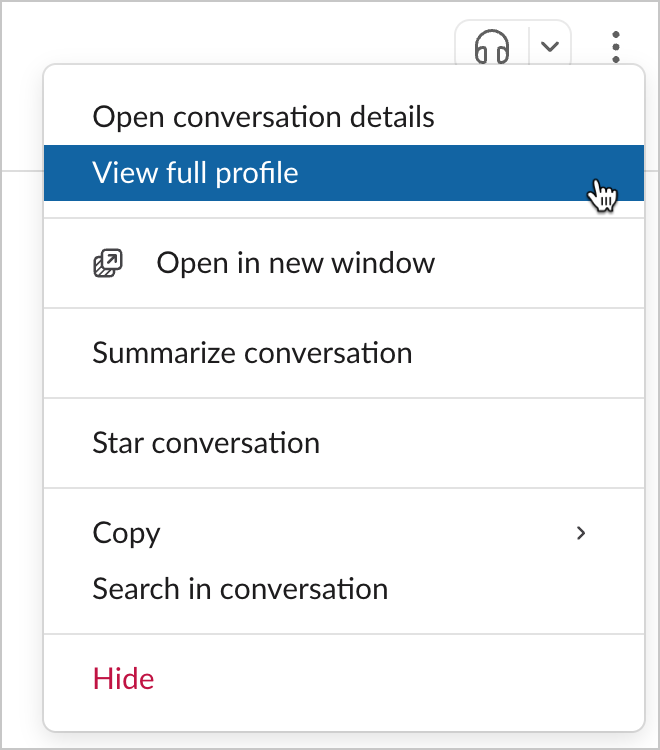
2. From the top right, select  **More actions**
3. Select **View full profile**.
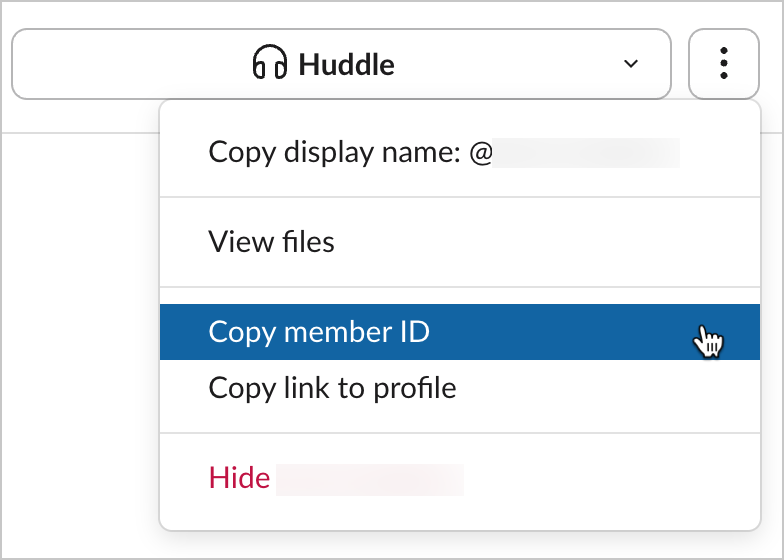
4. Select and then **Copy member ID**.
### Find Slack channel ID
To send Slack messages to a private channel, you must first add Sigma to the channel. See [Adding Sigma to a private Slack channel](/docs/manage-slack-integration#adding-sigma-to-a-private-slack-channel) .
1. In Slack, navigate to the channel.
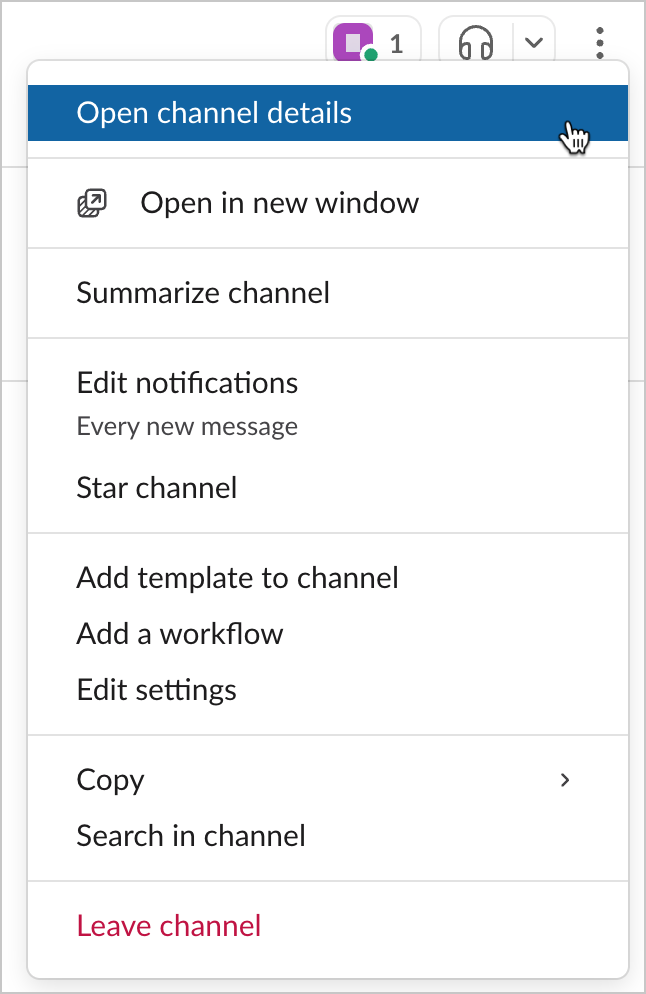
2. From the top right, select **More actions**.
3. Select **Open channel details**.
4. At the bottom of the modal, click
**More actions**
3. Select **View full profile**.

4. Select and then **Copy member ID**.

### Find Slack channel ID
To send Slack messages to a private channel, you must first add Sigma to the channel. See [Adding Sigma to a private Slack channel](/docs/manage-slack-integration#adding-sigma-to-a-private-slack-channel) .
1. In Slack, navigate to the channel.
2. From the top right, select **More actions**.
3. Select **Open channel details**.

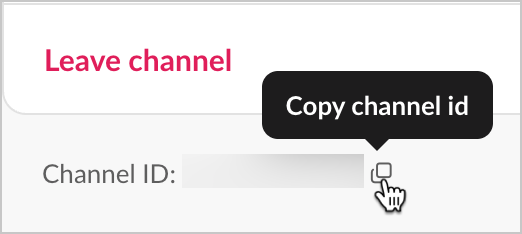
4. At the bottom of the modal, click  to copy the channel ID.
to copy the channel ID.
