> For clean Markdown of any page, append .md to the page URL.
> For a complete documentation index, see https://help.sigmacomputing.com/llms.txt.
> For AI client integration (Claude Code, Cursor, etc.), connect to the MCP server at https://help.sigmacomputing.com/_mcp/server.
# Export to Google Sheets
You can send one or more individual workbook elements to Google Sheets on a set schedule or an as-needed basis. When you export to Google Sheets on a schedule, the same Google Sheet is replaced (overwritten) each time the schedule runs. See [Schedule an export to Google Sheets](/docs/export-to-google-sheets#schedule-exports-to-google-sheets).
Sigma generates exports from the workbook's latest published version. Changes you make to a workbook draft, custom view, or exploration cannot be exported unless you save or publish the changes. Depending on your export destination, you can also choose to export a saved view or tagged version of the workbook. If you are exporting elements that are only on a saved view, you must open the export modal from the saved view.
For a matrix of supported file formats and saved view/version tag export support, see [Available export destinations and formats](/docs/send-or-schedule-workbook-exports#available-export-destinations-and-formats).
## System and user requirements
The ability to export to Google Sheets requires the following:
* You must be assigned an [account type](/docs/create-and-manage-account-types) with the **Export to Google Sheet** permission enabled.
* You must be an Editor of the specified Google Sheet.
* The Google Sheet must be located in your personal Google Drive (**My Drive**). Exporting to a shared drive is not supported.
Export to Google Sheets isn't supported from embedded content.
## Google account authorization
The first time you export or schedule an export to Google Sheets or Google Drive, Sigma prompts you to authorize Sigma to export to your Google account:
!\[Dialog showing \"you can now export your data into Google Drive. You will need to authorize Sigma to access your Google Drive.]\([https://files.readme.io/feab067440de15865df7eef8e3f2bdab8cc316c31eca1f720adbafa0f207d227-export-to-drive.png](https://files.readme.io/feab067440de15865df7eef8e3f2bdab8cc316c31eca1f720adbafa0f207d227-export-to-drive.png))
Click **Authorize** and follow the instructions on your screen. After you complete the authorization, you return to the **Export** or **Schedule Exports** dialog.
## Export to Google Sheets as needed
To export to Google Sheets:
1. From the workbook menu ( ), select **Share and export> Export...**.
2. Select **Google Sheets**.
If this is the first time you've exported to a Google product, Sigma prompts you to enable the integration. See [Google account authorization](/docs/export-to-google-sheets#google-account-authorization).
3. For **Sheets URL**, enter the URL of the Google Sheet that you want to export to. Use the URL visible in your web browser when viewing the Google Sheet, not the URL you copy to share the Google Sheet.
4. Select the data to export. Only workbook elements are supported.
5. Click **Export**.
## Schedule exports to Google Sheets
Exports to Google Sheets overwrite the same sheet each time the schedule runs.
To schedule an export to Google Sheets:
1. From the workbook menu (), select **Share and export> Schedule exports…**.
2. If this is the workbook's first schedule, click **Add schedule**, otherwise click **+ New schedule**.
3. Select **Google Sheets**.
If this is the first time you've created a scheduled export to Google, Sigma prompts you to enable the integration. See [Google account authorization](/docs/export-to-google-sheets#google-account-authorization).
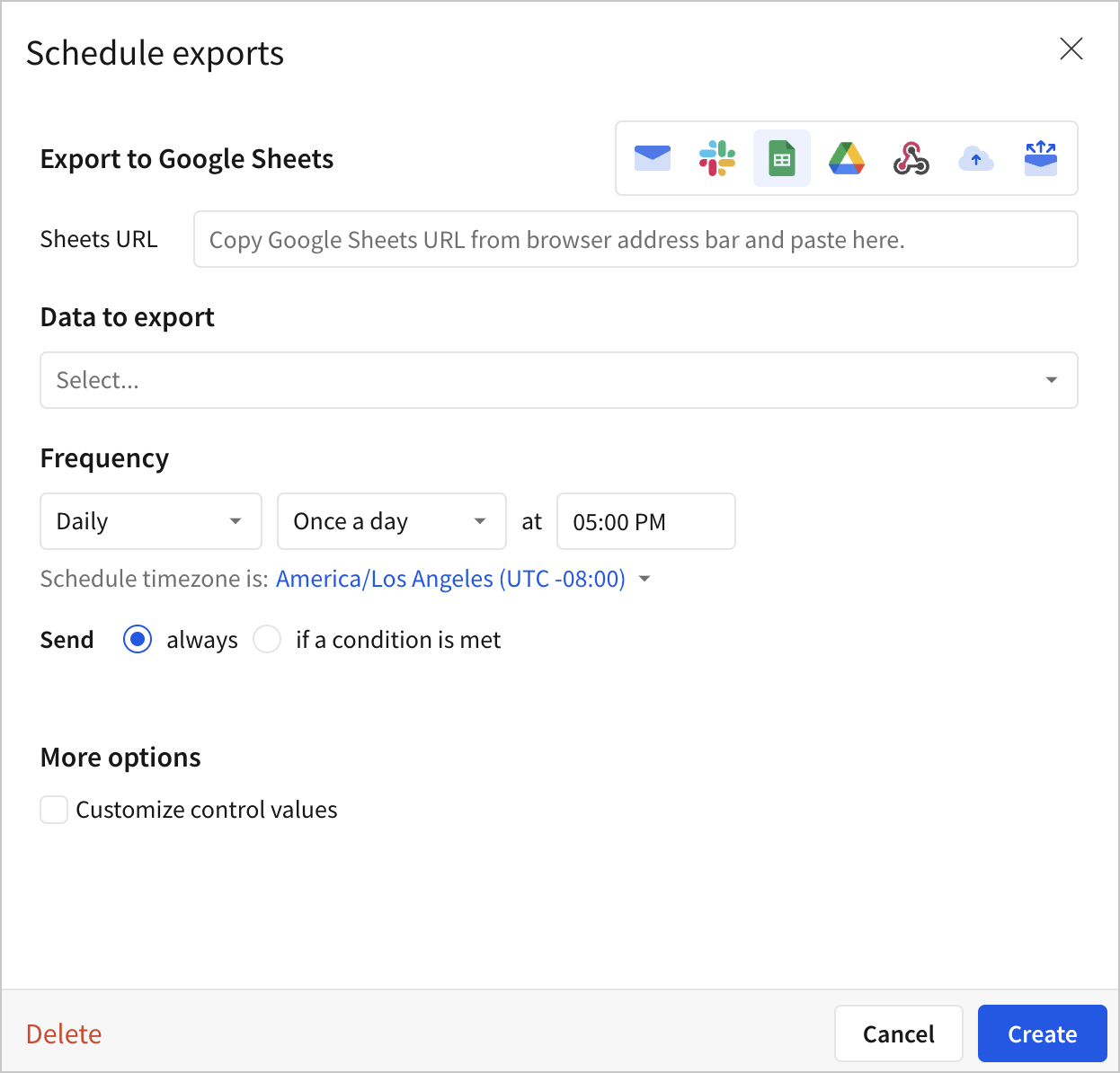
4. For **Sheets URL**, enter the URL of the Google Sheet that you want to export to. Use the URL visible in your web browser when viewing the Google Sheet, not the URL you copy to share the Google Sheet.
5. Select the data to export. Only workbook elements are supported.
6. In the **Frequency** section, set the delivery schedule:
* (Optional) Select the dropdown for **Daily** and select **Weekly**, **Monthly**, or **Custom**.
* For **Daily**, select **Once a day** or **Multiple times**.
* For **Weekly**, select which days of the week to send an email, and choose between **Once a day** or **Multiple times**.
* For **Monthly**, select which day of the month to send an email, and the time of day.
* For **Custom**, specify a schedule using cron syntax. See [Set up a custom delivery schedule](/docs/configure-additional-options-for-exports#set-up-a-custom-delivery-schedule).
If you select **Multiple times**, specify the frequency. For example, every 2 hours on the :15 of the hour between 9 AM and 6 PM.
If you don't have the option to set a specific frequency, export frequency might be restricted for your organization. For more details, see [Restrict export recipients and frequency](/docs/restrict-export-recipients).
* (Optional) Adjust the default schedule time zone using the dropdown menu.
* (Optional) Choose how often to send the export: **Always** or only **If a condition is met**. See [Schedule a conditional export or alert](/docs/schedule-a-conditional-export-or-alert).
* (Optional) If you choose to send an export only **If a condition is met**, you can turn on the switch to stop notifying after a set number of occurrences per day, week, or in total.
7. (Optional) Select the checkbox for **Customize control values** to filter the exported data according to the value of one or more workbook controls. See [Configure additional options for exports](/docs/configure-additional-options-for-exports).
8. Click **Create**.
## Related resources
* [Send and schedule exports from workbooks](/docs/send-and-schedule-exports-from-workbooks)
), select **Share and export> Export...**.
2. Select **Google Sheets**.
If this is the first time you've exported to a Google product, Sigma prompts you to enable the integration. See [Google account authorization](/docs/export-to-google-sheets#google-account-authorization).
3. For **Sheets URL**, enter the URL of the Google Sheet that you want to export to. Use the URL visible in your web browser when viewing the Google Sheet, not the URL you copy to share the Google Sheet.
4. Select the data to export. Only workbook elements are supported.
5. Click **Export**.
## Schedule exports to Google Sheets
Exports to Google Sheets overwrite the same sheet each time the schedule runs.
To schedule an export to Google Sheets:
1. From the workbook menu (), select **Share and export> Schedule exports…**.
2. If this is the workbook's first schedule, click **Add schedule**, otherwise click **+ New schedule**.
3. Select **Google Sheets**.
If this is the first time you've created a scheduled export to Google, Sigma prompts you to enable the integration. See [Google account authorization](/docs/export-to-google-sheets#google-account-authorization).

4. For **Sheets URL**, enter the URL of the Google Sheet that you want to export to. Use the URL visible in your web browser when viewing the Google Sheet, not the URL you copy to share the Google Sheet.
5. Select the data to export. Only workbook elements are supported.
6. In the **Frequency** section, set the delivery schedule:
* (Optional) Select the dropdown for **Daily** and select **Weekly**, **Monthly**, or **Custom**.
* For **Daily**, select **Once a day** or **Multiple times**.
* For **Weekly**, select which days of the week to send an email, and choose between **Once a day** or **Multiple times**.
* For **Monthly**, select which day of the month to send an email, and the time of day.
* For **Custom**, specify a schedule using cron syntax. See [Set up a custom delivery schedule](/docs/configure-additional-options-for-exports#set-up-a-custom-delivery-schedule).
If you select **Multiple times**, specify the frequency. For example, every 2 hours on the :15 of the hour between 9 AM and 6 PM.
If you don't have the option to set a specific frequency, export frequency might be restricted for your organization. For more details, see [Restrict export recipients and frequency](/docs/restrict-export-recipients).
* (Optional) Adjust the default schedule time zone using the dropdown menu.
* (Optional) Choose how often to send the export: **Always** or only **If a condition is met**. See [Schedule a conditional export or alert](/docs/schedule-a-conditional-export-or-alert).
* (Optional) If you choose to send an export only **If a condition is met**, you can turn on the switch to stop notifying after a set number of occurrences per day, week, or in total.
7. (Optional) Select the checkbox for **Customize control values** to filter the exported data according to the value of one or more workbook controls. See [Configure additional options for exports](/docs/configure-additional-options-for-exports).
8. Click **Create**.
## Related resources
* [Send and schedule exports from workbooks](/docs/send-and-schedule-exports-from-workbooks)