> For clean Markdown of any page, append .md to the page URL.
> For a complete documentation index, see https://help.sigmacomputing.com/llms.txt.
> For AI client integration (Claude Code, Cursor, etc.), connect to the MCP server at https://help.sigmacomputing.com/_mcp/server.
# Export to Google Drive
You can send individual workbook elements, workbook pages, or an entire workbook to Google Drive on a set schedule or an as-needed basis. Depending on what you send to Google Drive, you can export data in different file formats. For details on supported file formats, see [Send or schedule workbook exports](/docs/send-or-schedule-workbook-exports).
To export directly to Google Sheets, see [Export to Google Sheets](/docs/export-to-google-sheets).
Sigma generates exports from the workbook's latest published version. Changes you make to a workbook draft, custom view, or exploration cannot be exported unless you save or publish the changes. Depending on your export destination, you can also choose to export a saved view or tagged version of the workbook. If you are exporting elements that are only on a saved view, you must open the export modal from the saved view.
For a matrix of supported file formats and saved view/version tag export support, see [Available export destinations and formats](/docs/send-or-schedule-workbook-exports#available-export-destinations-and-formats).
## System and user requirements
The ability to export to Google Drive requires the following:
* You must be assigned an [account type](/docs/create-and-manage-account-types) with the **Export to Google Drive** permission enabled.
* You must be a Manager, Content manager, or Contributor of the specified Google Drive folder.
* The folder you export to must be located in your personal Google Drive (**My Drive**). Exporting to a folder in a shared drive is not supported.
Export to Google Drive isn't supported from embedded content.
## Google account authorization
The first time you export or schedule an export to Google Sheets or Google Drive, Sigma prompts you to authorize Sigma to export to your Google account:
!\[Dialog showing \"you can now export your data into Google Drive. You will need to authorize Sigma to access your Google Drive.]\([https://files.readme.io/feab067440de15865df7eef8e3f2bdab8cc316c31eca1f720adbafa0f207d227-export-to-drive.png](https://files.readme.io/feab067440de15865df7eef8e3f2bdab8cc316c31eca1f720adbafa0f207d227-export-to-drive.png))
Click **Authorize** and follow the instructions on your screen. After you complete the authorization, you return to the **Export** or **Schedule Exports** dialog.
## Export to Google Drive as needed
To export to Google Drive:
1. From the workbook menu ( ), select **Share and export> Export...**.
2. Select **Google Drive**.
If this is the first time you've exported to a Google product, Sigma prompts you to enable the integration. See [Google account authorization](#google-account-authorization).
3. For **Drive folder**, enter a name for a new folder to contain the export. You cannot use an existing folder. Exports create a file in the destination folder with a name that matches the following structure:
`__`.
4. Click **Create folder**.
Sigma creates the folder for you and displays the URL to the folder.
5. For **Attachments**, select the data and file formats that you want to export.
6. Click **Export**.
## Schedule an export to Google Drive
To schedule an export to Google Drive:
1. From the workbook menu (), select **Share and export> Schedule exports...**.
2. If this is the first schedule for the workbook, click **Add schedule**, otherwise click **+ New schedule**.
3. Select **Google Drive**.
If this is the first time you've created a scheduled export to Google, Sigma prompts you to enable the integration. See [Google account authorization](#google-account-authorization).
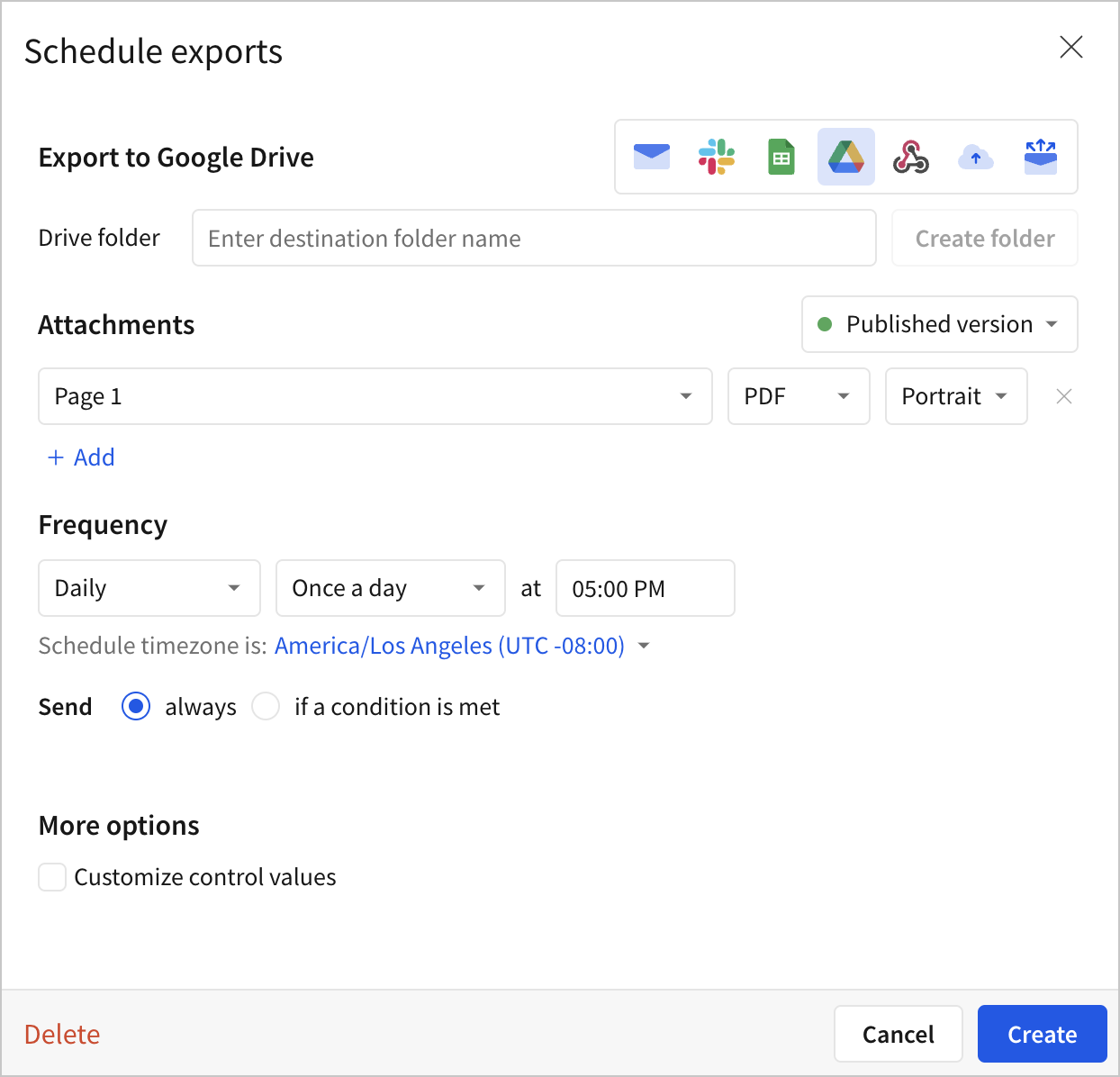
4. For **Drive folder**, enter a name for a new folder to contain the export. You cannot use an existing folder. Exports create a file in the destination folder with a name that matches the following structure:
`__`.
5. Click **Create folder**.
Sigma creates the folder for you and displays the URL to the folder.
6. For **Attachments**, select the data and file formats that you want to export.
7. In the **Frequency** section, set the delivery schedule:
* (Optional) Select the dropdown for **Daily** and select **Weekly**, **Monthly**, or **Custom**.
* For **Daily**, select **Once a day** or **Multiple times**.
* For **Weekly**, select which days of the week to send an email, and choose between **Once a day** or **Multiple times**.
* For **Monthly**, select which day of the month to send an email, and the time of day.
* For **Custom**, specify a schedule using cron syntax. See [Set up a custom delivery schedule](/docs/configure-additional-options-for-exports#set-up-a-custom-delivery-schedule).
If you select **Multiple times**, specify the frequency. For example, every 2 hours on the :15 of the hour between 9 AM and 6 PM.
If you don't have the option to set a specific frequency, export frequency might be restricted for your organization. For more details, see [Restrict export recipients and frequency](/docs/restrict-export-recipients).
* (Optional) Adjust the default schedule time zone using the dropdown menu.
* (Optional) Choose how often to send the export: **Always** or only **If a condition is met**. See [Schedule a conditional export or alert](/docs/schedule-a-conditional-export-or-alert).
* (Optional) If you choose to send an export only **If a condition is met**, you can turn on the switch to stop notifying after a set number of occurrences per day, week, or in total.
8. (Optional) Select the checkbox for **Customize control values** to filter the exported data according to the value of one or more workbook controls. See [Configure additional options for exports](/docs/configure-additional-options-for-exports).
9. Click **Create**.
), select **Share and export> Export...**.
2. Select **Google Drive**.
If this is the first time you've exported to a Google product, Sigma prompts you to enable the integration. See [Google account authorization](#google-account-authorization).
3. For **Drive folder**, enter a name for a new folder to contain the export. You cannot use an existing folder. Exports create a file in the destination folder with a name that matches the following structure:
`__`.
4. Click **Create folder**.
Sigma creates the folder for you and displays the URL to the folder.
5. For **Attachments**, select the data and file formats that you want to export.
6. Click **Export**.
## Schedule an export to Google Drive
To schedule an export to Google Drive:
1. From the workbook menu (), select **Share and export> Schedule exports...**.
2. If this is the first schedule for the workbook, click **Add schedule**, otherwise click **+ New schedule**.
3. Select **Google Drive**.
If this is the first time you've created a scheduled export to Google, Sigma prompts you to enable the integration. See [Google account authorization](#google-account-authorization).

4. For **Drive folder**, enter a name for a new folder to contain the export. You cannot use an existing folder. Exports create a file in the destination folder with a name that matches the following structure:
`__`.
5. Click **Create folder**.
Sigma creates the folder for you and displays the URL to the folder.
6. For **Attachments**, select the data and file formats that you want to export.
7. In the **Frequency** section, set the delivery schedule:
* (Optional) Select the dropdown for **Daily** and select **Weekly**, **Monthly**, or **Custom**.
* For **Daily**, select **Once a day** or **Multiple times**.
* For **Weekly**, select which days of the week to send an email, and choose between **Once a day** or **Multiple times**.
* For **Monthly**, select which day of the month to send an email, and the time of day.
* For **Custom**, specify a schedule using cron syntax. See [Set up a custom delivery schedule](/docs/configure-additional-options-for-exports#set-up-a-custom-delivery-schedule).
If you select **Multiple times**, specify the frequency. For example, every 2 hours on the :15 of the hour between 9 AM and 6 PM.
If you don't have the option to set a specific frequency, export frequency might be restricted for your organization. For more details, see [Restrict export recipients and frequency](/docs/restrict-export-recipients).
* (Optional) Adjust the default schedule time zone using the dropdown menu.
* (Optional) Choose how often to send the export: **Always** or only **If a condition is met**. See [Schedule a conditional export or alert](/docs/schedule-a-conditional-export-or-alert).
* (Optional) If you choose to send an export only **If a condition is met**, you can turn on the switch to stop notifying after a set number of occurrences per day, week, or in total.
8. (Optional) Select the checkbox for **Customize control values** to filter the exported data according to the value of one or more workbook controls. See [Configure additional options for exports](/docs/configure-additional-options-for-exports).
9. Click **Create**.