> For clean Markdown of any page, append .md to the page URL.
> For a complete documentation index, see https://help.sigmacomputing.com/llms.txt.
> For AI client integration (Claude Code, Cursor, etc.), connect to the MCP server at https://help.sigmacomputing.com/_mcp/server.
# Download workbook data
> Download an entire workbook, a specific workbook page, or a specific workbook element from Sigma at any time.
You can download an entire workbook, a specific workbook page, or a specific workbook element from Sigma at any time. You can also schedule an export or send a scheduled export on-demand. See [About exporting workbooks](/docs/send-or-schedule-workbook-exports).
If you attempt to export a workbook while editing it, you only have the option to download the draft version. If you want to download the published version or export to other destinations, open the published version of the workbook.
Exercise caution when exporting or downloading workbook content that uses controls to filter sensitive data. If you request or schedule a download or export of any data, reports, workbooks, logs, or other assets (“**Exported Content**”) from the Sigma Platform to destinations or recipients selected by you (“**Export**”), you agree and understand that (i) Sigma may store the Exported Content for up to 24 hours to complete your Export, (ii) Sigma may store applicable control values as URL parameters in trace logs used for debugging and troubleshooting purposes, when Exporting to to PDF or PNG formats, and (iii) Sigma may process, store, and transfer (including transfers to regions outside region where the Export originates) the Exported Content (including any personal data therein) for the purposes of completing your Export.
## Export types and limitations
There are size limits for exports based on file type and export location. For more information, see [Download, export, and upload limitations](/docs/download-export-and-upload-limitations).
## User requirements
To download data from a workbook, you must be assigned an account type with the **Download** permission enabled. See [License and account type overview](/docs/account-type-and-license-overview).
## Download an entire workbook
To download an entire workbook:
1. From the workbook menu ( ), select **Share and export> Export...**.
2. On the **Export** dialog, keep the default selection of **Direct download**.
3. For **Attachments**, keep the default selection of **Entire workbook** and select the format of the file to download.
4. Click **Export**.
Sigma downloads a file to your device.
## Download a workbook page
You can download a workbook page from the workbook page menu or from the workbook menu.
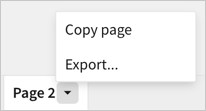
1. Locate the workbook page that you want to download and open the page menu () and select **Export...**.\
2. On the **Export** dialog, keep the default selection of **Direct download**.
3. For **Attachments**, keep the default page selected or choose another workbook page.
4. Select the format of the file to download.
5. Click **Export**.
Sigma downloads a file to your device.
## Download a data element
1. In a published or draft workbook, select the element.
2. From the element's menu, select **More**
), select **Share and export> Export...**.
2. On the **Export** dialog, keep the default selection of **Direct download**.
3. For **Attachments**, keep the default selection of **Entire workbook** and select the format of the file to download.
4. Click **Export**.
Sigma downloads a file to your device.
## Download a workbook page
You can download a workbook page from the workbook page menu or from the workbook menu.
1. Locate the workbook page that you want to download and open the page menu () and select **Export...**.\

2. On the **Export** dialog, keep the default selection of **Direct download**.
3. For **Attachments**, keep the default page selected or choose another workbook page.
4. Select the format of the file to download.
5. Click **Export**.
Sigma downloads a file to your device.
## Download a data element
1. In a published or draft workbook, select the element.
2. From the element's menu, select **More**  .
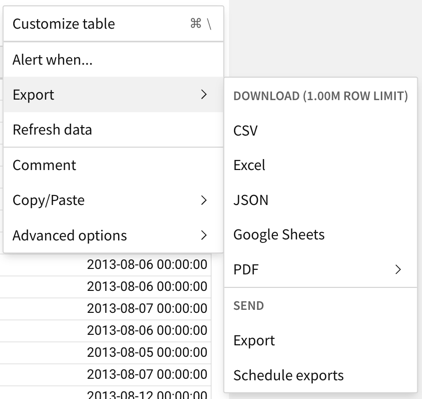
3. Select **Export** and choose the file format that you want to download.\
The available options depend on the type of element.\
Sigma downloads a file to your device.
.
3. Select **Export** and choose the file format that you want to download.\
The available options depend on the type of element.\

Sigma downloads a file to your device.