> For clean Markdown of any page, append .md to the page URL.
> For a complete documentation index, see https://help.sigmacomputing.com/llms.txt.
> For AI client integration (Claude Code, Cursor, etc.), connect to the MCP server at https://help.sigmacomputing.com/_mcp/server.

# Define custom datetime formats

> Define custom datetime formats in Sigma to control how date data displays in workbooks using common format specifiers.

Sigma enables you to define custom datetime formats to control how [date data](/docs/data-types-and-formats) displays in workbooks.

This document provides an overview of custom format strings and explains how to use them to display custom date formats.

This document specifically refers to custom datetime formatting in the Sigma UI. For information about datetime formats supported by functions, see [DateFormat](/docs/dateformat) and [DateParse](/docs/dateparse).

## User requirements

To define a custom datetime format, you must be the workbook owner or be granted **Can explore** [workbook permission](/docs/folder-and-document-permissions).

## Custom format strings

Custom format strings support individual [format specifiers](#common-format-specifiers) and combinations of multiple specifiers and characters, including letters, numbers, and symbols.

For example, the following table demonstrates the output of three different custom format strings applied to the value *2018-07-08 00:34:59*:

| Custom format string | Output            |
| :------------------- | :---------------- |
| %a, %b %d, %Y        | Sun, Jul 08, 2018 |
| %Y-Q%q               | 2018-Q3           |
| %I:%M:%S %p          | 12:34:59 AM       |

### Common format specifiers

The following table defines commonly used format specifiers. For a complete set of supported specifiers, reference the [d3-time-format](https://d3js.org/d3-time-format) module.

<table>
  <thead>
    <tr>
      <th>
         Format
      </th>

      <th>
        Description
      </th>

      <th>
        Example output 

        *(for 2018-07-08 00:34:59)*
      </th>
    </tr>
  </thead>

  <tbody>
    <tr>
      <td>
        %Y
      </td>

      <td>
        Four-digit year
      </td>

      <td>
        2018
      </td>
    </tr>

    <tr>
      <td>
        %y
      </td>

      <td>
        Two-digit year
      </td>

      <td>
        18
      </td>
    </tr>

    <tr>
      <td>
        %q
      </td>

      <td>
        Quarter of the year (1–4)
      </td>

      <td>
        3
      </td>
    </tr>

    <tr>
      <td>
        %m
      </td>

      <td>
        Two-digit month
      </td>

      <td>
        07
      </td>
    </tr>

    <tr>
      <td>
        %B
      </td>

      <td>
        Full month name
      </td>

      <td>
        July
      </td>
    </tr>

    <tr>
      <td>
        %b
      </td>

      <td>
        Abbreviated month name
      </td>

      <td>
        Jul
      </td>
    </tr>

    <tr>
      <td>
        %A
      </td>

      <td>
        Full day of week
      </td>

      <td>
        Sunday
      </td>
    </tr>

    <tr>
      <td>
        %a
      </td>

      <td>
        Abbreviated day of week
      </td>

      <td>
        Sun
      </td>
    </tr>

    <tr>
      <td>
        %d
      </td>

      <td>
        Two-digit day of month (01-31)
      </td>

      <td>
        08
      </td>
    </tr>

    <tr>
      <td>
        %H
      </td>

      <td>
        Two-digit hour based on 24-hour clock (00–23)
      </td>

      <td>
        00
      </td>
    </tr>

    <tr>
      <td>
        %I
      </td>

      <td>
        Two-digit hour based on 12-hour clock (01–12)
      </td>

      <td>
        12
      </td>
    </tr>

    <tr>
      <td>
        %M
      </td>

      <td>
        Two-digit minutes (00–59)
      </td>

      <td>
        34
      </td>
    </tr>

    <tr>
      <td>
        %S
      </td>

      <td>
        Two-digit seconds (00–59)
      </td>

      <td>
        59
      </td>
    </tr>

    <tr>
      <td>
        %p
      </td>

      <td>
        AM or PM
      </td>

      <td>
        AM
      </td>
    </tr>

    <tr>
      <td>
        %L
      </td>

      <td>
        Three-digit milliseconds (000–999)
      </td>

      <td>
        000
      </td>
    </tr>

    <tr>
      <td>
        %f
      </td>

      <td>
        Six-digit microseconds (000000–999999)
      </td>

      <td>
        000000
      </td>
    </tr>

    <tr>
      <td>
        %Z
      </td>

      <td>
        Time zone offset
      </td>

      <td>
        -07:00
      </td>
    </tr>

    <tr>
      <td>
        %%
      </td>

      <td>
        Percent sign
      </td>

      <td>
        %
      </td>
    </tr>
  </tbody>
</table>

## Define a custom datetime format

1. Use one of the following methods to access the **Custom format** modal:

   * Column menu: In the header of the column you want to format, click the down arrow (<img src="https://sigma-docs-screenshots.s3.us-west-2.amazonaws.com/Icons/caret.svg" alt="" />) to open the column menu, then select **Format** > **Custom**.
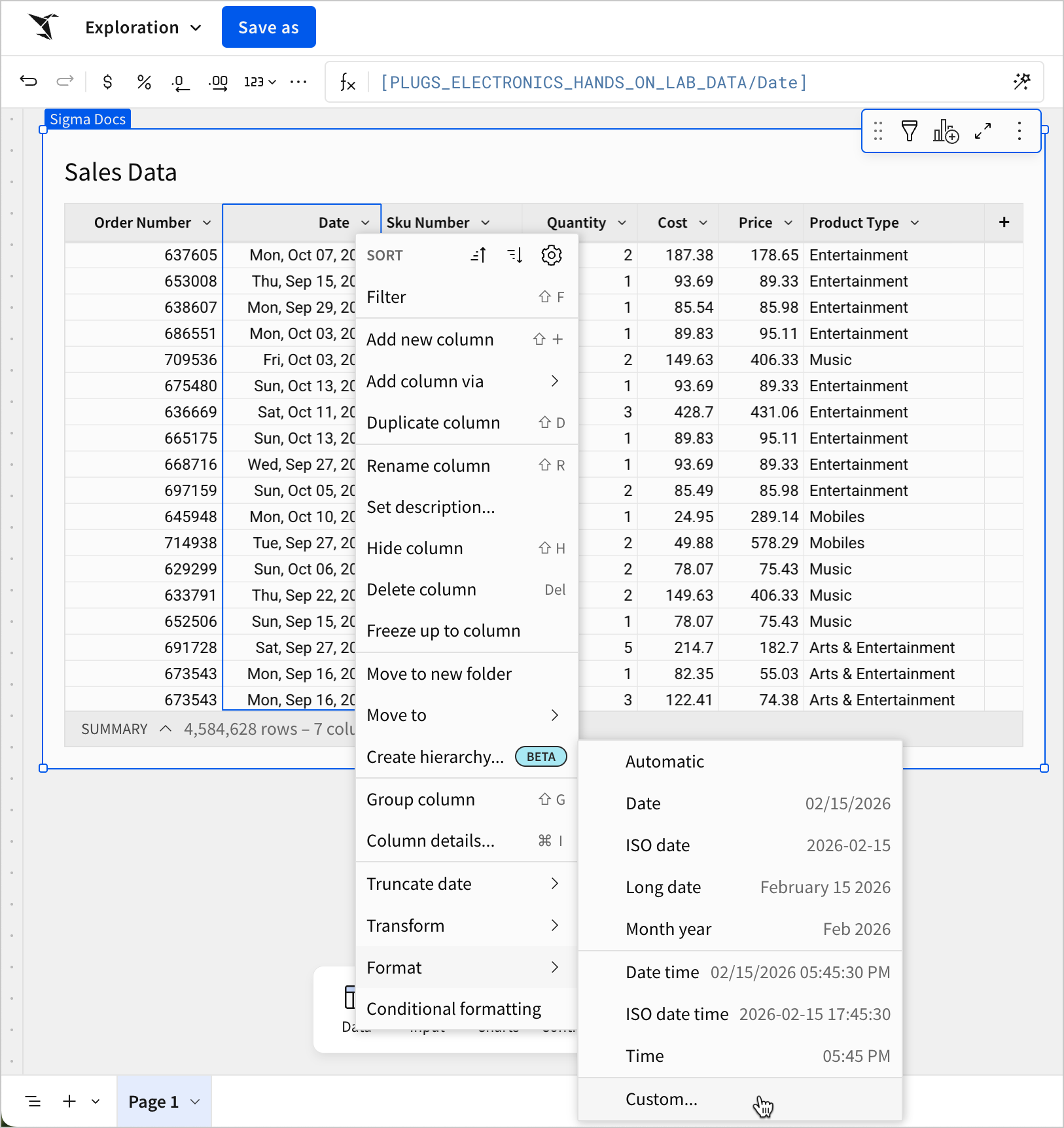
     ![The column menu with the mouse hovering over the Format > Custom option.](https://files.buildwithfern.com/sigma.docs.buildwithfern.com/4820c580854f9799d07d64061d279dcb2ae5ab3e81f1cc7195a248f75c681e95/assets/docs-images/67ad5344b415d3493f8d6bc0fb593a72b82200d6309e0c77fee1561c6b2176b6-custom_datetime_format_4.png)

   * Toolbar: Select the column you want to format, then click the **Format** option in the workbook toolbar and select **Custom date**.
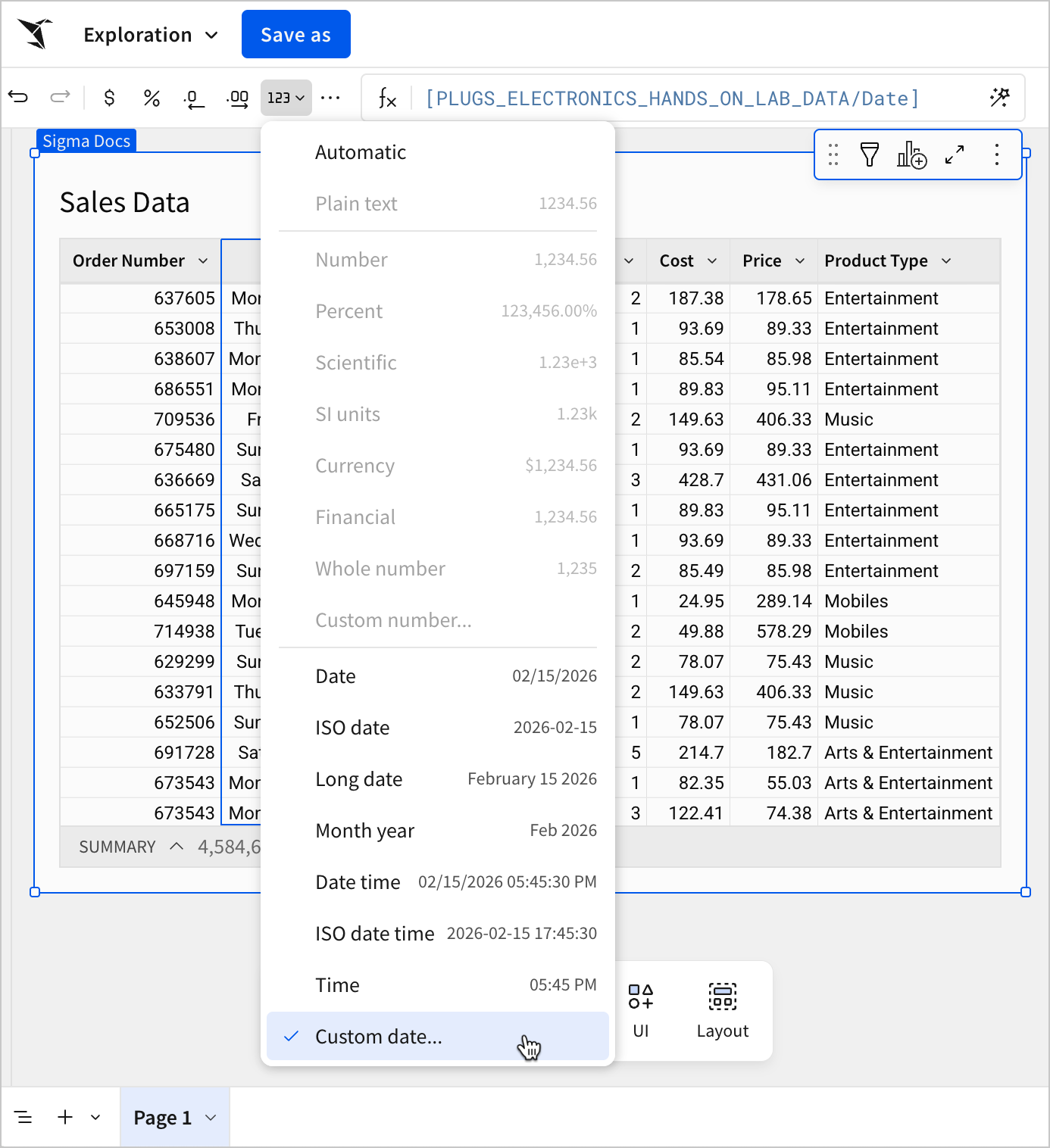
     ![The Format menu in the workbook toolbar, with the mouse hovering over the Custom date option.](https://files.buildwithfern.com/sigma.docs.buildwithfern.com/ea554c9280e9c6c811b83fb09d1898e1a041a28a9ed2aec9f1e7fa8effd49a8d/assets/docs-images/ae2a5e678de40c9b637f063ef6a36647ff066efc2e8594a7f9e972584cd6ad9a-custom_datetime_format_3.png)

2. In the **Custom format** modal, enter the format string and confirm that the **Example** field reflects the datetime format you want to display.
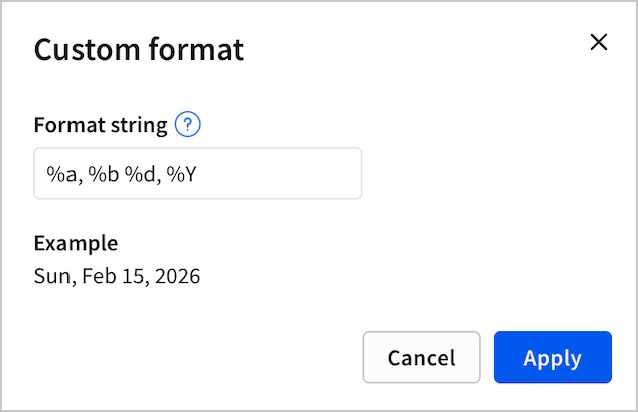
   ![The Custom format modal, filled out with "%a, %b %d, %Y" in the Format string field, showing an example output of Sun, Feb 15, 2026 in the Example field.](https://files.buildwithfern.com/sigma.docs.buildwithfern.com/a353b35c955e17dedb2995a93c080bb1a438fd550cf5ccae83f3a209b8ae0525/assets/docs-images/991b628b4a6f3012e386be75886440868659e6b1b28e262cc1f103cf1a2d1159-custom_datetime_11.png)

3. Adjust the format string, if needed, then click **Apply**. The column updates to reflect the custom datetime format.
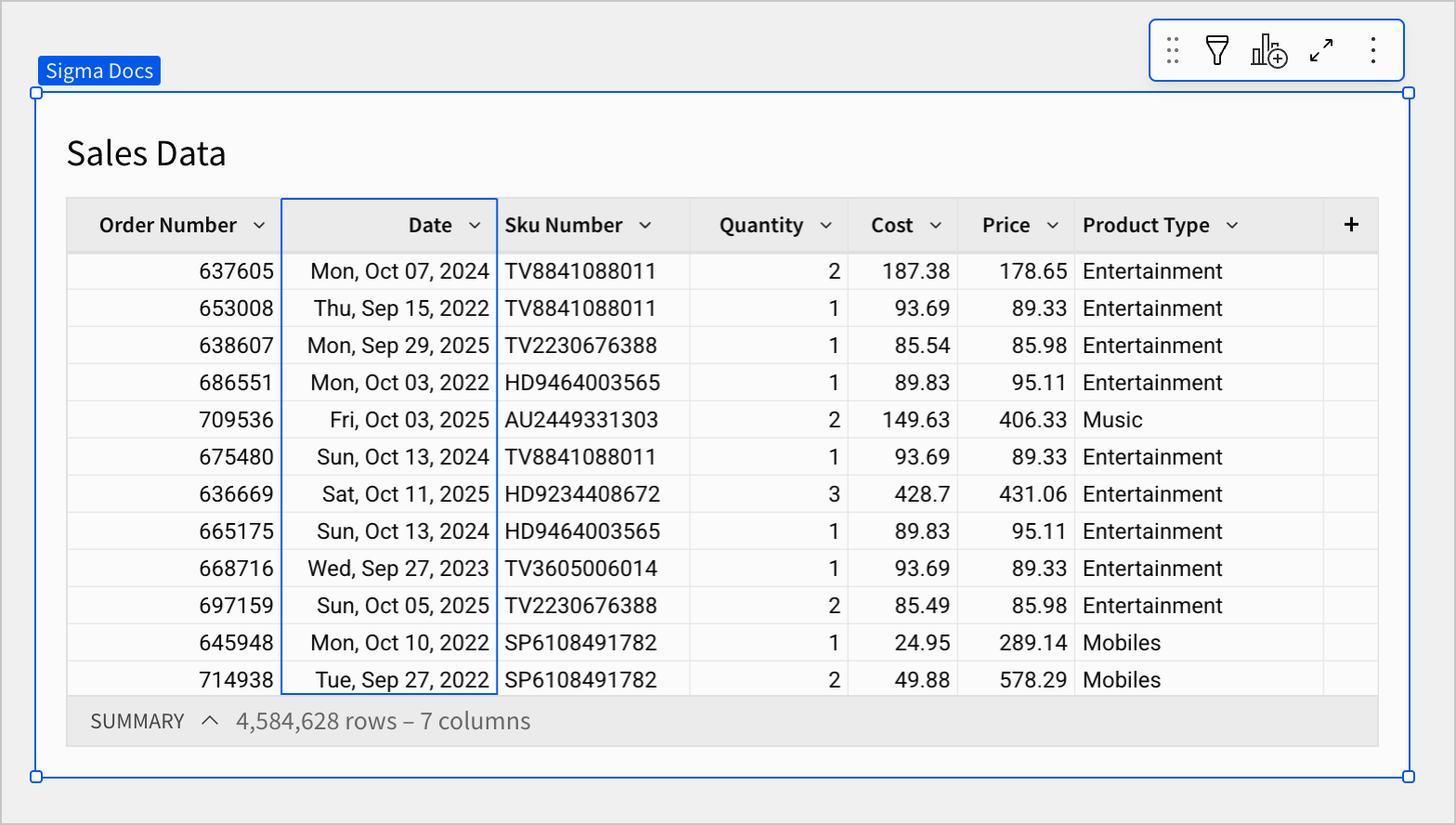
   ![A "Sales Data" table with a "Date" column formatted with a custom datetime format that displays the day of the week, month, and year, such as "Mon, Oct 07, 2024" in the first row](https://files.buildwithfern.com/sigma.docs.buildwithfern.com/194a16b2e3582d4654475a420bd25efd9674e4b6fe4328c4108e89ba35684084/assets/docs-images/15fd2841e1d2eaa2c450d9597fe3e11f9e2fa5ab312f16b2382702b64801f874-custom_datetime_format_2.png)

## Related resources

* [Supported data types and formats](/docs/data-types-and-formats)



