> For clean Markdown of any page, append .md to the page URL.
> For a complete documentation index, see https://help.sigmacomputing.com/llms.txt.
> For AI client integration (Claude Code, Cursor, etc.), connect to the MCP server at https://help.sigmacomputing.com/_mcp/server.
# Deactivate users
You can deactivate users when they leave your organization. This article describes how to deactivate users and allocate their documents to active users, and how to reactivate inactive users.
## User requirements
You must be assigned the **Admin** [account type](/docs/create-and-manage-account-types#default-account-types).
## Deactivate a user
Depending on how you manage access to Sigma, the method you use to deactivate a user is different.
Before you deactivate a user, consider what happens to the documents, API credentials, and scheduled exports and materializations owned or created by the user. See [After deactivating a user](#after-deactivating-a-user).
### Deactivate users with SCIM
If your organization provisions access to Sigma using [SCIM](/docs/manage-users-and-teams-with-scim), you must deactivate users through your identity provider (IdP).
After deactivating the user in your IdP, the user is marked as **Inactive** in Sigma and the admin in Sigma who set up SCIM inherits the Sigma documents of the deactivated user. For specific details about what is transferred to the new owner, see [After deactivating a user](#after-deactivating-a-user).
If you use SCIM, a deactivated user can only be reactivated in your IdP.
### Deactivate users without SCIM
If your organization does not use SCIM to provision users and instead manages access to Sigma resources with Sigma, deactivate the user in Sigma.
Before you deactivate a user, consider what happens to the documents, API credentials, and scheduled exports and materializations in Sigma owned or created by the user. See [After deactivating a user](#after-deactivating-a-user).
To deactivate users and allocate their documents to an active user, do the following:
1. [Open the Admin Portal](/docs/access-the-administration-portal).
2. Click **Users**.
3. On the **Members** tab, select the checkbox next to each user you want to deactivate. To select all users, select the checkbox to the left of **Name**.
When you check the box to the left of **Name**, it only selects the users in your view. If you scroll down, more users appear and can be selected.
The numbers to the right of **Account type** show the number of users currently displayed out of the total number of users.
4. After selecting users, click  (**Deactivate**).
You can also click
(**Deactivate**).
You can also click  **More** for a selected user and then select **Deactivate** to deactivate all selected users.
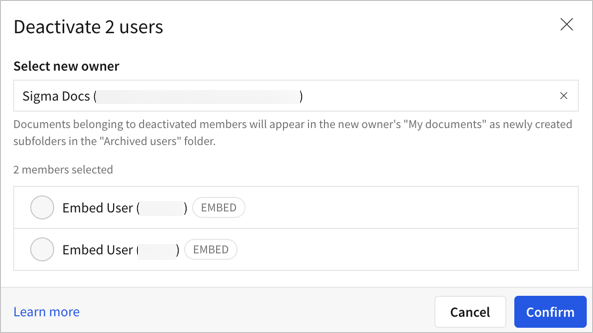
On the **Deactivate user** modal, the users you chose to deactivate are shown.
5. For **Select new owner**, choose a new owner for the deactivated user's documents. By default, your user is selected. You can click the **x** to remove yourself and search for a new user to be the owner. To be eligible as the new owner, a user must be assigned an account type with the **Create, edit, and publish workbooks** permission enabled.
6. Click **Confirm**.
### Deactivate or reactivate user accounts via API
An admin in Sigma can use the [Deactivate member](/reference/delete-member) API endpoint to deactivate a user. When you deactivate a user with a `DELETE /v2/members/{memberId}` request, the deactivated user's documents and materialization and export schedules are transferred to the admin user assigned the API credentials.
To deactivate a user and reassign their documents to a specific user, use the [Update member](/reference/update-member) API endpoint:
* Specify the user ID of the user to be deactivated as the `memberId`.
* Set `isArchived` to `true` to deactivate the user.
* Set `newOwnerId` to the user ID of the desired document owner.
The deactivated user's documents and materialization and export schedules are transferred to the specified user.
To deactivate a user and reassign their documents to a specific user, but archive the scheduled exports instead of transferring them, use the [Update member](/reference/update-member) API endpoint:
* Specify the user ID of the user to be deactivated as the `memberId`.
* Set `isArchived` to `true` to deactivate the user.
* Set `newOwnerId` to the user ID of the desired document owner.
* Set `archiveScheduledExports` to `true`.
The deactivated user's documents and materialization schedules are transferred to the specified user, but any scheduled exports for the transferred documents must be recreated.
To deactivate a user and archive their documents instead of transferring them to a new owner, use the [Update member](/reference/update-member) API endpoint:
* Specify the user ID of the user to be deactivated as the `memberId`.
* Set `isArchived` to `true` to deactivate the user.
* Set `archiveDocuments` to `true` to archive the documents and associated scheduled exports and materializations.
The user is deactivated and all documents and schedules owned by the user are archived and can no longer be accessed.
You can transfer ownership of documents without deactivating a user by setting a `newOwnerId` for a specific user with the [Update member](/reference/update-member) API endpoint.
## After deactivating a user
After deactivating a user in Sigma, the following occurs:
* Client credentials (API and embed) owned by the deactivated user are deactivated. Client credentials are not transferred to a new owner. API requests that use these credentials and references to these credentials result in an invalid request error.
* Documents owned by the deactivated user, including workbooks, data models, datasets, and materialization and export schedules for the documents, are transferred to the new owner.
* Documents in the deactivated user's **Documents** folder are migrated to the new owner's **Documents** folder at the following location: **Documents** > **Archived Users** > **\<Deactivated User>**. The new owner can share, rename, move, or delete the folder, by clicking **More**.
* Documents in a shared folder are transferred to the new owner, but the location of the documents do not change.
* Warehouse views owned by the deactivated user are not transferred. Instead, delete the warehouse view and recreate it with a new name, then update references to the old warehouse view to use the new one.
## Manage deactivated users
After a user is deactivated, the user appears in the **Members** tab on the **Users** page with a status of **Inactive**.
Inactive users are filtered out of the **Members** list by default. Use the filter menu in the list to show all users.
If you manage user access in Sigma, you can reactivate a user from the **Members** tab of the **Users** page:
* For the deactivated user, select **More** > **Reactivate**.
### Reactivate disabled users in bulk
To reactivate multiple users at the same time, do the following:
This operation is limited to organizations that do not use an IdP for authentication.
1. In the Admin portal, open **Users**.
2. On the **Members** tab, remove the **Active** filter, then select
**More** for a selected user and then select **Deactivate** to deactivate all selected users.
On the **Deactivate user** modal, the users you chose to deactivate are shown.
5. For **Select new owner**, choose a new owner for the deactivated user's documents. By default, your user is selected. You can click the **x** to remove yourself and search for a new user to be the owner. To be eligible as the new owner, a user must be assigned an account type with the **Create, edit, and publish workbooks** permission enabled.

6. Click **Confirm**.
### Deactivate or reactivate user accounts via API
An admin in Sigma can use the [Deactivate member](/reference/delete-member) API endpoint to deactivate a user. When you deactivate a user with a `DELETE /v2/members/{memberId}` request, the deactivated user's documents and materialization and export schedules are transferred to the admin user assigned the API credentials.
To deactivate a user and reassign their documents to a specific user, use the [Update member](/reference/update-member) API endpoint:
* Specify the user ID of the user to be deactivated as the `memberId`.
* Set `isArchived` to `true` to deactivate the user.
* Set `newOwnerId` to the user ID of the desired document owner.
The deactivated user's documents and materialization and export schedules are transferred to the specified user.
To deactivate a user and reassign their documents to a specific user, but archive the scheduled exports instead of transferring them, use the [Update member](/reference/update-member) API endpoint:
* Specify the user ID of the user to be deactivated as the `memberId`.
* Set `isArchived` to `true` to deactivate the user.
* Set `newOwnerId` to the user ID of the desired document owner.
* Set `archiveScheduledExports` to `true`.
The deactivated user's documents and materialization schedules are transferred to the specified user, but any scheduled exports for the transferred documents must be recreated.
To deactivate a user and archive their documents instead of transferring them to a new owner, use the [Update member](/reference/update-member) API endpoint:
* Specify the user ID of the user to be deactivated as the `memberId`.
* Set `isArchived` to `true` to deactivate the user.
* Set `archiveDocuments` to `true` to archive the documents and associated scheduled exports and materializations.
The user is deactivated and all documents and schedules owned by the user are archived and can no longer be accessed.
You can transfer ownership of documents without deactivating a user by setting a `newOwnerId` for a specific user with the [Update member](/reference/update-member) API endpoint.
## After deactivating a user
After deactivating a user in Sigma, the following occurs:
* Client credentials (API and embed) owned by the deactivated user are deactivated. Client credentials are not transferred to a new owner. API requests that use these credentials and references to these credentials result in an invalid request error.
* Documents owned by the deactivated user, including workbooks, data models, datasets, and materialization and export schedules for the documents, are transferred to the new owner.
* Documents in the deactivated user's **Documents** folder are migrated to the new owner's **Documents** folder at the following location: **Documents** > **Archived Users** > **\<Deactivated User>**. The new owner can share, rename, move, or delete the folder, by clicking **More**.
* Documents in a shared folder are transferred to the new owner, but the location of the documents do not change.
* Warehouse views owned by the deactivated user are not transferred. Instead, delete the warehouse view and recreate it with a new name, then update references to the old warehouse view to use the new one.
## Manage deactivated users
After a user is deactivated, the user appears in the **Members** tab on the **Users** page with a status of **Inactive**.
Inactive users are filtered out of the **Members** list by default. Use the filter menu in the list to show all users.
If you manage user access in Sigma, you can reactivate a user from the **Members** tab of the **Users** page:
* For the deactivated user, select **More** > **Reactivate**.
### Reactivate disabled users in bulk
To reactivate multiple users at the same time, do the following:
This operation is limited to organizations that do not use an IdP for authentication.
1. In the Admin portal, open **Users**.
2. On the **Members** tab, remove the **Active** filter, then select  and select **Deactivated** to show only deactivated users.
3. Select the checkbox next to each user that you want to reactivate. To select all deactivated users, select the checkbox next to **Name**.
4. Click
and select **Deactivated** to show only deactivated users.
3. Select the checkbox next to each user that you want to reactivate. To select all deactivated users, select the checkbox next to **Name**.
4. Click  (**Reactivate**).
5. Click **Confirm**.
## Related resources
* [Invite new users to your organization](/docs/invite-new-organization-members)
* [User account types](/docs/user-account-types)
(**Reactivate**).
5. Click **Confirm**.
## Related resources
* [Invite new users to your organization](/docs/invite-new-organization-members)
* [User account types](/docs/user-account-types)