> For clean Markdown of any page, append .md to the page URL.
> For a complete documentation index, see https://help.sigmacomputing.com/llms.txt.
> For AI client integration (Claude Code, Cursor, etc.), connect to the MCP server at https://help.sigmacomputing.com/_mcp/server.
# Create reusable custom functions
You can define custom functions to represent frequently used complex calculations that combine logic, aggregates, and other type of operations. There are many advantages to adding custom functions to your Sigma practice:
* Use custom functions to encode business logic instead of repeating it.
* Encapsulate complex calculations that are common business use cases, for easier use.
* Expose your proprietary warehouse functions, making them consumable.
## Requirements
To create and manage custom functions, you must be assigned the Admin [account type](/docs/account-type-and-license-overview).
Users with access to write formulas can use custom functions in the same manner as built-in Sigma functions.
## Limitations
* You can use custom functions inside workbooks and metrics.
* All arguments of the custom function are required; there are no optional arguments.
* User-defined functions (UDFs) from your data warehouse only work for that specific warehouse and schema; there is no cross-warehouse support.
* A custom function definition, including the formula, description, arguments, and parameters, must be 64KB or smaller.
## Create custom functions
The following steps describe how to create a custom function:
1. Navigate to **Administration**.
2. Select **Account** on the left navigation tab.
3. In the **Account** section, scroll to the bottom of the page.
4. Under the **Custom functions** heading, you can see all custom functions that you previously defined on your account.
5. In the **Create custom function** section, click **Add**.
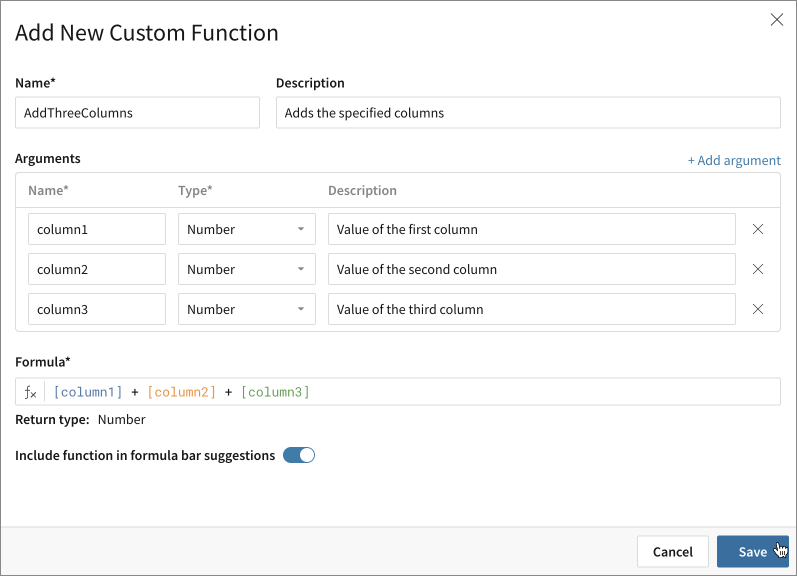
6. In the **Add new custom function** page, specify the new function:
-
Name
-
Required.
-
Name your function.
-
Valid function names must adhere to these rules:
- Contain only letters and numbers
- Begin with a capital letter
- Unique (case-insensitive) compared to all other custom and built-in functions
- Maximum 128 characters long
-
Description
-
Optional.
-
Describe what your function does.
If your organization habitually uses multiple data warehouses, and you are using one or more UDFs, specify the warehouse and schema of the UDF. See the
SplineModel example
.
-
Arguments
-
Optional.
-
Iteratively add arguments to your function by clicking
+ Add argument
for each argument.
-
To delete an argument, click
x
(remove/delete) next to its description.
-
For each argument, specify the following:
-
-
Name
-
Required.
-
Name of the argument.
-
Valid argument names must adhere to these rules:
-
-
Contain only letters, numbers, spaces, and underscores
-
Cannot begin with a space
-
Maximum 128 characters long
-
The default arguments are arg1, arg 2, and so on. Rename the arguments to accurately represent the input data.
-
Type
-
Required.
The data type of the argument.
The default data type is
Number
. You can switch to
Text
,
Logical
,
Datetime
,
Variant
, or
Geography
data type, depending on the input data.
-
Description
-
Optional.
-
Describe the data that the argument represents.
-
Formula
-
Required.
-
Use built-in functions, operations, and the
arguments
you defined to build the formula for your custom function.
-
Return type
-
The data type of the return value.
-
Sigma populates this field automatically, based on the
formula
and the
arguments
.
-
Include function
in formula bar
suggestions
-
Optional.
Turn the switch to the
on
position after you tested and finalized the new custom function.
This makes the new function appear
as a suggestion
on the formula bar in relevant workbooks.
Note that you can use a hidden custom functions by name, and hiding a function does not break existing formulas and elements that consume this custom function.
7. Click **Save**.
8. After saving the custom function, it appears in the list of custom functions.
9. Depending on your choice for the [Include function in formula bar suggestions](/docs/custom-functions#include) switch, this custom function has the status of **Visible** or **Hidden**.
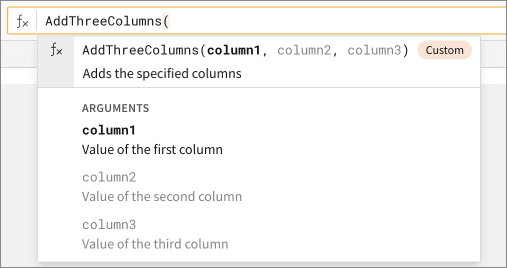
After you create a custom function, you can use it in the workbook's formula interface exactly like a built-in function. The only difference is that built-in Sigma functions typically include a usage example.
Custom functions have the **Custom** label in the formula interface:
## Edit custom functions
To modify an existing custom function, follow these steps:
1. Navigate to the **Custom functions** page: **User > Administration > Account > Custom functions**.
2. For the function you plan to edit, click  **More**.
3. Select **Edit**.
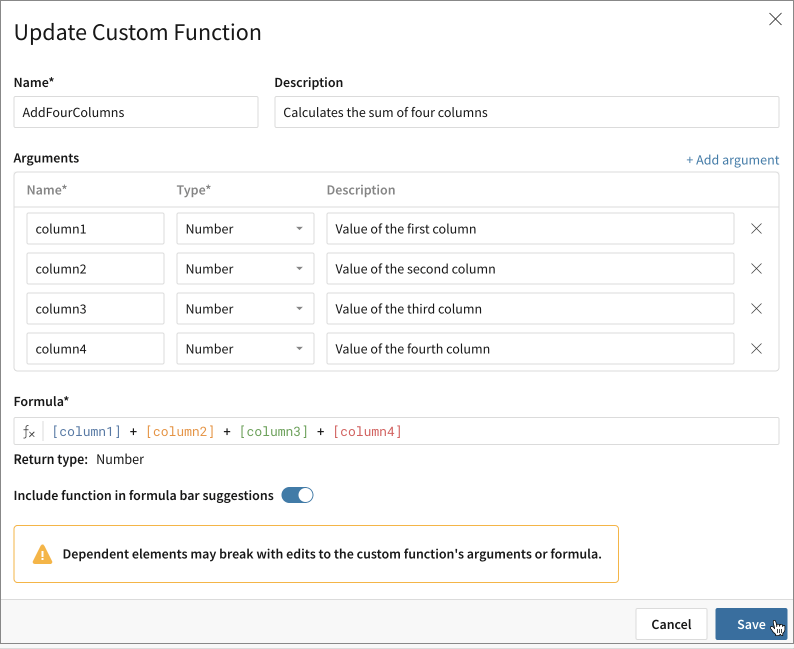
4. In the **Update custom function** dialog, make the necessary changes and then click **Save**.
To delete an argument, click **x** (remove/delete) next to the argument description.
If you change the signature of the function, such as the name, number and type of arguments, or formula, the elements that use the function might break.
5. The updated custom function appears in the list of custom functions.
## Hide custom functions
Hide a custom function to prevent it from appearing as a suggestion in the formula interface. Hiding a function does not remove the function from your Sigma instance or account or break elements that use this function.
Hide a function as a step toward deprecating it, effectively limiting and preventing use of the function in new elements and use cases.
To hide a custom function, follow these steps:
1. Navigate to the **Custom functions** page: **User > Administration > Account > Custom functions**.
2. For the function you plan to hide, click **More**.
3. Select **Hide function**.
4. In the list of custom functions, Sigma changes the function status to **Hidden**.
You can also hide the function when using the [Add custom function](/docs/custom-functions#create-custom-functions) and [Update custom function](/docs/custom-functions#edit-custom-functions) interfaces.
## Delete custom functions
Deleting a custom function removes it from your Sigma instance or account, and breaks the elements that use this function.
To delete a custom function, follow these steps:
1. Navigate to the **Custom functions** page: **User > Administration > Account > Custom functions**.
2. For the function you plan to delete, click **More**.
3. Select **Delete**.
4. The function no longer appears in the list of custom functions.
## Examples of custom functions
### Slice: a custom function for Text
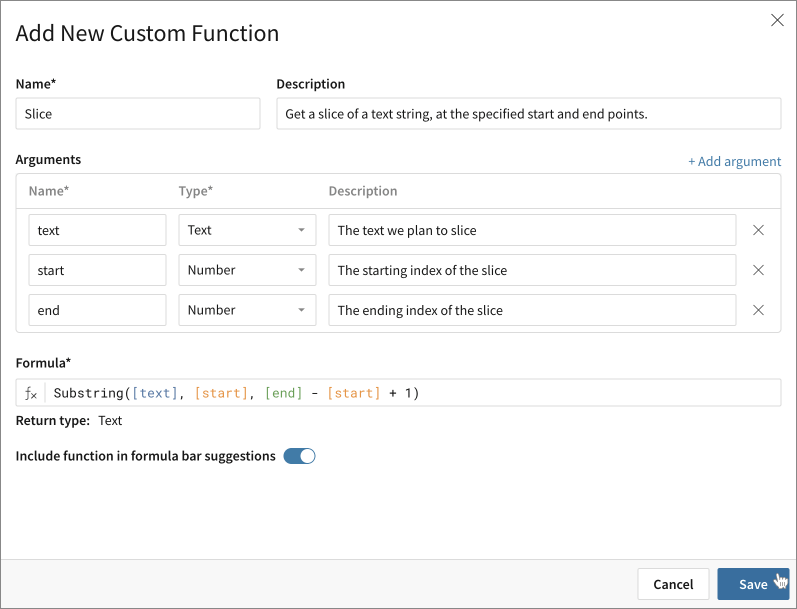
This example demonstrates how to use a custom function **Slice** to extract a portion of text. It uses the built-in Sigma function [Substring](/docs/substring).
| Name | Description |
| ----- | -------------------------------------------------------------------- |
| Slice | Get a slice of a text string, at the specified start and end points. |
Function arguments:
| Argument name | Data type | Description |
| ------------- | --------- | -------------------------------- |
| text | Text | The text to slice. |
| start | Number | The starting index of the slice. |
| end | Number | The ending index of the slice. |
Define the formula and return type:
| Formula | Return type |
| ------------------------------------------------- | ----------- |
| `Substring([text], [start], [end] - [start] + 1)` | Text |
### SplineModel: wrap complex syntax of custom warehouse functions
When you want to access a UDF from your data warehouse, it's a best practice to use a custom function as a wrapper to ensure that the calling syntax is correct and all necessary definitions migrate into Sigma.
If you do so, identify the warehouse and relevant schema in the description of the function, especially if you use multiple data stores. This serves a reminder for the function users that the function is specific to the connection that references the named UDF.
This example uses the built-in passthrough Sigma function [CallVariant](/docs/callvariant) to ensure the correct data type from the original warehouse function is retrieved:
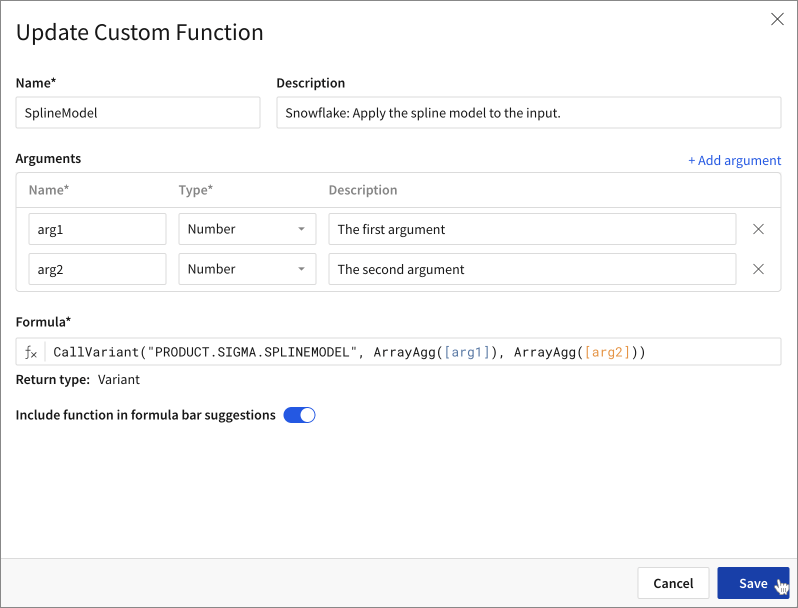
| Name | Description |
| ----------- | -------------------------------------------------------------------------------------------------------------------------- |
| SplineModel | Snowflake: Apply the spline model to the input.
**More**.
3. Select **Edit**.
4. In the **Update custom function** dialog, make the necessary changes and then click **Save**.
To delete an argument, click **x** (remove/delete) next to the argument description.
If you change the signature of the function, such as the name, number and type of arguments, or formula, the elements that use the function might break.

5. The updated custom function appears in the list of custom functions.
## Hide custom functions
Hide a custom function to prevent it from appearing as a suggestion in the formula interface. Hiding a function does not remove the function from your Sigma instance or account or break elements that use this function.
Hide a function as a step toward deprecating it, effectively limiting and preventing use of the function in new elements and use cases.
To hide a custom function, follow these steps:
1. Navigate to the **Custom functions** page: **User > Administration > Account > Custom functions**.
2. For the function you plan to hide, click **More**.
3. Select **Hide function**.
4. In the list of custom functions, Sigma changes the function status to **Hidden**.
You can also hide the function when using the [Add custom function](/docs/custom-functions#create-custom-functions) and [Update custom function](/docs/custom-functions#edit-custom-functions) interfaces.
## Delete custom functions
Deleting a custom function removes it from your Sigma instance or account, and breaks the elements that use this function.
To delete a custom function, follow these steps:
1. Navigate to the **Custom functions** page: **User > Administration > Account > Custom functions**.
2. For the function you plan to delete, click **More**.
3. Select **Delete**.
4. The function no longer appears in the list of custom functions.
## Examples of custom functions
### Slice: a custom function for Text
This example demonstrates how to use a custom function **Slice** to extract a portion of text. It uses the built-in Sigma function [Substring](/docs/substring).

| Name | Description |
| ----- | -------------------------------------------------------------------- |
| Slice | Get a slice of a text string, at the specified start and end points. |
Function arguments:
| Argument name | Data type | Description |
| ------------- | --------- | -------------------------------- |
| text | Text | The text to slice. |
| start | Number | The starting index of the slice. |
| end | Number | The ending index of the slice. |
Define the formula and return type:
| Formula | Return type |
| ------------------------------------------------- | ----------- |
| `Substring([text], [start], [end] - [start] + 1)` | Text |
### SplineModel: wrap complex syntax of custom warehouse functions
When you want to access a UDF from your data warehouse, it's a best practice to use a custom function as a wrapper to ensure that the calling syntax is correct and all necessary definitions migrate into Sigma.
If you do so, identify the warehouse and relevant schema in the description of the function, especially if you use multiple data stores. This serves a reminder for the function users that the function is specific to the connection that references the named UDF.
This example uses the built-in passthrough Sigma function [CallVariant](/docs/callvariant) to ensure the correct data type from the original warehouse function is retrieved:

| Name | Description |
| ----------- | -------------------------------------------------------------------------------------------------------------------------- |
| SplineModel | Snowflake: Apply the spline model to the input.
(The description identifies the warehouse where the UDF is defined.) |
Function arguments:
| Argument name | Data type | Description |
| ------------- | --------- | --------------- |
| arg1 | Number | First argument |
| arg2 | Number | Second argument |
Define the formula and return type:
| Formula | Return type |
| ------------------------------------------------------------------------------ | ----------- |
| `CallVariant("PRODUCT.SIGMA.SPLINEMODEL", ArrayAgg([arg1]), ArrayAgg([arg2]))` | Variant |