> For clean Markdown of any page, append .md to the page URL.
> For a complete documentation index, see https://help.sigmacomputing.com/llms.txt.
> For AI client integration (Claude Code, Cursor, etc.), connect to the MCP server at https://help.sigmacomputing.com/_mcp/server.
# Create and manage workbook themes
> Create and manage reusable Sigma workbook themes for fonts, colors, layout, and table styles, and set an organization default.
Create and manage reusable workbook themes in the **Administration** portal. Customize fonts, colors, layout style, and table style, then assign your organization's default theme.
## User requirements
To create and manage workbook themes, you must be assigned an [account type](/docs/create-and-manage-account-types) with the **Manage all workbook themes and fonts** or **Manage branding settings** permission enabled.
## Theme settings overview
Customize any of the following theme settings to meet branding and aesthetic requirements.
### Color
The **Color** settings control text, button, background, element, and chart colors in a workbook.
| Setting | Description |
| :-------------------------------------------------------- | :-------------------------------------------------------------------------------------------------------------------------------------------------------------------------------------------------------------------------------------------------------------------- |
| **Appearance** | Select between a  **Light** or
  **Dark** theme for a workbook. |
| **Theme colors > Swap preset** | Set a predefined color theme for workbook text, buttons, background, and charts. |
| **Theme colors > Text** | Sets the color of workbook text for your theme. |
| **Theme colors > Highlight** | Sets the color of buttons, link text, and selection indicators in your theme. |
| **Theme colors > Surface** | Sets the color for element backgrounds, borders, and icons in your theme. |
| **Override colors > Canvas** | Sets a custom color for the workbook canvas, different from the canvas color for the theme. Select
**Dark** theme for a workbook. |
| **Theme colors > Swap preset** | Set a predefined color theme for workbook text, buttons, background, and charts. |
| **Theme colors > Text** | Sets the color of workbook text for your theme. |
| **Theme colors > Highlight** | Sets the color of buttons, link text, and selection indicators in your theme. |
| **Theme colors > Surface** | Sets the color for element backgrounds, borders, and icons in your theme. |
| **Override colors > Canvas** | Sets a custom color for the workbook canvas, different from the canvas color for the theme. Select  **Clear override** to restore the default. |
| **Categorical colors/Sequential colors/diverging colors** | These are color schemes for the charts in your workbook. You can select a predefined palette or set custom colors to use for your charts. |
| **Invert visualization tooltips** | Inverts the theme's text and background colors in tooltips. |
When you specify a color, you can choose a color from a predefined palette, specify a hex code, pick a color from a window or document open on your computer using an eyedropper, or choose a color from a gradient.
### Font
The **Font** settings control fonts throughout the workbook.
| Setting | Description |
| :------------- | :------------------------------------------------------------------------------------------------------ |
| **Text font** | Sets the font for non-data workbook text, like element titles, element descriptions, and table headers. |
| **Data font** | Sets the font for workbook data. The default is Roboto. |
| **Title font** | Sets the font size and color of element titles. |
### Layout style
The **Layout style** settings control the layout of workbook pages and elements.
| Setting | Description |
| :---------------------------------- | :------------------------------------------------------------------------------------------------------------------------------- |
| **Page width** | Sets the width of all pages in a workbook. The default is **Full**. Choose **Custom** to set a maximum width for workbook pages. |
| **Spacing** | Sets the size of spacing between elements. |
| **Corner** | Sets the shape of element corners. Choose from a square, rounded, or pill-shaped corner. The default is round. |
| **Data element style > Padding** | Sets padding for a data element. Select or deselect the checkbox to add or remove padding around a data or control element. |
| **Data element style > Background** | Sets a custom background color for a data or control element. Set to **Auto** to match the element background for the theme. |
### Table style
The **Table style** settings control the format and display of tables, pivot tables, and input tables. For more details about table style options, see [Customize table style](/docs/customize-table-style).
| Setting | Description |
| :---------------------- | :----------------------------------------------------------------- |
| **Table style presets** | Applies a preset to configure all table style options. |
| **Cell spacing** | Sets the padding around text within table cells. |
| **Grid lines** | Determines how cell borders are displayed. |
| **Banding color** | Choose a color to set as the background for alternating data rows. |
| **Header** | Formats table headers. |
| **Subheader** | Formats subheaders *(applicable to pivot tables only)*. |
| **Cell** | Formats data cells. |
## Create a theme
Create a workbook theme that can be applied by users across your entire organization:
1. Go to **Administration** > **Account** > **Branding Settings**:
1. In the Sigma header, click your user avatar to open the user menu.
2. Select **Administration** to open the **Administration** portal.
3. In the side panel, select **Account**, then select the **Branding Settings** tab.
2. In the **Workbook Themes** section, click **Add**.
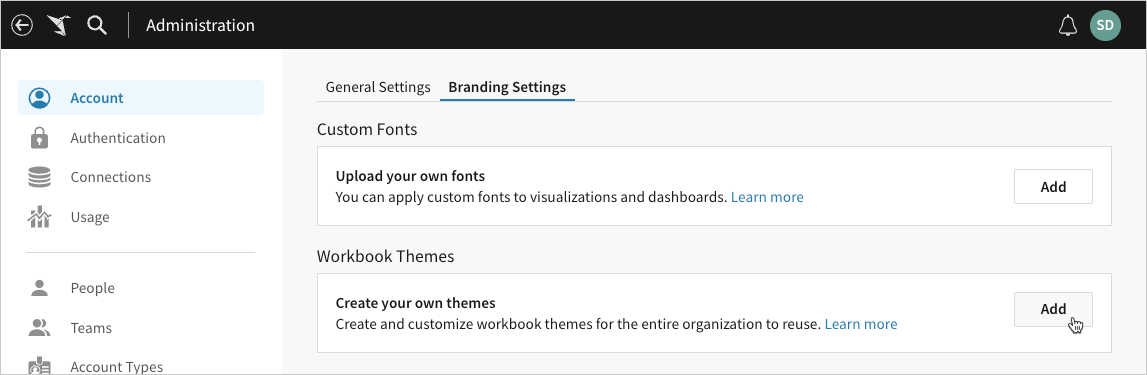
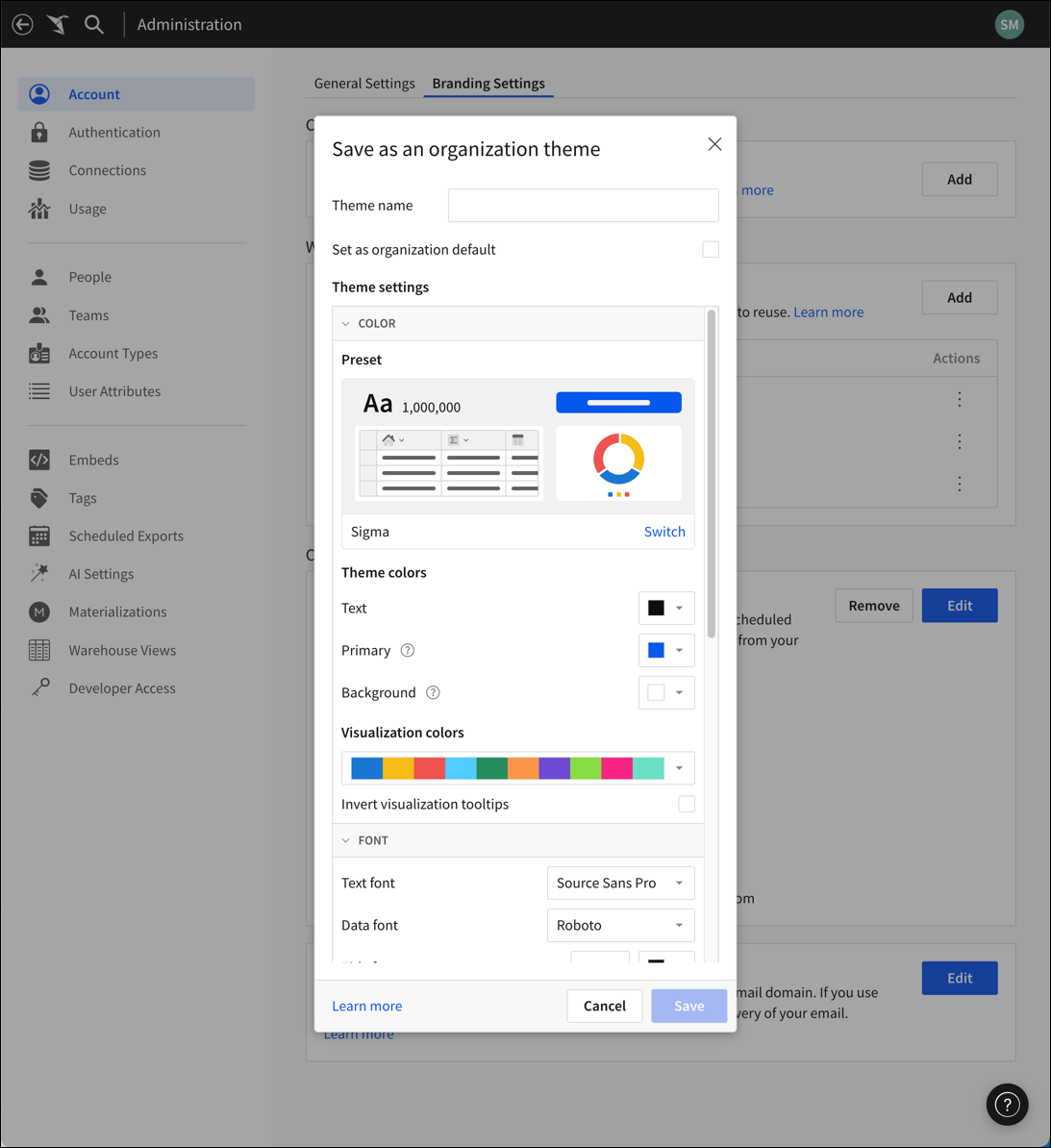
3. In the **Save as an organization theme** modal, configure the new theme:
1. In the **Theme name** field, enter a unique name to identify the theme.
2. To apply the theme to all workbooks by default, select the **Set as organization default** checkbox.
3. Customize the [theme settings](#theme-settings-overview).
4. Click **Save** to submit the theme.
## Edit an existing custom theme
Edit an existing theme at any time to update all workbooks using it.
1. Go to **Administration** > **Account** > **Brand Settings**:
1. In the Sigma header, click your user avatar to open the user menu.
2. Select **Administration** to open the **Administration** portal.
3. In the side panel, select **Account**, then open the **Brand Settings** tab.
2. In the **Workbook Themes** section, locate the name of the theme you want to edit, then click
**Clear override** to restore the default. |
| **Categorical colors/Sequential colors/diverging colors** | These are color schemes for the charts in your workbook. You can select a predefined palette or set custom colors to use for your charts. |
| **Invert visualization tooltips** | Inverts the theme's text and background colors in tooltips. |
When you specify a color, you can choose a color from a predefined palette, specify a hex code, pick a color from a window or document open on your computer using an eyedropper, or choose a color from a gradient.
### Font
The **Font** settings control fonts throughout the workbook.
| Setting | Description |
| :------------- | :------------------------------------------------------------------------------------------------------ |
| **Text font** | Sets the font for non-data workbook text, like element titles, element descriptions, and table headers. |
| **Data font** | Sets the font for workbook data. The default is Roboto. |
| **Title font** | Sets the font size and color of element titles. |
### Layout style
The **Layout style** settings control the layout of workbook pages and elements.
| Setting | Description |
| :---------------------------------- | :------------------------------------------------------------------------------------------------------------------------------- |
| **Page width** | Sets the width of all pages in a workbook. The default is **Full**. Choose **Custom** to set a maximum width for workbook pages. |
| **Spacing** | Sets the size of spacing between elements. |
| **Corner** | Sets the shape of element corners. Choose from a square, rounded, or pill-shaped corner. The default is round. |
| **Data element style > Padding** | Sets padding for a data element. Select or deselect the checkbox to add or remove padding around a data or control element. |
| **Data element style > Background** | Sets a custom background color for a data or control element. Set to **Auto** to match the element background for the theme. |
### Table style
The **Table style** settings control the format and display of tables, pivot tables, and input tables. For more details about table style options, see [Customize table style](/docs/customize-table-style).
| Setting | Description |
| :---------------------- | :----------------------------------------------------------------- |
| **Table style presets** | Applies a preset to configure all table style options. |
| **Cell spacing** | Sets the padding around text within table cells. |
| **Grid lines** | Determines how cell borders are displayed. |
| **Banding color** | Choose a color to set as the background for alternating data rows. |
| **Header** | Formats table headers. |
| **Subheader** | Formats subheaders *(applicable to pivot tables only)*. |
| **Cell** | Formats data cells. |
## Create a theme
Create a workbook theme that can be applied by users across your entire organization:
1. Go to **Administration** > **Account** > **Branding Settings**:
1. In the Sigma header, click your user avatar to open the user menu.
2. Select **Administration** to open the **Administration** portal.
3. In the side panel, select **Account**, then select the **Branding Settings** tab.
2. In the **Workbook Themes** section, click **Add**.

3. In the **Save as an organization theme** modal, configure the new theme:
1. In the **Theme name** field, enter a unique name to identify the theme.
2. To apply the theme to all workbooks by default, select the **Set as organization default** checkbox.
3. Customize the [theme settings](#theme-settings-overview).
4. Click **Save** to submit the theme.

## Edit an existing custom theme
Edit an existing theme at any time to update all workbooks using it.
1. Go to **Administration** > **Account** > **Brand Settings**:
1. In the Sigma header, click your user avatar to open the user menu.
2. Select **Administration** to open the **Administration** portal.
3. In the side panel, select **Account**, then open the **Brand Settings** tab.
2. In the **Workbook Themes** section, locate the name of the theme you want to edit, then click  **More** and select **Edit**.
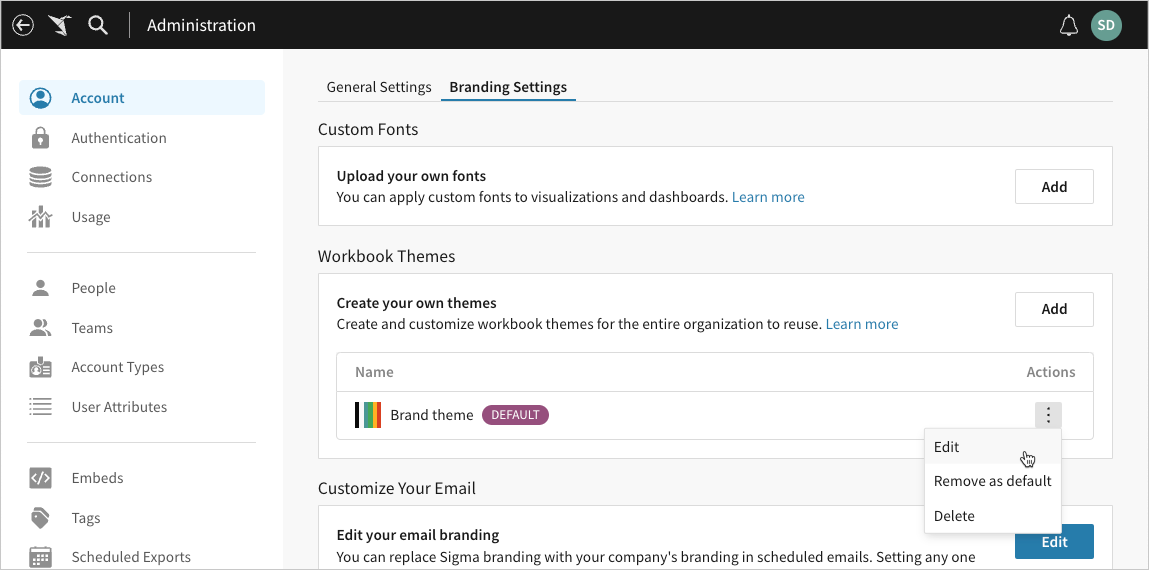
3. In the **Edit organization theme** modal, edit the theme settings as needed, then click **Save**.
Sigma immediately reflects the changes in all workbooks using the theme.
The **Save as** setting defaults to the **Update existing** option, which overwrites the existing configurations and updates all workbooks using the theme. To save the changes as a new custom theme, select **New**.
## Change the default theme
The **Default** marker in the list of custom themes indicates your organization's default. If no default marker is displayed, your organization's default is Sigma's built-in **Light** theme.
1. Go to **Administration** > **Account** > **Brand Settings**:
1. In the Sigma header, click your user avatar to open the user menu.
2. Select **Administration** to open the **Administration** portal.
3. In the side panel, select **Account**, then open the **Brand Settings** tab.
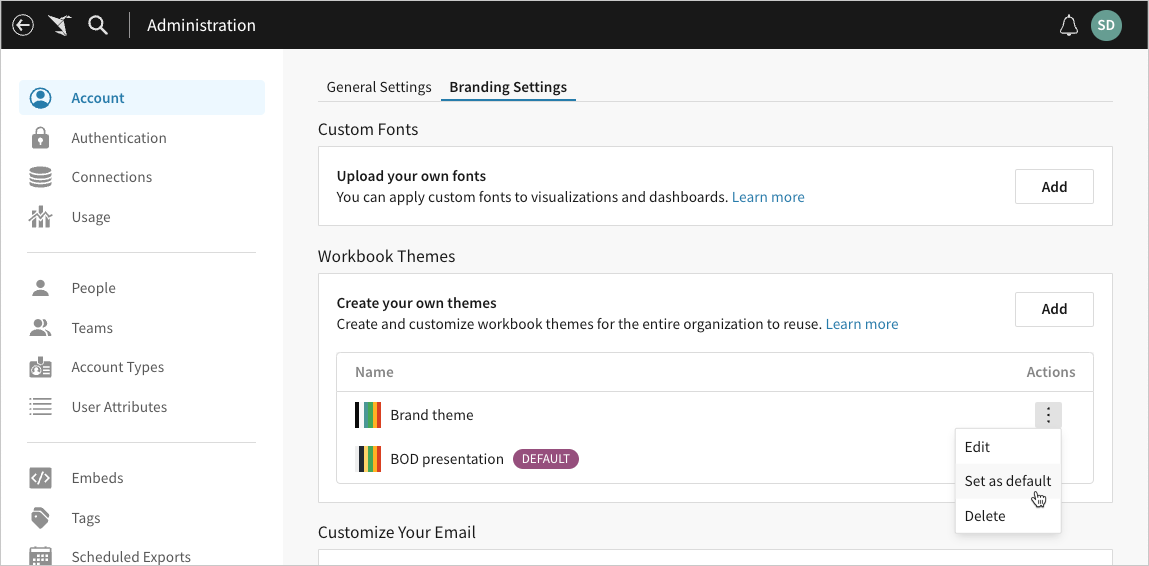
2. In the **Workbook Themes** section, locate the name of the theme you want to update, then click **More** and select an option in the dropdown:
* To assign the theme as your organization's default, select **Set as default**.
* To unassign the theme as your organization's default, select **Remove as default**.
Sigma applies the default theme to all new workbooks and any existing workbooks in which the theme has remained unchanged since creation.
## Apply a theme to a workbook
You can apply a theme to a workbook from [Workbook settings](/docs/workbook-settings-overview)
1. Navigate to **Workbook settings** one of two ways:
1. Select the document menu, then select **Edit** > **Show workbook settings**.
2. Click the background of your workbook. From the side panel, select **Workbook settings**.
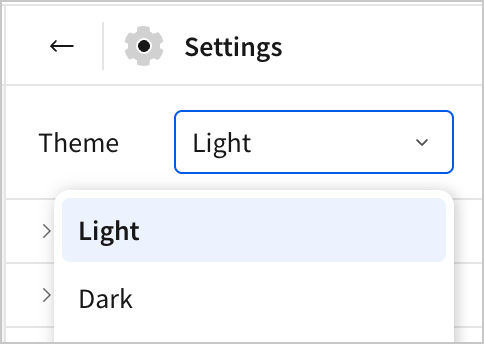
2. Open the **Theme** dropdown menu and select the desired theme.
## Delete a custom theme
1. Go to **Administration** > **Account** > **Brand Settings**:
1. In the Sigma header, click your user avatar to open the user menu.
2. Select **Administration** to open the **Administration** portal.
3. In the side panel, select **Account**, then open the **Brand Settings** tab.
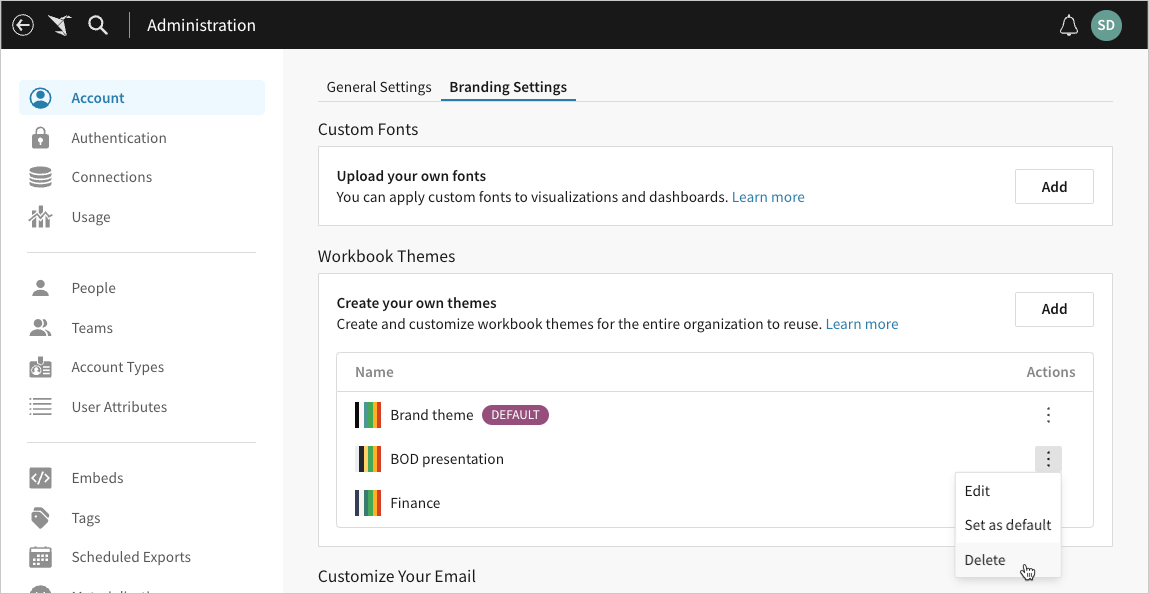
2. In the **Workbook Themes** section, locate the name of the theme you want to delete, then click **More** and select **Delete** in the dropdown.
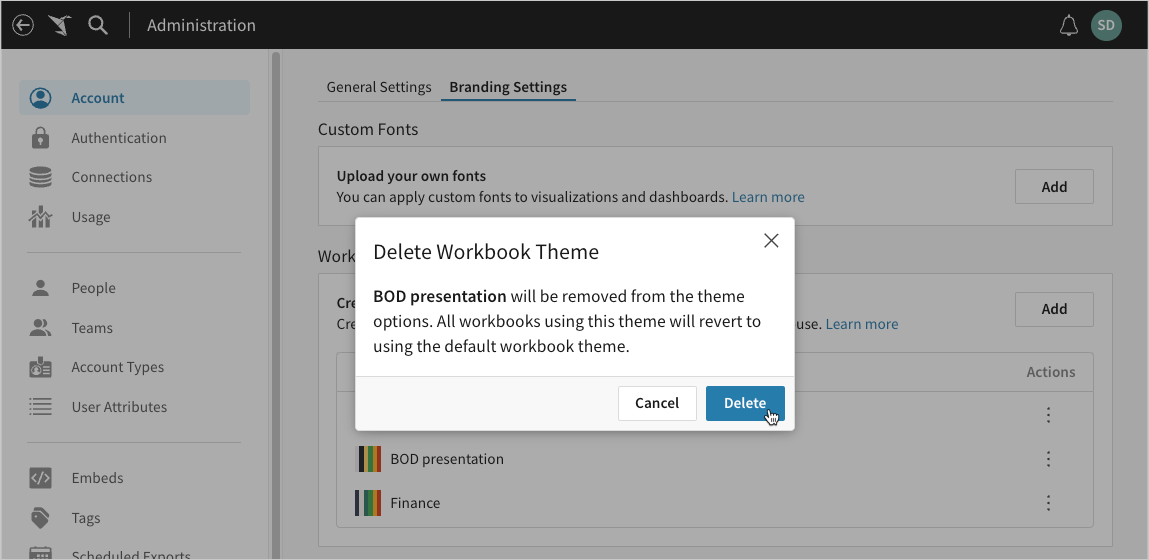
3. In the **Delete Workbook Theme** modal, click **Delete** to proceed.
Sigma permanently deletes the theme from your organization and reverts all workbooks using it to the default theme.
## Related resources
* [Upload custom fonts](/docs/custom-fonts)
* [Format and customize a table](/docs/format-and-customize-a-table)
**More** and select **Edit**.

3. In the **Edit organization theme** modal, edit the theme settings as needed, then click **Save**.
Sigma immediately reflects the changes in all workbooks using the theme.
The **Save as** setting defaults to the **Update existing** option, which overwrites the existing configurations and updates all workbooks using the theme. To save the changes as a new custom theme, select **New**.
## Change the default theme
The **Default** marker in the list of custom themes indicates your organization's default. If no default marker is displayed, your organization's default is Sigma's built-in **Light** theme.
1. Go to **Administration** > **Account** > **Brand Settings**:
1. In the Sigma header, click your user avatar to open the user menu.
2. Select **Administration** to open the **Administration** portal.
3. In the side panel, select **Account**, then open the **Brand Settings** tab.
2. In the **Workbook Themes** section, locate the name of the theme you want to update, then click **More** and select an option in the dropdown:
* To assign the theme as your organization's default, select **Set as default**.
* To unassign the theme as your organization's default, select **Remove as default**.
Sigma applies the default theme to all new workbooks and any existing workbooks in which the theme has remained unchanged since creation.

## Apply a theme to a workbook
You can apply a theme to a workbook from [Workbook settings](/docs/workbook-settings-overview)
1. Navigate to **Workbook settings** one of two ways:
1. Select the document menu, then select **Edit** > **Show workbook settings**.
2. Click the background of your workbook. From the side panel, select **Workbook settings**.
2. Open the **Theme** dropdown menu and select the desired theme.

## Delete a custom theme
1. Go to **Administration** > **Account** > **Brand Settings**:
1. In the Sigma header, click your user avatar to open the user menu.
2. Select **Administration** to open the **Administration** portal.
3. In the side panel, select **Account**, then open the **Brand Settings** tab.
2. In the **Workbook Themes** section, locate the name of the theme you want to delete, then click **More** and select **Delete** in the dropdown.

3. In the **Delete Workbook Theme** modal, click **Delete** to proceed.
Sigma permanently deletes the theme from your organization and reverts all workbooks using it to the default theme.

## Related resources
* [Upload custom fonts](/docs/custom-fonts)
* [Format and customize a table](/docs/format-and-customize-a-table)