> For clean Markdown of any page, append .md to the page URL.
> For a complete documentation index, see https://help.sigmacomputing.com/llms.txt.
> For AI client integration (Claude Code, Cursor, etc.), connect to the MCP server at https://help.sigmacomputing.com/_mcp/server.
# Create and manage dataset parameters (Deprecated)
[Datasets](/docs/datasets) are deprecated:
* Starting June 2, 2026, you will no longer be able to create datasets or edit existing datasets.
* Starting September 15, 2026, you will no longer be able to use datasets as a data source or view datasets in Sigma.
Migrate your datasets to data models and update any documents that use datasets as a data source to use a different source. See [Migrate a dataset to a data model](/docs/migrate-a-dataset-to-a-data-model).
A dataset parameter is a customizable field that you can add to a dataset worksheet and reference in formulas and in custom SQL. Creating dataset parameters and referencing them allows you to dynamically replace values used in calculations.
Use a parameter instead of a constant value for what-if and user input analysis. Using a parameter lets users change its value very quickly. For example, you might want to compare product sales growth by a variable 2%, 5%, and 10% percent. A parameter can quickly inject this variable value into a formula.
Dataset parameters can also improve performance for expensive workbook queries. Use dataset parameters to filter the data down to only what is needed.
If you want to use a parameter with a data model instead of a dataset, see [Pass a value from a workbook control to a data model control](/docs/create-and-manage-a-control-element#pass-a-value-from-a-workbook-control-to-a-data-model-control).
## User requirements
The ability to *create, edit, delete, and use* parameters in datasets requires the following:
* You must be assigned an [account type](/docs/create-and-manage-account-types) with the **Create, edit, and publish data models** permission enabled.
* You must be the the dataset owner or be granted **Can edit** [dataset permissions](/docs/folder-and-document-permissions).
The ability to *view* parameters in a dataset, requires the following:
* You must be assigned an [account type](/docs/create-and-manage-account-types) with the **View data models** permission enabled.
* You must be the the dataset owner or be granted **Can view** [dataset permissions](/docs/folder-and-document-permissions).
## View dataset parameters in a dataset worksheet
From the Sigma Home page, select an existing dataset or create a new one. See [Create Datasets](/docs/data-modeling-tutorial).
When viewing a dataset, access dataset parameters when viewing the **Worksheet** tab for the dataset, in the left panel:
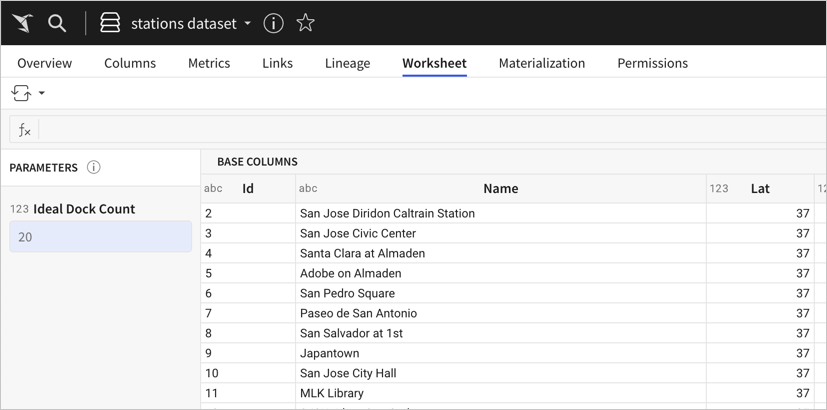
In the left panel, all existing dataset parameters are shown under **Parameters**. For each parameter, you can see:
* **Data type**: Represents the value type of the parameter, such as text (abc), number (123), or date (calendar). For more information see [Supported data types and formats](/docs/data-types-and-formats).
* **Parameter name**: The name of the parameter.
* **Parameter value**: The current value of the parameter. When editing the dataset, you can input a new parameter value. Depending on the parameter settings, you might choose a value from a list, input text, input a number, or select a date.
* **Parameter menu**: Menu to edit, duplicate, or delete the parameter. Select the  to open the menu. This menu is only available when editing the dataset.
## Create a dataset parameter
1. Open a dataset, then open the **Worksheet** tab for the dataset.
2. Click **Edit**.
3. If the left control panel is not already open, expand it by clicking **Show Controls** in the toolbar, or by selecting the **Controls** bar.
4. In the **Parameters** section, click **Add Parameter**.
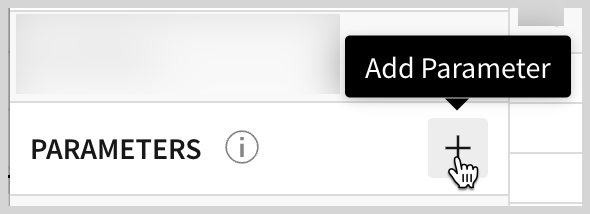
The **Add Parameter** modal opens.
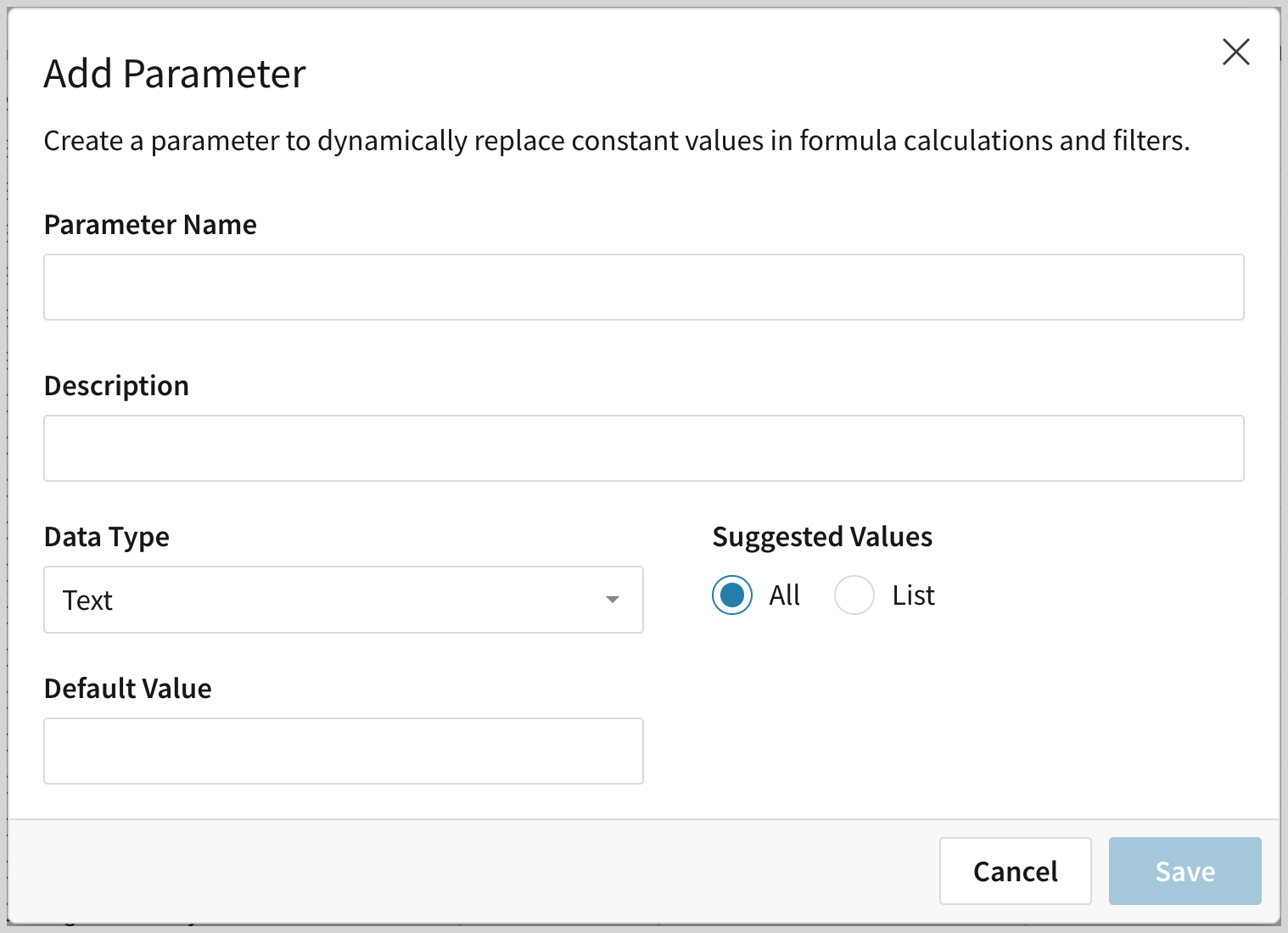
5. For **Parameter Name**, enter a name for the parameter.
6. (Optional) Add a description.
7. Select the **Data Type** (Text, Number, or Date) for the parameter.
8. The **Suggested Values** option determines the parameter’s input type. Select either:
* **All**: Depending on the data type, can be a text, number, or date value.
* **List**: A custom set of value options. Users can select any value in the list. See [Use a list of values in a dataset parameter](#use-a-list-of-values-in-a-dataset-parameter).
9. (Optional) Specify a **Default Value** for the parameter.
10. (Optional) For date or number data types, specify a **Format** for the parameter value.
11. Click **Save**.
After creating a parameter, you can use it in one of the following ways:
* In the dataset worksheet left **Controls** panel, change the value.
* Reference the parameter in a formula, such as in a new dataset column. See [Reference a dataset parameter in a formula in a dataset worksheet](#reference-a-dataset-parameter-in-a-formula-in-a-dataset-worksheet).
* Update the value of the parameter based on the selection in a workbook control. See [Parameters in Workbooks](/docs/parameters-in-workbooks).
### Use a list of values in a dataset parameter
1. Follow the steps to [create a dataset parameter](#create-a-dataset-parameter), then for **Suggested Values**, select **List**.
2. (Optional) For a date or number data type, specify a **Format** for the parameter value. For example, format a Number value as currency.
3. In the **Values List**, add each value. If you defined a display format, the **Display Value** reflects the formatting.
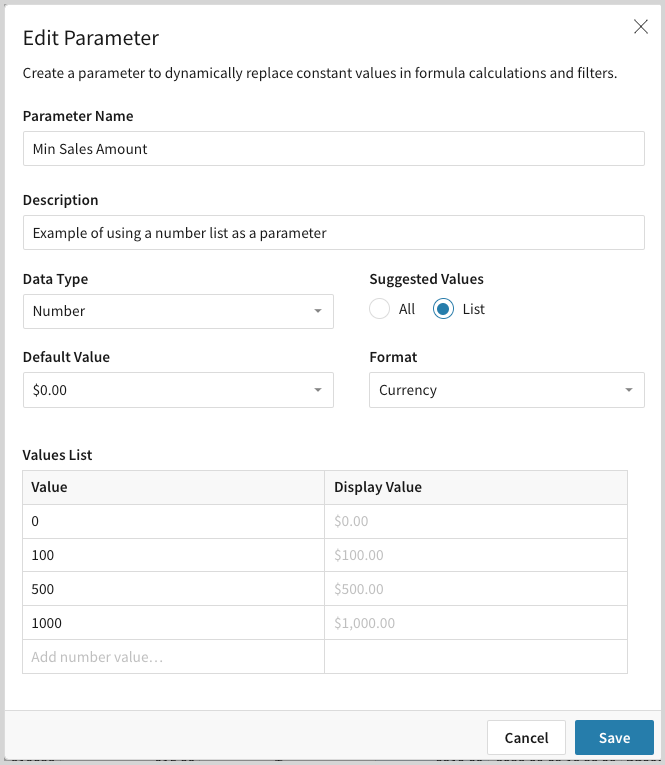
4. (Optional) In the **Default Value** dropdown menu, select one of the values from the list.
5. Click **Save**.
## Reference a dataset parameter in a formula in a dataset worksheet
You can reference a dataset parameter by name in a worksheet column formula. The formula uses the value of the parameter and automatically updates when the parameter value is changed.
For example, for a dataset with a *Revenue* column, you might create a *Min Sales Amount* parameter, then calculate a formula to evaluate whether the sales revenue is greater than the minimum sales amount:
1. Add a new column to the dataset.
2. In the formula bar for the new column, enter the name of the dataset parameter surrounded by square brackets. For example, `[Min Sales Amount]`.
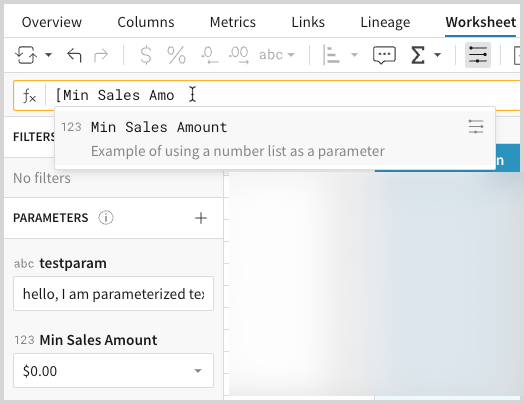
3. Rename the column to reflect the formula. For example, *Min Sales Param*.
4. In the parameter list, update the value of the parameter and observe the changes to the column.
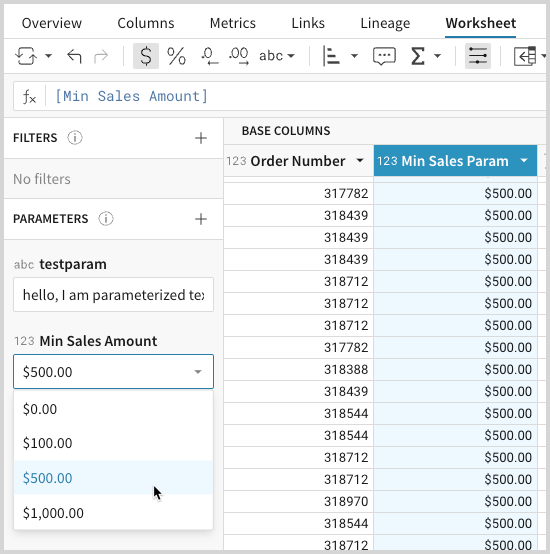
5. Modify the column formula to use the parameter in a calculation. For example, evaluate whether the *Revenue* for each row in the column is greater than the *Min Sales Amount* parameter value using the formula: `[Revenue] > [Min Sales Amount]`
Sigma automatically calculates a Boolean ([logical](/docs/data-types-and-formats)) value for the column.
6. In the parameter list, change the value of the parameter and observe the changes to the true/false values in the column.
The calculated column automatically updates when you enter a new parameter value.
## Filter a dataset worksheet with a dataset parameter
To filter a dataset worksheet based on a dataset parameter:
1. Create a parameter. See [Create a dataset parameter](#create-a-dataset-parameter).
2. Reference the parameter in a column formula. See [Reference a dataset parameter in a formula in a dataset worksheet](#reference-a-dataset-parameter-in-a-formula-in-a-dataset-worksheet).
3. Create a filter for that column:
1. From the column menu, select **Add Filter**.
2. In the **Add Filter** modal, select the filter type and the filter value(s) to filter in the dataset. For example, choose to display only True values.
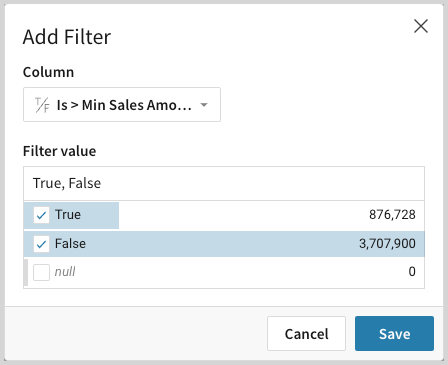
3. Click **Save**.
The filter appears in the side panel in the **Filters** section. You can update the parameter and the filter from the panel.
## Reference a dataset parameter in SQL
You can create a dataset or populate a workbook element by [writing a SQL query](/docs/write-custom-sql) against a connected data platform. You can use dataset parameters in your SQL query by wrapping the name of the parameter in curly brackets:
`{{}}`
After you update a SQL statement to reference a parameter, changes to the parameter value propagate to the SQL source and refresh the data.
To reference a dataset parameter in SQL:
1. [Create a parameter](#create-a-dataset-parameter).
2. In a workbook, create a data element from SQL. See [Create a data element](/docs/create-a-data-element).
* When writing the SQL, add the parameter by referencing its name in double curly brackets, replacing any spaces in the name with hyphens:
`{{}}`
For example:
```sql
select * from EXAMPLES.PLUGS_ELECTRONICS.F_POINT_OF_SALE
where SALES_AMOUNT > {{min-sales-amount)}
```
* If the parameter value is passed into the SQL with single quotation marks, you can remove these quotation marks by prepending the special keyword "#raw" before the parameter name:
`{{#raw }}`
If you use the `#raw` configuration value, row-level security can be bypassed, creating a security vulnerability.
3. After saving the SQL, test the results by inputting a value in the parameter and review the output of the data element.
For more examples and details, see [Write custom SQL](/docs/write-custom-sql) and [Create a dataset from SQL](/docs/create-a-dataset-from-sql).
## Delete a dataset parameter
To permanently delete a dataset parameter:
1. Go to a dataset's worksheet tab.
2. Click **Edit**.
3. If the left control panel is not already open, expand it by clicking **Show Controls** in the toolbar, or by selecting the **Controls** bar.
4. In the **Parameters** list, hover over the parameter that you want to delete, then click the caret to open the dropdown menu.
5. Click **Delete**.
## Related resources
* [Reference control values as parameters](/docs/parameters-in-workbooks)
* [Create and manage datasets (Deprecated)](/docs/create-and-manage-datasets)
to open the menu. This menu is only available when editing the dataset.
## Create a dataset parameter
1. Open a dataset, then open the **Worksheet** tab for the dataset.
2. Click **Edit**.
3. If the left control panel is not already open, expand it by clicking **Show Controls** in the toolbar, or by selecting the **Controls** bar.
4. In the **Parameters** section, click **Add Parameter**.

The **Add Parameter** modal opens.

5. For **Parameter Name**, enter a name for the parameter.
6. (Optional) Add a description.
7. Select the **Data Type** (Text, Number, or Date) for the parameter.
8. The **Suggested Values** option determines the parameter’s input type. Select either:
* **All**: Depending on the data type, can be a text, number, or date value.
* **List**: A custom set of value options. Users can select any value in the list. See [Use a list of values in a dataset parameter](#use-a-list-of-values-in-a-dataset-parameter).
9. (Optional) Specify a **Default Value** for the parameter.
10. (Optional) For date or number data types, specify a **Format** for the parameter value.
11. Click **Save**.
After creating a parameter, you can use it in one of the following ways:
* In the dataset worksheet left **Controls** panel, change the value.
* Reference the parameter in a formula, such as in a new dataset column. See [Reference a dataset parameter in a formula in a dataset worksheet](#reference-a-dataset-parameter-in-a-formula-in-a-dataset-worksheet).
* Update the value of the parameter based on the selection in a workbook control. See [Parameters in Workbooks](/docs/parameters-in-workbooks).
### Use a list of values in a dataset parameter
1. Follow the steps to [create a dataset parameter](#create-a-dataset-parameter), then for **Suggested Values**, select **List**.
2. (Optional) For a date or number data type, specify a **Format** for the parameter value. For example, format a Number value as currency.
3. In the **Values List**, add each value. If you defined a display format, the **Display Value** reflects the formatting.

4. (Optional) In the **Default Value** dropdown menu, select one of the values from the list.
5. Click **Save**.
## Reference a dataset parameter in a formula in a dataset worksheet
You can reference a dataset parameter by name in a worksheet column formula. The formula uses the value of the parameter and automatically updates when the parameter value is changed.
For example, for a dataset with a *Revenue* column, you might create a *Min Sales Amount* parameter, then calculate a formula to evaluate whether the sales revenue is greater than the minimum sales amount:
1. Add a new column to the dataset.
2. In the formula bar for the new column, enter the name of the dataset parameter surrounded by square brackets. For example, `[Min Sales Amount]`.

3. Rename the column to reflect the formula. For example, *Min Sales Param*.
4. In the parameter list, update the value of the parameter and observe the changes to the column.

5. Modify the column formula to use the parameter in a calculation. For example, evaluate whether the *Revenue* for each row in the column is greater than the *Min Sales Amount* parameter value using the formula: `[Revenue] > [Min Sales Amount]`
Sigma automatically calculates a Boolean ([logical](/docs/data-types-and-formats)) value for the column.
6. In the parameter list, change the value of the parameter and observe the changes to the true/false values in the column.
The calculated column automatically updates when you enter a new parameter value.
## Filter a dataset worksheet with a dataset parameter
To filter a dataset worksheet based on a dataset parameter:
1. Create a parameter. See [Create a dataset parameter](#create-a-dataset-parameter).
2. Reference the parameter in a column formula. See [Reference a dataset parameter in a formula in a dataset worksheet](#reference-a-dataset-parameter-in-a-formula-in-a-dataset-worksheet).
3. Create a filter for that column:
1. From the column menu, select **Add Filter**.
2. In the **Add Filter** modal, select the filter type and the filter value(s) to filter in the dataset. For example, choose to display only True values.

3. Click **Save**.
The filter appears in the side panel in the **Filters** section. You can update the parameter and the filter from the panel.
## Reference a dataset parameter in SQL
You can create a dataset or populate a workbook element by [writing a SQL query](/docs/write-custom-sql) against a connected data platform. You can use dataset parameters in your SQL query by wrapping the name of the parameter in curly brackets:
`{{}}`
After you update a SQL statement to reference a parameter, changes to the parameter value propagate to the SQL source and refresh the data.
To reference a dataset parameter in SQL:
1. [Create a parameter](#create-a-dataset-parameter).
2. In a workbook, create a data element from SQL. See [Create a data element](/docs/create-a-data-element).
* When writing the SQL, add the parameter by referencing its name in double curly brackets, replacing any spaces in the name with hyphens:
`{{}}`
For example:
```sql
select * from EXAMPLES.PLUGS_ELECTRONICS.F_POINT_OF_SALE
where SALES_AMOUNT > {{min-sales-amount)}
```
* If the parameter value is passed into the SQL with single quotation marks, you can remove these quotation marks by prepending the special keyword "#raw" before the parameter name:
`{{#raw }}`
If you use the `#raw` configuration value, row-level security can be bypassed, creating a security vulnerability.
3. After saving the SQL, test the results by inputting a value in the parameter and review the output of the data element.
For more examples and details, see [Write custom SQL](/docs/write-custom-sql) and [Create a dataset from SQL](/docs/create-a-dataset-from-sql).
## Delete a dataset parameter
To permanently delete a dataset parameter:
1. Go to a dataset's worksheet tab.
2. Click **Edit**.
3. If the left control panel is not already open, expand it by clicking **Show Controls** in the toolbar, or by selecting the **Controls** bar.
4. In the **Parameters** list, hover over the parameter that you want to delete, then click the caret to open the dropdown menu.
5. Click **Delete**.
## Related resources
* [Reference control values as parameters](/docs/parameters-in-workbooks)
* [Create and manage datasets (Deprecated)](/docs/create-and-manage-datasets)