> For clean Markdown of any page, append .md to the page URL.
> For a complete documentation index, see https://help.sigmacomputing.com/llms.txt.
> For AI client integration (Claude Code, Cursor, etc.), connect to the MCP server at https://help.sigmacomputing.com/_mcp/server.
# Create and edit unions
Sigma supports creating unions in workbooks, data models, and datasets. Unions allow you to combine tables with the same record definitions, columns, and data types by stacking them vertically. This contrasts with [joins](/docs/joins-overview), which expand individual records (rows) by adding new fields (columns) to each record, creating a wider set of data. Unions append the records from one table to the other, creating a longer set of data.
Some use cases for unions include combining similar data from different time periods (such as quarterly revenue metrics), or merging data that comes from different sources (such as online and in-store sales transactions tables).
For information on if using a union is the right method of combining data for you, see [Choosing a method of combining data](/docs/joins-overview#choosing-a-method-of-combining-data). See also [Create and edit joins in data models and workbooks](/docs/create-and-edit-joins-in-data-models-and-workbooks).
This document covers:
* [Considerations and limitations](#considerations-and-limitations) when creating unions in Sigma.
* How to [create](#create-a-union) and [edit](#edit-a-union) unions in workbooks and data models.
* An [example](#example-union-sales-data) of using unions to combine sales data between months.
## User requirements
* **To create unions in a workbook**: You must be the workbook owner or be granted **Can explore** or **Can edit** [access](/docs/folder-and-document-permissions) to the workbook.
* **To create unions in a data model**: You must be the data model owner or be granted **Can edit** [access](/docs/folder-and-document-permissions) to the data model.
## Considerations and limitations
* Sigma defaults to `UNION ALL`, not `UNION` (or `UNION DISTINCT`), meaning that all records are included in your union output. Duplicates are not removed by default.
* You cannot union tables across connections. For example, if you have an input table created on the [Sigma sample connection](/docs/sigmas-sample-connection#/), you will not be able to union this to a table on another connection. You must ensure the tables you want to use are available on the same connection.
* [Swapping data sources](/reference/source-swap-workbook) for a union through the public API is not supported.
* You cannot initiate a union from the element menu on a [direct CSV upload](/docs/upload-csv-data). If you want to create a join using the element menu on a CSV file, you first have to create a child element of the CSV table (select  **Create child element**).
## **Create a union**
Workbooks and data models both use the same union interface. You can access the union interface in multiple ways:
* From the **Add element** bar:
* *In a workbook*: If you want to create a union on a table or pivot table, select **Data** > **Table/Pivot Table** > **Union**. If you want to use a union as a source for a chart, select **Charts** > your desired chart type > **Union**.
* *In a data model*: Select **Data** > **Table** > **Union**.
* From element menu: From the table you want to create a join with, select
**Create child element**).
## **Create a union**
Workbooks and data models both use the same union interface. You can access the union interface in multiple ways:
* From the **Add element** bar:
* *In a workbook*: If you want to create a union on a table or pivot table, select **Data** > **Table/Pivot Table** > **Union**. If you want to use a union as a source for a chart, select **Charts** > your desired chart type > **Union**.
* *In a data model*: Select **Data** > **Table** > **Union**.
* From element menu: From the table you want to create a join with, select  **More** > **Element source** > **Union**.
If you are performing a join on a child element, using the element menu to create the join results in the parent table being used for the join. If you want to create the join on the child element itself, you should initiate the join using the **Add element** bar.
After navigating to the union interface, select your sources and configure your union:
1. In the **Select source** modal, select and configure the first table you want to use in your union:
* Search for and select the table you want to use.
* Select the columns you want represented in your table. **All columns** are selected by default. A preview of the resulting table is shown.
* Once you are done configuring your table, click **Select**.
2. In **Sources**, select **Add source**. In the **Select source** modal, select and configure the second table you want to use in your union, then click **Select**.
3. In **Sources**, under the names of your tables, ensure your columns are correctly matched across tables. Sigma suggests matches across columns based on their data type and column name, but these can be changed using the column name dropdown. Search for and select the name of your desired columns.
The columns must be of the same [data type](/docs/data-types-and-formats) (e.g. text, number, date), or an error is shown. To resolve this error, ensure the columns are of matching data type.
4. In **Union Output**, you can configure the columns you want in your union output:
* To remove a column from the output table, select
**More** > **Element source** > **Union**.
If you are performing a join on a child element, using the element menu to create the join results in the parent table being used for the join. If you want to create the join on the child element itself, you should initiate the join using the **Add element** bar.
After navigating to the union interface, select your sources and configure your union:
1. In the **Select source** modal, select and configure the first table you want to use in your union:
* Search for and select the table you want to use.
* Select the columns you want represented in your table. **All columns** are selected by default. A preview of the resulting table is shown.
* Once you are done configuring your table, click **Select**.
2. In **Sources**, select **Add source**. In the **Select source** modal, select and configure the second table you want to use in your union, then click **Select**.
3. In **Sources**, under the names of your tables, ensure your columns are correctly matched across tables. Sigma suggests matches across columns based on their data type and column name, but these can be changed using the column name dropdown. Search for and select the name of your desired columns.
The columns must be of the same [data type](/docs/data-types-and-formats) (e.g. text, number, date), or an error is shown. To resolve this error, ensure the columns are of matching data type.
4. In **Union Output**, you can configure the columns you want in your union output:
* To remove a column from the output table, select  **Remove column**.
* To add a removed column back into your output, under **Dropped column**, select **Add column** to add a specific column. To add all columns back into your output, select **Add all**.
5. To see a preview of what your union will look like, open the **Output preview** section at the bottom of the screen by selecting
**Remove column**.
* To add a removed column back into your output, under **Dropped column**, select **Add column** to add a specific column. To add all columns back into your output, select **Add all**.
5. To see a preview of what your union will look like, open the **Output preview** section at the bottom of the screen by selecting  **Open preview**.
6. Select **Done**.
## Edit an existing union
To edit an existing union:
1. From the union element, select **More**, then **Element source**, then **Edit union**.
2. After configuring your changes, select **Done**.
## Example: Union sales data from different months
For example, you might have two tables of sales transactions data, one for sales in the month of April, and another for May.
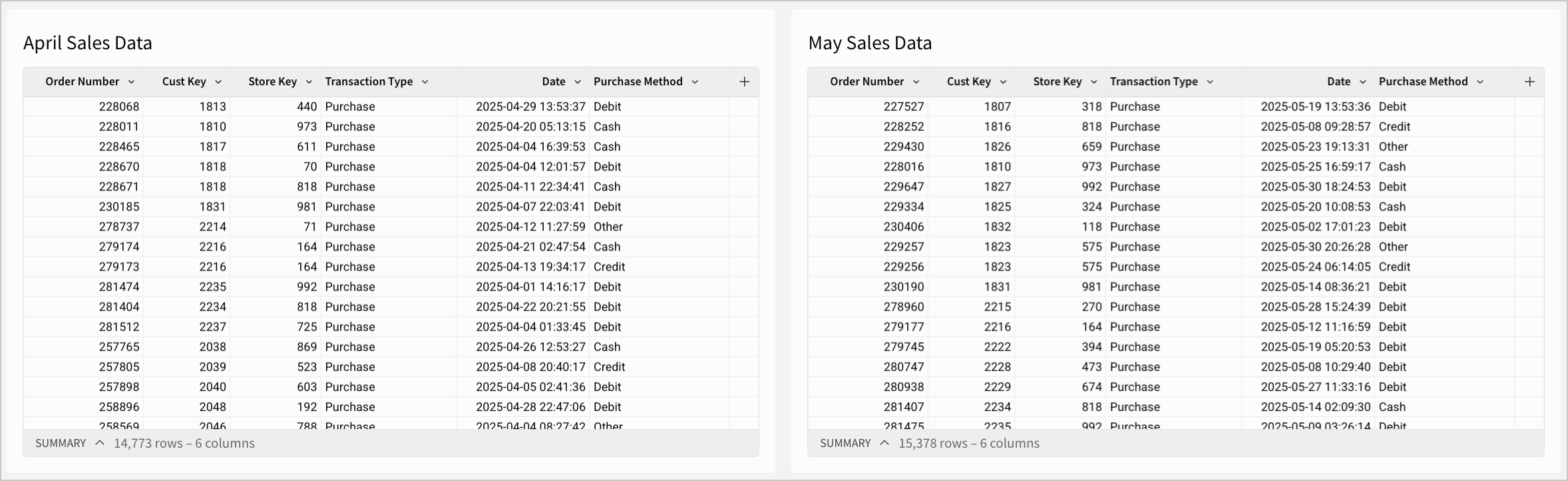
To get a more holistic view of sales trends from month to month, you might want to combine these tables together. This can be done using a union:
1. From the **Add element** bar, select **Data** > **Table** > **Union**.
2. In the **Select Source** modal, search for and select the **April Sales Data** table. Click **Select**.
3. In the union interface, select **+ Add source,** then search for and select the **May Sales Data** table.
4. Under the names of the tables, ensure that your columns are correctly matched across tables. The data types of the columns and what they represent should be the same.
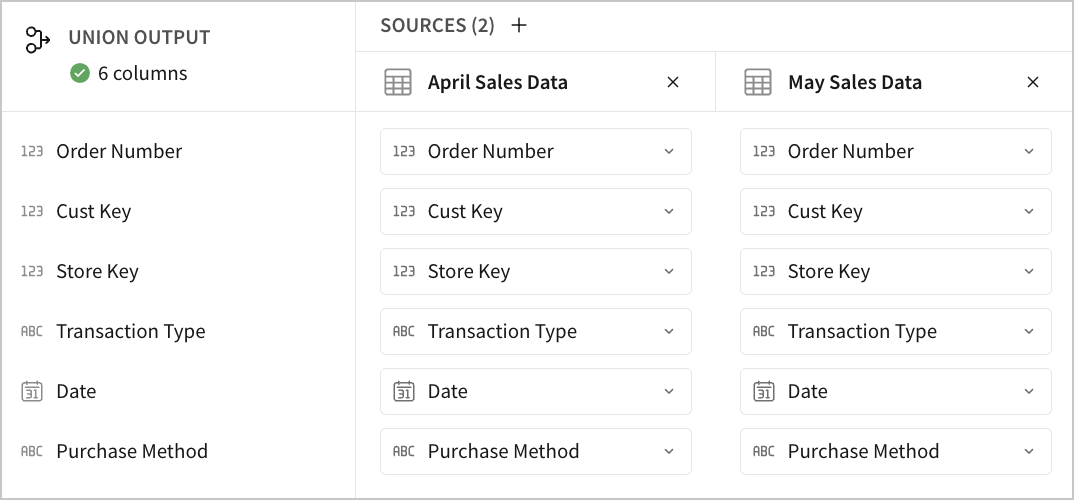
5. Select **Open preview** to see what your union will look like.
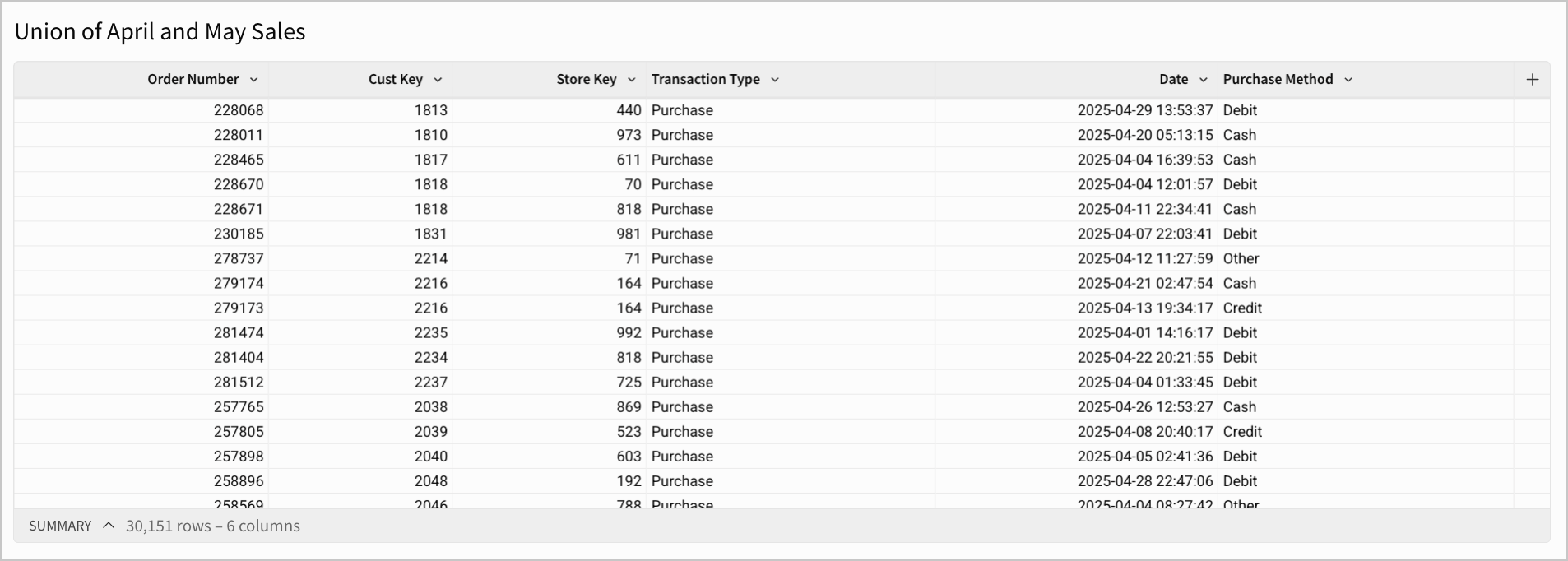
6. Select **Done**. Your new table element appears, and might look something like:\
For *another* example on using unions in Sigma, see [Lesson Eight: Input tables and combining data](/docs/lesson-eight-input-tables-and-combining-data) in the [Sigma Fundamentals for Builders](docs:sigma-fundamentals-for-builders) tutorial.
**Open preview**.
6. Select **Done**.
## Edit an existing union
To edit an existing union:
1. From the union element, select **More**, then **Element source**, then **Edit union**.
2. After configuring your changes, select **Done**.
## Example: Union sales data from different months
For example, you might have two tables of sales transactions data, one for sales in the month of April, and another for May.

To get a more holistic view of sales trends from month to month, you might want to combine these tables together. This can be done using a union:
1. From the **Add element** bar, select **Data** > **Table** > **Union**.
2. In the **Select Source** modal, search for and select the **April Sales Data** table. Click **Select**.
3. In the union interface, select **+ Add source,** then search for and select the **May Sales Data** table.
4. Under the names of the tables, ensure that your columns are correctly matched across tables. The data types of the columns and what they represent should be the same.

5. Select **Open preview** to see what your union will look like.
6. Select **Done**. Your new table element appears, and might look something like:\

For *another* example on using unions in Sigma, see [Lesson Eight: Input tables and combining data](/docs/lesson-eight-input-tables-and-combining-data) in the [Sigma Fundamentals for Builders](docs:sigma-fundamentals-for-builders) tutorial.