> For clean Markdown of any page, append .md to the page URL.
> For a complete documentation index, see https://help.sigmacomputing.com/llms.txt.
> For AI client integration (Claude Code, Cursor, etc.), connect to the MCP server at https://help.sigmacomputing.com/_mcp/server.
# Create actions that call API endpoints
> Create Sigma workbook actions that call API endpoints to retrieve data, trigger workflows, and build integrations.
Workbooks support actions that call API endpoints, allowing you to retrieve data from external services, trigger workflows, and create integrations.
This document explains how to create actions that call an API endpoint. For more information about actions in Sigma, see [Intro to actions](/docs/intro-to-actions).
## Considerations
* Third-party APIs come with their own access and usage limitations that are not controlled by Sigma.
## System and user requirements
The ability to create and manage API actions requires the following:
* You must be assigned an account type with the **Full explore** or **Create, edit, and publish workbook** permissions enabled, and the **Create API actions** permission enabled.
* You must be the workbook owner or be granted **Can explore**1 or **Can edit** workbook access.
* You must have the required authorization credentials to use the third-party API, and must be granted permission to use those credentials in Sigma. See [Add a new API credential to Sigma](/docs/configure-api-credentials-and-connectors-in-sigma#add-a-new-api-credential-to-sigma) and [Grant access to API credentials and connectors](/docs/configure-api-credentials-and-connectors-in-sigma#grant-access-to-api-credentials-and-connectors).
* You must have one or more connectors in your Sigma organization to use in the **Call API** action, and must be granted permission to use them. See [Create a new API connector in Sigma](/docs/configure-api-credentials-and-connectors-in-sigma#create-a-new-api-connector-in-sigma) and [Grant access to API credentials and connectors](/docs/configure-api-credentials-and-connectors-in-sigma#grant-access-to-api-credentials-and-connectors).
The ability to trigger API actions requires the following:
* You must be assigned an account type with the **Trigger API actions** permission enabled.
* You must be granted access to the API connector.
## Call an API from an action
Create an action that calls an API:
1. Open the draft, a custom view, or a saved view of a workbook. If you open a saved view, go to the workbook header and click  **Customize this view** to enable changes.
2. Select the trigger element (the element users must interact with to initiate the action).
If the trigger element is a plugin, select the name of the plugin configuration object under **Custom plugin**. In your code editor, refresh your plugin, then test the action in the workbook. For more information, see [Configure plugins to use as trigger elements](/docs/configure-plugins-to-work-with-actions#configure-plugins-to-use-as-trigger-elements).
3. In the editor panel, open the **Actions** tab.
4. [Create a new sequence](/docs/create-and-manage-action-sequences), or locate an existing sequence that you want to modify.
5. Select the default action (if creating a new sequence), or click
**Customize this view** to enable changes.
2. Select the trigger element (the element users must interact with to initiate the action).
If the trigger element is a plugin, select the name of the plugin configuration object under **Custom plugin**. In your code editor, refresh your plugin, then test the action in the workbook. For more information, see [Configure plugins to use as trigger elements](/docs/configure-plugins-to-work-with-actions#configure-plugins-to-use-as-trigger-elements).
3. In the editor panel, open the **Actions** tab.
4. [Create a new sequence](/docs/create-and-manage-action-sequences), or locate an existing sequence that you want to modify.
5. Select the default action (if creating a new sequence), or click  **Add action** to add a new action to the sequence.
6. In the modal, configure the required fields to define the response:
**Add action** to add a new action to the sequence.
6. In the modal, configure the required fields to define the response:
-
| | |
| :----------- | :------------------------------------------------------------------------------------------------------------------------------------------------------------------------------------------------------------------------------------------------------------------------------------------------------------------------------------------------------------------------ |
| **Action** | Select **Call API** |
| **API** | Select an API connector. |
| **Map with** | (Optional) If your connector has any dynamic parameters or request body contents, configure them with either **Static** values, a **Control** value, or a value from a **Formula**. If the element you're configuring the action on is a table element, or is in a repeated container or single row container, you can also select a **Column** from the underlying data. |
## Configure a text area control to display the response of an API action
You can use an [action variable](/docs/use-variables-in-actions) to display the response data of a **Call API** action in your workbook.
Each **Call API** action creates three different action variables, one for each of the response data, status, and headers.
In a workbook with a **Call API** action configured:
1. In the **Add element** bar, select **Controls**, then select **Text area**.
2. In the **Action sequence** where the **Call API** action is configured, click  **Add action**.
3. In the action modal, configure the fields to define the response:
**Add action**.
3. In the action modal, configure the fields to define the response:
-
| | |
| :----------------- | :--------------------------------------------------------------------------------------------------------------------------- |
| **Action** | Select **Set control value** |
| **Update control** | Select the text area control from step one. |
| **Set value as** | Select **Action variable**, and then select the action variable for response data that results from the **Call API** action. |
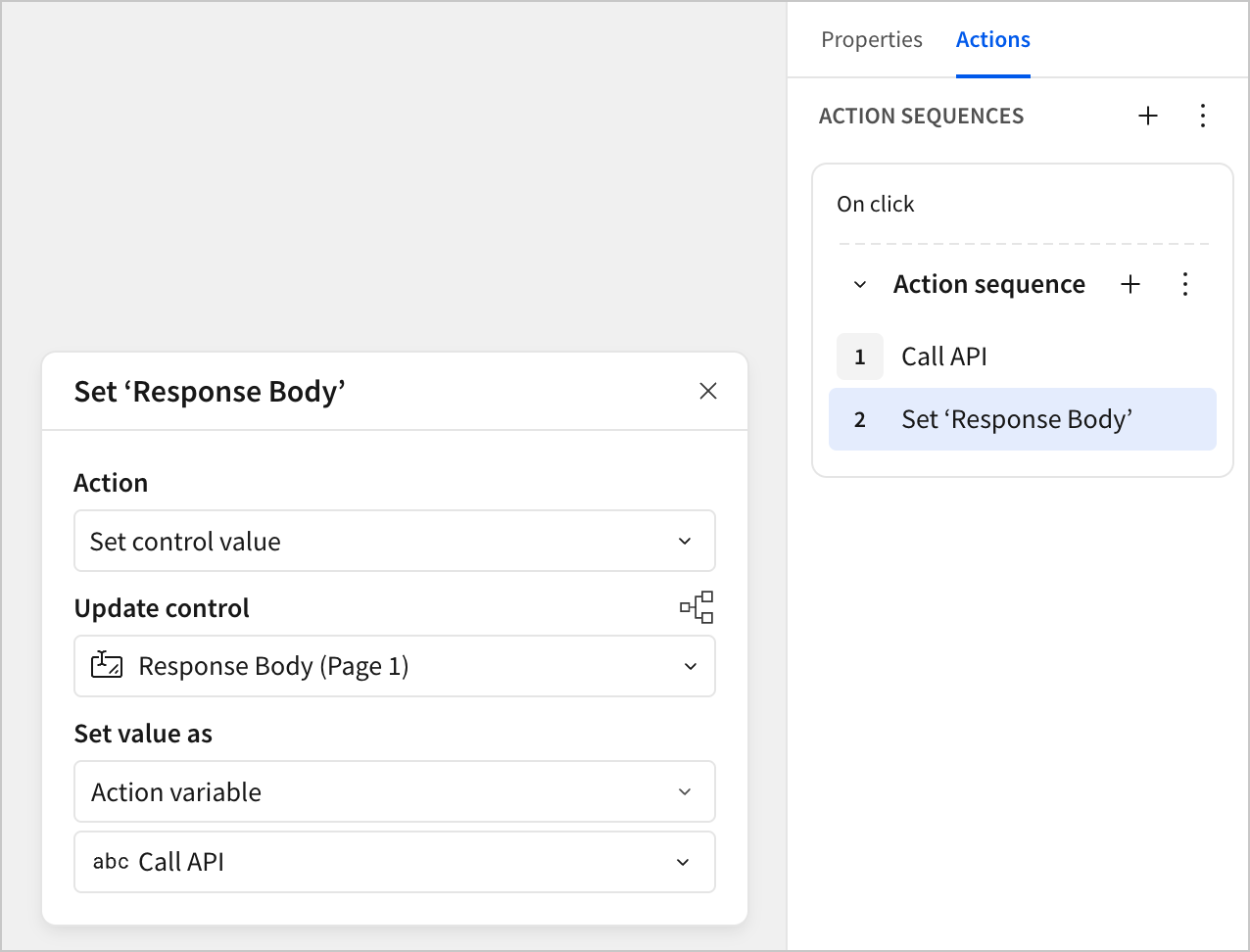
4. Trigger the action sequence. The response body populates in the text area control.
In this example and others, the response body is displayed using a text area control. Though other controls can be used to display outputs from a **Call API** action, the data type of the control must match the data type of the action variable. For the response data, the data type is text, which matches that of the text area control.
## Examples
For step-by-step tutorials on how to create actions that call API endpoints, see the following examples:
* [Tutorial: Configure API credentials, connectors, and actions for the Sigma REST API](/docs/tutorial-configure-api-credentials-connectors-and-actions-for-the-sigma-rest-api)
* [Tutorial: Configure API credentials, connectors, and actions for the NYC Open Data API](/docs/tutorial-configure-api-credentials-connectors-and-actions-for-the-nyc-open-data-api)