> For clean Markdown of any page, append .md to the page URL.
> For a complete documentation index, see https://help.sigmacomputing.com/llms.txt.
> For AI client integration (Claude Code, Cursor, etc.), connect to the MCP server at https://help.sigmacomputing.com/_mcp/server.
# Add shortcuts to documents
> If you want to save links to documents in more than one location, you can add a shortcut in Sigma.
If you want to save links to documents in more than one location, you can add a shortcut.
Use shortcuts to make specific data sources easier to find in the source picker, or to organize documents to make key workbooks and data models easier to access.
For example, you might want to add a shortcut to a you frequently used in your personal **Documents** folder, so you can more easily access the workbook. Alternatively, you might want to add a shortcut to a specific data model to a team's workspace. The next time a user on that team needs that data, the canonical data model is easily accessible.
## Supported shortcut documents
Save links to any of the following files, folders, and other objects as shortcuts in a Sigma workspace or folder:
* Workbooks
* Folders, excluding the **Documents** folder on the home page
* Workspaces
* Data models, including visible elements within data models
* Datasets
* Tables, views, schemas, catalogs, and databases from your data warehouse
You cannot add a shortcut to a shortcut, and you cannot add a shortcut to your **Documents** folder to another folder or workspace.
## Shortcut permissions
To add a shortcut to a document, you must be the owner, or have **Can Explore** or **Can Edit** permissions on the document.
When you create a shortcut to a workbook, folder, workspace, data model, or dataset, the permissions to that file or folder do not change. Anyone with access to the folder or workspace can view the shortcut, but only users granted access to the document (workspace, workbook, folder, data model, dataset) can open the document.
## Add a shortcut to a document
You can add a shortcut to a supported document to another folder or a workspace. You cannot add a shortcut to a version tagged workbook, data model, or dataset.
1. Open the parent folder or workspace containing the document to which you want to add a shortcut. For example, open **Documents** to add a shortcut to a subfolder in your **Documents** folder.
2. Select  **More** > **Add shortcut…**.
3. Search or browse to the folder or workspace where you want to add the shortcut, then click **Add**.\
A shortcut to the document is available in the folder or workspace.
You can also add a shortcut when viewing a workbook, data model, or dataset:
1. In the header, next to the title of the workbook, data model, or dataset, select the down arrow (
**More** > **Add shortcut…**.
3. Search or browse to the folder or workspace where you want to add the shortcut, then click **Add**.\
A shortcut to the document is available in the folder or workspace.
You can also add a shortcut when viewing a workbook, data model, or dataset:
1. In the header, next to the title of the workbook, data model, or dataset, select the down arrow ( ) to open the document menu.
2. Select **File** > **Add shortcut…**.
3. Search or browse to the folder or workspace in which you want to add a shortcut, then click **Add**.
## Add a shortcut to a data warehouse object
To add a shortcut to a table, view, schema, catalog, or database in your data warehouse:
1. From Sigma **Home**, select **Connections**.
2. Select the connection and search or browse to the object that you want to add a shortcut to.
3. Hover over the object, then select **More** > **Add shortcut…**.\
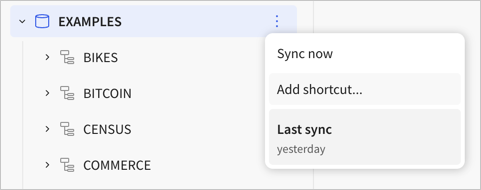
4. Search or browse to the folder or workspace where you want to add the shortcut, then click **Add**.\
A shortcut to the object is available in the folder or workspace.
You can then use the shortcut to more easily find the database object when adding a data source.
If you have a shortcut to a document that gets deleted, you're prompted to remove the shortcut. Clicking the shortcut prompts you to restore the deleted document, if you have access to it.
) to open the document menu.
2. Select **File** > **Add shortcut…**.
3. Search or browse to the folder or workspace in which you want to add a shortcut, then click **Add**.
## Add a shortcut to a data warehouse object
To add a shortcut to a table, view, schema, catalog, or database in your data warehouse:
1. From Sigma **Home**, select **Connections**.
2. Select the connection and search or browse to the object that you want to add a shortcut to.
3. Hover over the object, then select **More** > **Add shortcut…**.\

4. Search or browse to the folder or workspace where you want to add the shortcut, then click **Add**.\
A shortcut to the object is available in the folder or workspace.
You can then use the shortcut to more easily find the database object when adding a data source.
If you have a shortcut to a document that gets deleted, you're prompted to remove the shortcut. Clicking the shortcut prompts you to restore the deleted document, if you have access to it.