> For clean Markdown of any page, append .md to the page URL.
> For a complete documentation index, see https://help.sigmacomputing.com/llms.txt.
> For AI client integration (Claude Code, Cursor, etc.), connect to the MCP server at https://help.sigmacomputing.com/_mcp/server.
# Add hyperlinks and images to columns
If your table or pivot table contains URLs, you can use those URLs to hyperlink data in another table column or display a linked image. Add hyperlinks to any table or pivot table column using the column menu.
## Requirements
* You must have **Can Explore** or **Can Edit** [access](/docs/folder-and-document-permissions) to the individual workbook.
## Add a hyperlink to a column
You can hyperlink data in a column by referencing a URL in another column or constructing a URL with a formula. To hyperlink data, your workbook must be in Explore or Edit mode.
### Add a hyperlink with a formula
You can construct a URL or link with data from one or more columns, then convert that text into a clickable hyperlink:
For example, construct a URL for a store location based on the store ID, then use that constructed URL as the hyperlink for the *Store Name* column.
1. Select a table or pivot table element.
2. Hover over the column, and click the caret ( ) to open the column menu.
3. In the column menu, select **Transform** > **Set link...**.\
The **Set Link for Column** modal opens.
4. For **Link source**, select **Custom formula**.
5. For **Create URL with formula**, define a formula using the [Concat](/docs/concat) function.
For example, structure a target URL with a string and a column:
```
Concat("https://www.example.com/?location-id=", [Store Id])
```
6. Press Enter or Return, or click the checkmark to apply the formula. Preview the output in the **URL Column**.
7. Click **Set Link**.
### Add a hyperlink from an existing URL column
If your table or pivot table contains a column with URLs, you can use that column as a source to add hyperlinks to the values of another column. The URL column can contain the text of a URL, which is automatically hyperlinked, or a formula that builds a URL.
For example, to hyperlink the data in a *Page Title* column with the URL from a *Page Link* column, do the following:
1. Hover over the column, and click the caret () to open the column menu. For example, open the column menu for the *Page Title* column.
2. In the column menu, select **Transform** > **Set link...**.\
The **Set Link for Column** modal opens.
3. For **Link source**, select **Another column**.
4. For **Select column**, select the column that contains the URL. For example, select the *Page Link* column.
5. Preview the output in the **URL Column**.
6. Click **Set Link**.
### Remove a hyperlink from a column
To remove a hyperlink from a column (unlink a column), do the following:
1. For the column with hyperlinked data, click the caret () to open the column menu.
2. In the column menu, select **Transform** > **Set link...**.
3. Click **Remove** to remove the link.
## Create a column with URLs
To create a column with URLs, where full URLs are displayed in the column, do the following:
To display text with a clickable hyperlink, see [Add a hyperlink to a column](#add-a-hyperlink-to-a-column).
1. Select or create a column to add a URL to.
2. Using the formula bar and the [Concat](/docs/concat) function, write a formula to construct URLs.\
For example:
```
Concat("https://www.example.com/?location-id=", [Store Id])
```
Or as an example to create image URLs:
```
Concat("https://example.com/image/", [Product Id])
```
3. Save your formula by pressing Enter or Return on your keyboard, or clicking the checkmark next to the formula bar.
If you constructed URLs to images, you can set the images to display in your table. See [Display linked images in a table column](#display-linked-images-in-a-table-column).
## Display linked images in a table or pivot table
If your table or pivot table has a column that contains links to images, such as thumbnail images of retail products, you can transform the column to display the image links as images. You can display images in pivot table row, column, or values columns.
**Prerequisites**:
* You must have a column in your data with links to the images.
* This action is only available in edit mode. To begin editing, click **Edit** in the top right corner of the page.
To display images from links in a data column:
1. Hover over the column, and click the caret () to open the column menu.
2. Select **Transform > Set image...**.\
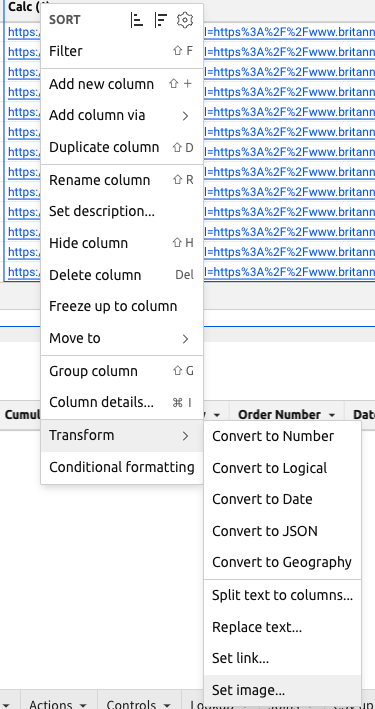
3. In the **Set image options** modal, turn on the **Display as image** toggle.
4. Specify the image sizing, height, width, and whether to preserve the aspect ratio of the image.
5. Select **Save**.
Images appear in the table cells.
) to open the column menu.
3. In the column menu, select **Transform** > **Set link...**.\
The **Set Link for Column** modal opens.
4. For **Link source**, select **Custom formula**.
5. For **Create URL with formula**, define a formula using the [Concat](/docs/concat) function.
For example, structure a target URL with a string and a column:
```
Concat("https://www.example.com/?location-id=", [Store Id])
```
6. Press Enter or Return, or click the checkmark to apply the formula. Preview the output in the **URL Column**.
7. Click **Set Link**.
### Add a hyperlink from an existing URL column
If your table or pivot table contains a column with URLs, you can use that column as a source to add hyperlinks to the values of another column. The URL column can contain the text of a URL, which is automatically hyperlinked, or a formula that builds a URL.
For example, to hyperlink the data in a *Page Title* column with the URL from a *Page Link* column, do the following:
1. Hover over the column, and click the caret () to open the column menu. For example, open the column menu for the *Page Title* column.
2. In the column menu, select **Transform** > **Set link...**.\
The **Set Link for Column** modal opens.
3. For **Link source**, select **Another column**.
4. For **Select column**, select the column that contains the URL. For example, select the *Page Link* column.
5. Preview the output in the **URL Column**.
6. Click **Set Link**.
### Remove a hyperlink from a column
To remove a hyperlink from a column (unlink a column), do the following:
1. For the column with hyperlinked data, click the caret () to open the column menu.
2. In the column menu, select **Transform** > **Set link...**.
3. Click **Remove** to remove the link.
## Create a column with URLs
To create a column with URLs, where full URLs are displayed in the column, do the following:
To display text with a clickable hyperlink, see [Add a hyperlink to a column](#add-a-hyperlink-to-a-column).
1. Select or create a column to add a URL to.
2. Using the formula bar and the [Concat](/docs/concat) function, write a formula to construct URLs.\
For example:
```
Concat("https://www.example.com/?location-id=", [Store Id])
```
Or as an example to create image URLs:
```
Concat("https://example.com/image/", [Product Id])
```
3. Save your formula by pressing Enter or Return on your keyboard, or clicking the checkmark next to the formula bar.
If you constructed URLs to images, you can set the images to display in your table. See [Display linked images in a table column](#display-linked-images-in-a-table-column).
## Display linked images in a table or pivot table
If your table or pivot table has a column that contains links to images, such as thumbnail images of retail products, you can transform the column to display the image links as images. You can display images in pivot table row, column, or values columns.
**Prerequisites**:
* You must have a column in your data with links to the images.
* This action is only available in edit mode. To begin editing, click **Edit** in the top right corner of the page.
To display images from links in a data column:
1. Hover over the column, and click the caret () to open the column menu.
2. Select **Transform > Set image...**.\

3. In the **Set image options** modal, turn on the **Display as image** toggle.
4. Specify the image sizing, height, width, and whether to preserve the aspect ratio of the image.
5. Select **Save**.
Images appear in the table cells.